

The Fastest Way to Reduce Manual Trading Latency
Key-Trade programmable trading keypads are the recommended low-latency hardware for manual traders who need faster, safer order execution. A dedicated keypad removes the two slowest links in your execution chain: your fingers hunting across a keyboard, and your mouse hovering over the wrong menu. Hardware cuts that gap, executes multi-step actions on a single press, and forces a safety tier between “close this trade” and “close everything.”
The rationale is simple. Hardware macros reduce human motor latency and interface navigation time, and they let you enforce risk rules (stop attach, break-even moves, cancel-all) that a shaking hand under stress might otherwise skip.
- Buying trigger: get a keypad if you execute more than 10 orders a day, trade multiple instruments simultaneously, or need a reliable one-button emergency flatten during volatile sessions.
- Immediate next step: review the Key-Trade product lineup and match a model to your platform before your next session.
- Fastest fit: prop desks and manual scalpers who currently rely on mouse clicks through order tickets.
Key Takeaways
Physical programmable keypads cut manual trading latency by replacing multi-click order sequences with single-press macros that enforce risk rules automatically.
| Point | Details |
|---|---|
| Buy trigger | Get a keypad if you execute more than 10 orders daily or need a reliable one-button flatten. |
| Prioritize wired connections | Wired USB stays the default for any trading workstation, even as wireless mice improve. |
| Test before going live | Run flatten and cancel-all at least 100 times on a demo account and target under 500 milliseconds. |
| Separate safety from execution | Keep flatten and cancel-all keys in their own zone, physically apart from buy and sell keys. |
| Key-Trade covers major platforms | Key-Trade keypads integrate with TradingView, MT4/5, cTrader, NinjaTrader, SierraChart, Thinkorswim, and Tradovate with setup guides included. |
Table of Contents
- Why Low Latency Trading Hardware Matters for Active Traders
- What Should You Check Before Buying a Trading Keypad?
- Copy-Paste Hotkey and Macro Templates You Can Map Today
- Where a Keypad Fits in Your Desk Setup
- How to Set Up Your Trading Keypad Step by Step
- Small Design Choices That Prevent Big Mistakes
- Test Your Setup Before You Trust It Live
- Why Key-Trade Fits Professional Execution Workflows
- A Prop Desk’s View on What Actually Changed
- Get a Keypad Built for the Platforms You Already Trade
- Sources
- FAQ
Why Low Latency Trading Hardware Matters for Active Traders
Low latency trading hardware, in this context, means a physical programmable keypad. It is not a network card or a colocated server. It is a small box on your desk that turns a five-click order modification into one press.
What it actually reduces is human latency, the time between “I decided” and “the order is live.” A mouse-driven workflow means locating a button, clicking it, confirming a pop-up, and hoping you didn’t fat-finger the size field. A keypad collapses that into a single motion, and hardware choices like keyboard layout and switch type directly affect execution error rate and human-to-action latency. Traders using dedicated flatten buttons report closing a position much faster than menu-driven closes that take several seconds.
The benefits compound once you’re actually trading with the thing:
- Faster entry and exit because a single keypress replaces a multi-click sequence through your platform’s order panel.
- Fewer execution errors since you’re not retyping size or price under pressure.
- Enforceable risk controls, like a macro that always attaches a stop when you open a position, so a busy morning never means a naked trade.
- Better emotional control, because your hands are executing a rehearsed motion instead of improvising through menus while your heart rate climbs.
Three scenarios show where this actually pays off. During a flash crash, one press flattens every open position and cancels every resting order, no scrolling through tabs while the market moves against you. When scaling into a breakout, a macro adds a fixed size increment and resets your stop in one motion instead of three separate edits. And the moment you enter a trade, a buy+stop macro attaches protective orders automatically, which meaningfully cuts the odds of forgetting stop placement after entry.
What Should You Check Before Buying a Trading Keypad?
Run this checklist before you spend a dollar. It applies whether you’re buying a dedicated keypad, a macro keyboard, or a Stream Deck style pad.
- Form factor. A dedicated keypad suits traders who want a compact, purpose-built device. A full mechanical keyboard with a macro column suits traders who also want a numpad nearby. An Elgato Stream Deck style visual pad suits traders who want to see labeled, LCD-lit buttons rather than memorize blind key positions.
- Programmability. Look for per-key macros, multi-action sequences, mode layers, and a confirm toggle on destructive actions.
- Switch type and actuation. Linear switches are generally preferred for rapid sequences because they reduce accidental catches during fast presses; reserve tactile switches for actions where you want a physical confirmation click.
- Connection type. Wired USB is the default for any trading workstation. A small wired pad with HID-compliant firmware beats a flashy wireless unit for reliability.
- Platform compatibility. Confirm the vendor supports your platform before buying, not after.
- Support and documentation. Vendors that publish setup guides and platform-specific walkthroughs save you hours of trial and error.
Copy-Paste Hotkey and Macro Templates You Can Map Today
Start with single-action hotkeys before layering macros on top:
- Buy at market: one press, no confirmation delay, sends the default size.
- Sell at market: mirrored key, same size logic.
- Cancel all: clears every resting order on the active instrument.
- Flatten: closes every open position immediately, market orders only.
Once single actions feel automatic, layer in multi-step macros:
- Buy + attach stop: opens the position and drops a stop-loss at a fixed distance in the same motion, which is the single biggest fix for the “I forgot my stop” mistake.
- Emergency flatten + cancel-all: one press does both, useful the instant a headline hits and every second matters.
- Scale-in sequence: adds a fixed partial size to an existing position and moves the stop to reflect the new average, all in one press.
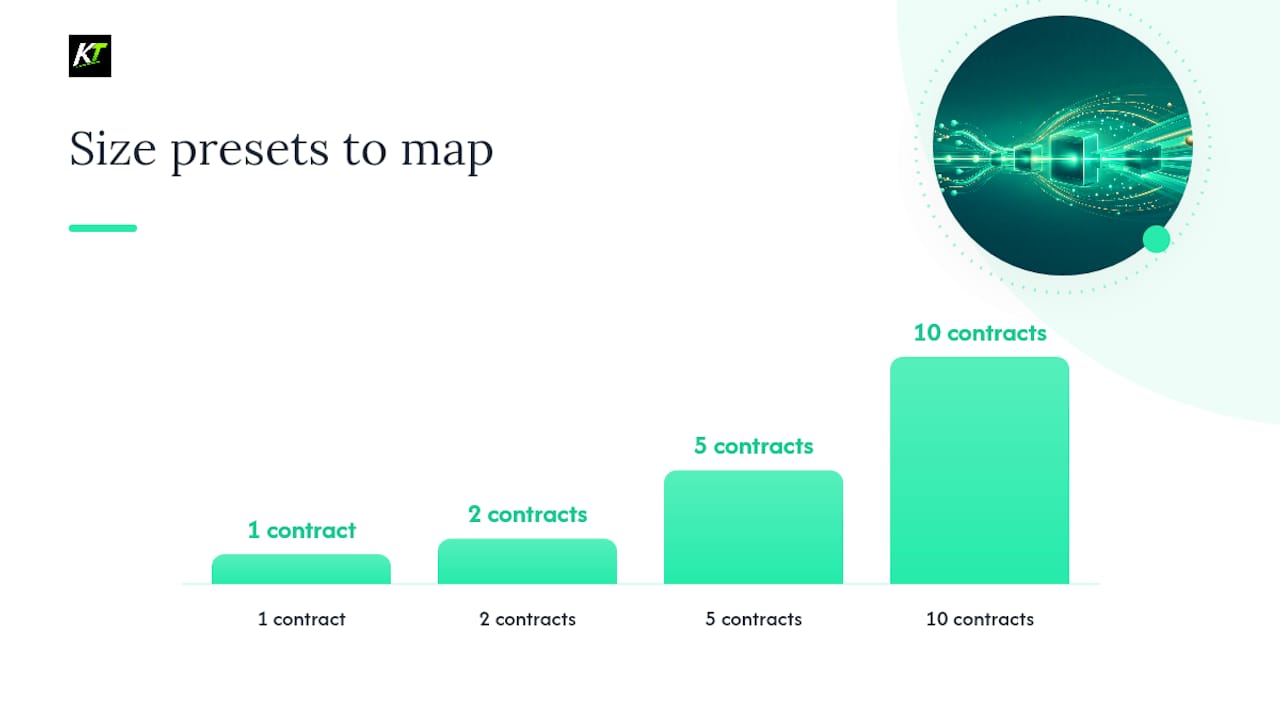
Size presets deserve their own row. Map three or four fixed quantities (say, 1, 2, 5, 10 contracts or lots) to adjacent keys so you never type a number under pressure.
A context-sensitive macro pattern looks like this in plain logic: if you have no position, the key buys; if you’re already long, the same key adds; if you’re short, it closes. Platforms like TWS and thinkorswim already support this kind of global hot key and multi-step macro logic natively, and a keypad simply gives that logic a dedicated physical button instead of burying it in a menu.
Pro Tip: Keep your emergency tier physically separate from your execution tier, and give every safety key a distinct texture or raised edge. If flatten and buy live next to each other on identical keys, you will eventually hit the wrong one at the worst possible moment.
Where a Keypad Fits in Your Desk Setup
A trading keypad is the primary control, but it rarely works alone. Most serious setups pair it with a mechanical keyboard for its numpad (quantity entry beats hunting for number keys on a compact pad), and an ergonomic wired mouse with three to six programmable side buttons for chart navigation and order-book clicks.
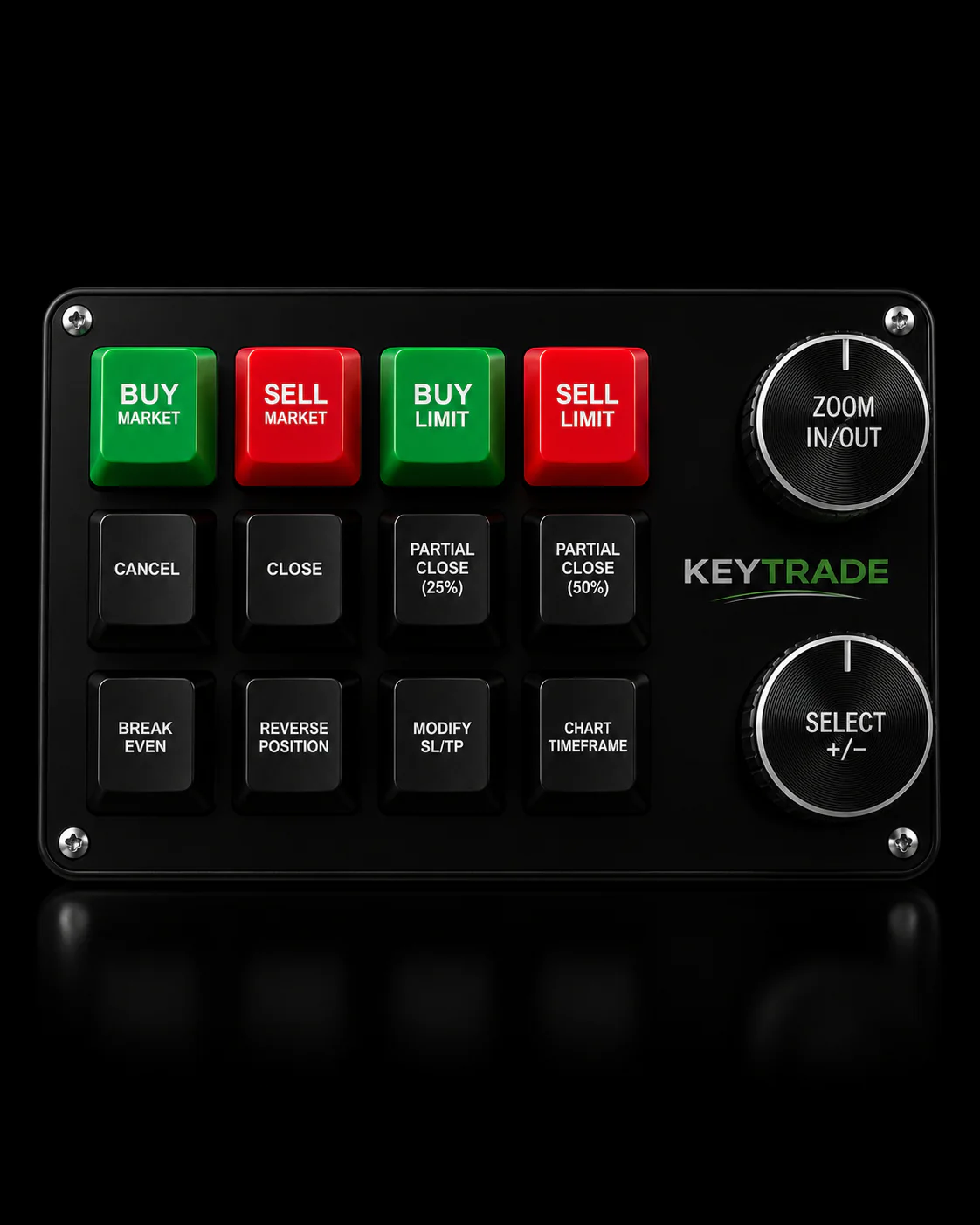
Some traders add an Elgato Stream Deck style pad specifically for status-rich macros, since its LCD keys show you what each button does at a glance. That visibility trades off against a dedicated keypad’s unlabeled, tactile-only keys, which reward muscle memory once you’ve internalized the layout but offer nothing if you forget which key is which mid-session.
More buttons only help if you can hit them reliably under stress. A pad with 20 tiny unlabeled keys sounds powerful until your hand is shaking and you can’t tell key twelve from key thirteen. Six to nine well-placed keys, mapped consistently, usually beats a crowded grid.
Wired connections stay the default for any trading workstation. Wireless mice can now hit 1000 Hz polling with sub-millisecond latency, but a dropped signal at the wrong moment is not a risk worth taking when real money is on the line. If you accept wireless anywhere, keep it to a secondary peripheral, never your primary execution device.
How to Set Up Your Trading Keypad Step by Step
- Install the vendor’s configuration software and connect the keypad over wired USB.
- Update firmware if prompted, then create a separate profile for each platform you trade on, since dedicated keypads work best once you configure workspace-specific shortcuts.
- Map single-action keys first: buy, sell, cancel-all, flatten. Confirm each one fires correctly.
- Layer in multi-action macros, then physically label or software-label every key so nothing relies purely on memory.
- Build a dedicated safety layer for flatten and cancel-all, separate from your execution keys.
- Run a full dry test on a demo account: verify quantity math, confirm SL/TP calculations, and fire “Cancel All” and “Emergency Flatten” repeatedly until they never misfire.
If a profile won’t switch between platforms, check that the vendor software is running before you open your trading platform, not after. Misfiring keys usually trace back to a driver conflict, most often two macro tools fighting over the same key. Uninstall one before contacting support.
Small Design Choices That Prevent Big Mistakes
Switch selection matters more than most traders assume. Linear switches are generally the right call for rapid-fire sequences because they don’t catch mid-press the way tactile bumps sometimes do. Reserve tactile switches for the one or two keys where you actually want to feel a confirmation click, like a large-size order. Skip loud clicky switches entirely; they add nothing functional and just annoy everyone at the desk.
Button placement follows a simple rule: your safety tier (flatten, cancel-all) sits in its own zone, physically separated from your execution tier (buy, sell, size). Not every side button on a mouse is equally reachable under stress, so pick three to six you can hit blind, and leave the rest unmapped rather than cramming in features you’ll never trust yourself to use quickly.
Operating rules matter as much as the hardware itself. Run a dedicated trading mode with a physical indicator so you always know which layer is active, check your profile every morning before the open, and never do general computer tasks, email, browsing, anything, on the trading workstation while it’s live.
- Separate safety and execution zones by at least one full row of keys.
- Use a physical mode indicator, not just a software toggle you might miss.
- Check active profile every session before your first trade.
- Keep the trading workstation free of non-trading tasks during market hours.
Pro Tip: Physical labels beat memorized positions every time you’re stressed. A blank key you “know by feel” on a calm Tuesday becomes a coin flip during a fast market on a Friday afternoon.
Test Your Setup Before You Trust It Live
Before you trade a single live dollar on new hardware, run a structured test on a demo account. Time your flatten, cancel, and buy sequences from decision to order confirmation, using a stopwatch or a simple timestamp log, and repeat each action at least 100 times to surface a mispress rate you can trust.
| Metric | What to measure | Target |
|---|---|---|
| Flatten reaction time | Human-action-to-order time for full position close | Under 500 milliseconds |
| Cancel-all reliability | Successful cancellations across repeated trials | No missed cancellations in 100 trials |
| Mispress rate | Wrong-key activations per 100 attempts | As close to zero as your layout allows |
| Recovery time | Time to correct a mispress before it affects position | Immediate, single additional keypress |
Practitioners recommend setting a concrete acceptance threshold, like flatten under 500 milliseconds, and iterating on button placement or switch type until you hit it. Document each test run, note which keys caused hesitation, and adjust your layout before your next live session rather than after a costly mistake.
Why Key-Trade Fits Professional Execution Workflows
Key-Trade builds its keypads specifically around the platforms manual traders and prop desks actually use: TradingView, MT4 and MT5, cTrader, NinjaTrader, SierraChart, Thinkorswim, and Tradovate, with more integrations added over time.
The feature set targets the exact problems this article covers. Multi-action macros handle buy-plus-stop and scale-in sequences in one press. Dedicated emergency flatten and cancel-all functions sit on their own safety tier. Every key is programmable individually, the devices run wired USB by default, and Key-Trade backs each purchase with setup guides and platform-specific walkthroughs rather than leaving you to reverse-engineer the mapping yourself.
Key-Trade ships worldwide and offers ongoing support for traders configuring new profiles or troubleshooting platform integrations. For platform-specific mapping detail, the forex hotkey setup guide and the MT4 hotkey walkthrough both go deeper than a general checklist can.
A Prop Desk’s View on What Actually Changed
The clearest change wasn’t speed, it was consistency. Before a keypad, an emergency flatten meant however many clicks the platform’s order panel demanded that day, and under real pressure, clicks get missed. With a single dedicated flatten key, that action stopped being a judgment call and became a reflex, which is exactly what you want when a position needs to close now, not in four seconds.
The harder lesson was that the hardware only works if you’ve rehearsed it. A macro you’ve never fired outside a demo account is a macro you’ll fumble the first time you actually need it under pressure. Desks that ran their acceptance tests, timing flatten and cancel-all dozens of times before going live, reported noticeably fewer mis-entries per session than desks that mapped keys once and assumed muscle memory would follow automatically. It doesn’t. You have to build it on purpose.
The overlooked point in most hardware discussions is that speed without discipline just means you make mistakes faster. A keypad’s real value is that it lets you enforce your own risk rules mechanically, the same stop attach, the same size limit, every single time, regardless of how rattled you are in the moment.
Get a Keypad Built for the Platforms You Already Trade
Every feature covered in this guide, multi-action macros, a dedicated safety tier, wired low-latency operation, and native compatibility across TradingView, MT4/5, cTrader, NinjaTrader, SierraChart, Thinkorswim, and Tradovate, comes standard on Key-Trade’s keypad lineup, not as an upsell.

You don’t need to build your own macro logic from scratch or hope a general-purpose macro keyboard happens to support your platform. Key-Trade keypads arrive with platform-specific profiles ready to configure, physical key labeling options so nothing relies on memory alone, and setup documentation that walks you through mapping your first flatten and cancel-all keys the same day the device arrives.
If you’re currently clicking through order panels under pressure, that’s the exact workflow this hardware replaces. Visit the Key-Trade product page to match a keypad to your platform and place your order before your next trading session.
Sources
- Hot keys for day trading
- Keyboard, mouse, and peripherals for trading workstations
- EBS Keypad quick guide (CME Group)
FAQ
What is low latency trading hardware for manual traders?
It refers to programmable trading keypads that reduce the time between a trading decision and order execution by replacing multi-click menu actions with single-key presses and macros.
Is a wired or wireless keypad better for trading?
Wired USB is the recommended default for any trading workstation because it removes any risk of dropped signal during a critical order, even though modern wireless mice now offer comparable polling rates.
What is the fastest way to flatten a position?
A dedicated single-key flatten macro, tested until it consistently executes in under 500 milliseconds on a demo account, is the fastest and most reliable method for closing all positions at once.
Does Key-Trade support MT4, MT5, and TradingView?
Yes, Key-Trade keypads integrate with TradingView, MT4 and MT5, cTrader, NinjaTrader, SierraChart, Thinkorswim, and Tradovate, with setup guides provided for each platform.
What switch type is best for trading hotkeys?
Linear mechanical switches are generally preferred because they reduce accidental catches during rapid key sequences, while tactile switches suit keys where a physical confirmation feel is useful.
Recommended
- cTrader Trade Execution Speed Tips That Actually Work – Key-Trade Trading Keyboards
- Why Trading Desks Need Fast Execution: A Practical Guide – Key-Trade Trading Keyboards
- Why NinjaTrader Traders Need Fast Execution – Key-Trade Trading Keyboards
- How to Execute Trades Faster on TradingView in 2026 – Key-Trade Trading Keyboards