

How to Execute Trades Faster on TradingView in 2026
The fastest way to execute trades on TradingView combines three things: a properly connected broker, a lean alert setup, and a workflow that removes every unnecessary click. TradingView’s end-to-end automated trading latency typically ranges between 250 milliseconds to 3 seconds, with a measured median total signal-to-order fill time around 780 ms under typical conditions. That gap between signal and fill is where edge gets lost.
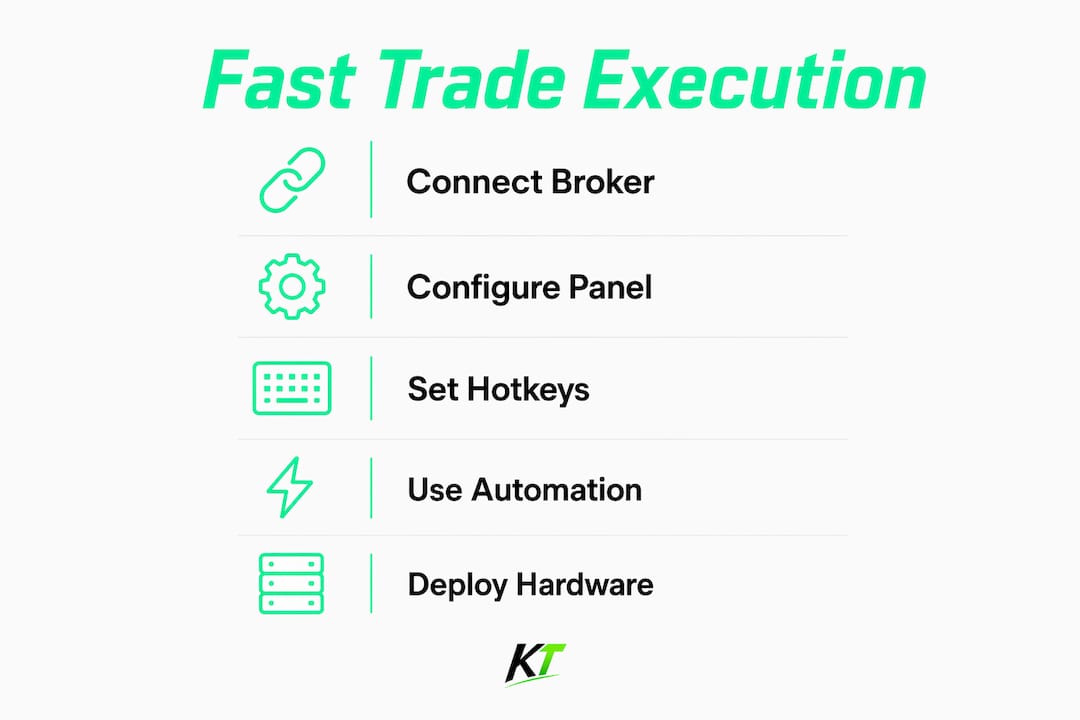
Here is what a fast setup looks like in practice:
- Connect a supported broker through TradingView’s Trading Panel for direct manual order entry
- Upgrade to a Premium or Expert plan to get priority alert processing
- Use alert presets to skip repetitive configuration on every new trade setup
- Assign keyboard shortcuts for order entry, symbol switching, and position management
- Route automated strategies through a webhook relay hosted close to your broker’s servers
- Keep JSON alert payloads minimal so relay and broker connectors process them faster
- Run TradingView on the dedicated desktop app rather than a browser tab
How to connect your broker and set up the TradingView trading panel
TradingView’s Trading Panel supports direct order placement with a growing list of brokers, including Interactive Brokers, OANDA, Tradovate, Saxo, AMP Futures, and several crypto exchanges. Connecting takes a few steps, and getting it right from the start prevents the configuration headaches that slow traders down later.
Steps to connect your broker:
- Open TradingView and click the “Trading Panel” button at the bottom of the chart screen.
- Select your broker from the list of supported integrations.
- Click “Connect” and complete the broker’s OAuth or login authorization flow.
- Verify that your account balance and positions appear in the panel before placing any live orders.
- Configure default order size, risk parameters, and any bracket order settings inside the panel.
Pro Tip: Before going live, activate TradingView’s Paper Trading account. It mirrors the real Trading Panel interface exactly, so you can drill order entry speed without risking capital.
A few configuration details matter for speed. Set your default order quantity so you never have to type it during a live entry. Enable one-click order confirmation if your broker’s panel supports it. And keep the Trading Panel open in a dedicated chart layout rather than toggling it on and off mid-session.
How to place and manage trades using TradingView charts
TradingView’s chart interface gives you more than a view of price. You can place orders directly on the chart, drag stop losses and profit targets to new levels, and manage open positions without ever opening a separate order ticket.
Key order placement methods:
- Right-click any price level on the chart to access the quick order menu for market, limit, stop, and OCO orders
- Drag the order line to adjust entry price before submission
- Use the Traders Panel (the floating widget on the right side of the chart) to set stop loss and take profit levels visually
- Click directly on the position line to modify or close a trade without opening the full order dialog
Manual entry through the Trading Panel works well for active orders, but it is slower than automation when milliseconds matter. For scalpers and high-frequency day traders, the chart-based drag interface cuts one or two clicks from every adjustment.
Pro Tip: Map your most common order actions to keyboard shortcuts. TradingView lets you assign hotkeys for buy, sell, close position, and chart navigation. Traders who use hotkeys for speed consistently place orders faster than those relying on mouse clicks alone.

TradingView also supports OCO (one-cancels-the-other) orders, which let you set a profit target and a stop loss simultaneously. Once one fills, the other cancels automatically. That removes the need to manually cancel a stale order after a position closes, which is a real time drain during fast markets.
Workflow optimizations that actually speed up your trade execution
Shaving seconds off your execution time is mostly a workflow problem, not a platform problem. The platform is fast enough. The question is whether your setup forces unnecessary steps between signal and order.
Practical optimizations:
- Save up to five alert presets in TradingView to eliminate repetitive alert configuration across symbols and timeframes
- Use keyboard shortcuts for symbol rotation so you can scan multiple instruments without touching the mouse
- Switch from browser-based TradingView to the dedicated desktop app, which uses GPU acceleration for smoother chart updates and better hardware resource allocation
- Close all non-trading browser tabs and background applications before your session starts
- Use a wired ethernet connection rather than Wi-Fi to reduce packet loss during volatile market conditions
- Aim for at least 16GB of RAM if you run multiple chart layouts simultaneously
Pro Tip: If you trade news events like FOMC or NFP releases, build a circuit-breaker into your relay setup. During the March 14, 2026 FOMC window, TradingView’s alert engine queued for 11.4 seconds before sending a webhook. A stale alert fired 11 seconds late can execute against a price that no longer exists.
Alert frequency settings also affect perceived speed. “Once Per Bar Close” adds a full candle’s worth of delay because it waits for confirmation before firing. “Every Time” fires on every tick that meets the condition, which can flood your relay with duplicate signals. For most active trading strategies, a condition-based alert set to trigger once per bar is the right balance.
Common execution bottlenecks and how to diagnose latency
Most traders blame TradingView when a trade is slow. The actual bottleneck is usually somewhere else in the chain. A systematic timestamp audit of each step reveals the real source far faster than guessing.
The five stages to measure:
- Chart trigger: when the Pine Script condition becomes true
- TradingView alert queue: when the platform processes and fires the alert
- Webhook relay receipt: when your relay server receives the HTTP POST
- Relay processing: parsing, validation, and order preparation
- Broker execution: order submission and fill confirmation
Higher-tier TradingView plans get priority alert processing. Premium plan webhook speeds range between 0.5–1.5 seconds, while Expert plan speeds reach 0.3–1 second. Essential and Plus plan users share the standard queue, with typical webhook delivery at 1–3 seconds.
During high-volatility events, alert queues can become congested causing notable delays, sometimes lasting several seconds, which can affect execution speed regardless of subscription tier. Broker and relay robustness matter just as much as your subscription level during those windows.
Understanding order types and when each one helps you fill faster
Order type selection is one of the most underrated speed levers available to active traders. The wrong order type for the market condition costs more time than a slow internet connection.
- Market orders execute immediately at the best available price. They are the fastest fill type but carry slippage risk during low-liquidity or fast-moving conditions.
- Limit orders wait for price to reach your specified level. Fill speed depends entirely on whether price reaches that level, so they offer price certainty at the cost of execution certainty.
- Stop orders trigger when price hits a threshold, then execute as a market order. Useful for breakout entries, but the market-order component means slippage applies once triggered.
- OCO orders pair a profit target with a stop loss. They remove the need to manually cancel one leg after the other fills, which saves meaningful time during active position management.
For volatile markets where you need to be in a trade immediately, market orders are the right call. For planned entries at specific levels, limit orders protect your price. The key is deciding your order type before the signal fires, not after, so you are not making that decision under pressure.
How alerts, automation, and third-party tools speed up order placement
TradingView itself does not place broker orders. It generates signals and fires webhooks. A relay layer receives those webhooks, validates them, and submits orders to your broker’s API. That middle layer is where most automation speed is won or lost.
Building a fast automation stack:
- Set TradingView alerts to fire webhooks to a relay server hosted geographically close to your broker. VPS hosting near broker servers reduces round-trip network delay by 50–500 ms per transaction.
- Use minimal JSON in your alert message body. A compact payload like
{"a":"buy","s":"EURUSD","l":0.1}processes faster than a verbose description at every relay and broker connector. - Choose a relay that handles webhook responses asynchronously, acknowledging TradingView immediately and processing the trade in the background.
- Pre-map your symbols in the relay so the connector does not look up the mapping on every trade.
For traders who want immediate execution without writing Pine Script, hardware is the other path. A dedicated trading keypad maps programmable buttons to specific order actions, letting you fire a market entry, set a stop loss, or close a position with a single physical keystroke. That removes the mouse entirely from the critical path.
Pro Tip: Automation bridges and webhook relays are widely considered essential for achieving sub-second execution on TradingView. For strategies targeting moves under 10 pips, webhook latency is the primary variable to optimize, not chart logic.
Cut your execution time with Key-trade hardware

Software optimizations get you most of the way there. The final gap is physical: how fast your hands can act on a signal. Key-trade’s professional trading keyboard is built specifically for that gap. Each programmable button maps to a trade action on TradingView, MetaTrader 4 and 5, cTrader, NinjaTrader, and other platforms. One press executes a market order, adjusts a stop to break-even, or closes a partial position. No mouse, no menu, no delay.
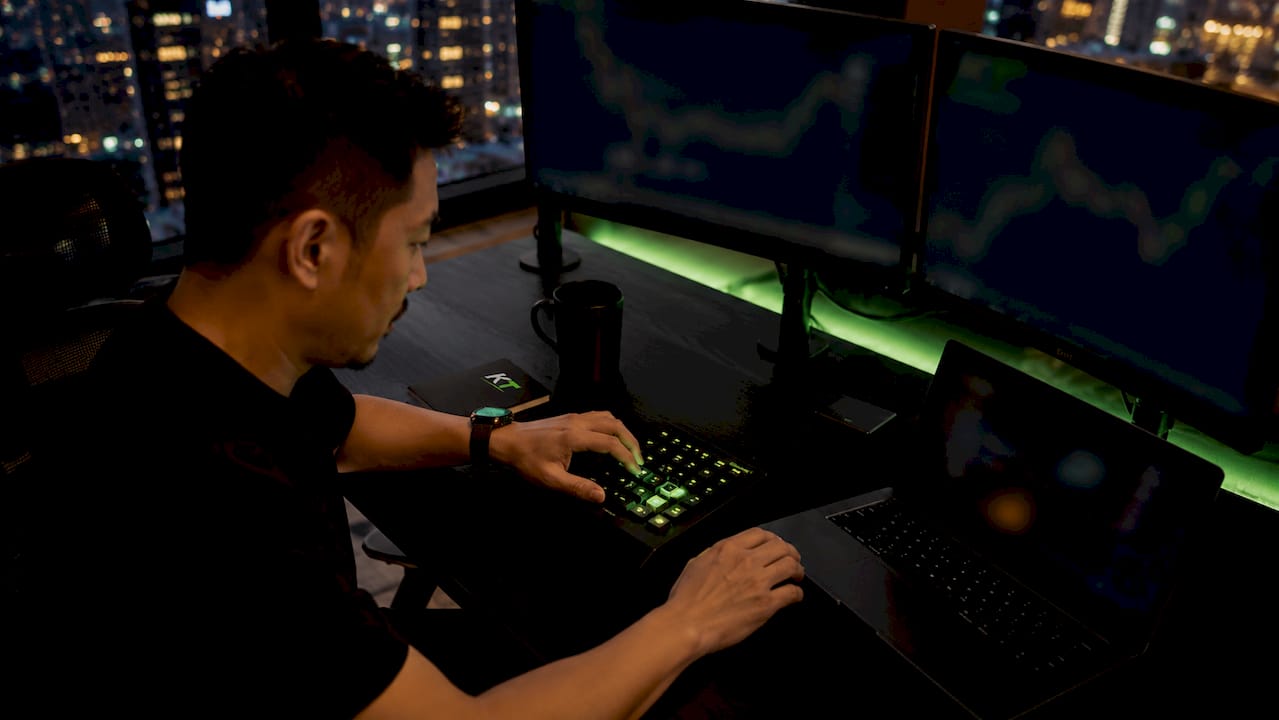
Key-trade ships worldwide and requires no technical setup. If you trade on a prop firm account or manage multiple positions simultaneously, the keypad removes the single biggest manual bottleneck left in your workflow.
Key Takeaways
Combining a Premium or Expert TradingView plan, a geographically optimized relay, and minimal webhook payloads can achieve end-to-end trade execution latency around 780 ms under typical market conditions.
| Point | Details |
|---|---|
| Plan tier affects alert speed | Premium plan fires webhooks in 0.5–1.5 seconds; Expert plan reaches 0.3–1 second. |
| Audit the full execution chain | Timestamp each stage from chart trigger to broker fill to find the real bottleneck. |
| VPS location cuts network delay | Hosting your relay near broker servers reduces latency by 50–500 ms per transaction. |
| Alert presets save setup time | TradingView supports up to five saved presets, eliminating repetitive alert configuration. |
| Hardware removes the mouse | A dedicated trading keypad maps order actions to single keypresses, cutting manual delay. |
FAQ
Can you execute live trades directly through TradingView?
TradingView’s Trading Panel supports direct manual order placement with brokers like Interactive Brokers, OANDA, and Tradovate. For automated execution from Pine Script strategies, a webhook relay connected to your broker’s API is required.
How do you make TradingView run faster?
Switch to the dedicated TradingView desktop app, enable hardware acceleration, close background applications, and use a wired internet connection. Upgrading to a higher-tier plan also improves alert processing priority.
What causes the most common TradingView execution delays?
The main sources are lower-tier plan alert queuing, slow or geographically distant relay servers, verbose webhook payloads, and broker API latency. During high-volatility events like FOMC releases, batch alert processing adds additional delay regardless of plan.
Is TradingView fast enough for day trading and scalping?
For strategies targeting small price moves, webhook-based automation can be too slow without a Premium or Expert plan, a co-located VPS, and a fast relay.
Does upgrading your TradingView plan actually improve execution speed?
Yes. Premium and Expert plans receive priority alert processing, which measurably reduces webhook delivery time compared to Essential and Plus tiers, particularly during high-traffic market conditions.
Recommended
- How to Close a TradingView Position Quickly – Key-Trade Trading Keyboards
- TradingView Chart Trading: A Complete 2026 Guide – Key-Trade Trading Keyboards
- TradingView Trade Management Tools: 2026 Guide – Key-Trade Trading Keyboards
- cTrader Trade Execution Speed Tips That Actually Work – Key-Trade Trading Keyboards