

Forex Hotkeys Setup for Professional Traders and Prop Firms
Plug your Key-trade Trading Keypad into a USB port, import the platform profile for MetaTrader 5 or TradingView, and run your first test trade on a demo account. That’s the whole setup in one sentence. Most traders are executing on demo within 20–30 minutes of unboxing.
What you need before you start:
- Key-trade Trading Keypad or Key-trade Trading Keyboard (the hardware)
- USB-C cable (included)
- Windows 10 or 11 with admin rights
- Target platform installed: MT4/MT5, TradingView, cTrader, NinjaTrader, SierraChart, Thinkorswim, or Tradovate
- A demo or prop account for safe testing
Never go live before testing every mapped action on a demo account. One misconfigured key on a live desk can send the wrong size or the wrong direction. Demo testing is the only way to confirm your profile behaves exactly as intended under real platform conditions.
Understanding why forex traders use hotkeys to gain a speed edge is the right starting point before you wire anything up.
Key Takeaways
A properly configured forex hotkeys setup on dedicated hardware reduces execution errors, survives reboots without software dependencies, and scales cleanly from a single trader to a full prop desk.
| Point | Details |
|---|---|
| Hardware-first reliability | Onboard profiles on Key-trade devices persist without software, eliminating a common failure mode. |
| Demo testing is mandatory | Test every mapped action on a demo or prop account before going live on any platform. |
| Color and label discipline | Green for entry, red for safety; labeled keycaps cut fat-finger errors under market stress. |
| Modular macros beat monolithic ones | Single-purpose keys for entry, SL, TP, and close fail predictably and are easier to audit. |
| Key-trade platform templates | Pre-built profiles for MT4/MT5, TradingView, cTrader, and four more platforms cut setup to under 30 minutes. |
This article is general information, not a substitute for advice from a qualified financial advisor. Consult a qualified financial professional about your own circumstances before acting on anything here.
Table of Contents
- What do you need before setting up forex hotkeys?
- How do you connect and install a Key-trade device for the first time?
- Which platform profiles does Key-trade provide, and how do you load them?
- What hotkey mappings does every forex desk need?
- How do you test profiles and go live safely?
- How do you fix common Key-trade setup problems?
- How do you scale a single setup into a full desk deployment?
- Why dedicated hardware changes the math on execution errors
- Key-trade Trading Keypad: from unboxed to demo-ready in 30 minutes
- Sources
- FAQ
What do you need before setting up forex hotkeys?
Get this checklist right and the actual setup is fast. Skip something here and you’ll spend an hour troubleshooting a problem that was never about the device.
Hardware:
- Key-trade Trading Keypad or Key-trade Trading Keyboard (primary device)
- USB-C cable, direct to PC (avoid hubs during first setup)
- Optional: external numpad if you enter quantities manually; a Stream Deck with knobs for parameter control
System:
- Windows 10 or 11 (recommended); admin rights required for driver install
- All target trading platforms installed and logged in
- Key-trade software downloaded from the official site
Accounts:
- Demo or prop account active and funded for testing
- VPN or remote-desk latency baseline noted if you trade off-site
According to NexusFi’s trading workstation guide, switch selection and physical layout materially affect execution error rates. Linear switches reduce accidental interference during rapid sequences; tactile switches offer a middle-ground feel. Clicky switches are generally a bad idea at a trading desk. If you type quantities frequently, a separate numpad or a full-size layout is worth keeping.
Time and cost: Unbox-to-demo typically runs 20–30 minutes. The Key-trade device is a one-time purchase; no subscription required.
Pro Tip: Before installing anything, check that your platform is fully updated. A stale MT5 build can cause hotkey focus issues that look like driver problems.
How do you connect and install a Key-trade device for the first time?
- Connect the device via USB-C directly to your PC. Avoid USB hubs on first run; they can mask power or polling issues.
- Install Key-trade software. Download the latest version from key-trade.net. Run as administrator.
- Grant permissions. Windows will prompt for HID driver access. Accept. If it doesn’t prompt, check Device Manager for an unrecognized device and update the driver manually.
- Check firmware. Open Key-trade software and navigate to the firmware tab. If an update is available, apply it now. The device will reboot in under 60 seconds.
- Set device mode. Choose HID mode for macro execution or keyboard emulation mode if your platform only accepts standard keystrokes. Most traders use HID.
- Import a starter profile. Load the Key-trade default template for your platform. Save it to onboard memory slot 1.
- Verify persistence. Unplug the device, plug it back in, and confirm the profile is still loaded. Onboard memory means your profile survives reboots without any software running.
Macro-enabled hardware with onboard profiles is more reliable than OS-level scripting because the profile lives on the device itself, not in a Windows process that can crash or fail to launch.
Pro Tip: Screenshot your firmware version and software version before any update. If a new firmware causes issues, you’ll need the previous version number to roll back.
Which platform profiles does Key-trade provide, and how do you load them?
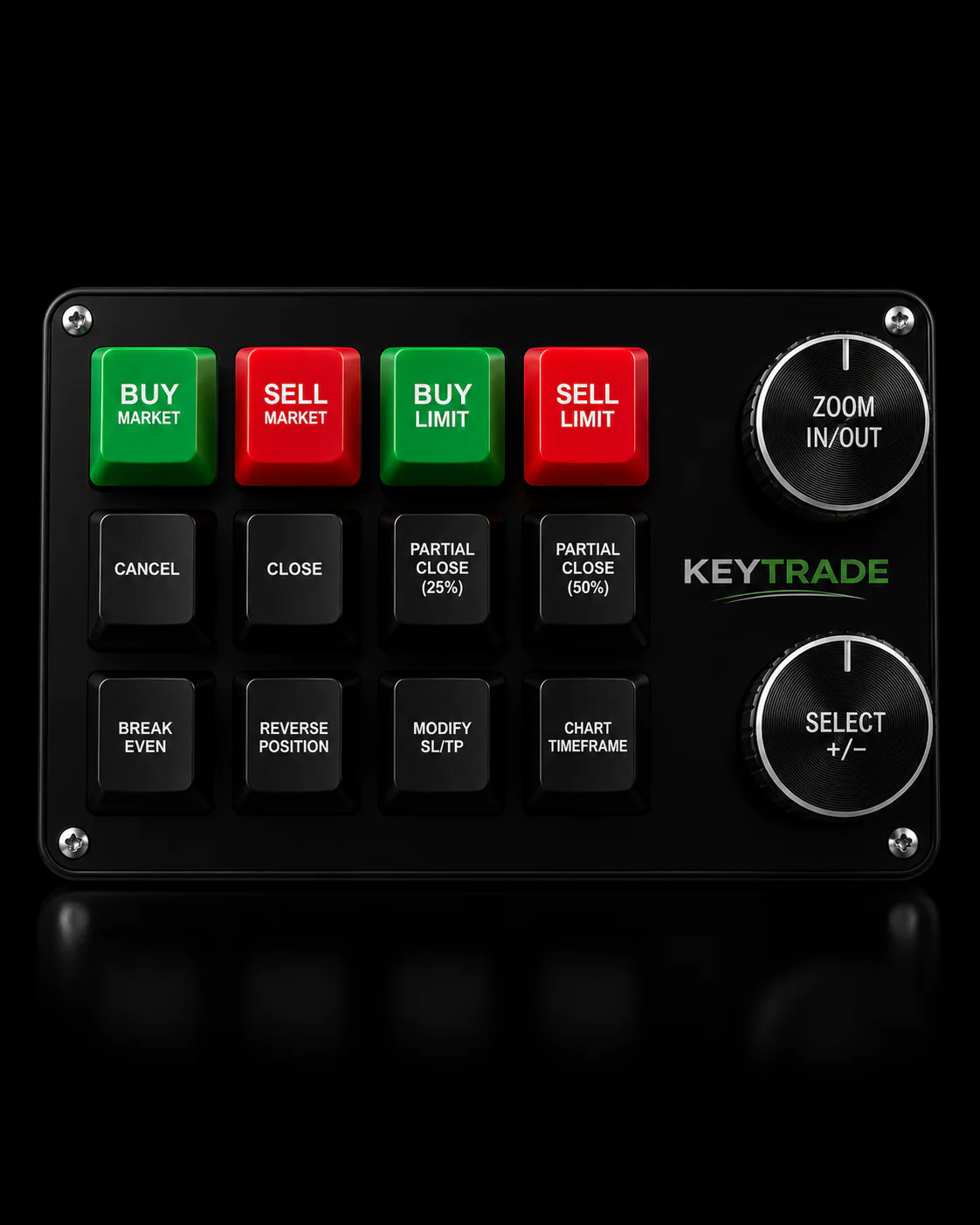
Key-trade ships downloadable configuration templates for every major platform: MetaTrader 4 and 5, TradingView, cTrader, NinjaTrader, SierraChart, Thinkorswim, and Tradovate. Each template pre-maps the core forex workflow so you’re not starting from a blank slate.
What each template typically includes:
- Market buy and market sell (single-key execution)
- Limit and stop entry orders
- Modify SL and modify TP (separate keys)
- Partial close at 25%, 50%, and 75%
- Break-even (moves SL to entry)
- Reverse position
- Cancel All / Flatten
- Lot size presets (0.01, 0.1, 1.0, custom)
How to load a profile:
- Open Key-trade software and go to Profile Manager.
- Click Import and select the downloaded
.ktprofilefile for your platform. - Assign the profile to an onboard memory slot (slots 1–4 on most devices).
- Use the Page button on the device to switch between profile pages mid-session.
Platform focus matters. On MT4/MT5, the chart or DOM window must have keyboard focus for hotkeys to fire. On TradingView, native hotkey support is limited, so Key-trade’s profile routes commands through the platform’s own shortcut layer. For cTrader, see the complete cTrader shortcut guide for focus and mapping specifics.
For MT5 users, external keypads add speed and accuracy that the platform’s native keyboard shortcuts can’t match on their own.
Pro Tip: Name profiles by platform and strategy: “MT5_Scalp,” “TV_Swing.” When a desk has multiple traders, add initials: “MT5_Scalp_JR.” Profile naming prevents the wrong template from loading at the wrong desk.
What hotkey mappings does every forex desk need?
The table below covers the full trade lifecycle. Suggested key assignments are starting points; adjust to your dominant hand and device layout.
| Action | Suggested Key | Safety Note |
|---|---|---|
| Market Buy | F1 or Button 1 | Green label; confirm lot size before pressing |
| Market Sell | F2 or Button 2 | Green label; confirm lot size before pressing |
| Limit Buy | F3 or Button 3 | Requires price input first |
| Limit Sell | F4 or Button 4 | Requires price input first |
| Modify SL | F5 or Button 5 | Test on demo; wrong value = immediate loss |
| Modify TP | F6 or Button 6 | Test on demo |
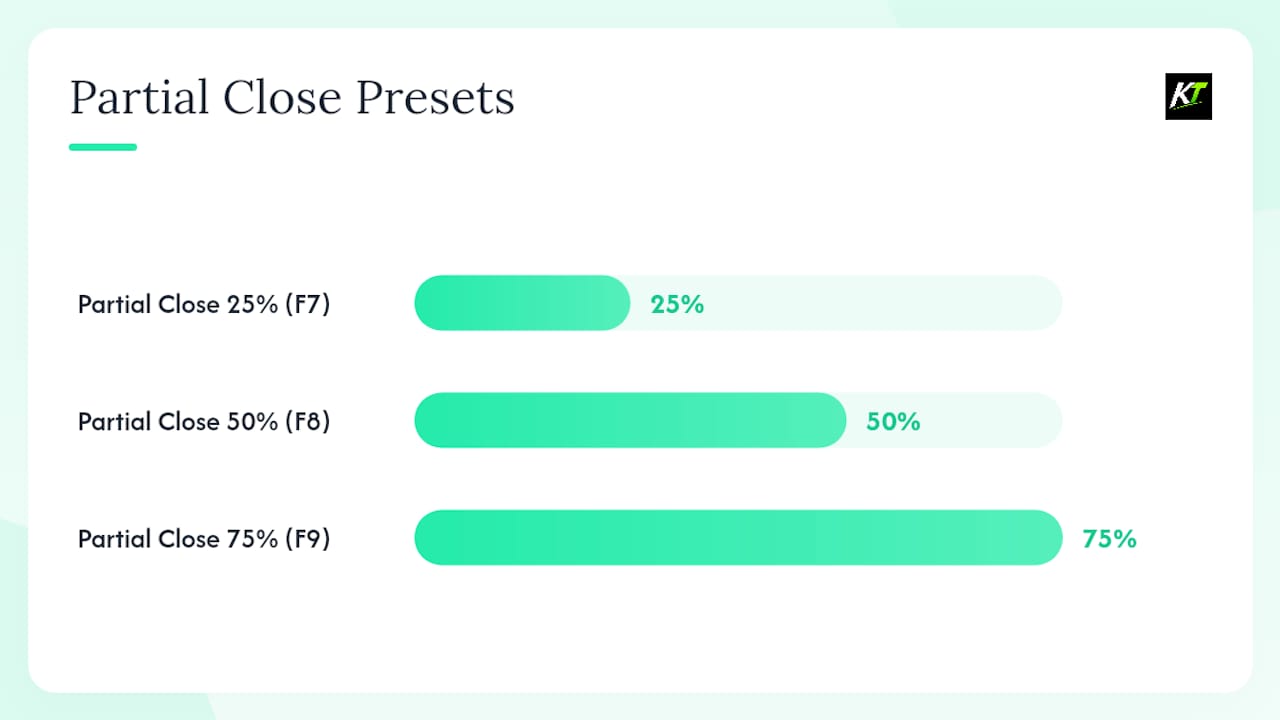
| Partial Close 25% | F7 or Button 7 | Verify position size before mapping |
| Partial Close 50% | F8 or Button 8 | Verify position size before mapping |
| Partial Close 75% | F9 or Button 9 | Verify position size before mapping |
| Break-Even | F10 or Button 10 | Confirm SL moves to entry, not beyond |
| Reverse Position | F11 or Button 11 | Red label; two-step confirmation recommended |
| Cancel All / Flatten | F12 or Button | Red label; dedicated panic key |
| Lot Preset 0.01 | Knob or Layer 2 | Confirm preset before live use |
| Lot Preset 1.0 | Knob or Layer 2 | High-risk; restrict access on shared desks |
Practical layouts group order types, quantity presets, and safety functions on separate rows, with Cancel All and Flatten kept visually distinct. Color discipline, green for entry and red for safety, dramatically reduces fat-finger errors under stress.
How do you test profiles and go live safely?
Testing checklist (run in order):
- Import profile to Key-trade device.
- Open demo account on target platform.
- Fire each mapped key once and confirm the correct order type appears.
- Verify lot size presets produce the expected quantity.
- Test Modify SL and Modify TP with a live demo position.
- Test Partial Close at each percentage level.
- Test Cancel All and Flatten with multiple open orders.
- Simulate a fast-fill scenario: open and close five positions in under 30 seconds.
- Unplug and replug the device; confirm profile reloads from onboard memory.
- Check USB polling lag: if fills feel delayed, move to a direct port and retest.
Failsafe recommendations:
- Assign a dedicated physical panic key (Cancel All / Flatten) on a corner button with a red keycap.
- Use two-step confirmation macros for Reverse Position on any live desk.
- Lock high-risk presets (large lot sizes) behind a profile page that requires a deliberate page-switch.
- Document and version-control every profile file. Store backups off-device.
Pro Tip: Run your latency baseline before going live. Press a key, note the timestamp in the platform’s order log, and compare across sessions. A sudden spike usually points to a USB hub or a background process stealing CPU.
How do you fix common Key-trade setup problems?
Device not recognized:
- Try a direct USB port (not a hub).
- Open Device Manager and check for unknown HID devices.
- Reinstall Key-trade software as administrator.
- Reflash firmware from the software’s firmware tab.
Hotkeys sending wrong characters:
- Confirm the device is in HID mode, not keyboard emulation mode.
- Check that the correct platform profile is loaded in the active memory slot.
- Verify the platform window has focus before pressing keys.
Macros not firing after reboot:
- Onboard memory should persist profiles without software running. If it doesn’t, re-save the profile to the onboard slot and test again.
- Check that Key-trade software isn’t blocked by antivirus on startup.
Platform focus issues:
- MT4/MT5: click the chart or DOM before using hotkeys.
- TradingView: use Key-trade’s browser-extension-compatible profile layer.
- NinjaTrader: confirm the SuperDOM or chart has active focus.
Before contacting Key-trade support, gather:
- Device serial number (printed on the underside)
- Firmware version (visible in Key-trade software)
- Windows OS build number
- Platform name and version
- The exact
.ktprofilefile you’re using
Pro Tip: Update firmware and software on the same day. Mismatched versions are the most common cause of macro misfires that look like platform bugs.
How do you scale a single setup into a full desk deployment?
Advanced macro design: Build modular, single-purpose macros rather than one macro that handles entry, SL, and TP in sequence. Single-purpose macros reduce hesitation and order-entry errors because each key does exactly one thing and fails predictably if something goes wrong.
Stream Deck and knob integration:
- Stream Deck-style devices with LCD buttons and rotary knobs provide visual status and real-time parameter control. Knobs are particularly useful for adjusting lot size or risk percentage without leaving the chart.
- These devices can expose a WebSocket API, which lets quant workflows push live P&L or deploy-state indicators directly to button displays.
- Use Key-trade as the primary execution device and a Stream Deck as a secondary status panel.
Ergonomics:
- Place the keypad to your non-dominant side for entry keys; keep the mouse hand free.
- Use color-coded keycaps: green for entry, yellow for modify, red for exit/cancel.
- Label every key with a printed or engraved legend. Unlabeled keys cause hesitation under pressure.
- Keep your most-used actions on page 1. Most traders use only 2–3 pages in practice, so don’t over-engineer page 4.
Desk deployment:
- Create one profile per trader, named by initials and strategy.
- Lock lot-size presets above a desk risk limit behind a page that requires a deliberate switch.
- Roll firmware updates across all devices on the same day during off-hours.
- Store all profile files in a shared folder with version numbers and change logs.
Pro Tip: For quant desks, AutoHotkey is occasionally useful for bridging Key-trade output to a custom API, but treat it as a last resort. Hardware-level profiles are more stable and don’t depend on a Windows process staying alive.
Why dedicated hardware changes the math on execution errors
The conventional wisdom in trading tech is that software shortcuts are “good enough.” They’re not, and the gap shows up exactly when it matters most: during fast markets, when a trader’s hands are moving before their brain has fully processed the price.
A physical keypad with onboard profiles removes the software layer entirely. The profile lives on the device. It doesn’t care whether Key-trade’s software is running, whether Windows just updated, or whether the platform lost focus for half a second. The key fires the macro. That reliability is what prop firms and trading desks actually need, not more features in a software panel.
Devices with persistent onboard memory, wired connectivity, and solid macro software outperform wireless or software-dependent setups in live trading conditions. The spec sheet rarely tells you this. The first time a wireless device drops its connection mid-trade, you understand why wired matters.
For desks, the standardization argument is just as strong. When every trader runs the same profile template, auditing an execution error takes minutes instead of hours. You pull the profile file, check the mapping, and know exactly what key did what.
Key-trade Trading Keypad: from unboxed to demo-ready in 30 minutes
Key-trade’s Trading Keyboard and Keypad ships with platform-ready profiles for MT4/MT5, TradingView, cTrader, NinjaTrader, SierraChart, Thinkorswim, and Tradovate. Onboard memory holds your profiles without any software running. Wired USB-C keeps latency predictable. A dedicated safety key handles Cancel All or Flatten with a single press.

For prop firms and trading desks, the practical payoff is standardized execution across every seat, faster onboarding for new traders, and a clear audit trail when something goes wrong. Download the platform profile for your setup directly from key-trade.net, import it in under five minutes, and run your first demo trade before the session opens.
Sources
- Keyboard, Mouse, and Peripherals for Trading Workstations: The Setup That Reduces Execution Errors and Survives 6-Hour Sessions - NexusFi Academy
- How a Programmable Keyboard Helps Traders
- Trading Keyboard Guide: How to Choose the Right One
- The Stream Deck is the Best Trading Tool | Hotkeys on Easy Mode
FAQ
What platforms does Key-trade support for hotkey profiles?
Key-trade provides downloadable profiles for MetaTrader 4 and 5, TradingView, cTrader, NinjaTrader, SierraChart, Thinkorswim, and Tradovate, with more platforms planned.
How long does a full forex hotkeys setup take?
Most traders go from unboxing to a working demo trade in 20–30 minutes, including driver install, firmware check, and profile import.
Do Key-trade profiles survive a PC reboot without software running?
Yes. Key-trade devices store profiles in onboard memory, so the mappings persist even when the Key-trade software is closed or the PC restarts.
What is the safest way to map a Cancel All or Flatten key?
Place it on a dedicated corner button with a red keycap, physically separated from entry keys, and consider a two-step confirmation macro for any desk where accidental presses carry real risk.
Can I use a Key-trade keypad alongside a Stream Deck?
Yes. A common desk setup uses Key-trade for primary order execution and a Stream Deck with rotary knobs for live parameter adjustments and status display, including P&L indicators via WebSocket API.
Recommended
- Why Forex Traders Use Hotkeys to Win on Speed – Key-Trade Trading Keyboards
- Key Trading Keypads: Best Picks for Active Traders – Key-Trade Trading Keyboards
- cTrader Keyboard Shortcut Functions: Your Complete 2026 Guide – Key-Trade Trading Keyboards
- Trading Keyboard & Hotkey Pad for Traders – Key-Trade Trading Keyboards