

What Is a Programmable Trading Device for Active Traders?
A programmable trading device is a physical keypad wired to send preset keystrokes or HID commands straight into your trading platform, letting one button press trigger an entire order sequence instead of a chain of clicks. For professional and prop traders, that single distinction, hardware button versus mouse click, is the difference between a filled order and a missed one during a fast market.
The appeal comes down to three things:
- Speed. Execution latency drops to single-digit milliseconds when a key press bypasses menus and dialog boxes entirely.
- Precision. The same button fires the identical command every time: same size, same stop, same target.
- Risk control. Hardware safety locks, panic-flatten keys, and size caps stop a shaking hand from fat-fingering a 10-lot order.
Community builds show single keys programmed with up to 19 keystrokes, enough to open a position, set a stop, and set a target in one press. Most devices work across TradingView, MT4/MT5, cTrader, NinjaTrader, SierraChart, Thinkorswim, and Tradovate, since they all accept standard keyboard hotkeys.
Key Takeaways
Precision and repeatable execution, not raw speed alone, are what separate a professional-grade programmable trading keypad from a repurposed gaming pad.
| Point | Details |
|---|---|
| What it is | A hardware keypad that sends recorded keystroke macros or HID commands to execute trades on platforms like MT4, MT5, and TradingView. |
| Biggest benefit | Consistent, repeatable order execution that removes fat-finger errors caused by manual clicking under pressure. |
| Top purchase priority | Match switch type and key layout to your workflow, favoring linear switches for fast, repeated presses. |
| Safety reminder | Physically guard panic-flatten and reverse keys, and test every macro in a demo account before going live. |
| Recommended option | Key-Trade builds purpose-made keypads with platform-wide compatibility, safety locks, and warranty-backed support for pro and prop traders. |
Table of Contents
- How Do Programmable Trading Keypads Work?
- What Features Matter Most on a Trading Keypad?
- What Are Common Button Mappings for Active Traders?
- Which Platforms and Connections Does a Trading Keypad Support?
- What Are the Benefits and Risks of Using a Trading Keypad?
- How Do You Choose the Right Trading Keypad?
- How Do You Set Up and Test a Trading Keypad Before Going Live?
- Where Did Programmable Trading Devices Come From?
- Hardware Keypad vs. Software Macros: Which Wins?
- Are Programmable Trading Devices Regulated?
- Why Professional Traders Keep Coming Back to Hardware Keys
- Get a Trading Keypad Built for Execution Speed and Control
- Sources
- FAQ
How Do Programmable Trading Keypads Work?
Each key on the device doesn’t send a letter or number. It sends a recorded string of keystrokes, mouse clicks, or raw HID (Human Interface Device) signals, the same protocol your keyboard already uses to talk to your computer. That’s the core mechanical answer: press a key, the keypad’s firmware fires a pre-recorded sequence, your operating system reads it as normal keyboard input, and your trading platform reacts as if you typed it yourself.
The signal path looks like this: key press → device firmware recalls the stored macro → the macro travels over USB or Bluetooth as HID data → your OS routes it to whichever window has focus → your trading platform’s hotkey engine executes the mapped action.
This is where hardware macros beat software-only hotkeys. A pure software macro (AutoHotkey scripts, for instance) depends on the operating system running smoothly and the correct window staying focused. A macro-enabled keyboard stores the sequence on the device itself, so it fires the same way regardless of what else your computer is doing.
Most serious devices support:
- Multi-level profiles or “pages,” so one keypad can hold separate layouts for forex, futures, and options.
- Recorded macros (press once, capture the sequence) alongside scriptable macros for advanced users.
- USB, USB-C, or Bluetooth connections, with USB generally preferred for latency-sensitive execution.
Pro Tip: Bluetooth is convenient for a clean desk, but wired USB removes a layer of wireless handshake delay. If you’re scalping on tick charts, wire it.
What Features Matter Most on a Trading Keypad?
Three feature groups separate a serious device from a gaming pad with trading labels slapped on it: switch quality, key layout and layering, and physical safety.
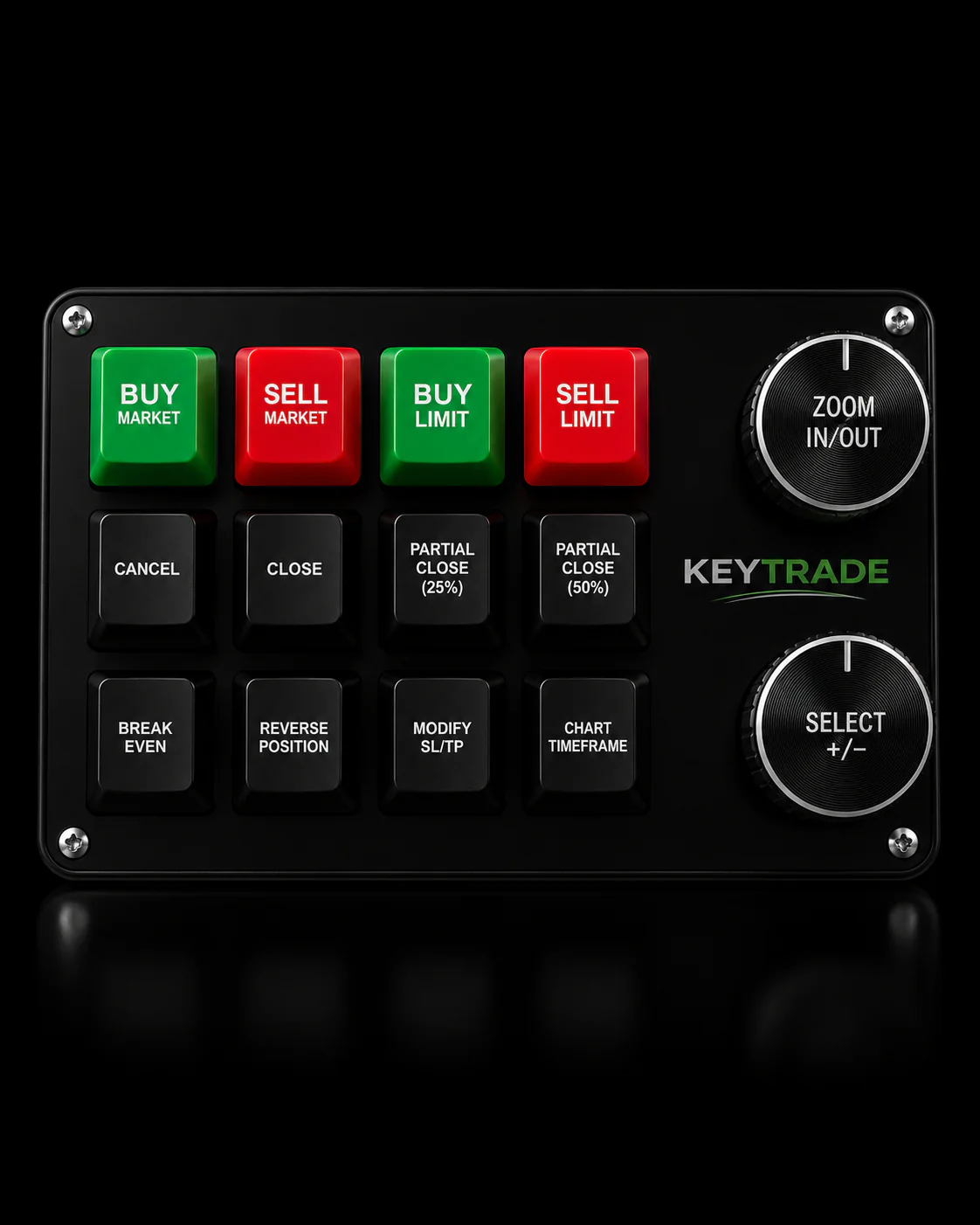
Switch type affects both feel and error rate over long sessions. Guides on trading workstation setup consistently point to linear mechanical switches as the better choice for order entry, since they move straight down without the tactile bump that can cause a hesitant half-press. Clicky switches are satisfying but slower to bottom out, and cheap membrane switches wear unevenly after months of repeated hits on the same three keys.
Beyond switches, check for:
- Key count and page support — enough keys for entries, exits, size changes, and a dedicated panic key, with room to add profiles per platform.
- N-key rollover / anti-ghosting so simultaneous presses don’t drop a keystroke.
- Labeling options, ideally physical labels or LCD keys rather than a sticker you wrote on yourself.
- Hardware safety locks or covers over high-risk keys like flatten-all.
- Partial-close and size-adjust keys that don’t require reprogramming mid-trade.
- Macro length per key (up to 19 keystrokes, based on documented community builds).
- Latency and polling rate, since a slow poll rate erases the speed advantage you bought the device for.
- OS and driver independence, onboard memory for profile switching, and a warranty that covers switch failure.
Pro Tip: Physically label your panic-flatten and reverse keys with a different color cap or texture. Traders on forums have long favored printed labels under clear keycaps, so your hand finds the right key without looking, and never confuses it with a routine order key.
What Are Common Button Mappings for Active Traders?
The highest-value use cases for a hardware keypad are the ones where hesitation costs money: scalping entries, adjusting position size mid-trade, cutting a position in half, and killing every open order in one motion during a news spike.
Typical mappings pro traders build include:
- Entry key: BUY 1 contract at market, SL set 1 tick below entry, fires as a single macro.
- Partial close key: closes 50% of open size, leaves the runner with the original stop intact.
- Break-even key: moves stop to entry price plus a small buffer, one press after price moves favorably.
- Panic-flatten key: cancels all working orders and closes every open position immediately.
- Size-step keys: bump order size up or down by a fixed increment before the entry key fires.
Picture a scalper working five-minute reversals: one key opens the position and sets the stop, a second key trims half the size once it’s in profit, a third moves the remainder to break-even. No mouse, no menus, roughly a second saved per action.
A prop desk trader during a Fed announcement is a different scenario entirely. Spreads widen, fills get messy, and the priority shifts to getting flat, not getting a perfect price. That’s when the panic key earns its keycap.
One edge case worth planning for: partial fills. If your size-adjust key assumes a full fill and the market only filled you halfway, the macro can misfire on the remaining size. Traders address this by mapping a separate “adjust to current position” key rather than a fixed-size close, which recalculates off whatever is actually open.
Which Platforms and Connections Does a Trading Keypad Support?
Most programmable keypads work by mimicking keyboard hotkeys, which means compatibility comes down to whether your platform, not the device, supports hotkey commands. That covers TradingView, MT4, MT5, cTrader, NinjaTrader, SierraChart, Thinkorswim, and Tradovate, since all seven accept standard keyboard shortcuts for order actions.
Connection-wise, USB HID devices generally need no vendor driver at all. Some advanced keypads ship optional software for building and editing macros, but the device itself still just looks like a keyboard to your OS. Windows tends to have broader trading-platform support than macOS, and remote desktop setups (common at prop firms running centralized servers) can introduce input lag or drop keystrokes entirely, since the hotkey has to travel over the remote session rather than straight to the local app.
A few practical notes before you go live:
- Build a separate profile per platform. MT5 hotkeys aren’t MT4 hotkeys, and Tradovate’s shortcuts differ from SierraChart’s.
- Map keys to the platform’s own hotkey commands rather than trying to automate mouse clicks on GUI buttons, since GUI layouts shift between software updates and break your macro.
- Run every new mapping in a demo account before it touches a funded account. This single habit, testing hotkeys in a demo environment first, is the most reliable way to catch a mapping error before it costs money.
Common gotchas include hotkeys that only fire when the trading window has focus, remote desktop sessions that swallow keystrokes intermittently, and platforms that cap the number of assignable hotkeys, which limits how many pages you can realistically build.
Pro Tip: If you trade multiple platforms from one desk, dedicate a full profile page to each one and name it in your keypad’s software. Switching profiles should take one button press, not a settings menu hunt.
What Are the Benefits and Risks of Using a Trading Keypad?
The core benefit is precision and consistency: the same button fires the identical order every time, which is exactly what a hardware macro key is built to guarantee. The core risk is the mirror image of that strength: an accidental press executes that same order instantly, with no dialog box asking if you’re sure.
Benefits:
- Milliseconds saved per trade add up across hundreds of executions a week.
- Repeatable macros remove the fat-finger errors that come from manual clicking under pressure.
- Dedicated keys reduce the mental load of finding the right menu during a fast move.
Risks and mitigations:
- Accidental presses: solve with physical key covers and two-step confirmation macros on high-risk keys.
- Partial fills: use dedicated “adjust to current position” keys instead of fixed-size close macros.
- Platform focus issues: always test hotkey behavior in a demo account first.
- Over-automation: favor several small, single-purpose macros over one giant “manage the entire trade” script, since modular macros are easier to test and fail more gracefully.
Pro Tip: Set up your panic key on a raised or recessed keycap, physically distinct from every other key, and place it somewhere your palm won’t rest by accident.
How Do You Choose the Right Trading Keypad?
Start by matching the device’s form factor to your actual workflow. A scalper hammering the same six commands all day wants a compact pad with big, well-spaced keys. A multi-instrument futures or options trader juggling several setups benefits more from a page-based layout, similar to how traders configure Stream Deck style layouts with visual labels for risk presets, stop presets, and partial sells.
Run through this checklist before buying:
- Confirm platform support for your exact software (MT4/MT5, NinjaTrader, Tradovate, and so on).
- Decide on switch preference (linear for speed, tactile if you want physical feedback).
- Count how many keys and pages you’ll actually use, plus onboard memory for saving profiles.
- Check latency and polling rate specs, not just marketing claims.
- Evaluate the accompanying macro-building software for clarity and reliability.
- Look for labeling or custom keycap options so keys stay identifiable months in.
- Weigh build quality, warranty length, and available support against price.
Ask any vendor these questions before you buy: Can you provide sample mappings for my platform? Is there a demo unit or trial policy? How often are drivers and firmware updated? What does the warranty actually cover, and what are shipping and replacement lead times?
If you’re buying for a desk rather than yourself, test one unit in demo first and write a short internal setup procedure before rolling it out to the rest of the team. Consistency across a prop desk matters as much as consistency on a single key.
How Do You Set Up and Test a Trading Keypad Before Going Live?
- Install the device drivers or macro software.
- Create a dedicated profile for your primary trading platform.
- Map each key to that platform’s built-in hotkey, not a GUI click.
- Label keys both physically (keycap or sticker) and inside the software.
- Test every macro in a demo account, including simulated partial fills.
- Confirm the panic/flatten key actually cancels orders and closes positions.
- Run a timed rehearsal, simulating a fast market, before using it live.
Keep your mouse and keyboard within reach the entire time. A hardware keypad should add speed, not become your only way to manage a trade if something misfires.
Where Did Programmable Trading Devices Come From?
Hardware order-entry keypads aren’t a recent invention. Trading forums document DIY builds dating back to 2001 and 2003, where traders wired 20 to 58 key programmable pads and printed custom labels to slide under transparent keycaps. These were homemade solutions built because no mass-market vendor made anything trading-specific, so floor and desk traders adapted whatever programmable input device they could find.
That scarcity shaped the category for years. Since dedicated trading keypads remained rare, traders repurposed gaming peripherals. Devices like the Razer Tartarus and Stream Deck became common substitutes, borrowed from gaming and content creation, then reprogrammed for order entry. The software wasn’t built for trading, and the ergonomics were a compromise, but the core idea, one key, one repeatable action, carried over intact.
What’s changed is intent. Instead of retrofitting a gaming pad, purpose-built trading keypads now start with the trading workflow first: platform-specific hotkey mapping, safety covers on high-risk keys, and macro capacity built around real order-lifecycle sequences rather than gaming combos. The underlying mechanism, HID signals mimicking a keyboard, hasn’t changed. What improved is how deliberately that mechanism gets applied to the specific risks of live trading.
Hardware Keypad vs. Software Macros: Which Wins?
Software-only hotkeys and macro tools (AutoHotkey scripts, platform-native hotkey settings) can do a lot of what a hardware keypad does, on paper. Both send commands to your trading platform. The difference shows up under pressure.
A software macro lives inside your operating system’s process stack. If your machine is running a backtest, updating in the background, or simply juggling too many open windows, that script can lag, misfire, or fail to trigger if the wrong window has focus. A hardware keypad stores its macro on the device’s own firmware. The command fires from the keypad itself and reaches your OS as standard HID input, regardless of what your computer is doing internally.
There’s also a workflow argument. Software hotkeys usually require you to remember a key combination, Ctrl+Shift+B for one action, Alt+F5 for another, which works fine until you’re managing four different combinations under time pressure. A physical keypad replaces memory with muscle memory and a labeled key you can find without looking down.
Software macros do win on cost and flexibility. They’re free or cheap, and adjusting a script takes minutes with no hardware to configure. For a trader who executes a handful of trades a day, that flexibility might outweigh the reliability gap. For someone executing dozens of trades in fast-moving conditions, where a half-second delay or a missed hotkey has a real dollar cost, the hardware approach removes a layer of software risk that a script simply can’t.
Are Programmable Trading Devices Regulated?
Programmable trading keypads themselves aren’t a regulated product category. They’re peripherals, functionally similar to a keyboard or mouse, and no financial regulator treats the hardware itself as a controlled trading system.
What does matter is how your broker or prop firm’s rules treat the orders those keys generate. Every order a keypad sends is still a manual order placed by a human pressing a button, not an automated or algorithmic trade, which matters because many prop firms and brokers have separate rules, and sometimes separate account types, for algorithmic or automated trading versus manual execution. A keypad that fires a pre-programmed macro when you press it is manual execution: you decided to press it, at that moment, based on your own judgment.
Some firms do ask traders to disclose or register custom hotkey setups, particularly at prop desks with strict risk-management policies, since a misconfigured panic key or size macro can create outsized risk exposure across a firm’s capital. If you trade for a prop firm, check your firm’s specific policy on hardware macros and hotkey tools before deploying a new mapping, rather than assuming your personal setup is automatically compliant.
Record-keeping is the other consideration. Because a keypad macro can bundle several actions into one press, some compliance-conscious desks keep a written log of what each key does, useful both for onboarding new traders and for reconstructing exactly what happened during a disputed fill or an unusual execution.
Why Professional Traders Keep Coming Back to Hardware Keys
Speed and risk control drive adoption among serious traders, not novelty. Traders who stick with hardware keypads tend to build modular macros, one job per key, and rehearse their mappings under simulated pressure before ever touching a live account. Key-trade builds toward that exact discipline: purpose-made keypads for the trader who wants control they can trust when the market moves fast.
Get a Trading Keypad Built for Execution Speed and Control
If you’ve read this far, you already know what to look for: real switch quality, safety locks on the keys that matter, and platform support that doesn’t require workarounds. Key-Trade’s programmable trading keypads are built around that exact checklist rather than repurposed gaming hardware.

Every unit ships with platform compatibility across TradingView, MT4/MT5, cTrader, NinjaTrader, SierraChart, Thinkorswim, and Tradovate, onboard macro memory for multiple profiles, and physical safety features like guarded keys for flatten and panic commands. If you’re setting up a full desk, the forex hotkey configurations built for prop workflows are worth reviewing before you standardize a rollout. Devices come with a warranty and worldwide shipping, and Key-Trade’s support team can walk you through mapping questions before you commit a mapping to a live account.
Ready to move past software-only hotkeys? Browse the current lineup and place an order at Key-trade to get a keypad configured for your platform.
Sources
- Best day trading keyboard
- Keyboard, mouse, and peripherals for trading workstations: the setup that reduces execution errors and survives 6-hour sessions - NexusFi Academy
- Using a macro-enabled trading keyboard
- The Stream Deck is the Best Trading Tool | Hotkeys on Easy Mode
- Order Entry Keypad | Elite Trader
FAQ
What Is a Programmable Trading Device?
It’s a physical keypad with buttons programmed to send keystroke macros or HID commands, letting one press execute a full order sequence like entry, stop, and target on your trading platform.
How Is a Trading Keypad Different From Regular Hotkeys?
Software hotkeys run through your operating system and can lag or fail if the wrong window has focus, while a hardware keypad stores its macro on the device itself and fires reliably regardless of what your computer is doing.
Which Trading Platforms Work With Programmable Keypads?
Most keypads work with any platform that accepts keyboard hotkeys, including TradingView, MT4, MT5, cTrader, NinjaTrader, SierraChart, Thinkorswim, and Tradovate.
Are Hardware Trading Keypads Considered Automated Trading?
No. A keypad executes a macro only when you press the key, which makes it manual execution, not the automated or algorithmic trading that some brokers and prop firms regulate separately.
Where Can I Buy a Trading Keypad Built for Multiple Platforms?
Key-Trade sells programmable keypads with cross-platform support, onboard macro memory, physical safety locks, and worldwide shipping through Key-trade.
Recommended
- Trading Input Devices for Active Traders: A Full Guide – Key-Trade Trading Keyboards
- Key Trading Keypads: Best Picks for Active Traders – Key-Trade Trading Keyboards
- Marketmakerofficial.com Alternatives for Pro Traders – Key-Trade Trading Keyboards
- Trading Keyboard for Active Traders: 2026 Guide – Key-Trade Trading Keyboards