

Trading Keyboard for Active Traders: 2026 Guide
The fastest, most reliable setup for active traders is a purpose-built trading keypad with wired USB, onboard programmable keys, and confirmed platform compatibility. The Key-Trade Trading Keyboard is the specific device worth buying: it maps directly to TradingView, MetaTrader 4/5, cTrader, NinjaTrader, SierraChart, Thinkorswim, and Tradovate, ships worldwide, and requires no technical background to set up.
Your next step: order the keypad, load the recommended hotkey profile for your platform, and run at least one full session in simulator mode before going live.
Two reasons this matters more than most traders expect:
- Wired USB eliminates the latency and dropout risk that wireless introduces during fast-moving markets.
- Programmable keys are the single most important hardware feature for day trading — they let you execute the same command instantly and repeatedly, without hunting across a standard keyboard layout.
Table of Contents
- What counts as a trading keyboard?
- What features actually matter when choosing?
- Which trading platforms does it need to support?
- How to map hotkeys and sample layouts
- Key-Trade Trading Keyboard: the recommended device
- Key Takeaways
- Hardware is the part most traders underestimate
- The Key-Trade keypad is ready to ship
- Useful sources
- FAQ
What counts as a trading keyboard?
The phrase “trading keyboard” covers several distinct device types, and the right one depends on your workflow. Here is how they break down.
Dedicated trading keypads are purpose-built devices with a compact grid of programmable buttons, onboard memory, and often relegendable keycaps. They do one thing: give you physical, labeled hotkeys for trading actions. No typing, no navigation — just execution. A futures scalper running 50+ trades a day gets the most from this category.
Gaming keyboards with macro rows are full-size or tenkeyless (TKL) mechanical keyboards that include a dedicated macro column or G-key row. They handle both typing and hotkeys on one board, which suits a retail day trader who also needs to enter notes or communicate during a session. The tradeoff is desk space and the risk of hitting a standard key by mistake.
One-handed macropads are small, left-hand devices with 6–20 programmable keys. They are popular as a complement to a standard keyboard, not a replacement. An options trader who needs a handful of fast-access commands without a full keypad setup often reaches for one of these.
Numpad-style hotkey blends repurpose a standalone numeric keypad as a hotkey device. The numpad layout is familiar, the keys are well-spaced, and numeric entry stays natural. Prop desk traders who need to key in lot sizes or price levels quickly tend to favor this form factor.
Stream Deck and controller complements add a visual layer: labeled, color-coded LCD buttons that display live states. They work best mapped to keyboard shortcuts rather than direct application commands, which keeps them stable across platform updates. Think of them as a visual confirmation layer sitting beside your primary keypad, not a standalone trading device.
Pro Tip: If you trade futures or forex and your primary need is execution speed, start with a dedicated keypad. If you also need to type and navigate, a gaming keyboard with a macro row covers both — but keep the numpad.
For a deeper look at how these categories compare in real desk setups, the trading input devices guide from Key-trade covers ergonomics and form factor tradeoffs in detail.
What features actually matter when choosing?
Optimized keyboard setups can reduce execution times by 40–75% depending on the action and how well the trader has trained the layout. That range is wide because the hardware is only half the equation — the feature set determines the ceiling.
Here is what to evaluate:
- Switch type. Linear mechanical switches are the standard recommendation for trading: consistent actuation force, no tactile bump to catch adjacent keys during rapid sequences. Tactile switches work for traders who want physical confirmation of each press. Clicky switches are fine for typing but disruptive in a shared desk environment.
Decision flow: If you enter quantities manually, keep a numpad accessible. If you need the fastest possible command sequence, go wired plus linear switches plus a dedicated hotkey row. If you need visual mode confirmation (scalp vs. swing profile active), add a color-coded keypad or Stream Deck beside your primary device.
Pro Tip: Map your flatten and cancel-all commands to physically distinct locations — different color zone, opposite corner of the pad — so a panicked hand cannot accidentally trigger them. This is the one layout decision that directly limits catastrophic loss.
Which trading platforms does it need to support?
Platform compatibility is where many traders get burned. A keypad that works perfectly in Windows but fails to capture keystrokes when your chart window loses focus is useless in a live session. Keyboard trading in chart platforms relies on hotkeys or HID keyboard input, and the behavior varies by platform.
The platforms you need to confirm before buying:
- TradingView — uses browser-based hotkeys. Confirm that your keypad’s output registers in the chart panel when it has focus, and that no browser shortcut intercepts the key.
- MetaTrader 4 / MetaTrader 5 — supports hotkeys natively. Test that the keypad’s HID output triggers the correct MT4/MT5 shortcut and does not conflict with OS-level shortcuts.
- cTrader — has a built-in keyboard shortcut system. Map keypad keys to cTrader’s native shortcuts; the cTrader keyboard shortcut guide from Key-trade walks through the full mapping process.
- NinjaTrader — supports hotkeys and SuperDOM keyboard entry. Verify that keypad input reaches the active DOM or chart window.
- SierraChart — uses a configurable hotkey system. Test each mapped key in SierraChart’s hotkey editor before live use.
- Thinkorswim — supports keyboard shortcuts for order entry and chart navigation. Confirm focus behavior with multiple monitor setups.
- Tradovate — browser and desktop versions handle focus differently. Test both if you switch between them.
Compatibility checks to run before going live:
- Confirm hotkeys fire with the chart or DOM window focused, not just the application.
- Test every mapped key in SIM mode with real market data streaming.
- Check that platform shortcuts do not collide with OS-level shortcuts (Windows key combos, screenshot shortcuts).
- On multi-monitor setups, click into the target window and verify the keypad still fires correctly.
For MT5-specific latency and mapping considerations, the external trading keypads for MT5 guide from Key-trade covers the edge cases worth knowing.
How to map hotkeys and sample layouts
Mapping is where the hardware pays off — or wastes your money. Here is a practical workflow:
- List your critical commands first. Write down every action you take in a live session: enter long, enter short, flatten, cancel all, move stop to break-even, close 50%, close 25%, increase size, decrease size. This list is your keypad layout.
- Assign safety keys first. Flatten and cancel-all go on physically distinct keys before anything else. Color-code them differently from entry keys.
- Map size and quantity presets. Assign fixed lot sizes or share quantities to dedicated keys so you never type a number under pressure.
- Map price entry shortcuts and stop/target adjustments. Move stop 5 ticks, move target 10 ticks, widen stop — these belong on keys you can reach without looking.
- Assign profile toggles. Scalp profile vs. swing profile should be a single keypress, not a menu navigation.
Video tutorials on mapping safety actions and quantity presets are a fast way to see the workflow before you build your own layout.
Three sample layouts:
- Futures scalper: Flatten (red, top-left), cancel all (orange, top-right), long market (green, center-left), short market (blue, center-right), break-even (yellow, bottom-left), close 50% (white, bottom-center), size up / size down (top row).
- Retail equities day trader: Buy market, sell market, cancel all, close half, close full, stop adjustment up/down, limit entry, bracket preset 1, bracket preset 2, journal note trigger.
- Options / prop desk: Spread entry, leg 1 / leg 2 individual, flatten, roll position, delta hedge, size presets (small / medium / large), profile switch (strategy A / strategy B).
Practice plan: spend the first week on basic commands only (enter, flatten, cancel). Add stop and target adjustments in week two. By week four, the full layout should be muscle memory. Traders who track execution times in a trading performance review consistently see latency drop after a focused hotkey training period.
Pro Tip: Use color-coded keycap sets and name your profiles by session type (“Scalp AM,” “Swing PM”). When you switch profiles, the color shift is a physical reminder that your key assignments have changed — preventing the wrong-profile mispress that costs real money.
Key-Trade Trading Keyboard: the recommended device
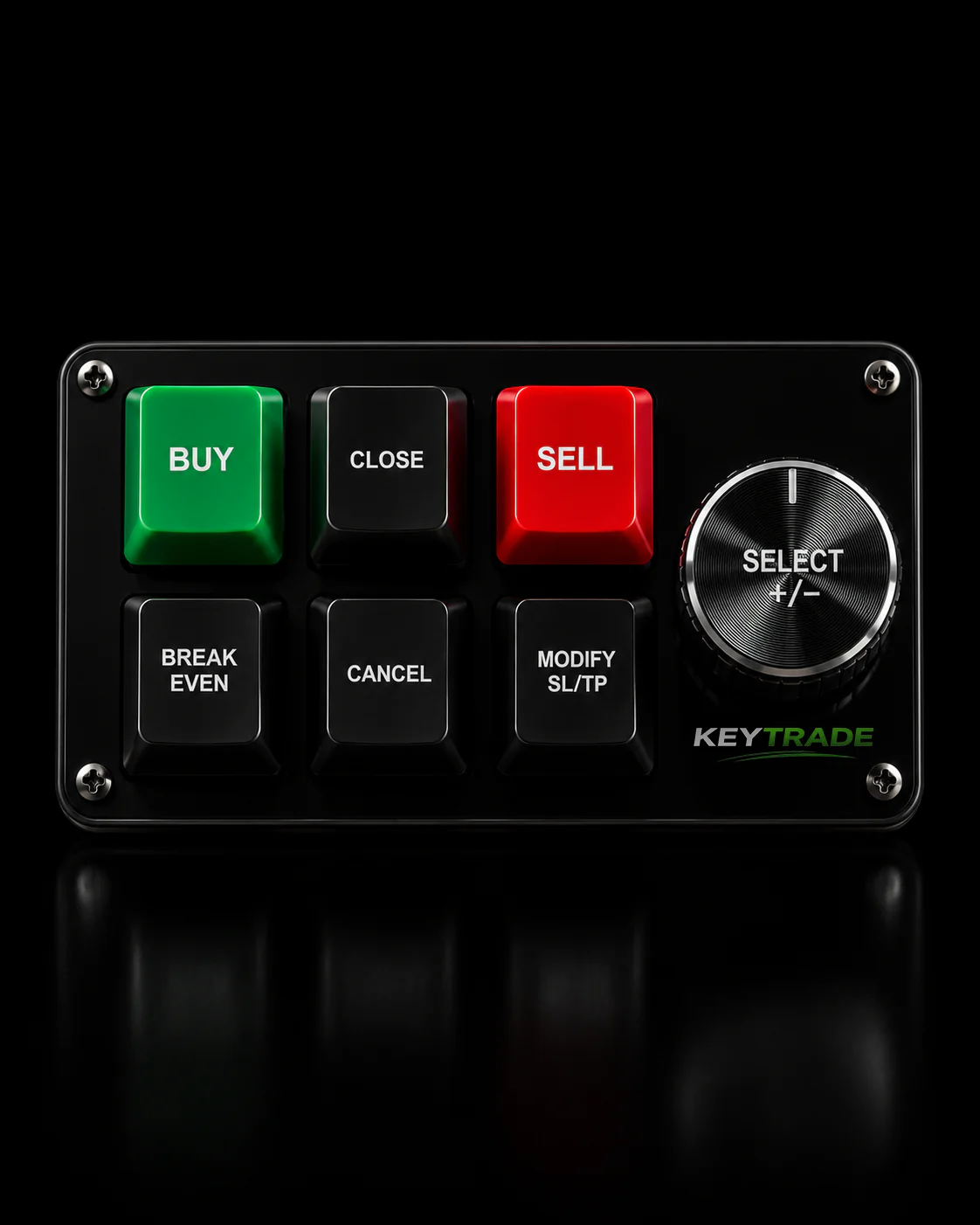
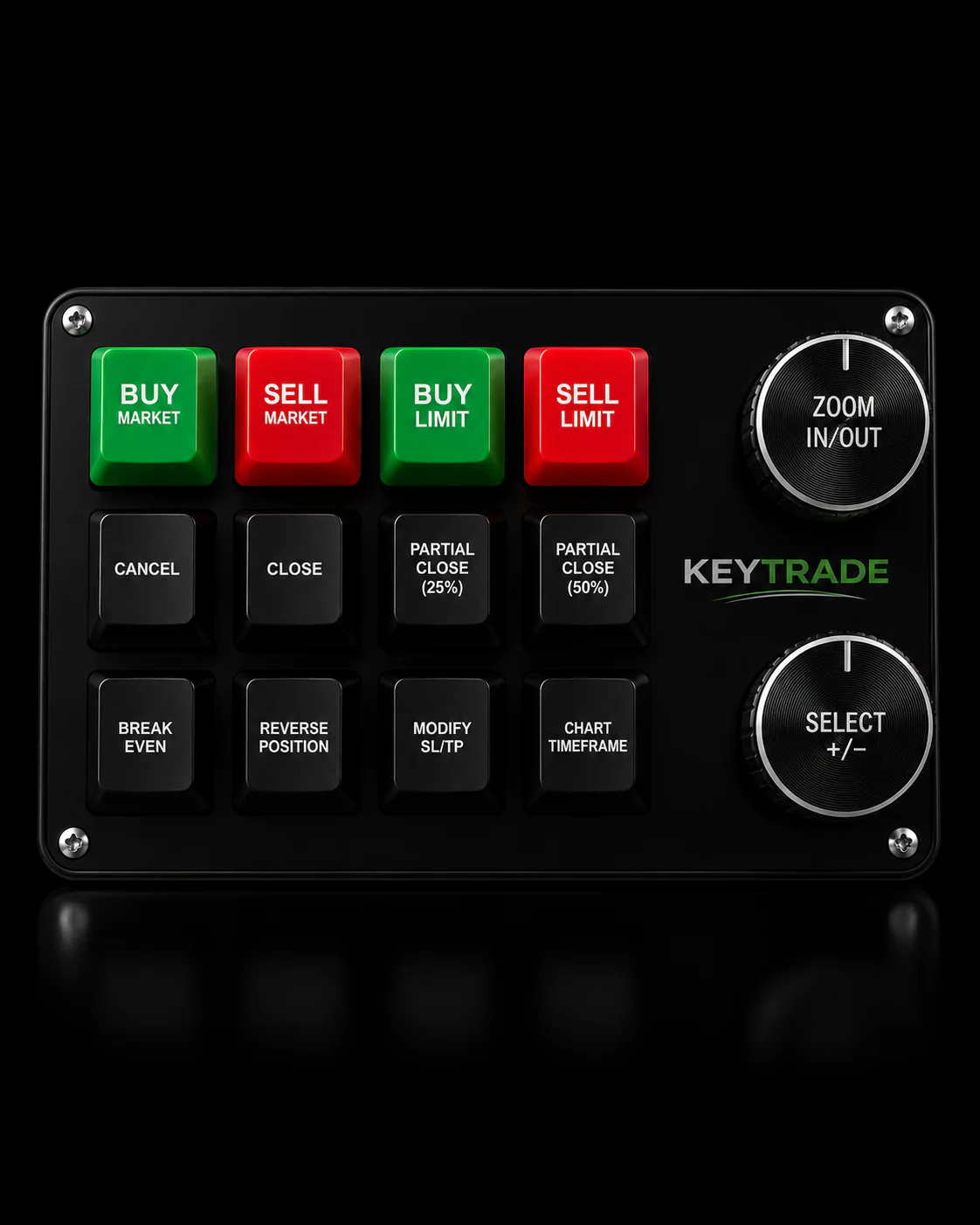
The Key-Trade Trading Keyboard is built specifically for this use case. Key specs and features:
- Multiple programmable keys with onboard memory — profiles survive machine switches and software crashes.
- Wired USB HID connection — recognized by every supported platform as a standard keyboard input, no special driver required for basic function.
- Color-coded keycaps and backlighting for zone-based layout (entry, exit, risk management).
- Companion software for profile management, with setup guides that require no technical background.
- Confirmed compatibility with TradingView, MetaTrader 4/5, cTrader, NinjaTrader, SierraChart, Thinkorswim, and Tradovate.
- Worldwide shipping with technical support and setup documentation included.
Key-trade implements platform mapping through standard HID keyboard output, meaning the device sends keystrokes that the platform reads as native hotkeys. No middleware, no API dependency — the keypad behaves exactly like a keyboard shortcut from the platform’s perspective.
What traders actually use it for: rapid order execution (long, short, market, limit), break-even stop placement, partial closures (50%, 25%), SL/TP modification, flatten-all, and cancel-all — all mapped to physical buttons that do not move and do not require a mouse click.
Quick setup checklist for the Key-Trade device:
- Install companion software and load your platform’s recommended profile.
- Confirm each key fires the correct platform shortcut in SIM mode.
- Test N-key rollover with simultaneous keypresses.
- Run a full simulated session before switching to a live account.
Key Takeaways
A purpose-built, wired trading keypad with onboard memory and confirmed platform compatibility is the most reliable hardware upgrade an active trader can make in 2026.
| Point | Details |
|---|---|
| Wired USB is mandatory | Wireless latency and dropout risk make it unsuitable for live order execution. |
| Programmable keys are the priority feature | They are the single most important hardware feature for day trading, enabling instant, repeatable command execution. |
| Optimized setups cut execution time | Shortcut training and optimized layouts can reduce execution times by 40–75% depending on the action. |
| Test every key in SIM mode first | Confirm platform focus behavior, N-key rollover, and hotkey conflicts before going live. |
| Key-trade is the recommended device | The Key-Trade Trading Keyboard covers all major platforms, ships worldwide, and requires no technical setup knowledge. |
Hardware is the part most traders underestimate
Most trading education focuses on strategy, psychology, and risk management — and rightly so. But there is a category of error that no strategy fixes: the mechanical mispress, the slow exit, the wrong key in a fast market. These are hardware problems, and they have hardware solutions.
What traders who switch to dedicated keypads consistently report is not just faster execution. It is the reduction in decision fatigue. When flatten is always the red key in the top-left corner, your brain stops spending any cognitive resource locating it. That freed capacity goes back into reading the market. The physical layout becomes an extension of the trading plan, not a separate thing to manage.
The traders who resist dedicated hardware longest tend to be the ones who have not yet had a costly mispress. Once they have, the math on a $200–$300 keypad changes immediately.
The Key-Trade keypad is ready to ship
Traders who want hardware-level reliability without a complex setup have one clear option: the Key-Trade Trading Keyboard, available now with worldwide shipping, platform-specific setup guides, and direct support.

The device works out of the box with TradingView, MetaTrader 4/5, cTrader, NinjaTrader, SierraChart, Thinkorswim, and Tradovate. No technical knowledge required — load your profile, test in SIM, and trade. Visit the Key-Trade product page to check current availability, shipping options to your location, and warranty details.
Useful sources
- The Best Day Trading Keyboard for 2022
- Day Trading Keyboard
- Keyboard Trading
- Keyboard, Mouse, and Peripherals for Trading Workstations: The Setup That Reduces Execution Errors and Survives 6-Hour Sessions - NexusFi Academy
- Warrior Trading hot-key video lesson
- Trading Keyboard & Hotkey Pad for Traders – Key-Trade Trading Keyboards
- Key-Trade Professional Trading Keyboard – Key-Trade Trading Keyboards
Always test your full hotkey layout on a demo account before switching to live. Platform updates can silently break mapped shortcuts — a five-minute SIM check before each session catches this before it costs money.
FAQ
What is a trading keyboard?
A trading keyboard is any programmable input device — dedicated keypad, gaming keyboard with macro keys, or macropad — configured to execute trading platform commands through hotkeys rather than mouse clicks.
Does the Key-Trade keyboard work with TradingView and MetaTrader?
Yes. The Key-Trade Trading Keyboard supports TradingView, MetaTrader 4/5, cTrader, NinjaTrader, SierraChart, Thinkorswim, and Tradovate via standard HID keyboard output.
Are mechanical switches better for day trading?
Linear mechanical switches are the most common recommendation for trading because they provide consistent actuation with no tactile bump, reducing the chance of catching adjacent keys during rapid sequences.
How much does a dedicated trading keypad cost?
Purpose-built trading keypads typically run $150–$350, depending on key count, onboard memory, and platform support. Gaming keyboards with macro rows start around $80.
Should I practice hotkeys in a simulator before going live?
Yes, always. Test every mapped key in SIM mode to confirm platform focus behavior, N-key rollover, and the absence of shortcut conflicts before using the layout in a live account.
Recommended
- Trading Input Devices for Active Traders: A Full Guide – Key-Trade Trading Keyboards
- Best magickeys.trade Alternatives for Forex Traders in 2026 – Key-Trade Trading Keyboards
- cTrader Keyboard Shortcut Functions: Your Complete 2026 Guide – Key-Trade Trading Keyboards
- External Trading Keypads for MT5: Speed and Accuracy – Key-Trade Trading Keyboards