

Thinkorswim Keypad Setup: A Trader-Tested 15-Button Guide
Yes, you can run Thinkorswim from a physical keypad, and you can be trade-ready in under an hour. A Key-Trade keypad or a modest number of buttons Elgato Stream Deck both work through device-side key mapping and macros, which means the keypad sends keystrokes to whatever window has focus rather than plugging into Thinkorswim’s own settings menu. Three things to do right now: pick a compatible device, import a proven a modest number of buttons profile, and run every mapped key through a paper trading account before you touch live size.
That last step is the one traders skip and regret. A keypad macro that fires a market order, a stop, and a scale-out in one unconditional sequence is powerful when it works and expensive when a delay or a focus glitch makes it fire out of order. Everything below is built around avoiding that outcome.
Key Takeaways
A trader-tested a modest number of buttons profile with strict color discipline and a two-step Flatten key cuts execution errors far more reliably than adding more software indicators ever will.
| Point | Details |
|---|---|
| Verdict | Physical keypads like the Key-Trade keypad or a modest number of buttons Stream Deck work with Thinkorswim through device-side key mapping, no in-app changes needed. |
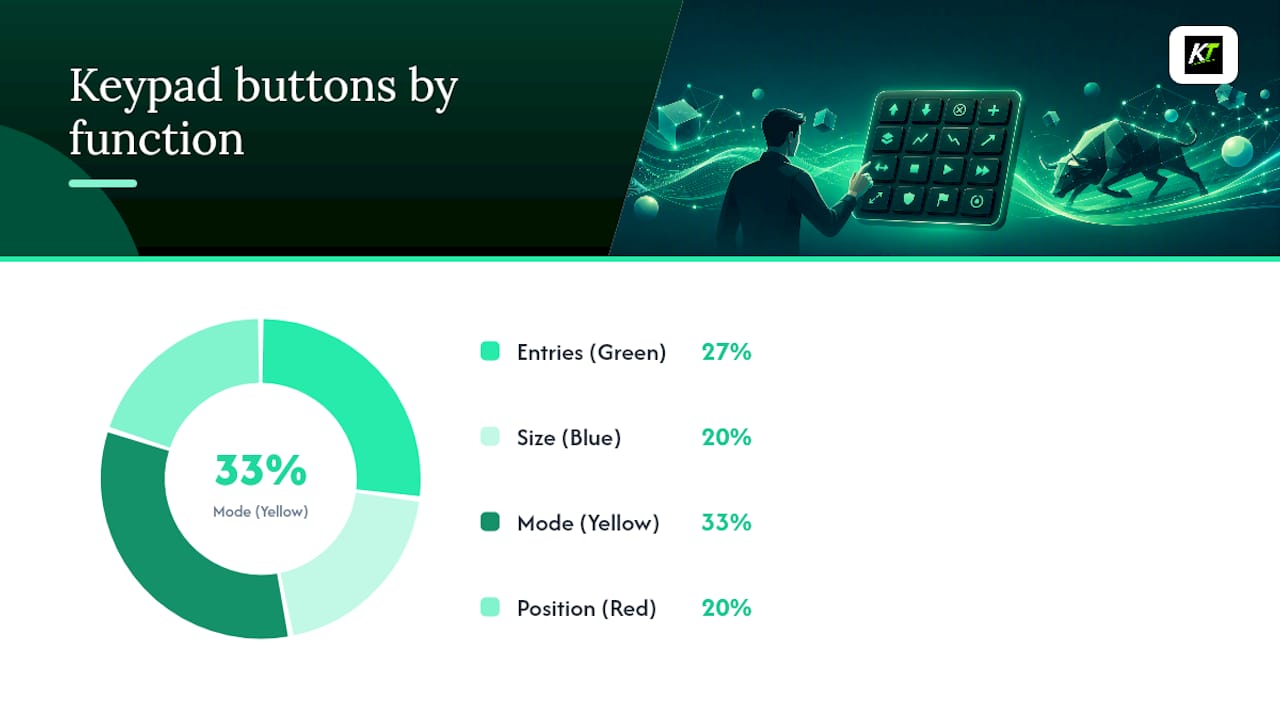
| Layout first | Use a fixed a modest number of buttons map with color coding: green entries, red safety, blue size, yellow mode toggles. |
| Safety tier | Flatten, Cancel, and Panic keys need a two-step confirmation, never a single unconfirmed press. |
| Test before live | Import the profile into a paper or simulated account and test single keys, then chained macros, before real size. |
| Recommended hardware | Key-Trade’s dedicated trading keypad ships with downloadable profiles and setup support built for this exact workflow. |
Table of Contents
- What Should a Thinkorswim Keypad Setup Layout Look Like?
- Which Keypad Devices Work Best With Thinkorswim?
- How Do You Map Buttons and Build Macros on the Device Side?
- How Do You Install and Import a Ready-Made Profile Safely?
- How Should You Test a Keypad Before Trading Live?
- What Causes Keypad Problems and How Do You Fix Them?
- Why Combine a Keypad With a Stream Deck and a Mouse?
- Get a Trading Keypad Built for This Exact Setup
- Sources
- FAQ
What Should a Thinkorswim Keypad Setup Layout Look Like?
A working thinkorswim keypad setup starts with a fixed modest number of buttons map, not a blank grid you fill in as you go. DayTradeLab’s hotkey layout uses color discipline to cut decision time: green for entries, red for anything that touches your whole position, blue for size and presets, yellow for mode toggles. Copy the structure below into your keypad software as a starting point, then adjust contract sizes and tick distances to your own instrument.
| Button | Function | Color | Use Case |
|---|---|---|---|
| 1 | Buy market, preset size | Green | Single press, momentum entry |
| 2 | Sell market, preset size | Green | Single press, momentum entry |
| 3 | Buy limit at bid | Green | Single press |
| 4 | Sell limit at ask | Green | Single press |
| 5 | Increase size preset | Blue | Single press |
| 6 | Decrease size preset | Blue | Single press |
| 7 | Set stop, X ticks below | Yellow | Single press, applies to open position |
| 8 | Set target, Y ticks above | Yellow | Single press, applies to open position |
| 9 | Scale out 50% | Blue | Single press |
| 10 | Cancel all working orders | Red | Two-step confirm |
| 11 | Flatten position | Red | Two-step confirm |
| 12 | Move stop to breakeven | Yellow | Single press |
| 13 | Switch to profile: futures | Yellow | Single press |
| 14 | Switch to profile: equities | Yellow | Single press |
| 15 | Panic / GTFO (cancel + flatten) | Red | Two-step confirm, hold required |
Cancel, Flatten, and the combined Panic key are critical actions that should never fire on a single accidental tap. Build those as a hold-and-press or a two-key confirmation sequence in your keypad software rather than a plain single-key macro.
Pro Tip: Put Flatten and Panic on the largest or most thumb-accessible keys on the pad, physically separated from your entry keys. A keypad that puts “buy” and “flatten everything” next to each other is a lawsuit waiting to happen against your own account.
Which Keypad Devices Work Best With Thinkorswim?
Any device that can send standard keyboard shortcuts to the foreground application will work with Thinkorswim, but not every device handles that reliably under stress. Before buying, check four things: wired USB versus wireless, onboard profile storage, key switch type, and whether the vendor ships ready-made profiles you can import instead of building from scratch.
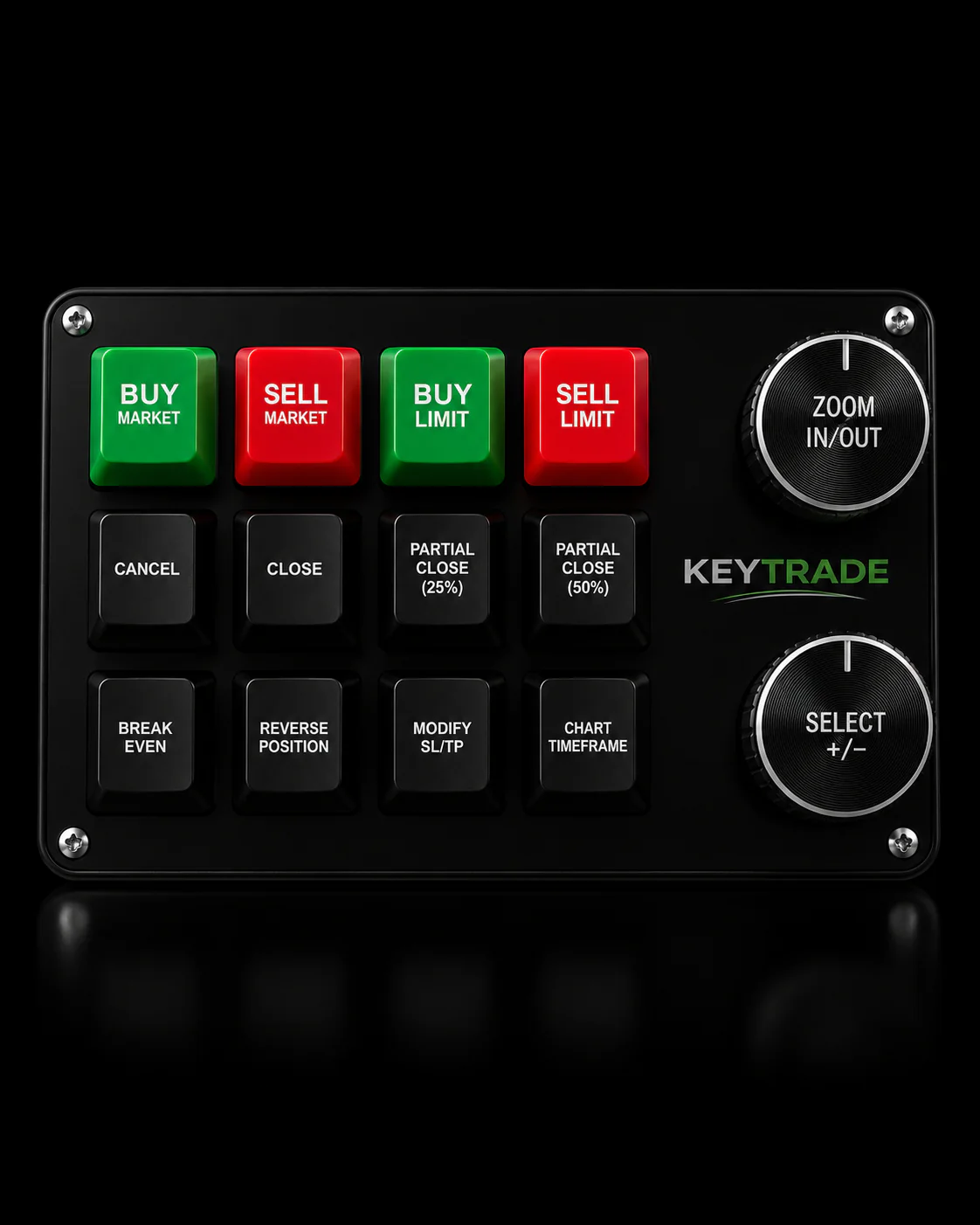
The Key-Trade keypad is built specifically as a dedicated trading device, with programmable buttons designed around order execution, partial closes, and risk controls rather than general-purpose macros. The Elgato Stream Deck is the more flexible option: it displays labels and icons on each key, which helps if you switch between several profiles across platforms like TradingView or NinjaTrader in addition to Thinkorswim. Neither is objectively better in every case. A dedicated keypad wins on physical feel and safety-key placement; the Stream Deck wins on visual labeling and profile switching.
Run through this checklist before you commit to hardware:
- Wired USB connection, not wireless, for the lowest and most consistent latency.
- Mechanical switches with a linear feel, which NexusFi recommends specifically because linear switches reduce the chance of catching a key mid-press during a fast sequence.
- Onboard profile storage so the mappings survive a reboot or a driver update without reloading.
- A separate numpad or dedicated quantity keys if you type contract sizes manually rather than using presets, since NexusFi’s guidance on execution errors applies just as much to typed size entry as to hotkeys.
- A stable, weighted base. A keypad that slides on your desk during a fast market is a design flaw, not a minor annoyance.
- Confirmation that the vendor provides a downloadable profile file (.streamDeckProfile or a similar vendor format) rather than leaving you to map fifteen keys from a blank slate.
How Do You Map Buttons and Build Macros on the Device Side?
Every mapping decision here happens inside the keypad’s own software, not inside Thinkorswim’s settings. That distinction matters because device-side macros survive platform updates; anything you configure through a broker’s internal hotkey menu can break the next time that platform pushes a patch.
Start simple. Programmable keyboard guidance on macro building recommends installing the vendor software first, identifying which actions you repeat most often during a session, and recording those as single-key macros before attempting anything chained. Only after single-key actions are solid should you build multi-step sequences.
- Map market entries to one press, one key, no confirmation layer. Speed matters here and the risk is low if size presets are already correct.
- Keep Flatten and Cancel on a separate physical tier of keys, both colored red, both requiring a two-step sequence.
- Assign size presets to dedicated keys rather than cycling through a single toggle. A toggle you have to press three times to reach the right size defeats the purpose of a keypad.
- Use mode toggles (switching between a futures profile and an equities profile) sparingly. Every mode switch is a moment where a stale mapping can fire the wrong action.
A macro that stacks a market buy, a stop placement, and a profit target should read like an ordered list of keyboard events, not a single opaque block: buy market at preset size, wait a short interval, send stop order at X ticks below, wait, send target order at Y ticks above. Building in short delays between each step avoids the sequence errors that happen when the active window takes a beat to register a focus change.
Pro Tip: Test every macro in a paper account repeatedly before it goes near real size, and never chain more than three critical trade actions into a single macro that fires without a checkpoint. If step two of three needs a confirmation, put it there.
How Do You Install and Import a Ready-Made Profile Safely?
Once your layout is decided, importing a tested profile beats building one from zero. Here’s the sequence to follow:
- Install the vendor’s keypad software first and confirm the device is recognized before attempting any import.
- Download a profile file. DayTradeLab publishes a ready modest number of buttons profile built around Thinkorswim-style hotkey macros, and Key-Trade’s own site offers downloadable profiles matched to its hardware.
- Import the file into your keypad software, whether that’s a .streamDeckProfile format or a vendor-specific .profile format.
- Test every key on a non-live chart or a demo DOM before switching to your real workspace.
- Review each mapped key inside the device UI one at a time. Rename anything ambiguous so a teammate or a future version of you doesn’t have to guess what “Key 9” does.
- Disable or delete any macro that appears to reach outside the keypad software itself, such as a step that triggers an external script.
- Keep one untouched baseline profile with no trade macros at all. When something breaks mid-session, switching to that blank profile gets you back to a plain keyboard instantly.
That baseline profile is the cheapest insurance you’ll ever set up. It costs nothing and it’s the difference between a five-second recovery and a frozen ten minutes trying to figure out why button 11 just tried to flatten a position that wasn’t open.
How Should You Test a Keypad Before Trading Live?
Testing happens in stages, not all at once. Import the profile into a paper or simulated account first, and only move to single-key testing once the import itself looks clean. Press each entry key alone and confirm the correct order type and size hits the simulator. Then test chained macros, watching specifically for timing issues where one step fires before the previous one has registered.
Panic and Flatten deserve their own dedicated test pass. Trigger them deliberately in the sim and confirm the two-step confirmation actually stops a single accidental tap, because a safety key that fails its own test is worse than no safety key at all.
- Disable profile switching during live sessions so a stray key press can’t silently swap your entire layout mid-trade.
- Keep a physical backup, whether that’s a dedicated panic button separate from your main pad or a mouse thumb button mapped to the same flatten action.
- Switch off macros entirely and go back to manual mouse and keyboard execution during low-liquidity stretches, complex order routing, or any session where you need to read Level II behavior closely. Macros are built for speed in normal conditions, not for judgment calls.
- Run a weekly integrity check on your profiles and keep a recent exported backup, since a corrupted profile or an OS update can silently wipe mappings you rely on daily.
Pro Tip: Schedule that weekly backup the same way you’d schedule a platform data check. A five-minute export takes less time than rebuilding fifteen macros from memory the morning of a big print.
What Causes Keypad Problems and How Do You Fix Them?
Most keypad failures under live conditions trace back to a small set of causes: key ghosting on cheap boards, a profile that isn’t actually sending to the focused window, macros firing faster than the platform can process, or a double-press registering as two separate orders.
- Test the device on a spare machine first if you suspect a hardware fault rather than a software one.
- Swap USB ports and avoid hubs entirely. A direct USB-A or USB-C connection gives the lowest and most predictable latency.
- Check for outdated vendor drivers or firmware, since a stale firmware version is a common source of intermittent misfires.
- Confirm the profile that’s active is actually the one you think is active. Another running utility can silently override key bindings without any visible warning.
- Re-test in a simulator any time you change a driver, firmware version, or the profile itself.
- Look at n-key rollover and polling rate specs if you’re seeing missed or duplicated key events during fast sequences. A low polling rate is a common, overlooked cause of erratic multi-key behavior.
- If a macro behaves differently depending on which app has focus, check whether the platform window is actually receiving keyboard focus at the moment the macro fires.
If none of that resolves it, contact the vendor rather than guessing further. A firmware issue on the device side is not something you can fix by rebuilding your profile from scratch.
Why Combine a Keypad With a Stream Deck and a Mouse?
The traders who get the most out of a physical keypad rarely use it alone. A structured keypad handles the actions you repeat identically every time: entries, stops, targets, flatten. A Stream Deck-style device adds labeled visual presets and lets you switch modes without hunting for an unlabeled key. A mouse stays essential for anything that needs judgment, particularly reading a DOM or routing an order manually when the market isn’t behaving in a straight line.
Picture a momentum breakout. One keypad button fires the market entry at preset size. A chained macro immediately places a stop a fixed number of ticks below and a partial-close order above, all inside the time it would take to click through three separate order tickets. That single sequence preserves the profit window a manual entry would have given up to hesitation, and it removes the chance of fat-fingering a size field mid-move. The hybrid input approach works precisely because no single device tries to do everything.
During calm, trending phases, lean on the keypad. During choppy or thin conditions, hand control back to the mouse and DOM. The mistake isn’t picking the wrong device. It’s refusing to switch between them when conditions change.
Get a Trading Keypad Built for This Exact Setup
Key-Trade builds physical keypads specifically for traders who need this kind of structured, fast execution rather than a general-purpose macro pad repurposed for trading. Every unit ships with programmable buttons, onboard profile storage, a choice of mechanical switch types, and a wired USB connection for consistent low-latency input across TradingView, MetaTrader, NinjaTrader, and Thinkorswim.

If you trade futures, prioritize a model with a compact footprint and dedicated size-preset keys; if you trade equities across multiple symbols, prioritize a device with more programmable buttons for ticker-specific presets. Key-Trade’s product lineup comes with downloadable profiles, written setup guides, and technical support, and ships worldwide. Load a profile, run it through paper trading first, and confirm the MT5 speed and accuracy workflow matches your own before going live. Visit Key-Trade to see current models and start the download.
Sources
- Keyboard, Mouse, and Peripherals for Trading Workstations: The Setup That Reduces Execution Errors and Survives 6-Hour Sessions - NexusFi Academy
- Hotkey Day Trading Strategy - DayTradeLab
- How a Programmable Keyboard Helps Traders
FAQ
Can a Physical Keypad Actually Control Thinkorswim?
Yes. A keypad sends standard keyboard shortcuts to whichever window is active, so it works with Thinkorswim the same way it would with any other platform that accepts keyboard hotkeys.
Do I Need to Change Any Settings Inside Thinkorswim?
No. All the mapping happens inside your keypad’s own software, whether that’s a Key-Trade device or a Stream Deck, so Thinkorswim itself stays untouched.
What’s the Safest Way to Map a Flatten or Panic Button?
Require a two-step confirmation or a hold-and-press sequence rather than a single tap, and place that key physically apart from your entry buttons so a slip of the thumb can’t fire it by accident.
Should I Test a New Profile Before Trading Live?
Always. Import the profile into a paper or simulated account, test every single-key action first, then test chained macros before you let any of it near real capital.
Which Device Should I Buy: A Dedicated Keypad or a Stream Deck?
A Key-Trade keypad fits traders who want a dedicated, execution-focused device with mechanical switches, while a modest number of buttons Elgato Stream Deck suits traders who want visual labeling and easy profile switching across multiple platforms.
Recommended
- Key Trading Keypads: Best Picks for Active Traders – Key-Trade Trading Keyboards
- Trading Keyboard for Active Traders: 2026 Guide – Key-Trade Trading Keyboards
- External Trading Keypads for MT5: Speed and Accuracy – Key-Trade Trading Keyboards
- Best Hardware Keypad Alternatives for Pro Traders – Key-Trade Trading Keyboards