

cTrader Keyboard Shortcut Functions: Your Complete 2026 Guide
cTrader keyboard shortcut functions are built-in hotkeys that let you execute platform commands instantly, without touching the mouse. Open a new order with F9, flip between charts with Ctrl+Tab, toggle fullscreen with F11. The whole point is keeping your eyes on price action while your hands stay on the keys. During a fast-moving session, that separation between “thinking” and “clicking” is where most execution delays actually live.
Key benefits at a glance:
- Speed: Trigger order windows, chart switches, and panel toggles in a single keystroke
- Focus: Stay locked on price action instead of hunting through menus
- Accuracy: Reduce misclicks that come from rushed mouse navigation
- Workflow control: Manage drawings, zoom levels, and layouts without breaking your rhythm
cTrader Desktop lets you reassign hotkeys via Application Settings. The Web platform ships with fixed defaults and no remapping option.
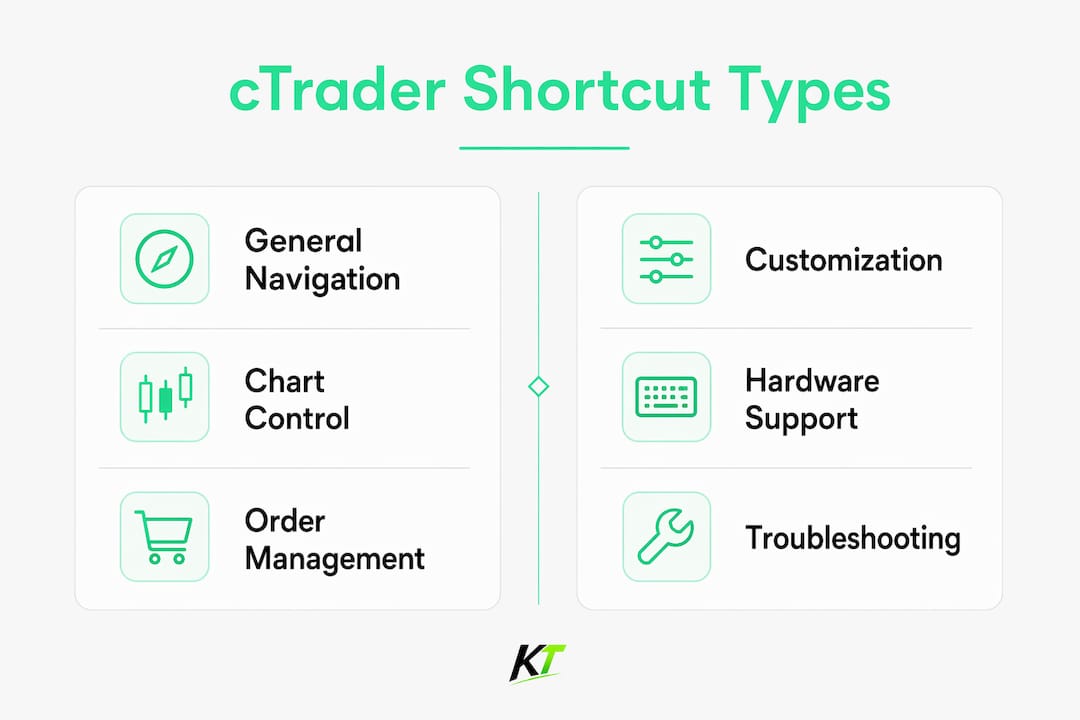
What are the general navigation shortcuts in cTrader?
These are the commands you’ll use constantly, regardless of what you’re trading or how your charts are set up.
- F9 — opens the New Order screen
- F11 — toggles fullscreen mode
- F1 — opens the Help Centre
- F2 — switches chart mode
- F3 — switches layout
- Ctrl+Tab — moves to the next chart
- Ctrl+Shift+Tab — moves to the previous chart
- Ctrl+F — searches across all symbols
- Ctrl+N — opens a new chart
- Ctrl+Q — shows or hides the main menu
- Ctrl+W — shows or hides Trade Watch
- Ctrl+E — shows or hides the Active Symbol Panel
- F7 / F8 — moves between workspaces
On the Web platform, panel toggles use Shift+Q, Shift+W, and Shift+E instead of the Ctrl variants above. Navigation between charts also shifts to Ctrl+Right and Ctrl+Left rather than Ctrl+Tab.
Pro Tip: Press the Spacebar to trigger Smart Chart Search, which lets you switch symbols instantly without lifting your hands from the keyboard. Most traders never discover it, but it’s one of the fastest ways to navigate a large watchlist mid-session.
How do chart-specific shortcuts work in cTrader?
Chart shortcuts handle everything from switching display modes to managing drawings and controlling zoom. They’re the commands that make technical analysis feel fluid rather than mechanical.
- Ctrl+1 — switches to Bar chart
- Ctrl+2 — switches to Candlestick chart
- Ctrl+3 — switches to Line chart
- Alt+1 / Alt+2 / Alt+3 / Alt+4 — alternate chart type toggles (Bar, Candlestick, Line, Dot)
- Up / Down arrow keys — cycle through chart periods
- Ctrl+G — shows or hides the background grid
- Ctrl+B — shows or hides the bid price line
- Ctrl+K — shows or hides the ask price line (Web); Ctrl+A on Desktop
- Ctrl+C — copies selected chart objects to clipboard
- Ctrl+V — pastes chart objects from clipboard
- Ctrl+X — cuts selected chart objects
- Ctrl+D — manages drawings on the chart
- + and - keys — zoom in and zoom out
- Ctrl+Mouse Wheel — fine zoom control
- Left / Right arrow keys — scroll two bars left or right
- Ctrl+Shift+S — takes a Chartshot of the active chart
The chart toolbar shortcuts for zoom and period switching are especially useful when you’re reviewing multiple timeframes quickly.
What mouse hotkeys does cTrader support?
Mouse shortcuts complement keyboard commands, particularly for chart interaction and drawing management. Combining both input types is where you get the real speed gains.
- Mouse Wheel — zoom in/out or scroll the chart
- Ctrl+Mouse Wheel — fine zoom control (Desktop); on Mac, Cmd+Mouse Wheel scrolls left/right or zooms
- Middle Mouse Button — toggles the crosshair on and off
- Shift+Middle Mouse Button (Mac) — enables or disables the synchronized crosshair
- Ctrl+Click on drawing — adds or removes a drawing from the current selection
- Ctrl+Drag — duplicates a drawing (Cmd+Drag on Mac)
- Alt+Drag — moves a drawing with snapping disabled (Option+Drag on Mac)
- Shift+Line — constrains a line to 45-degree angle increments
- Shift+Rectangle — draws a perfect square
- Shift+Ellipse — draws a perfect circle
- Ctrl+Draw — hold to continue drawing without releasing
The cTrader Mac hotkeys replace Ctrl with Cmd and Alt with Option throughout, so Mac traders need to internalize that substitution from day one.
How do you customize and manage cTrader hotkeys?
On cTrader Desktop, open Application Settings and navigate to the Hotkeys section. Click any command field, press your preferred key or combination, and the reassignment saves immediately. You can remap virtually any command to match your personal workflow.

The Web platform works differently. Its default hotkeys are fixed, and there is no settings panel to change them. If you rely on the browser-based version, you work with what ships out of the box.
Windows and Mac users also face different modifier logic. Windows uses Ctrl as the primary modifier throughout. Mac uses Cmd for most equivalents, with Option replacing Alt for drawing-specific actions. Traders who switch between systems regularly need to consciously reset their muscle memory each time.
Best practices for managing your shortcut setup:
- Map your highest-frequency actions (new order, chart switch, symbol search) to single-key or two-key combos
- Avoid remapping keys that overlap with OS-level shortcuts, which can cause conflicts
- Test any new assignment in a demo environment before relying on it in a live session
- Document your custom layout so you can replicate it after a reinstall
Why dedicated trading hardware takes shortcuts further
Software hotkeys have a ceiling. You’re still working within a keyboard designed for general computing, which means reaching across the board for combinations that don’t sit naturally under your fingers. Physical trading keypads solve that by putting your most-used commands on dedicated, programmable buttons within thumb’s reach.
Key-trade builds hardware specifically for this problem. Its trading keypads integrate with cTrader and other platforms, letting you assign order execution, partial closes, break-even moves, and SL/TP adjustments to individual physical keys. No modifier combos, no reaching.
- Faster order entry: One button fires the full sequence instead of a multi-key combo
- Error reduction: Physical separation between “buy” and “sell” buttons eliminates miskey risk
- Custom layouts: Program each key to match your exact trading style and risk rules
- Platform compatibility: Works alongside cTrader’s native shortcuts rather than replacing them
Pro Tip: The most effective setup pairs cTrader’s built-in navigation shortcuts with a dedicated trading keypad for execution commands. Use the keyboard for chart control and symbol switching; use the hardware pad for anything that touches an open position.
Complete list of default cTrader keyboard shortcuts
| Shortcut | Function |
|---|---|
| F1 | Open Help Centre |
| F2 | Switch chart mode |
| F3 | Switch layout |
| F9 | Open New Order screen |
| F11 | Toggle fullscreen |
| Spacebar | Smart Chart Search (symbol switch) |
| Ctrl+Q / Shift+Q | Show or hide main menu |
| Ctrl+W / Shift+W | Show or hide Trade Watch |
| Ctrl+E / Shift+E | Show or hide Active Symbol Panel |
| Ctrl+Tab | Switch to next chart |
| Ctrl+Shift+Tab | Switch to previous chart |
| Ctrl+Right / Ctrl+Left | Next or previous chart (Web) |
| Ctrl+F | Search all symbols |
| Ctrl+N | Open new chart |
| Ctrl+Shift+N | Open new detached chart |
| Ctrl+1 | Bar chart |
| Ctrl+2 | Candlestick chart |
| Ctrl+3 | Line chart |
| Alt+1 / 2 / 3 / 4 | Bar, Candlestick, Line, Dot chart |
| Up / Down arrows | Switch chart period |
| Left / Right arrows | Scroll chart two bars |
| Ctrl+G | Show or hide grid |
| Ctrl+B | Show or hide bid line |
| Ctrl+K / Ctrl+A | Show or hide ask line |
| Ctrl+C | Copy selected drawings |
| Ctrl+V | Paste drawings |
| Ctrl+X | Cut drawings |
| Ctrl+D | Manage drawings |
| Ctrl+Shift+S | Take Chartshot |
| + / - | Zoom in or out |
| Ctrl+Mouse Wheel | Fine zoom |
| Middle Mouse Button | Toggle crosshair |
| Ctrl+Drag | Duplicate drawing |
| Alt+Drag | Move drawing without snapping |
Desktop and Web versions share most of these, with the panel-toggle modifier being the main difference (Ctrl vs Shift). Mac replaces Ctrl with Cmd and Alt with Option throughout.
Troubleshooting common shortcut issues in cTrader
Shortcuts not responding: The most common cause is a conflicting OS or browser-level shortcut claiming the key first. On Windows, Ctrl+N and Ctrl+W can conflict with browser tab controls when cTrader Web runs in a browser window. Switch to the Desktop app or remap the conflicting command in Application Settings.
Wrong chart getting focus: Ctrl+Tab cycles charts in the order they were opened, not by position on screen. If the wrong chart activates, click once to give it focus before using keyboard commands.
Mac shortcuts behaving unexpectedly: Verify you’re using Cmd instead of Ctrl. Several Mac system shortcuts also use Cmd combinations, so check System Preferences for conflicts if a command does nothing.
Remapped keys reverting: This usually happens after a platform update. cTrader Desktop occasionally resets custom hotkeys during major version upgrades. Export or document your layout before updating.
Web platform showing no settings: The Web version has no hotkey customization panel. If you need remapping, you must use the Desktop app.
Tips for building an efficient custom shortcut setup
Start with frequency, not convenience. Map the three or four actions you take most often in a session to the easiest key positions, typically single keys or Ctrl+single letter combos near the home row. Everything else can live on less accessible combinations.
Group related commands logically. Chart display toggles (grid, bid, ask) work well on adjacent keys so your hand learns the cluster. Order management commands should sit apart from navigation shortcuts to prevent accidental triggers.
Build muscle memory deliberately. Spend one full session using only keyboard shortcuts for navigation, even if it feels slower at first. The efficiency gains from muscle memory compound over weeks, not days.
Test every custom assignment in a demo account before going live. A misfire on a live position because you hit the wrong remapped key is an avoidable mistake.
How shortcuts reduce errors and speed up live trade execution
Every mouse click in a live session adds latency and a decision point. You move the cursor, locate the button, verify it’s the right one, then click. A keyboard shortcut collapses that sequence to a single physical action. On a fast news spike, that difference can be the gap between your intended price and your actual fill.

Error reduction works through a different mechanism. When your hands know exactly where each command lives, you stop second-guessing mid-action. Hesitation is where misclicks happen. Traders who develop shortcut muscle memory report fewer fat-finger errors precisely because the action becomes automatic rather than deliberate.
The combination of speed and accuracy also reduces cognitive load. When platform navigation is automatic, more mental bandwidth stays on reading the market. That’s the real payoff of mastering cTrader’s hotkey system, and it’s why serious traders treat shortcut fluency as a core skill rather than a convenience.
For traders who want to push execution speed further, Key-trade’s hardware keypads extend this logic into the physical world. Visit the Key-trade trading keyboard page to see how programmable hardware integrates with cTrader for sub-second order management.

Key Takeaways
Mastering cTrader keyboard shortcuts cuts execution time, reduces errors, and keeps your focus on price action rather than platform navigation.
| Point | Details |
|---|---|
| Core shortcut function | cTrader hotkeys execute platform commands instantly, replacing mouse navigation with single keystrokes. |
| Desktop vs Web customization | Desktop users can remap any hotkey in Application Settings; Web platform defaults are fixed. |
| Mac vs Windows modifiers | Windows uses Ctrl throughout; Mac substitutes Cmd and Option, requiring adaptation when switching systems. |
| Spacebar for symbol search | The Smart Chart Search shortcut lets you switch symbols instantly without mouse use, yet most traders skip it. |
| Hardware extends software limits | Dedicated trading keypads assign execution commands to physical buttons, reducing multi-key combos and miskey risk. |
FAQ
What are hotkeys in trading?
Hotkeys in trading are keyboard shortcuts that trigger platform actions instantly, such as opening an order window or switching charts, without using the mouse. They reduce execution time and keep a trader’s focus on price action.
What is the cTrader keyboard shortcut function?
It’s the built-in set of hotkeys in cTrader that lets traders perform actions like opening orders (F9), toggling fullscreen (F11), switching charts (Ctrl+Tab), and managing drawings, all without mouse navigation.
Can you customize cTrader hotkeys?
Yes, on cTrader Desktop you can remap any hotkey through Application Settings by clicking the command field and pressing your preferred key. The Web platform does not support customization.
Is cTrader available on Mac with the same shortcuts?
cTrader Mac supports the same functions but uses Cmd instead of Ctrl and Option instead of Alt throughout. You can find and reassign Mac hotkeys in the Settings window opened with Cmd+,.
How do I add a hardware keypad to my cTrader setup?
A dedicated trading keypad like those from Key-trade connects to your workstation and maps physical buttons to cTrader commands, complementing the platform’s native shortcuts for faster order execution and trade management.
Recommended
- Why Forex Traders Use Hotkeys to Win on Speed – Key-Trade Trading Keyboards
- cTrader Trade Management Features: Complete 2026 Guide – Key-Trade Trading Keyboards
- NinjaTrader Chart Trader: A Complete Guide for Traders – Key-Trade Trading Keyboards
- Trading Keyboard & Hotkey Pad for Traders – Key-Trade Trading Keyboards