

MT4 Hotkeys: Hardware Keypads for Professional Traders
The fastest MT4 hotkey setup for professional traders is the Key-Trade Trading Keypad: a dedicated hardware device with programmable buttons, native MT4 EA integration, Auto SL/TP, panic-close, and US shipping with vendor support. If you’re ready to trade faster today, visit the Key-Trade product page and test the device on a demo MT4 account before going live.
Why traders choose hardware MT4 hotkeys:
- Instant one-button order execution without mouse routing or UI clicks
- Dedicated risk-control keys: break-even, partial close, panic-close, trailing stop
- Profile backup and import/export for multi-PC prop desk workflows
- Firmware updates and US warranty support from the vendor
Key Takeaways
Hardware MT4 hotkeys on a dedicated programmable keypad reduce execution variability, protect capital through instant risk-control buttons, and give prop desks portable profiles that deploy across multiple workstations.
| Point | Details |
|---|---|
| Hardware beats software shortcuts | Physical keypads remove mouse routing, improving execution repeatability for scalpers and prop desks. |
| Full risk-control layout is non-negotiable | Map Auto SL/TP, break-even, panic-close, and partial-close before trading live. |
| DLL permissions are the top setup failure | Enable “Allow automated trading” and “Allow DLL imports” in MT4 Options before loading the EA. |
| Profile portability matters for prop firms | Choose a device with device-side profile storage and import/export for multi-PC deployments. |
| Key-trade is the recommended MT4 keypad | The Key-Trade Trading Keypad ships to the US with MT4 EA support, firmware updates, and vendor warranty. |
Table of Contents
- What are MT4 hotkeys, and why does hardware beat software?
- How do you choose the right MT4 hotkey keypad?
- What does a typical MT4 keypad layout look like?
- How do you set up a keypad with MT4 step by step?
- What execution and risk-control benefits do hardware hotkeys deliver?
- Why are your MT4 hotkeys not working? Common fixes
- How much does a professional MT4 keypad cost in the US?
- Key-Trade’s perspective on building MT4 hotkey devices
- The Key-Trade Trading Keypad: features and where to buy
- Sources
- FAQ
What are MT4 hotkeys, and why does hardware beat software?
“MT4 hotkeys” in this guide means physical programmable keypads that connect to MetaTrader 4 and send order commands through a vendor-supplied Expert Advisor or plugin. Not keyboard shortcuts built into MT4’s menu. The distinction matters because hardware keypads eliminate the mouse entirely for critical actions, and that changes execution repeatability in ways a software shortcut cannot.
Industry reporting on Saxo Bank’s trading keypad confirms that mainstream vendors have recognized this gap: dedicated programmable hardware for retail and professional traders is a real product category, not a niche experiment.
Core use cases for hardware MT4 hotkeys:
- Scalping and latency-sensitive entries where every 100ms counts
- Panic-close (close all open positions instantly) during news events
- Partial close and scale-out without navigating the MT4 order panel
- Break-even adjustment on live trades with a single button press
- Instant SL/TP placement at predefined risk parameters
- Multi-instrument workflows on prop desks managing several charts simultaneously
The device communicates with MT4 through a vendor EA loaded in the Experts folder. The EA receives the keypad’s signal and executes the mapped action directly in the terminal. No mouse. No menu. One button press, one confirmed order.
How do you choose the right MT4 hotkey keypad?
Not every programmable keypad works with MT4. The checklist below separates devices worth buying from ones that will waste your time.
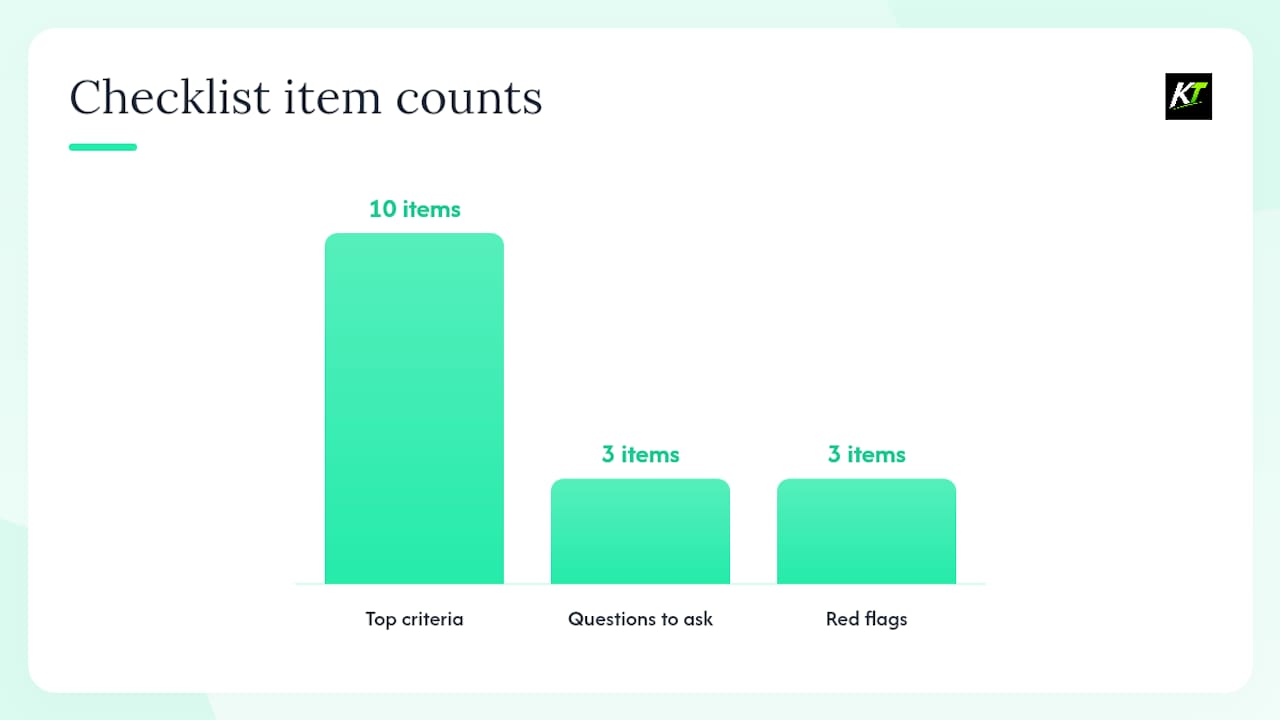
Top criteria to evaluate:
- MT4 compatibility — confirmed EA or plugin support, not just “keyboard remapping”
- Programmable button count — minimum 12 for a full risk-control layout; 20+ for prop desk workflows
- Latency and N-key rollover — all keys register simultaneously with no input lag
- Switch type — mechanical switches (tactile or linear) for faster actuation and less fatigue than membrane
- Connection — USB-A or USB-C; avoid wireless for latency-critical setups
- Profile storage — profiles saved on the device itself, not just in software
- Profile import/export — essential for prop firms deploying across multiple workstations
- Firmware updates — vendor must maintain the device post-purchase
- Warranty and US shipping — confirmed domestic shipping timeline and return policy
- Vendor support — setup documentation, installation guides, and a real support contact
Questions to ask before buying:
- Can I test the device on a demo MT4 account before using it live?
- Does the EA support Auto SL/TP and panic-close via dedicated buttons?
- How does the device handle lot-size calculation — fixed, risk-percent, or manual?
Red flags to avoid:
- No MT4-specific installation guide on the vendor’s site
- Closed-source EA requiring DLL permissions with no documentation explaining why
- No firmware update history or profile backup feature
- US shipping listed as “available” with no timeline or support contact
Professional buyers consistently prioritize profile portability and formal warranty over upfront price savings, especially prop firms managing multiple workstations.
What does a typical MT4 keypad layout look like?
Most hardware keypads ship with a default layout that mirrors the arrow-key conventions common across MT4 utilities: Up = Buy, Down = Sell, Right = Break-even, Left = Close All. These defaults come from established key-code conventions (Up arrow = key code 38, Down = 40, Right = 39, Left = 37) and are worth keeping as your base layer because they match the muscle memory most traders already have from software-based MT4 shortcuts.
A full default layout for a 12-button keypad typically looks like this:
| Button | Default action | Key code |
|---|---|---|
| 1 | Buy Market | 38 (Up) |
| 2 | Sell Market | 40 (Down) |
| 3 | Break-even | 39 (Right) |
| 4 | Close All | 37 (Left) |
| 5 | Partial Close | Spacebar |
| 6 | Trailing Stop Toggle | Enter |
| 7 | Increase Lot | Page Up |
| 8 | Decrease Lot | Page Down |
| 9 | Reverse Position | Custom vendor code |
| 10 | Add to Position | Custom vendor code |
| — | Move SL to Entry | Custom vendor code |
| 12 | Emergency Close | Custom vendor code |
Remapping works by assigning a new virtual key code to a physical button in the vendor’s configuration software. Most vendors support ASCII codes and Windows virtual key codes, so you can bind any key combination to any button.
Pro Tip: Scalpers should keep Buy, Sell, and panic-close on the three most accessible buttons (index, middle, ring finger on the dominant hand) and assign lot-size adjustments to secondary keys. Swing traders benefit more from a layout that prioritizes partial-close, scale-out, and trailing-stop toggle over raw entry speed.
How do you set up a keypad with MT4 step by step?
Follow this sequence exactly. Skipping the DLL permissions step is the single most common reason MT4 hotkeys stop working after installation.
- Unpack and connect the keypad via USB to your trading PC.
- Install vendor drivers and configuration software from the vendor’s download page.
-
Copy the vendor EA (.ex4 file) into MT4’s
MQL4/Expertsfolder. - Restart MT4, then go to Tools > Options > Expert Advisors.
- Enable “Allow automated trading” and check “Allow DLL imports.”
- Open a demo chart and drag the vendor EA onto it; confirm it loads without errors in the Experts log tab.
- Open the vendor’s configuration software, load your hotkey profile, and save it to the device.
- Map each button using the key-code table from the vendor’s setup guide.
Testing checklist before going live:
- Trigger Buy and Sell buttons; confirm instant order placement in the demo terminal
- Confirm Auto SL/TP places stops at the configured distance immediately after entry
- Press panic-close with an open position; verify all positions close within one second
- Test partial-close button; confirm it closes the configured percentage of the position
- Export your profile to a USB drive or cloud folder; import it on a second PC and verify all mappings survive
Pro Tip: Run your full testing checklist at the start of each week on a demo account, not just after installation. Firmware updates, Windows updates, and MT4 terminal updates can all silently break DLL permissions or EA loading. Catching it on demo costs nothing; catching it live costs real money.
For a parallel look at how the same EA/plugin workflow applies to other platforms, the Key-Trade cTrader shortcut guide covers the same permission and driver logic in detail.
What execution and risk-control benefits do hardware hotkeys deliver?
Hardware keypads remove mouse routing from the critical path. That matters most for scalpers and prop desk traders where execution speed directly affects profitability. The gain isn’t just raw speed; it’s repeatability. Every button press follows the same physical path, which means your entry timing becomes consistent rather than variable.
Must-have risk-control keys to map on every setup:
- Auto SL/TP — places stops at your predefined risk parameters the moment a position opens
- Break-even — moves stop-loss to entry price with one press
- Trailing stop toggle — activates or deactivates trailing stop on the current position
- Panic-close — closes all open positions immediately, no confirmation dialog
- Partial close / reduce lot — scales out of a winning trade without navigating the order panel
- Reverse position — closes current position and opens the opposite direction instantly
- Emergency behavior mapping — a secondary panic key on a physically distinct button as a backup
Keep your panic-close key in the same physical position on every device and every profile. Muscle memory under stress is the only thing that works when a trade goes against you in a fast market. Test it at the start of every live session.
For traders comparing hardware keypad options across platforms, the MT5 hardware keypad guide covers feature parity and configuration practices that apply equally to MT4 setups.
Why are your MT4 hotkeys not working? Common fixes
Most common problems and their fixes:
-
EA not loading — check that the .ex4 file is in
MQL4/Experts, not a subfolder; restart MT4 after copying - Hotkeys not firing — go to Tools > Options > Expert Advisors and confirm both “Allow automated trading” and “Allow DLL imports” are checked
- Driver conflict — unplug the keypad, uninstall the driver, reboot, then reinstall from the vendor’s current download
- USB power issue — connect to a powered USB hub or a rear motherboard port; front-panel USB ports often deliver insufficient power
- Key mapping conflict — disable Windows Sticky Keys, Filter Keys, and any third-party keyboard remapping utilities before testing
- MT4 security warning blocking EA — run MT4 as administrator and re-confirm DLL permissions after the elevation prompt
- Hotkeys worked then stopped — check the MT4 Experts log for EA error messages; a Windows update may have reset DLL permissions
Quick diagnostic sequence: open MT4’s Experts tab, press a hotkey button, and watch for a log entry. If nothing appears, the EA isn’t receiving the signal (driver or USB issue). If an error appears, it’s a permissions or configuration problem.
For practical configuration tips validated by active traders, the Trader Gibkey pro FX trader guide covers MT4 hotkey configuration and testing procedures worth reviewing alongside your vendor’s documentation.
How much does a professional MT4 keypad cost in the US?
Key-Trade ships to the United States with vendor support and full setup documentation included. Pricing for the Key-Trade Trading Keypad is listed on the product page, where you can also confirm current shipping timelines and warranty terms. Prop firms ordering multiple units should contact vendor support directly for volume options.
Key-Trade’s perspective on building MT4 hotkey devices
At Key-Trade, every design decision starts with one question: what does a professional trader actually need under pressure? The answer shaped the device from the ground up. Latency had to be near-zero. The button layout had to support a full risk-control workflow, not just buy and sell. Profile portability had to work across a prop desk’s entire fleet of workstations without manual reconfiguration.
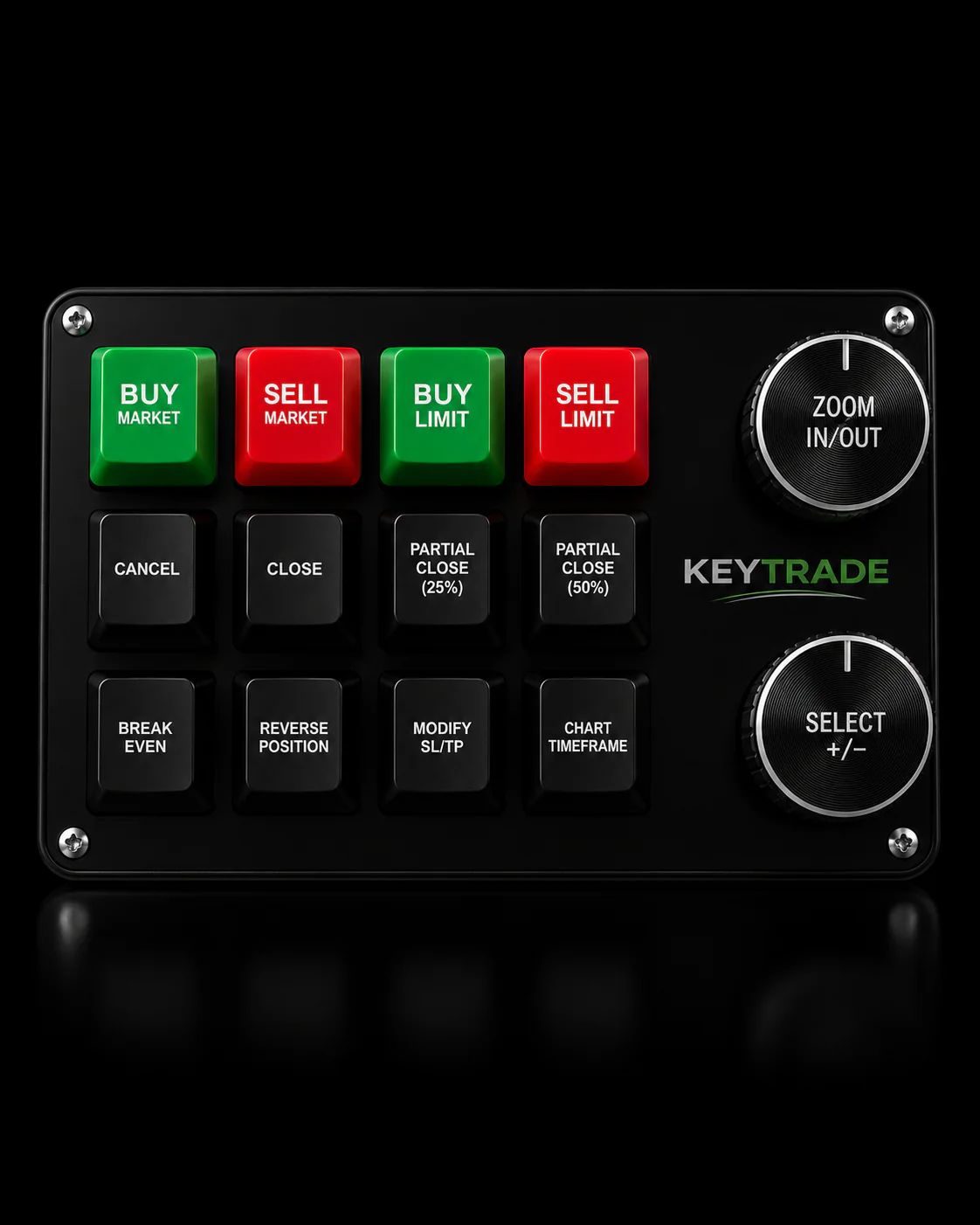
The MT4 EA integration reflects that same thinking. Setup documentation, firmware update schedules, and a real support channel aren’t afterthoughts; they’re part of what makes the hardware reliable enough to trust on a live account. Traders who want to go deeper on platform integration can find technical guides on the Key-Trade blog.
The Key-Trade Trading Keypad: features and where to buy
The Key-Trade Trading Keypad is built specifically for traders who need MT4 integration that works out of the box, not after hours of configuration.

MT4-ready features:
- Native MT4 EA/plugin compatibility with full DLL import support
- Programmable buttons covering the complete risk-control suite
- Auto SL/TP, break-even, panic-close, partial close, and reverse position
- Profile storage either on the device or in software, with some devices supporting import / export for multi-PC deployments.
- Firmware updates maintained by the vendor post-purchase
- US shipping with warranty and direct vendor support
Order the Key-Trade Trading Keypad on the Key-Trade product page. Setup guides, driver downloads, and vendor contact details are all available there. If you have a configuration question before buying, the support team responds through the contact form on the same page.
Sources
- Saxo Bank’s New Gadget: The Forex Trading Keypad
FAQ
What are MT4 hotkeys in the context of hardware keypads?
Hardware MT4 hotkeys are physical programmable buttons on a dedicated keypad that send order commands to MetaTrader 4 through a vendor EA or plugin, replacing mouse-driven UI interactions for faster, more consistent execution.
Why are my MT4 hotkeys not working after installation?
The most common cause is unchecked DLL permissions. Go to MT4 Tools > Options > Expert Advisors and confirm both “Allow automated trading” and “Allow DLL imports” are enabled, then restart MT4 and reload the EA.
What buttons should every MT4 keypad layout include?
At minimum: Buy Market, Sell Market, panic-close (close all), break-even, Auto SL/TP, and partial close. Prop desks should also map reverse position and a secondary emergency-close key.
Does the Key-Trade Trading Keypad ship to the United States?
Yes. Key-Trade ships to the US and provides vendor support, setup documentation, and warranty coverage. Full details are on the Key-Trade product page.
How do I back up my MT4 keypad profile?
Use the vendor’s configuration software to export your profile to a file, then store it on a USB drive or cloud folder. Import the file on any additional PC to replicate your full button mapping without manual reconfiguration.