

MT4 Close All: Fast, Safe Bulk-Close Methods in 2026
MT4 does not have a single native “Close All” button that covers every open symbol at once. MetaTrader 4’s official help confirms the platform only supports manual individual closes and a limited “Multiple close by” function for offsetting positions in the same symbol. For active traders who need to exit everything in seconds, that gap matters.
Your three fastest options right now:
- Run a tested Close-All script or EA on desktop or VPS. Enable AutoTrading, drag the script onto any chart, and it fires across all open symbols. Test on demo first, every time.
- Use a VPS if you trade from mobile. MT4’s mobile app cannot run scripts, so a remote desktop session to a VPS running MT4 is the only way to trigger a bulk close from your phone.
- Use a hardware keypad for physical execution. A programmable keypad like the Key-trade device gives you a dedicated physical button that bypasses the platform UI entirely, avoiding mouse clicks.
Key Takeaways
MT4 has no native global Close-All button; the fastest safe route for active traders combines a demo-tested script or EA with a hardware keypad as the primary emergency control.
| Point | Details |
|---|---|
| No native Close All in MT4 | MT4 only supports manual closes and “Multiple close by” for same-nl-->symbol offsets. |
| Scripts require AutoTrading ON | The most common failure is AutoTrading being disabled; always verify the green toolbar button. |
| Scripts skip pending orders by default | Most Close-All scripts close market positions only; use a variant coded for pending orders to delete them. |
| VPS solves the mobile gap | Mobile MT4 cannot run scripts; a VPS running MT4 desktop is the only mobile bulk-close workaround. |
| Key-trade keypad for sub-second exits | The Key-trade hardware keypad fires a Close All command outside the MT4 software layer, eliminating platform-freeze risk. |
Table of Contents
- What methods can you use to close all MT4 positions?
- How do you install and run a Close-All script in MT4 safely?
- Why do active traders often prefer a hardware keypad for bulk closes?
- Safety checklist before you run any bulk-close method live
- Common problems with Close-All scripts and quick fixes
- Which bulk-close method should you pick?
- Why hardware wins for active MT4 traders
- The Key-trade keypad: a professional Close-All solution
- Sources
- FAQ
What methods can you use to close all MT4 positions?
The table below compares the five main approaches across the dimensions that matter most for live risk control.
| Method | Execution speed | Reliability | Scope | Setup complexity | Cost | Safety controls |
|---|---|---|---|---|---|---|
| Manual individual close | Slowest (per-trade clicks) | High | One position at a time | None | Free | None |
| MT4 “Multiple close by” | Slow | High | Same-symbol offsets only | None | Free | None |
| Desktop script/EA | Fast | Medium (platform-dependent) | All symbols or symbol-specific | Low | Free–paid | AutoTrading toggle |
| Script/EA via VPS | Fast | High | All symbols | Medium | VPS cost | AutoTrading + VPS snapshot |
| Hardware keypad | Sub-second, tactile | High (hardware-independent) | Mapped to script/API call | Low (plug-and-play) | One-time purchase | Programmable confirm button |
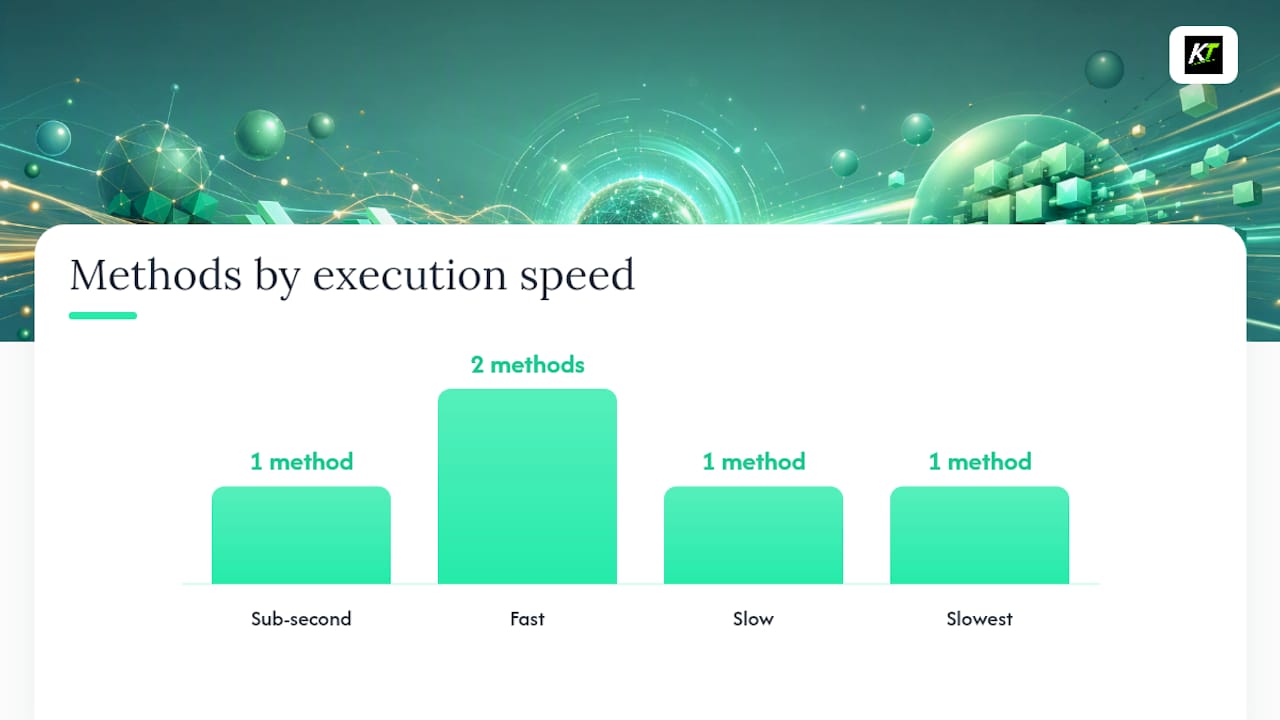
Manual closes are fine for swing traders with two or three positions. For anyone running five or more symbols simultaneously, clicking through each trade during a fast-moving market is a liability.
The “Multiple close by” function in MT4 offsets opposing positions in the same symbol. It does not close all symbols globally. Practical guides confirm that scripts executed from a desktop or VPS produce the fastest bulk-close times, while mobile MT4 cannot run scripts at all. If you trade on mobile, VPS remote access is the only real workaround.
On-chart panels and EA utilities extend MT4’s defaults further. Some market-listed utilities add scope selection, partial closes, and P/L-triggered auto-close thresholds, features the native platform never offered.
How do you install and run a Close-All script in MT4 safely?
Step-by-step installation
- Download the script (.mq4 or .ex4 file) from a trusted source such as the MQL5 CodeBase.
- Place .mq4 files in MQL4/Scripts and .ex4 files in the same folder. EA files go in MQL4/Experts.
- Open MetaEditor (F4), open the file, and click Compile if you have the source.
- Restart MT4 or right-click the Navigator panel and select Refresh.
- Locate the script under Navigator > Scripts, then drag it onto any open chart.
- In the script’s settings dialog, check “Allow live trading” under the Common tab before clicking OK.
Before you click OK on a live account
- Confirm the AutoTrading button in the main toolbar is green (ON). This is the single most common reason a script does nothing.
- Verify your broker allows automated trading on your account type.
- Check the Experts tab immediately after running to read any error codes.
The CloseAllTrades script family on MQL5 CodeBase offers variants for open positions, pending orders, and symbol-specific closes, but it requires AutoTrading enabled and careful demo testing because misconfiguration can freeze the terminal.
What most scripts close and what they skip: The UZFX Close All script closes active market positions across symbols at current Bid/Ask prices. Like most scripts in this category, it does not delete pending orders unless the code explicitly handles them. Always read the script’s documentation for that distinction before going live.
Pro Tip: Run the script on a demo account with at least one market position, one pending order, and two different symbols open. Check the Experts tab line by line. You will see exactly what the script closes, what it skips, and whether it throws any lot-step errors before you ever risk real capital.
Why do active traders often prefer a hardware keypad for bulk closes?
Software-layer execution has one structural weakness: it depends on MT4 staying responsive. During a news spike or a broker server surge, the platform can freeze for several seconds. A script queued inside a frozen terminal does nothing.
A hardware keypad sits outside that dependency chain entirely. The Key-trade keypad maps a physical button to a platform hotkey or API call. Press it and the close command fires regardless of what the MT4 UI is doing at that moment. Professional trading desks favor this approach because it removes the software single-point-of-failure from an emergency exit workflow. NinjaTrader’s global hotkey documentation reflects the same logic: flatten/cancel-all macros are a standard professional control pattern across platforms. This is not limited to MT4.
Key-trade keypad features relevant to bulk-close workflows:
- Dedicated programmable “Close All” button with optional confirmation press
- Partial-close buttons for scaling out without touching the keyboard
- SL/TP quick-set keys mapped alongside the close button
- Compatible with MT4, MT5, TradingView, cTrader, NinjaTrader, and others via supplied software
- Works with VPS setups for remote execution
Pro Tip: Map your keypad so the “Close All” button requires a two-key press (confirm + execute) during normal trading, but can be switched to single-press for genuine emergencies. That one configuration change eliminates most accidental bulk-close events. See why forex traders use hotkeys for the performance reasoning behind physical controls.
Safety checklist before you run any bulk-close method live
Run through this before touching a live account.
- [ ] Tested on a demo account with representative positions (multiple symbols, at least one pending order)
- [ ] AutoTrading is ON (green button in MT4 toolbar)
- [ ] “Allow live trading” checked in the script/EA Common settings
- [ ] Broker account type confirmed as compatible with automated trading
- [ ] Slippage and execution settings reviewed with your broker
- [ ] Experts and Journal tabs open and monitored during the test
Four test cases to run on demo
- Single market position close — confirm the script closes it cleanly with no error codes.
- Multiple symbols close — open three different instruments, run the script, verify all close.
- Pending order deletion — place a limit order, run the script, check whether it deletes or ignores it.
- Partial-close behavior — test with a position size that triggers a lot-step check (e.g., 0.03 lots on a broker with a 0.01 minimum step).
Pro Tip: Keep a VPS snapshot or note your broker’s emergency support number before any live test. If a script misbehaves and you cannot close positions manually fast enough, broker phone support is your fastest fallback.
Common problems with Close-All scripts and quick fixes
| Problem | Likely cause | Fix |
|---|---|---|
| Script runs but nothing closes | AutoTrading OFF | Toggle the AutoTrading button to green; re-run the script |
| “Allow live trading” error in Experts tab | Script setting unchecked | Re-open script properties, check “Allow live trading,” rerun |
| MT4 freezes after script runs | Script loop or lot-step error | Recompile the script; test with a single position first |
| Pending orders not deleted | Script not coded for pending orders | Use a variant that explicitly handles pending orders (e.g., CloseAllTrades pending variant) |
| Partial close fails | Lot step or minimum lot violation | Adjust the partial-close volume to match broker’s minimum lot step |
| Slippage/timeout rejection | Broker server latency | Move MT4 to a VPS geographically near your broker’s server |
When the Experts tab shows error code 4109 (AutoTrading disabled) or 130 (invalid stops), those are local fixes. Error code 10004 (requote) or 10006 (request rejected) points to broker-side issues. Contact broker support for the latter two.
Which bulk-close method should you pick?
| Trader profile | Best method | Why |
|---|---|---|
| Scalper / day trader (5+ positions) | Hardware keypad + script backup | Sub-second physical execution; script as fallback if keypad is unavailable |
| Swing trader (2–3 positions) | Desktop script/EA | Fast enough; low setup cost |
| Mobile-only trader | VPS + desktop script | Mobile MT4 cannot run scripts; VPS is the only path |
| Prop desk / trading team | Hardware keypad | Removes platform-freeze risk; standardizes emergency workflow across desks |
| Budget-constrained retail trader | Free desktop script (demo-tested) | CloseAllTrades from MQL5 CodeBase costs nothing; VPS adds reliability |
Speed and safety together point to hardware first, script as backup. Budget-only setups work fine with a free script run from a stable desktop or VPS, provided you have done the demo testing. External keypads for MT5 and MT4 cover the execution-speed case in more detail if you want the platform-specific breakdown.
Why hardware wins for active MT4 traders
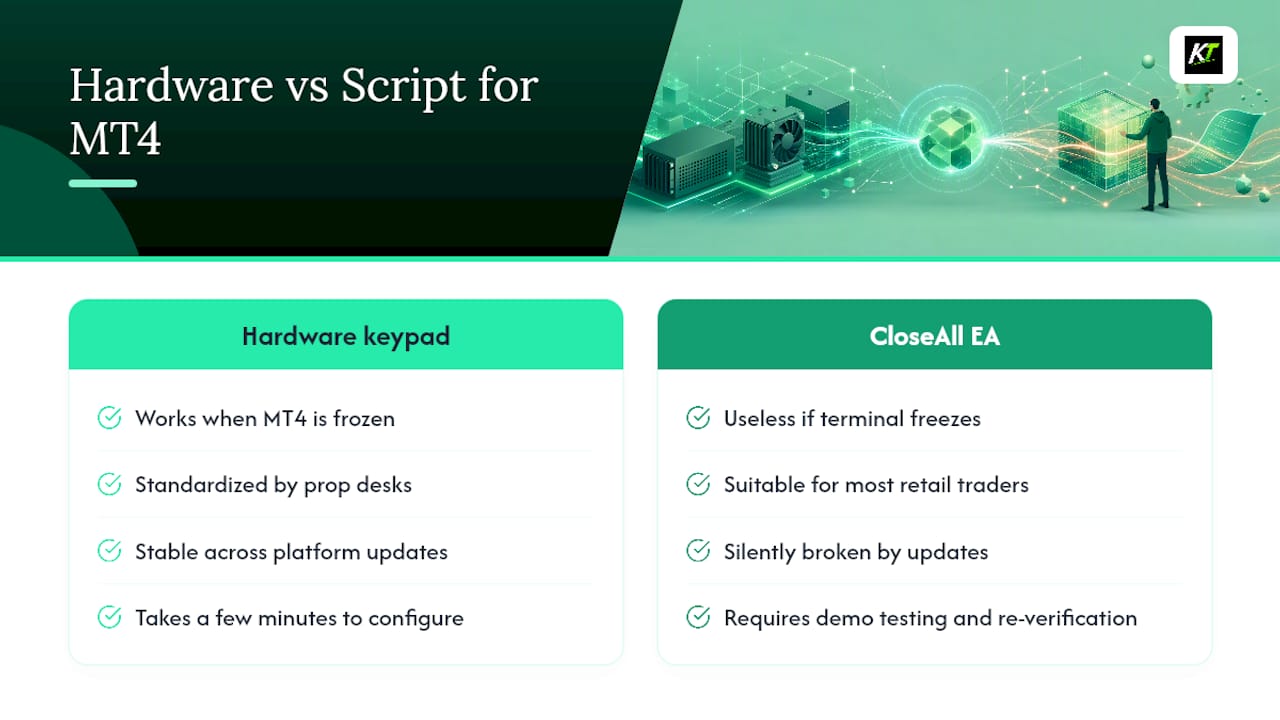
Scripts are genuinely good. A well-coded, demo-tested CloseAll EA running on a VPS near your broker’s server will close a full book in under two seconds. For most retail traders, that is fast enough.
The problem is the edge case: the one time MT4 freezes during a flash crash or a major news release is exactly when you need the bulk close most. A script inside a frozen terminal is useless. A physical keypad is not. That asymmetry is why prop desks standardize on hardware controls for emergency exits rather than relying on software alone.
Scripts also require ongoing maintenance. A broker update, a platform version change, or a lot-step rule change can silently break a script you have been running for months. Hardware keypads map to hotkeys or API calls that are far more stable across platform updates.
The honest tradeoff: a keypad costs money upfront and takes a few minutes to configure. A free script costs nothing but demands rigorous demo testing and periodic re-verification. Both are valid. For anyone trading more than a handful of positions in fast markets, the hardware investment pays for itself the first time it works when the software does not.
The Key-trade keypad: a professional Close-All solution
One physical button for a full emergency exit is not a luxury for active traders. It is the difference between a controlled exit and a frozen screen.

The Key-trade trading keypad gives you programmable buttons for Close All, partial close, SL/TP adjustment, and order reversal, all mapped to MT4 (and MT5, TradingView, cTrader, NinjaTrader, and more) via the included software. One-time purchase, worldwide shipping, no subscription. Setup takes minutes: plug in, install the software addon, map your Close All button, and run a demo test to confirm it fires correctly. Technical support and setup guides are included.
That three-button layout covers the most common live risk scenarios without any scripting knowledge required.
Sources
- MetaTrader 4 — Close positions help
- MT4 Close All Positions: Methods for Every Device — Cloudzy Blog
- Multiple Close All MT4 | Free Download Trading Utility for MetaTrader 4
FAQ
Does MT4 have a built-in Close All button?
No. MT4 does not include a single native button to close all positions across every symbol simultaneously. You need a script, EA, or hardware keypad to achieve that.
How do I close all open trades in MT4 at once?
Install a Close-All script from the MQL5 CodeBase, enable AutoTrading, and drag the script onto any chart. It will close all open market positions across symbols; test on demo first to confirm behavior with pending orders.
What does “close all positions” mean in trading?
Closing all positions means exiting every open trade simultaneously, converting them back to cash at current market prices. It is used for emergency risk control or end-of-day flat-book management.
Why is my MT4 Close-All script not working?
The most common cause is AutoTrading being disabled. Check that the AutoTrading button in the MT4 toolbar is green and that “Allow live trading” is checked in the script’s Common settings tab.
Can I close all MT4 positions from my phone?
Not directly. MT4’s mobile app cannot run scripts. The workaround is a VPS running MT4 desktop, which you access remotely to trigger a bulk close from any device.
Recommended
- How to Close a TradingView Position Quickly – Key-Trade Trading Keyboards
- NinjaTrader Partial Close Futures Guide for Traders – Key-Trade Trading Keyboards
- cTrader Trade Management Features: Complete 2026 Guide – Key-Trade Trading Keyboards
- External Trading Keypads for MT5: Speed and Accuracy – Key-Trade Trading Keyboards