

Tradovate Flatten Hotkey: Assign Exit at Mkt & Cxl Fast
The function you want is Exit at Mkt & Cxl. Bind it in Tradovate Web by going to Preferences → Hotkeys → Edit Hotkeys, selecting that function, pressing your chosen key combo, and saving. For an account-wide version, use Exit All Positions Cancel All Orders instead. Both are listed in the Complete List of Hotkeys - Tradovate Web.
Here is the fastest path to get there:
- Click the gear icon (Preferences) in the top-right of Tradovate Web.
- Select the Hotkeys section.
- Click Edit Hotkeys.
- Find Exit at Mkt & Cxl (or Exit All Positions Cancel All Orders).
- Toggle it on, click the key input field, press your combo (e.g., Ctrl+Shift+F), then click elsewhere.
- Confirm the green “Saved” banner appears before closing.
Pro Tip: Never assign your flatten command to a single key like Space or Enter. Use a two-hand combination (Ctrl+Shift+F) or a dedicated physical keypad button that sits away from your normal typing area. Fat-finger mistakes on a panic key are expensive.
Key Takeaways
Binding Exit at Mkt & Cxl to a two-key or hardware combo in Tradovate Web’s Hotkey Editor, with module H enabled and account confirmed, is the fastest and safest way to flatten a position instantly.
| Point | Details |
|---|---|
| Bind Exit at Mkt & Cxl | Go to Preferences → Hotkeys → Edit Hotkeys, toggle on the function, and assign a multi-key combo. |
| Enable module H button | Each module (SuperDOM, Chart, Order Ticket) requires its own hotkey toggle before bindings work. |
| Account scope is limited | Flatten commands target the selected account only; no built-in global flatten-all-accounts command exists. |
| Test in SIM first | Open a simulated position, press the hotkey, and confirm the position closes before using it live. |
| Key-trade keypad option | A programmable keypad assigns a dedicated physical button to Exit at Mkt & Cxl with per-account profiles. |
Table of Contents
- How do you configure hotkeys in Tradovate Web?
- What does each Tradovate flatten function actually do?
- How does flatten behavior differ across SuperDOM, Chart, and Order Ticket?
- Account scope and multi-account limitations in Tradovate
- Step-by-step: assign Exit at Mkt & Cxl to a hotkey and test it safely
- Why is your Tradovate flatten hotkey not working?
- Why a dedicated flatten key is safer than you think
- The case for a dedicated flatten key over a keyboard shortcut
- A physical keypad built for your Tradovate flatten command
- Sources
- FAQ
How do you configure hotkeys in Tradovate Web?
Hotkeys are disabled by default in Tradovate Web. Before any key binding works, you need to flip two separate switches: one global, one per module.
Prerequisites checklist:
- Global hotkeys enabled: Preferences → Hotkeys → toggle Enable Hotkeys to ON.
- Module hotkey enabled: click the small H (keyboard) icon on the module header (SuperDOM, Chart, or Order Ticket) to activate hotkeys for that module.
- Correct account selected in the account dropdown before pressing any flatten key.
- No input field focused (a text box or price field capturing your keystrokes will swallow the hotkey).
- Green “Saved” confirmation banner appeared after editing.
To reach the Hotkey Editor:
- Open Preferences (gear icon, top-right).
- Click Hotkeys in the left menu.
- Click Edit Hotkeys to open the full function list.
- Scroll to the flatten/exit functions, toggle each one on, assign your combo, and click outside the field to register it.
- Verify the green banner. Close the editor.
The module H button is easy to miss. If your hotkey does nothing, that toggle is almost always the culprit.
What does each Tradovate flatten function actually do?
Three distinct functions handle position exits and order cancellations. They differ in scope, and binding the wrong one will either do too little or too much.
- Exit at Mkt & Cxl: Cancels working orders for the specific instrument in the active module and submits market orders to close that instrument’s open positions. Instrument-specific, not account-wide. Per the official Tradovate support article, this action is confined to the module’s charted or loaded instrument.
- Exit All Positions Cancel All Orders: Cancels all working orders and exits all open positions for the selected account. Broader than Exit at Mkt & Cxl, but still account-specific, not global across all connected accounts.
- Flatten Today (Timed Flatten): A scheduled flatten, not a hotkey in the traditional sense. You set a specific time during the current calendar day, and Tradovate automatically cancels working orders and exits open positions at that time. Found under account settings. Full details are in the Timed Flatten Account Feature - Tradovate support article.
| Function | Scope | Where to find it | Typical use case |
|---|---|---|---|
| Exit at Mkt & Cxl | Single instrument (module-level) | SuperDOM, Chart module | Close one position fast during a trade |
| Exit All Positions Cancel All Orders | All positions in selected account | Hotkey Editor / Equity panel | End-of-session full account flatten |
| Flatten Today (Timed Flatten) | Scheduled, selected contracts | Account settings panel | Automated daily risk cutoff |
Pick Exit at Mkt & Cxl for instrument-level speed. Use Exit All Positions Cancel All Orders when you need to clear the whole account in one move.
How does flatten behavior differ across SuperDOM, Chart, and Order Ticket?
The same function name can behave slightly differently depending on which module is active. Knowing this prevents surprises.
SuperDOM: Exit at Mkt & Cxl closes the position for the instrument loaded in that SuperDOM ladder and cancels that instrument’s working orders only. Other instruments in your account are untouched. The module H button must be enabled for the hotkey to register here.
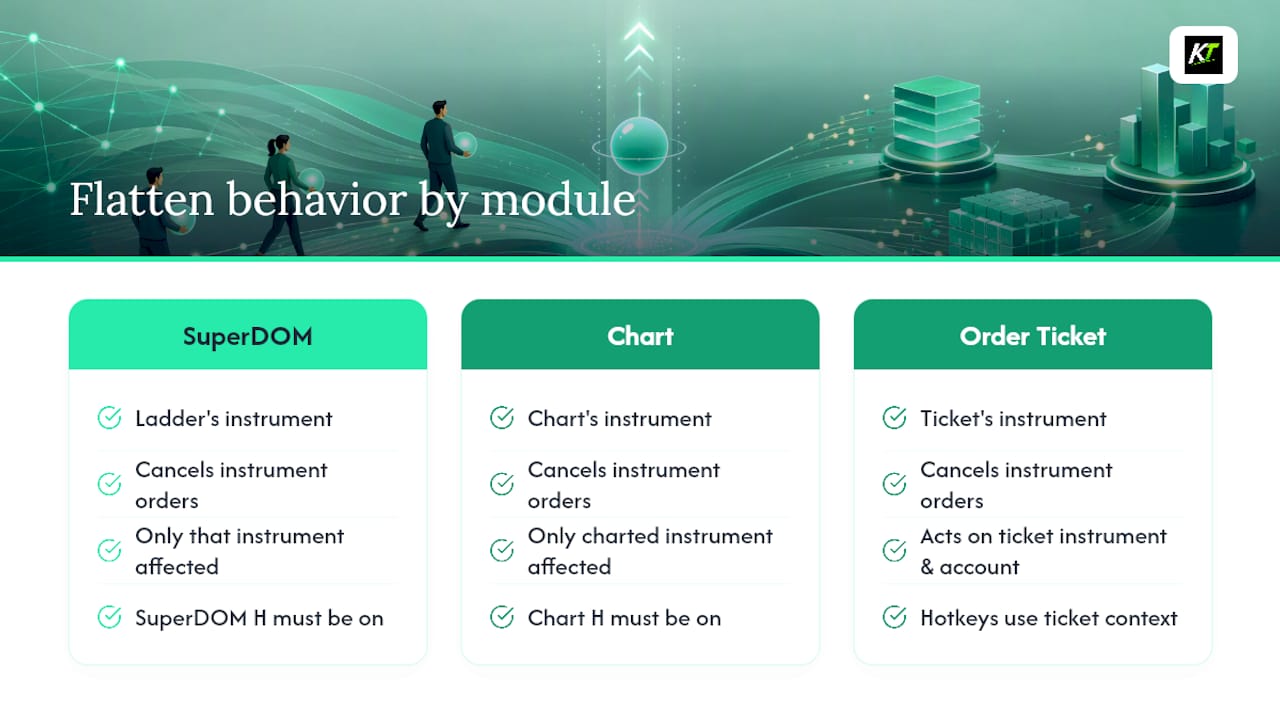
Chart module: When chart-level hotkeys are enabled (H button on the chart header), Exit at Mkt & Cxl acts on the instrument currently charted. Switch the chart to a different symbol and the same hotkey targets that new instrument instead. This is useful but also a risk: confirm which instrument the chart is showing before pressing.
Order Ticket: Hotkeys tied to the Order Ticket module act on the instrument and account loaded in that ticket. If the ticket is focused on a different account or instrument than you expect, the flatten targets that context, not your primary position.
The module H toggle is not a global setting. Each module maintains its own hotkey state, so you can have SuperDOM hotkeys on and chart hotkeys off simultaneously.
Account scope and multi-account limitations in Tradovate
Most flatten commands in Tradovate operate on the selected account only. There is currently no built-in single command that flattens all connected accounts simultaneously.
The Tradovate community forum documents this clearly: users running multiple accounts have filed feature requests specifically because they must flatten each account individually, one at a time. In fast-moving markets, that sequential process creates real exposure.
Practical steps for multi-account traders:
- Always verify the active account in the account dropdown before pressing any flatten key.
- Build a written rundown sequence: Account 1 → flatten → Account 2 → flatten, and practice it until it is muscle memory.
- Consider per-account profiles on a programmable keypad so the same physical button sends the correct account-specific command depending on the active profile.
- Never assume a flatten hotkey cleared all accounts. Check each account’s position panel after executing.
Step-by-step: assign Exit at Mkt & Cxl to a hotkey and test it safely
This sequence works for both Exit at Mkt & Cxl and Exit All Positions Cancel All Orders. Swap the function name where noted.
- Open Tradovate Web and click the gear icon (Preferences) in the top-right corner.
- Select Hotkeys from the left sidebar.
- Click Edit Hotkeys to open the function list.
- Scroll to Exit at Mkt & Cxl (or Exit All Positions Cancel All Orders).
- Toggle the function on using its switch.
- Click the key input field next to the function name.
- Press your chosen combo, for example Ctrl+Shift+F. The field displays the combination.
- Click anywhere outside the field to register it.
- Confirm the green “Saved” banner appears. If it does not, repeat from step 6.
- Close the Hotkey Editor.
Choosing your key combination:
- Prefer three-key combos (Ctrl+Shift+F, Ctrl+Alt+X) over two-key or single-key assignments.
- Avoid Space, Enter, Tab, or any key your OS or browser already intercepts.
- A dedicated keypad button is the cleanest option: physically isolated, no OS conflicts, and impossible to hit accidentally while typing.
Testing safely before going live:
- Switch to your SIM (simulation) account first.
- Enable the module H button on the SuperDOM or Chart you will use.
- Open a small simulated position.
- Press the hotkey and confirm the position closes and working orders cancel.
- If confirmation dialogs are available in your platform settings, enable them during this test phase.
- Repeat after any Tradovate platform update, since UI changes occasionally reset hotkey assignments.
Why is your Tradovate flatten hotkey not working?
Run through this checklist before assuming the platform is broken. Most failures trace back to one of these causes.
Common causes and fixes:
- Global hotkeys disabled: Go to Preferences → Hotkeys and confirm the master Enable Hotkeys toggle is ON.
- Module H button not enabled: Click the keyboard icon on the specific module header (SuperDOM, Chart, Order Ticket). This is the most frequent miss.
- Wrong account selected: The flatten command targets the active account. Verify the dropdown before pressing.
- Input field has focus: If your cursor is inside a price or quantity field, keystrokes go to that field, not the hotkey handler. Click on the module background first.
- Single-key conflict: Single-key assignments frequently clash with OS shortcuts or browser defaults. Cross-platform evidence from Sierra Chart community threads confirms this is a widespread issue, not Tradovate-specific. Switch to a multi-key combo.
- SIM vs. Live environment mismatch: A hotkey tested in SIM may behave differently in Live if account settings differ. Retest after switching environments.
- Third-party hotkey manager conflict: Software like AutoHotkey or gaming macro tools can intercept key combos before Tradovate receives them. Disable or whitelist Tradovate in those tools.
Step-by-step recovery:
- Disable and re-enable global hotkeys in Preferences.
- Toggle the module H button off, then back on.
- Delete the current key assignment and remap to a different combo.
- Test in a clean browser session (no extensions) or the Tradovate desktop app.
- Use Restore Default Hotkeys in the Hotkey Editor if assignments are corrupted, then remap from scratch.
- If none of the above works, contact Tradovate Support with a screenshot of your Hotkey Editor settings and a description of the exact module and account configuration.
Why a dedicated flatten key is safer than you think
Speed matters, but the physical setup around your flatten key matters more. Practitioner analysis shows hotkey execution can cut order entry time from several seconds to roughly 150–200 milliseconds. That speed advantage disappears fast if an accidental press fires the command at the wrong moment.
Expert-backed safety practices:
- Map flatten to a two-hand combination that requires deliberate simultaneous input, not a single finger.
- Enable confirmation dialogs during your first week of live use. Once the muscle memory is solid, you can decide whether to remove them.
- Label or color-code your flatten key differently from all other keys. Red tape on a keypad button is not elegant, but it works.
- Build a 30-second post-flatten pause: check the position panel, confirm zero open positions, then resume.
Why a programmable hardware keypad raises the floor:
- Physical separation from the keyboard means no accidental activation while typing notes or adjusting a stop.
- Tactile feedback confirms the press registered, unlike a software button.
- Per-account profiles let the same physical key send different account-specific commands, which partially addresses Tradovate’s multi-account limitation.
- Backlighting and custom labels make the flatten key visually distinct at a glance.
Traders who use dedicated hotkeys for execution speed consistently report fewer worst-trade outcomes, not because the hotkey is faster in isolation, but because the deliberate physical setup forces intentional action rather than reactive clicking.
Pro Tip: Assign your keypad’s dedicated flatten button to Exit at Mkt & Cxl and restrict all OS-level shortcuts that use the same physical key. Then set a keypad profile rule that disables that button outside of trading hours entirely.
The case for a dedicated flatten key over a keyboard shortcut
The standard advice is to pick a good key combo and move on. That is fine for occasional use. For active intraday trading, the keyboard itself is the weak link.
A keyboard combo like Ctrl+Shift+F sits three keys away from your normal typing position. Under pressure, that distance collapses. You reach for it and hit Ctrl+Shift+G instead, or your browser intercepts it, or the module focus was on the wrong instrument and you just flattened the wrong position. These are not edge cases. They are the normal failure modes of software-only hotkey setups, and they show up most reliably exactly when you can least afford them.
The better setup is a physically isolated key that does one thing. A programmable keypad with a labeled, backlit button dedicated to Exit at Mkt & Cxl removes the combo-recall problem entirely. Your hand goes to the same spot every time, the tactile click confirms the press, and the key cannot be accidentally triggered by typing. That consistency is what builds reliable muscle memory, and reliable muscle memory is what actually protects you in a fast market.
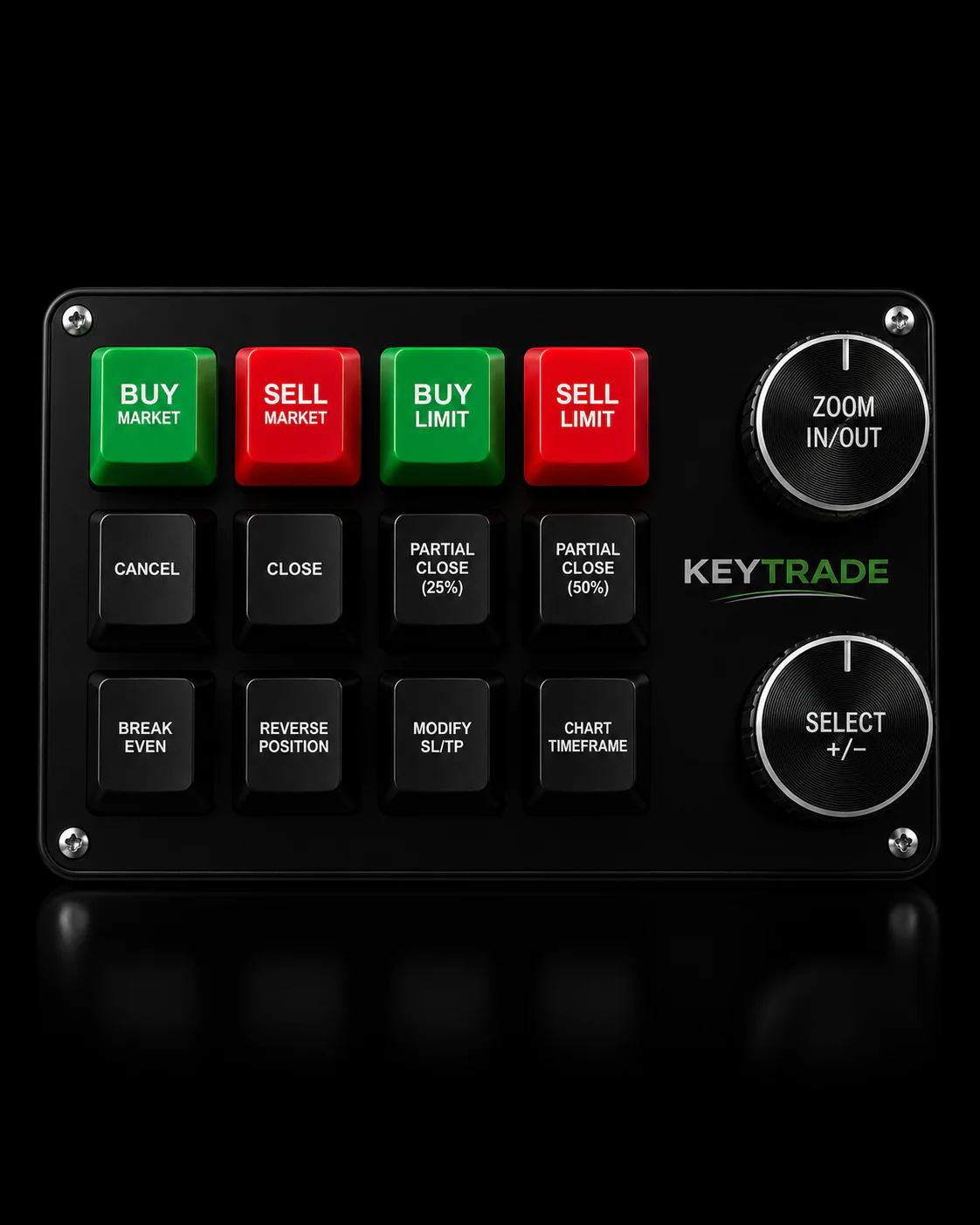
For hotkey profile management across multiple platforms, a keypad with per-account or per-platform profiles also solves the multi-account limitation that Tradovate currently does not address natively.
A physical keypad built for your Tradovate flatten command
Software hotkeys get you most of the way there. A dedicated physical button gets you the rest.

Key-trade programmable trading keypads let you assign a single, isolated button to Exit at Mkt & Cxl or Exit All Positions Cancel All Orders in Tradovate Web, completely separate from your keyboard. The device software supports per-account profiles, so the same button can target different accounts depending on which profile is active, giving you a practical workaround for Tradovate’s current lack of a global flatten-all command. Compatible with Tradovate Web out of the box, with no technical setup required. Visit Key-trade to see available devices and find the right keypad for your trading setup.
Sources
These official Tradovate support pages and community threads are the primary references for everything covered above. Check them after any platform update, since UI paths and function names occasionally change.
- Exit at Mkt & Cxl Button - Tradovate
- Timed Flatten Account Feature - Tradovate
- Complete List of Hotkeys - Tradovate Web
- Flatten All Positions and Cancel All Orders Across Multiple Accounts - Tradovate Feature Requests - Tradovate Forum
- Hot Keys for Day Trading: Speed Execution Setup Guide for Every Platform | TradeAlgo
FAQ
What is the Tradovate flatten hotkey function to bind?
Bind Exit at Mkt & Cxl for instrument-level flattening, or Exit All Positions Cancel All Orders to clear the entire selected account. Both are available in the Tradovate Web Hotkey Editor under Preferences → Hotkeys.
How do you exit a trade on Tradovate using a keyboard shortcut?
Enable hotkeys in Preferences, enable the module H button on your active SuperDOM or Chart, then press your assigned flatten combo. The Exit at Mkt & Cxl function cancels working orders and submits a market order to close the position for that instrument.
How do you set a stop loss and take profit in Tradovate?
Open the Order Ticket or use the SuperDOM bracket order settings to enter stop loss and take profit levels before or after entry. Tradovate supports bracket orders natively; you can also assign hotkeys for order modifications through the same Hotkey Editor used for flatten commands.
Why is my Tradovate hotkey not working?
The two most common causes are global hotkeys disabled in Preferences and the module H button not toggled on for the active module. Check both first, then confirm no input field has keyboard focus and that your key combo does not conflict with an OS or browser shortcut.
How do you remove an indicator in Tradovate?
Right-click directly on the indicator on the chart, then select Remove or Delete from the context menu. Alternatively, open the chart’s Studies panel and delete the indicator from the list there.
Recommended
- Why Forex Traders Use Hotkeys to Win on Speed – Key-Trade Trading Keyboards
- Forex Hotkeys Setup for Professional Traders and Prop Firms – Key-Trade Trading Keyboards
- cTrader Keyboard Shortcut Functions: Your Complete 2026 Guide – Key-Trade Trading Keyboards
- MT4 Hotkeys: Hardware Keypads for Professional Traders – Key-Trade Trading Keyboards