

MT5 Partial Close: How to Scale Out Safely
Yes, you can partially close positions in MetaTrader 5. The feature is built into the platform’s desktop client, mobile apps, and MQL5 API, so you can scale out on any device or automate it entirely.
Before you attempt an MT5 partial close, run through three quick checks:
- Account type: Netting or hedging? This changes how you select the position.
- Minimum lot and step size: Your broker sets these. A volume that violates them will be rejected outright.
- Volume to close: Multiply your open lots by the percentage you want to close. Closing 50% of a 1.00-lot position means entering 0.50 in the volume field.
Pro Tip: Map a partial-close action to a hardware keypad button or pre-built EA so you never have to type a lot size manually during a fast-moving market using the QuantGenie no-code trading algorithm platform. One mis-keyed decimal can close the wrong amount.
Key Takeaways
Scaling out of an MT5 position reliably requires knowing your account type, calculating the correct volume before you act, and verifying the remaining position immediately after every partial close.
| Point | Details |
|---|---|
| Confirm account type first | Netting accounts close by symbol; hedging accounts require a specific ticket ID. |
| Calculate volume before acting | Multiply open lots by your target percentage; round to your broker’s lot step. |
| Verify remaining position | Check the Trade tab immediately after closing to confirm the correct volume remains. |
| Update SL/TP after closing | The remaining position keeps its original stop-loss; move it to break-even if your strategy requires it. |
| Use automation for speed | EAs, MQL5 scripts, or hardware keypads eliminate decimal errors and reduce slippage risk. |
Table of Contents
- How to partially close a position in MT5 desktop (Windows and macOS)
- How to partially close a position on MT5 mobile (iOS and Android)
- How to partial close with MQL5: PositionClosePartial and CTrade
- Hedging vs. netting accounts: what changes for partial closes
- What happens to your account after a partial close
- Common pitfalls and best practices when scaling out
- Why a partial close might not execute and how to fix it
- How trading keypads shorten and secure partial closes
- When partial closes actually make sense
- Sources
- FAQ
How to partially close a position in MT5 desktop (Windows and macOS)
The desktop client gives you the most control, and the workflow is straightforward once you know where to look. According to the MT5 desktop partial-close walkthrough, the process runs through the Trade tab and a single dialog box.
- Open the Trade tab. In the Terminal panel at the bottom of the screen (default shortcut: Ctrl+T), click the “Trade” tab. Every open position appears here with its symbol, volume, entry price, and current P&L.
- Open the Close Position dialog. Right-click the position you want to scale out of. Select “Close Position” from the context menu. Alternatively, double-click the position row to open the same dialog.
- Change the volume. The dialog pre-fills the full position volume. Clear that field and type the lot amount you want to close. To close exactly 50% of a 1.00-lot position, type 0.50. For 25%, type 0.25. Always round to your broker’s lot step (commonly 0.01).
- Click the yellow Close button. In Instant Execution mode, the order fires immediately at the current market price. In Request mode, the platform first requests a price from the server; click “Close” again when the price appears to confirm.
- Verify the result. Check the Trade tab immediately. The position’s volume should reflect the remaining lots (e.g., 0.50 if you closed half). Then click the “History” tab — the closed portion appears as a completed trade with its realized P&L. Your account balance updates at the same moment, as MetaTrader 5’s trade execution documentation confirms.
Pro Tip: If you scale out of the same position repeatedly during a trend, set up a keyboard shortcut or a simple EA that pre-fills your target lot size. Fat-finger errors on the volume field are the most common cause of accidental full closes.
How to partially close a position on MT5 mobile (iOS and Android)
The mobile workflow follows the same logic as desktop, but the interface is touch-based and the volume field is smaller, so precision matters more. The MT5 mobile partial-close guide from LiquidityFinder confirms this tap-and-hold approach across both iOS and Android.
- Go to the Trade tab. Tap the “Trade” icon at the bottom of the app. Your open positions are listed here.
- Access the Close dialog. Tap the position you want to partially close, or long-press it to bring up the options menu. Select “Close.”
- Adjust the volume. The dialog shows the full position volume by default. Tap the volume field and change it to the partial amount. Closing half of a 1.00-lot position: enter 0.50. Use your broker’s lot step as the minimum increment.
- Confirm the close. Tap the “Close” button. The app sends the order to the server and returns a confirmation screen.
- Check the remaining position. Return to the Trade tab. The position should now show the reduced volume. If it disappeared entirely, you accidentally closed the full amount — check your History tab immediately.
Watch out for mobile keyboard precision. Small screens make it easy to enter 0.5 instead of 0.50, or 5.0 instead of 0.50. Always double-check the value before tapping confirm. The EarnForex partial-close guide recommends verifying remaining volume in the Trade tab as a final confirmation step every time.
Pro Tip: If your broker’s app supports saved volume presets, configure them before a live session. On mobile, pre-set values eliminate the risk of decimal errors during fast markets.
How to partial close with MQL5: PositionClosePartial and CTrade
For traders building EAs or scripts, MQL5’s CTrade class handles partial closes through the PositionClosePartial method. The MQL5 CTrade documentation defines two primary overloads:
-
PositionClosePartial(const string symbol, const double volume, ulong deviation)— selects the first matching position for that symbol. -
PositionClosePartial(const ulong ticket, const double volume, ulong deviation)— targets a specific position by ticket number.
A minimal code example:
#include <Trade\Trade.mqh>
CTrade trade;

void CloseHalf(ulong ticket, double full_volume)
{
    double half = NormalizeDouble(full_volume / 2.0, 2);
    if(!trade.PositionClosePartial(ticket, half))
        Print("Partial close failed: ", trade.ResultRetcodeDescription());
    else
        Print("Partial close sent. Retcode: ", trade.ResultRetcode());
}
Key notes for reliable implementation:
-
Always check
ResultRetcode. A return ofTRADE_RETCODE_DONE(10009) confirms execution. Any other code means the order was rejected or partially filled. -
Normalize the volume. Use
NormalizeDouble(volume, digits)before passing it to the function. Volumes with too many decimal places are rejected by the trade server. - Do not exceed the position volume. Passing a volume larger than the open position triggers a full close, not a partial one.
- Use ticket-based calls on hedging accounts. The symbol-based overload picks the first matching position it finds, which may not be the one you intend. Ticket-based calls are unambiguous.
The MQL5 automation book chapter on closing positions explains that for netting accounts, a partial close is effectively an opposite trade of the specified volume, while hedging accounts use an explicit close command on the chosen ticket. Your code should branch on account type if it needs to run on both.
Pro Tip: On hedging accounts with multiple open positions on the same symbol, call PositionSelectByTicket(ticket) before PositionClosePartial to confirm you have the right position locked. Community forum examples on the MQL5 programming forum show this as the standard defensive pattern.
Hedging vs. netting accounts: what changes for partial closes
Your account model determines how MT5 identifies and closes positions. Getting this wrong is the most common source of “wrong position closed” errors.
On a netting account, only one position per symbol exists at any time. A partial close is executed as an opposite trade of the volume you want to remove. If you are long 1.00 lot of EUR/USD, closing 0.50 lots means placing a 0.50-lot sell order. The platform nets the two and your remaining position becomes 0.50 lots long. As the MQL5 automation reference describes, there is no ticket selection needed because there is only one position to act on.
On a hedging account, you can hold multiple positions on the same symbol simultaneously, each with its own ticket. A partial close targets a specific ticket, not the symbol as a whole. This is why ticket-based API calls and manual ticket selection in the Close dialog matter so much on hedging accounts.
| Feature | Netting account | Hedging account |
|---|---|---|
| Positions per symbol | One | Multiple (each has a ticket) |
| How to select position | By symbol | By ticket ID |
| Partial close method | Opposite trade of target volume | Close command on chosen ticket |
| Common pitfall | None (only one position exists) | Wrong ticket selected |
| SL/TP after partial close | Retained on remaining volume | Retained on remaining ticket |
- On netting accounts, stop-loss and take-profit levels stay attached to the single position after a partial close.
- On hedging accounts, the remaining ticket keeps its own SL/TP unchanged unless you modify them manually.
- FIFO rules (common with US-regulated brokers) require you to close the oldest position first on netting accounts, which affects which lots are removed during a partial close.
Pro Tip: Before any programmatic partial close on a hedging account, log the ticket ID and confirm it with PositionSelectByTicket. One extra line of code prevents closing the wrong trade.
What happens to your account after a partial close
The platform-side accounting is clean and immediate. Here is exactly what changes and what stays the same.
What changes immediately:
- The closed volume moves from the Trade tab to the History tab.
- Realized P&L for the closed portion is added to (or subtracted from) your account balance right away, as documented in MT5’s trade execution help.
- Margin is partially released, proportional to the volume closed.
What stays the same:
- The remaining position keeps its original entry price. MT5 does not recalculate a weighted average entry unless you add new volume later.
- Stop-loss and take-profit orders remain attached to the position at their original levels. You need to modify them manually if your strategy requires moving the SL to break-even after banking partial profit.
Example: You are long 1.00 lot of GBP/USD at 1.2700. Price moves to 1.2750 and you close 0.50 lots. The 0.50-lot close is recorded in History with a realized profit based on the 50-pip move on that volume. Your Trade tab now shows 0.50 lots long at 1.2700, with the same SL and TP you set originally. The EarnForex guide confirms this behavior: the remaining position’s open price is maintained, and the closed portion’s P&L is settled immediately.
Common pitfalls and best practices when scaling out
Most failed partial closes come down to one of five causes.
Common failures:
- Minimum lot violation. Your broker may require a minimum volume of 0.01 lots and a step of 0.01. Entering 0.005 will be rejected. Always check your broker’s contract specifications before calculating your partial-close volume.
- Lot step mismatch. Some brokers use a step of 0.1, meaning 0.05 is invalid. Round to the nearest allowed increment. Forex covers this calculation in detail.
-
Wrong ticket on hedging accounts. Selecting the wrong position in the Close dialog or passing the wrong ticket to
PositionClosePartialcloses a different trade than intended. - Requote or slippage in fast markets. In Request mode, the price can change between request and confirmation. In volatile conditions, your partial close may execute at a worse price or be rejected entirely.
- Typing errors on mobile. A misplaced decimal is the fastest way to accidentally close the full position.
Best practices:
- Pre-calculate your target volume before entering the trade, not in the moment.
- Use an EA or script that normalizes volume automatically and checks the return code.
- After every partial close, verify the remaining volume in the Trade tab before doing anything else.
- Move your stop-loss to break-even or a new level immediately after banking partial profit, if your strategy calls for it.
Pro Tip: During high-volatility events (NFP, FOMC), avoid manual partial closes entirely. A pre-programmed EA or a hardware keypad macro fires in milliseconds and does not mistype. The MQL5 marketplace lists utilities that add one-click percentage-close buttons and auto break-even logic specifically for this scenario.
Why a partial close might not execute and how to fix it
If your partial close fails, work through this checklist before assuming a platform bug.
- Check minimum volume and lot step. Open your broker’s contract specifications (right-click the symbol in Market Watch, select “Specification”). Confirm the minimum volume and volume step. Adjust your requested volume to comply.
- Confirm your account type. On a netting account, make sure you are not trying to select a ticket that does not exist. On a hedging account, confirm the ticket ID is correct and the position is still open.
-
Look at the return code. In MT5 desktop, the Journal tab shows trade server responses. In MQL5, read
trade.ResultRetcode(). Common codes: 10009 (done), 10004 (requote), 10006 (request rejected). Each code points to a specific fix. - Switch execution modes if possible. If you are in Request mode and getting repeated rejections, check whether your broker supports Instant Execution for your account type.
-
Round the volume. Use
NormalizeDoublein MQL5 or manually round to two decimal places in the dialog. A volume like 0.333 will often be rejected. - Contact your broker. Some brokers impose server-side restrictions on partial closes for specific account types or instruments. If none of the above resolves the issue, a support ticket to your broker is the fastest path to an answer.
How trading keypads shorten and secure partial closes
Manual typing during a live trade is the weakest link in any partial-close workflow. A hardware keypad removes that variable entirely.
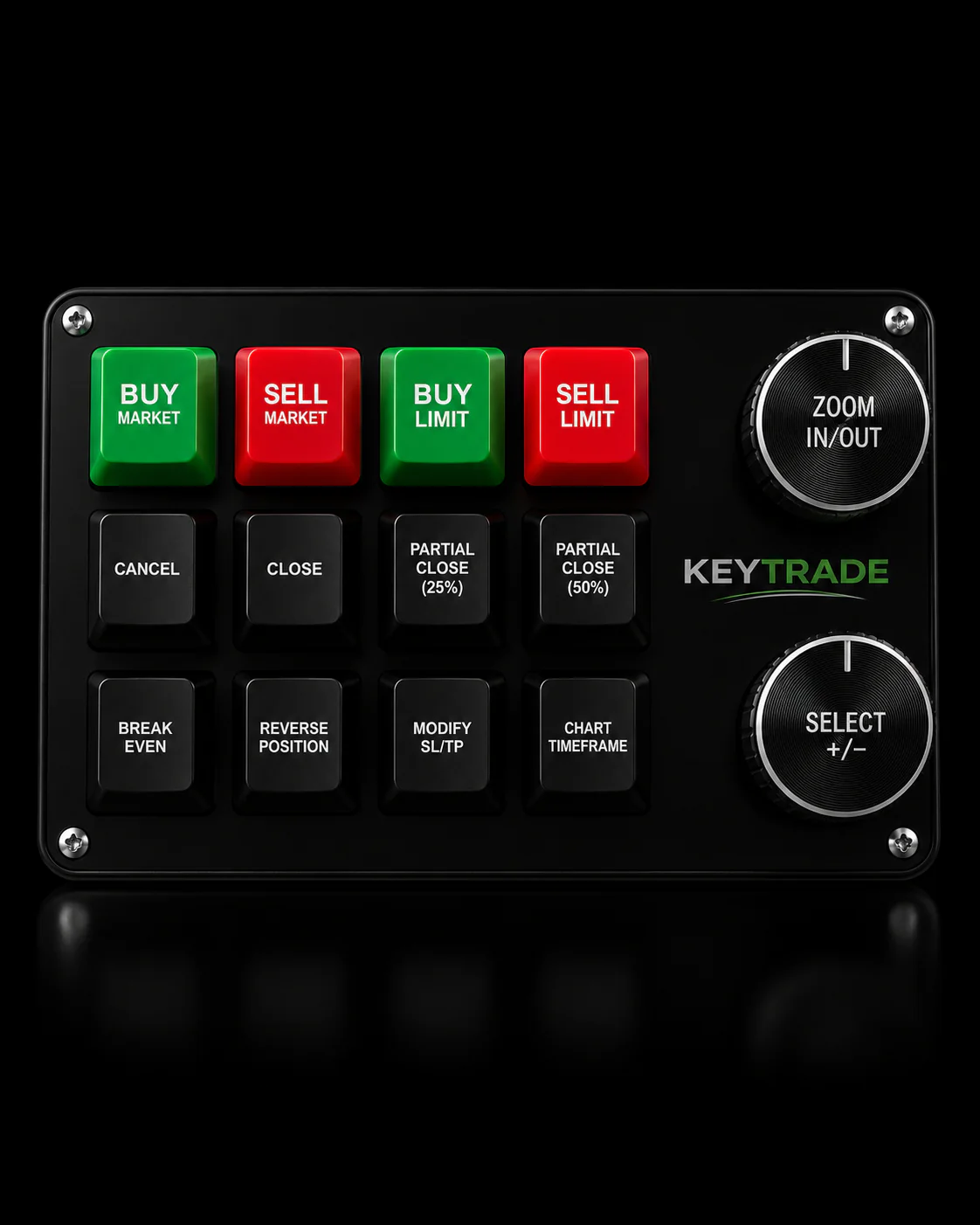
The core advantage is speed and repeatability. A button mapped to “close 50%” sends the exact pre-configured volume every time, with no decimal entry, no dialog navigation, and no hesitation. For traders who scale out of positions regularly, that consistency compounds over hundreds of trades. The Key-trade guide on external keypads for MT5 covers compatibility and setup in detail.
Practical setup steps:
-
Map a “close 50%” button. Configure the button to trigger your broker’s partial-close hotkey or an EA command that fires
PositionClosePartialwith a 50% volume calculation. - Map a “move SL to break-even” button. Pair it with the partial-close button so you can bank profit and protect the remainder in two keystrokes.
- Map a “close 25%” button for finer scaling if your strategy uses multiple scale-out levels.
- Test every mapping in a demo account before going live. Confirm the correct volume fires, the correct position is targeted, and the SL moves to the right level.
Hardware integrations typically work through one of three mechanisms: platform hotkeys that the keypad triggers, API wrappers bundled with the device’s software, or direct EA communication via named pipes or DLL calls. Key-trade keypads support MT5 through bundled software add-ons that handle the platform handshake, so no custom coding is required to get basic partial-close buttons working.
Third-party MQL5 utilities, such as those listed on the MQL5 marketplace, can add one-click percentage-close buttons and auto break-even logic that a keypad then triggers with a single physical press. The combination of hardware input and software safety checks (volume normalization, retcode verification) is what professional traders use to eliminate execution errors under pressure.
If you trade across multiple platforms, the same approach extends to cTrader and NinjaTrader. The cTrader trade management guide and the NinjaTrader partial-close guide cover platform-specific setups for those environments.
Pro Tip: Allocate one button to the full sequence: “close 50% + move SL to break-even.” Run it ten times in demo until the muscle memory is there. In a live fast market, that single button press is the difference between a disciplined scale-out and a panicked manual fumble.
When partial closes actually make sense
Partial closes are a tool, not a default. Used correctly, they let you lock in realized profit while keeping exposure to a trend that still has room to run. Used carelessly, they fragment your position management and create a false sense of security.
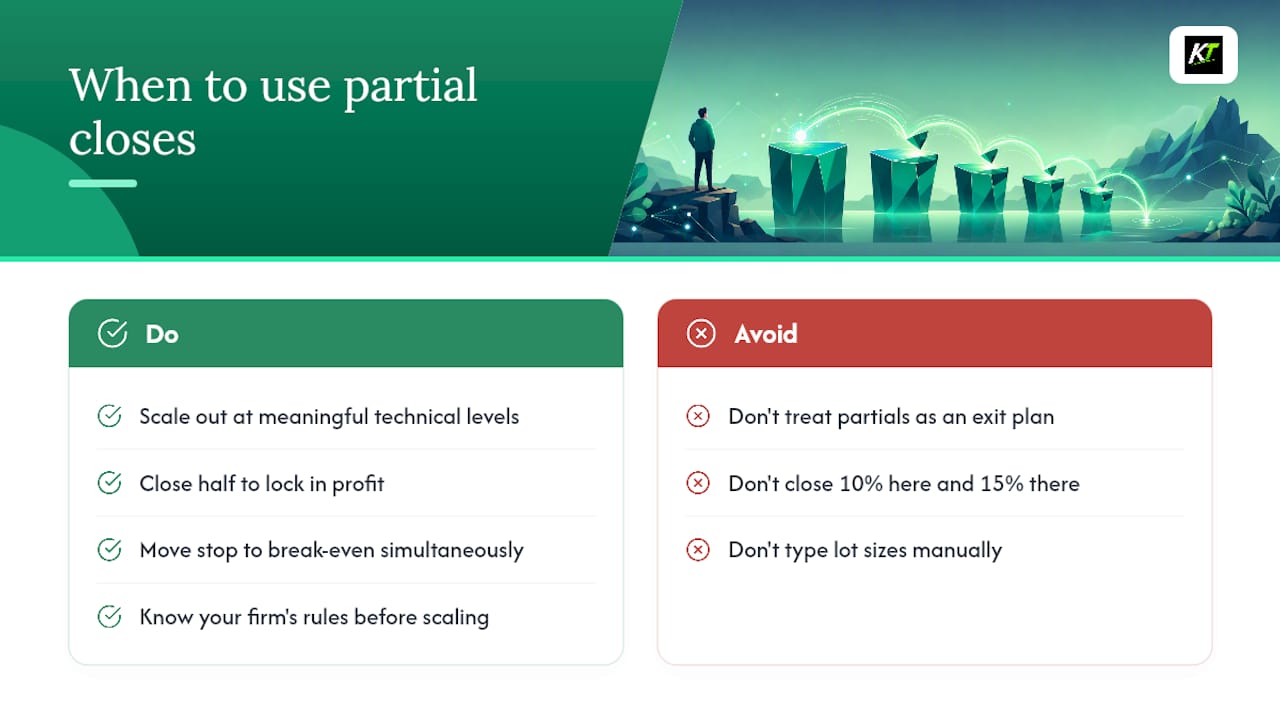
The clearest case for scaling out is when a trade has hit a meaningful technical level — a prior swing high, a round number, a measured move target — and you have genuine uncertainty about whether the move continues. Closing half at that level converts unrealized profit into real money while the remaining position costs you nothing if it reverses (assuming you move the stop to break-even simultaneously).
Where traders go wrong is treating partial closes as a substitute for a clear exit plan. Closing 10% here and 15% there without defined levels turns position management into noise. The programmatic and hardware approaches covered in this guide are most valuable precisely because they enforce discipline: a pre-configured button or EA fires at the level you decided on before the trade, not the level that feels right in the moment.
For traders running prop firm accounts, partial closes also interact with daily drawdown limits and consistency rules. Realizing partial profit early can protect your account from a sudden reversal, but it also means your winning trades show smaller average gains. Know your firm’s rules before building a scaling strategy around partial closes.

Partial closes are only as fast as your slowest input. If you are still typing lot sizes manually during live trades, a Key-trade trading keyboard maps your most-used scale-out actions to single physical buttons, works directly with MT5, and ships worldwide. One button. The right volume. Every time.
Sources
These sources cover the platform behavior, API details, and practical steps referenced throughout this guide.
- Executing Trades - Trading Operations - MetaTrader 5 Help
- PositionClosePartial(const string,const double,ulong) - CTrade
- Partial Close – Hirose Financial
- How to Take Partial Profit and Close on MT4 and MT5 Mobile
- How to Close Half a Position in MT4 or MT5? – Forex Trading Education & Analysis
- How to Partially Close Positions in MT4/MT5
FAQ
Can you partially close a position in MT5?
Yes. MT5 supports partial closes on desktop, mobile, and programmatically via MQL5. In the Trade tab, open the Close Position dialog, enter a volume smaller than the full position, and confirm.
How do you close exactly 50% of a position in MT5?
Multiply your open lot size by 0.5, round to your broker’s lot step, and enter that value in the volume field of the Close Position dialog. For a 1.00-lot position, enter 0.50.
What happens to stop-loss and take-profit after a partial close?
The remaining position keeps its original stop-loss and take-profit levels unchanged. You need to modify them manually if your strategy requires moving the stop to break-even after banking partial profit.
How do you partially close a position on MT5 mobile?
In the Trade tab, tap or long-press the open position, select “Close,” change the volume field to the partial amount, and confirm. Check the Trade tab afterward to verify the remaining volume is correct.
Why is my MT5 partial close being rejected?
The most common causes are a volume that violates your broker’s minimum lot or lot step, a wrong ticket selection on a hedging account, or a server requote in fast market conditions. Check your broker’s contract specifications and round your volume to the allowed increment.
Recommended
- NinjaTrader Partial Close Futures Guide for Traders – Key-Trade Trading Keyboards
- How to Close a TradingView Position Quickly – Key-Trade Trading Keyboards
- TradingView Risk Management Setup Tips for Pro Traders – Key-Trade Trading Keyboards
- cTrader Trade Management Features: Complete 2026 Guide – Key-Trade Trading Keyboards