

MT5 Hotkeys for Pro Traders: Faster, More Reliable Execution
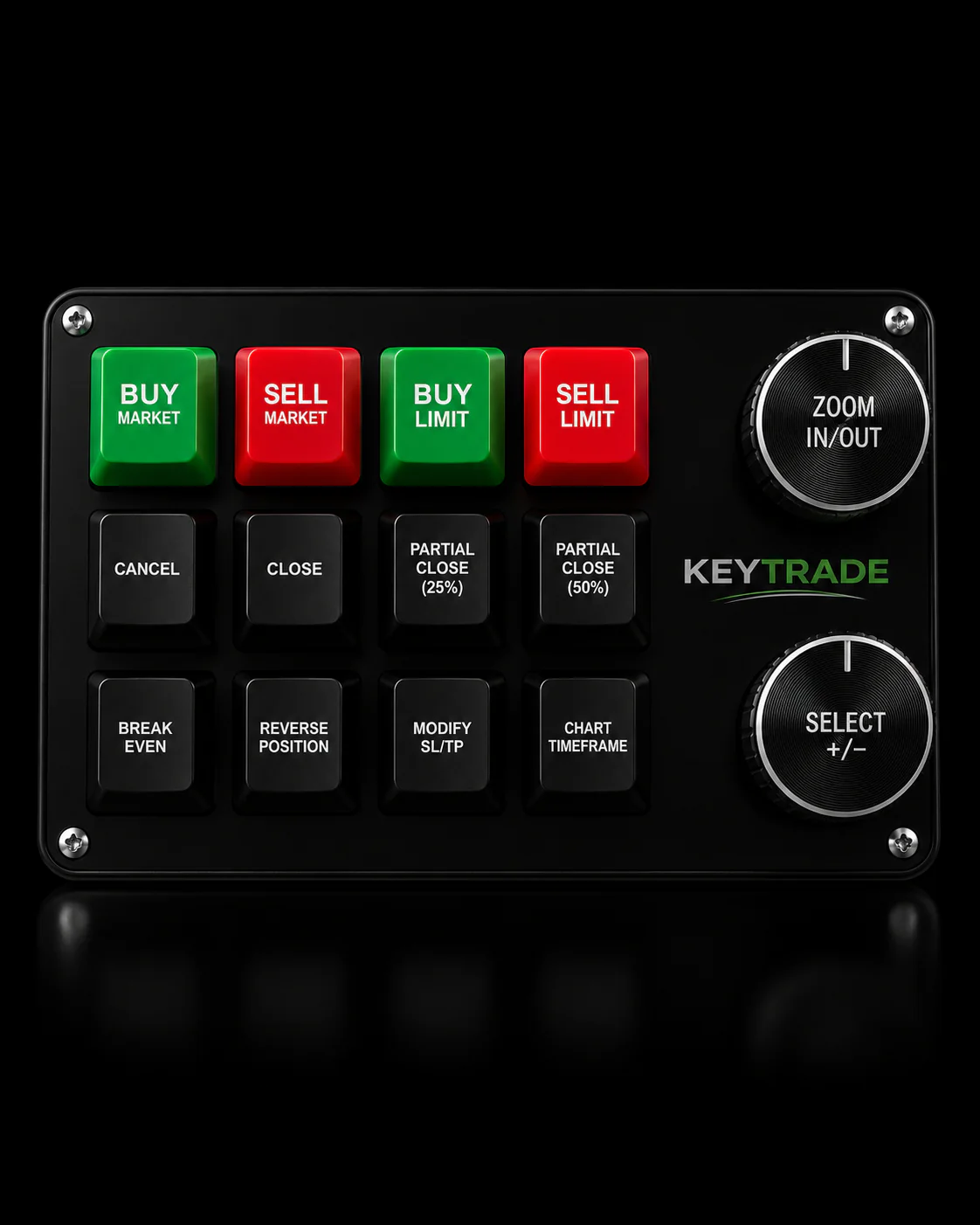
A wired, programmable keypad with onboard profiles and full N-key rollover is the fastest, most reliable way to run MT5 hotkeys in a professional trading environment. One key press replaces a three-step mouse sequence, removes operator-induced jitter, and keeps your hands on the hardware when the market moves against you. The Key-trade trading keypad is the recommended device for this workflow: it ships with MT5-ready presets, stores profiles in onboard memory, and connects over USB HID with no driver dependency.
Why hardware over software shortcuts alone? Two reasons that actually matter:
- Repeatability under pressure. A dedicated physical button fires the same keystroke every time, regardless of where your mouse cursor sits or which window last had focus.
- System-level latency. NIC interrupt coalescing can add 50–200µs of delay per burst during market-data floods. Pair a tuned workstation with a 1000 Hz polling-rate keypad and you recover micro-latency at trivial CPU cost.
Key Takeaways
A wired, NKRO keypad with onboard profile memory is the most reliable hardware foundation for MT5 hotkeys — pair it with NIC tuning and 100-trial demo validation before going live.
| Point | Details |
|---|---|
| Choose wired NKRO hardware | A 1000 Hz polling rate and onboard EEPROM are non-negotiable for trading-grade reliability. |
| Apply MT5 presets before live trading | Map panic-flat, breakeven stop, and partial close keys first; test each 50+ times in demo. |
| Validate with 100-trial demo test | Measure p50/p95 reaction times and missed inputs; tighter p95 variance is the real signal. |
| Tune NIC and OS settings | Disable TSO/LSO, LRO, and interrupt moderation; enable RSS and checksum offload per NexusFi guidance. |
| Use Key-trade for MT5 setup support | Key-trade ships MT5-ready presets and provides profile transfer assistance for US traders. |
Table of Contents
- What are MT5 hotkeys on a physical keypad, and why do pro traders use them?
- How does a keypad integrate with MetaTrader 5?
- What button mappings work best for MT5 workflows?
- Which hardware specs actually matter for MT5 hotkeys?
- Quickstart: map keys, test in demo, and go live safely
- How do you measure real latency improvements from a keypad?
- What system tuning complements a hardware keypad?
- Common problems with MT5 keypads and quick fixes
- Where to buy the Key-trade keypad and what support looks like
- The case for hardware over software shortcuts alone
- Key-trade keypads: ready for MT5 out of the box
- Sources
- FAQ
What are MT5 hotkeys on a physical keypad, and why do pro traders use them?
The phrase “MT5 hotkeys” covers two very different things. The version that matters here is hardware: a dedicated USB device whose programmable buttons send keystroke commands directly to MetaTrader 5, bypassing the mouse entirely. Euromoney reported that a major broker tested and distributed a trading keypad to active desktop FX clients specifically to improve speed and usability — institutional desks adopted hardware for the same reason prop firms do today.
The operational case is simple. Mouse-based execution requires you to move, aim, click, and confirm. A mapped keypad button does all four in a single press. During a volatile open or a news spike, that difference is real.
Traders who benefit most:
- Scalpers running 20+ trades per session who need sub-second entry and exit
- Prop-firm challenge participants where a missed stop costs a funded account
- Desk traders managing multiple positions who need one-touch partial closes and SL/TP edits
- Swing traders who want a reliable panic-flat key for overnight risk events
For a deeper look at why hotkeys win on execution speed, the use-case breakdown is worth reading before you map your first profile.
How does a keypad integrate with MetaTrader 5?
The connection is straightforward: the keypad registers as a USB HID keyboard. MT5 sees it as a standard input device and responds to whatever keystrokes the device sends. No custom API, no broker permission required.
Pre-purchase compatibility checklist:
- OS: Windows 10 or Windows 11 (MT5 runs on both; avoid Bluetooth devices on trading machines)
- MT5 focus behavior: MT5 must be the active foreground window to receive keystrokes; verify this before going live
- Onboard memory vs. software-only profiles: onboard EEPROM stores macros on the device itself; software-only profiles disappear after a reboot or driver update
- NKRO: full N-key rollover prevents missed inputs when multiple keys fire simultaneously
- Polling rate: 1000 Hz (1ms report interval) is the standard for trading-grade devices
- Companion software permissions: if the device uses companion software for profile editing, run it as administrator only during setup, not during live trading
Short setup prerequisites: enable MT5 hotkeys in the platform settings, confirm the platform window holds focus during rapid key events, and build your first profile on a demo account before touching live funds. The external keypads for MT5 integration guide walks through the platform-side configuration in detail.
What button mappings work best for MT5 workflows?
Three presets cover the majority of active-trading scenarios. Apply them in demo first, then promote to live once you’ve confirmed zero missed inputs across 50+ rapid trials.
Preset 1: Scalper one-click entry. F1/F2 for instant long/short, F3 for immediate exit. Keep lot size fixed in MT5 settings so the key fires without a confirmation dialog.
Preset 2: Bracket-order manager. F4 moves the stop to breakeven after a defined pip move. F5 closes half the position. These two keys together handle the most common trade-management sequence without touching the mouse.
Preset 3: Risk-control quick actions. F7 is your panic-flat key. Map it to a macro sequence that closes all positions and cancels all pending orders. Store this on every profile, not just one.
Pro Tip: For high-risk actions like panic-flat or reverse, add a deadman modifier: hold a second key while pressing the action key. This prevents an accidental single press from wiping your book during a routine keystroke.
Store presets in onboard memory, not just in companion software. That way, the profile survives a reboot, a Windows update, or a companion-app crash mid-session.
Which hardware specs actually matter for MT5 hotkeys?
Not all programmable keypads are built the same. These specs separate trading-grade devices from gaming peripherals repurposed for the desk.
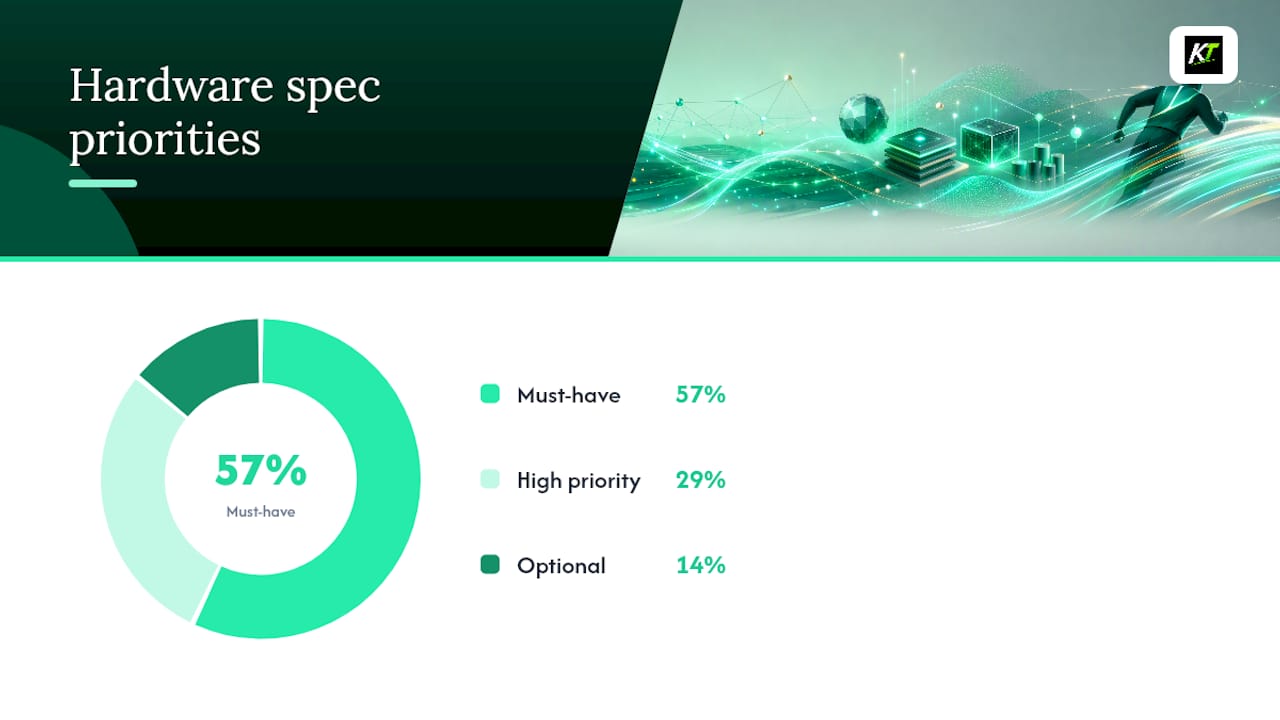
| Spec | Priority | Why It Matters |
|---|---|---|
| Wired USB connection | Must-have | Eliminates Bluetooth latency variance and connection drops |
| 1000 Hz polling rate | Must-have | 1ms report interval; lower rates introduce input lag |
| Full NKRO | Must-have | No dropped inputs when multiple keys fire simultaneously |
| Onboard profile memory | Must-have | Profiles survive reboots and software crashes |
| Tactile switches | High priority | Tactile bump confirms press without bottoming out; reduces fatigue |
| Physical key labeling | High priority | Rapid visual identification under stress; backlighting helps in dim rooms |
| Relegendable keycaps | Optional | Lets you label keys with action names instead of F-key numbers |
Active traders who execute many trades per session consistently favor mechanical or purpose-built trading hardware with programmable macros, onboard memory, and tactile switches because repeatability and low cognitive load matter more than raw specs on paper.
Pro Tip: Prefer devices that expose USB HID without requiring a driver to be loaded at boot. Hardware-stored macros mean your keypad works even if the companion software fails to launch, which matters during a fast market open.
For a broader buying checklist for active traders, the spec comparison there covers form factors and switch types in more depth.
Quickstart: map keys, test in demo, and go live safely
- Connect the keypad to a direct USB port on your workstation. Avoid USB hubs for trading devices.
- Load your MT5 preset profile from onboard memory or companion software.
- Map keys to MT5 hotkeys in the platform: go to Tools > Options > Trade and confirm each hotkey is active.
- Verify MT5 window focus. Click the MT5 chart window, then fire each key. Confirm the correct action executes.
- Run 50+ rapid trials in demo. Fire each mapped key at speed. Log any missed inputs, double-triggers, or wrong actions.
- Set your panic-flat key last and test it explicitly. This key must work every time.
- Reboot the workstation and confirm profiles persist. If they don’t, the device lacks true onboard memory.
- Rehearse your failover. Know what to do if the keypad disconnects mid-session: mouse backup, keyboard shortcut backup.
A day-trading hardware guide from TradeAlgo recommends a UPS for graceful shutdowns and at least two monitors as part of a complete desk setup. Add those to your checklist before going live.
Common risks to avoid: accidental large orders from mis-mapped macros, OS focus loss during alert popups (which routes keystrokes away from MT5), and profile switching errors during live sessions. Demo-test every scenario before touching a funded account.
How do you measure real latency improvements from a keypad?
Measurement matters because “feels faster” is not a number you can defend to a prop-firm risk manager or use to justify a hardware purchase.
Test plan:
- Baseline: record p50 and p95 reaction times using mouse-and-keyboard entry across 100 demo orders. Use a stopwatch or screen-recording software to timestamp keypress to order-sent confirmation.
- Keypad trials: repeat 100 demo orders using the mapped keypad. Capture the same timestamps.
- Metrics to compare: reaction time distribution (p50, p95), missed or duplicate keystroke count, profile persistence failures across sessions, and fill/no-fill ratio on matched demo conditions.
- Interpret results: a material improvement shows as reduced variance (tighter p95) and fewer missed inputs, not just a small shift in median time. A 10ms median improvement with the same p95 variance means little. A 40ms tighter p95 with zero missed inputs means a lot.
NexusFi notes that managed VPS near the exchange delivers the majority of co-location latency benefits at a fraction of the cost — which sets a realistic baseline: your keypad test results are meaningful only after your network path is already optimized. Measuring keypad gains on a poorly tuned workstation gives you noise, not signal.
What system tuning complements a hardware keypad?
The keypad handles operator latency. The workstation handles everything downstream. These NIC and OS settings, sourced from NexusFi’s trading workstation infrastructure guidance, reduce jitter so the keypad’s repeatability actually reaches the broker:
- RSS (Receive Side Scaling): Enable. Distributes receive processing across CPU cores with no downside for trading.
- Checksum Offload (RX/TX): Enable. The NIC handles checksum calculation; zero latency impact.
- TSO/LSO: Disable. Trading order packets are small; TSO adds buffering overhead that increases jitter.
- LRO (Large Receive Offload): Disable. Coalescing incoming packets into large buffers creates bursty delivery timing that disrupts trading apps.
- Flow Control (802.3x): Disable. PAUSE frames on a shared network can delay your entire port.
- MTU: Keep at 1500. Jumbo frames require every device in the path to support them; one non-compliant hop causes fragmentation and tail-latency spikes.
- Interrupt Moderation: Disable or set to Lowest Latency. This recovers the 50–200µs of delay per burst that coalescing adds during market-data floods.
OS and BIOS: disable deep C-states, set the Windows power plan to High Performance, and run LatencyMon to identify DPC spikes. NexusFi’s dedicated trading server guide recommends 4–8 physical cores with high single-core clocks, 32GB RAM baseline, and NVMe storage for fast recovery.
Pro Tip: Bind NIC RSS queues to separate CPU cores and pin your MT5 process to its own dedicated core. This keeps packet processing and order execution from competing for the same core during a market-data burst.
Common problems with MT5 keypads and quick fixes
Focus loss (MT5 not receiving keystrokes): MT5 lost foreground focus. Click the chart window before firing keys. Set MT5 to always-on-top if your OS supports it.
Profile not persisting after reboot: the device lacks onboard EEPROM. Profiles stored only in companion software reset on restart. Confirm onboard memory before purchase.
Double-taps / debounce issues: switch debounce time is too short. Increase debounce delay in companion software (typically 5–10ms resolves most cases).
Companion software conflicts: running companion software during live trading can cause focus conflicts. Use it for profile editing only; close it before the session starts.
USB hub issues: hubs introduce additional polling latency and can drop HID events under load. Connect the keypad directly to a motherboard USB port.
Driver prompts mid-session: choose devices that operate as native USB HID without requiring a custom driver. Driver installation prompts during a live session are a hard stop.
Troubleshooting intermittent failures: collect a screen recording of the failure, note the exact key and action, and test on a second clean machine to isolate whether the issue is device-side or workstation-side. Submit that recording plus the demo-test log to support.
Where to buy the Key-trade keypad and what support looks like
Before purchasing any trading keypad, confirm these items:
- Onboard profile memory (not software-only)
- US shipping availability and estimated delivery time
- Warranty period and RMA process
- Availability of prebuilt MT5 presets or setup guides
- Replacement keycap options for custom labeling
Key-trade ships worldwide, including to the US, and provides MT5 presets and setup guides directly on the product page. Support covers profile transfer assistance, platform integration questions, and RMA handling. Ask your vendor specifically about RMA turnaround time and whether profile backup files are transferable to a replacement unit.
The case for hardware over software shortcuts alone
The conventional wisdom says MT5 keyboard shortcuts are enough. They’re not, and the gap becomes apparent exactly when it matters most: during a volatile open, a news event, or a prop-firm evaluation where one missed input ends the challenge.
Software shortcuts depend on window focus, OS scheduling, and mouse position. A physical keypad depends on none of those. The button fires, the keystroke registers, the order goes. That’s the entire value proposition, and it’s not subtle once you’ve traded through a fast market with both setups.
What desks actually do: they map the panic-flat key first, test it 100 times in demo, and only then build out the full profile. The emergency key is the SOP, not an afterthought. Profile naming matters too — label profiles by session type (e.g., “NY Open Scalp,” “Swing Manage”) so switching under pressure is a single button, not a menu hunt.
The traders who get the most from hardware keypads are not the ones with the most buttons mapped. They’re the ones who mapped five keys perfectly and practiced until the muscle memory was automatic.
Key-trade keypads: ready for MT5 out of the box
The Key-trade trading keypad ships with MT5-ready presets, onboard profile memory, and a direct USB HID connection that requires no driver installation. For US traders, it’s available now with worldwide shipping, a clear warranty, and dedicated setup support.

Pick up the Key-trade trading keypad and get your MT5 presets, setup guides, and profile transfer support from the Key-trade site. If you have questions about mapping or platform integration before you buy, the support team handles those directly.
Sources
- NIC Offload Features: What to Enable, What to Kill # Modern NICs implement various TCP/IP processing in hardware to offload work from the CPU. Not all of these are beneficial for trading workstations: Receive Side Scaling (RSS) — Enable. Distributes receive processing across multiple CPU cores. Zero downside for trading, measurable upside on multi-core systems. Checksum Offload (RX and TX) — Enable. The NIC handles TCP/UDP/IP checksum calculation instead of the CPU. Fast, invisible, no latency impact. Keep it on. TCP Segmentation Offload (TSO/LSO) — Disable for trading. TSO lets the OS hand large chunks of data to the NIC for segmentation. For trading, your outbound messages are small (order packets, cancel/replace). TSO adds processing overhead and introduces buffering that can increase jitter. Disable Large Send Offload v2 (IPv4) and Large Send Offload v2 (IPv6) in Device Manager. Large Receive Offload (LRO) — Disable. LRO coalesces multiple incoming TCP packets into a single large buffer before passing to the OS. This dramatically increases per-packet processing latency and introduces exactly the kind of bursty delivery timing that disrupts trading applications. Flow Control (802.3x PAUSE frames) — Disable. Flow control allows a device to pause transmissions when buffers fill. On a shared network, this can mean your NIC sends PAUSE frames that delay everything on that switch port. Disable it unless you’re seeing actual packet loss from buffer overflow. Jumbo Frames — Keep at 1500 MTU. Jumbo frames (9000 MTU) require every device in the path — NIC, switch, router, VPN, broker gateway — to support the larger frame size. On a home trading workstation, even one device in the path that doesn’t support jumbo frames causes fragmentation, which creates retransmissions, which creates tail latency spikes. The bandwidth benefit is negligible for trading traffic. Keep MTU at standard 1500. The resulting “trading profile” for offload settings: RSS: On Checskum Offload: On TSO/LSO: Off LRO: Off Flow Control: Off Jumbo Frames: Disabled (MTU 1500) Complete NIC offload settings reference for a trading workstation.
- Day Trading Setup: The Hardware, Software, and | TradeAlgo
FAQ
What are MT5 hotkeys on a physical keypad?
MT5 hotkeys on a physical keypad are programmable buttons on a dedicated USB device that send keystroke commands directly to MetaTrader 5, replacing mouse-based order entry with a single key press.
Does a trading keypad work with MT5 without special drivers?
Yes. Devices that register as native USB HID keyboards work with MT5 on Windows 10 and Windows 11 without custom drivers; MT5 receives their keystrokes the same way it receives any keyboard input.
What is the mt5 breakeven stop key mapping?
The breakeven stop is typically mapped to a single key that triggers a breakeven EA or script hotkey in MT5, moving the stop-loss to the entry price. Test this mapping in demo before using it on a live account.
How do I validate that my keypad actually reduces execution latency?
Run 100 demo-order trials with mouse entry and 100 with the keypad, recording p50 and p95 reaction times. A meaningful improvement shows as tighter p95 variance and fewer missed inputs, not just a lower median.
Where can I get MT5 presets for the Key-trade keypad?
MT5 presets and setup guides are available directly on the Key-trade product page, and the support team provides profile transfer assistance for new users.
Recommended
- Why Forex Traders Use Hotkeys to Win on Speed – Key-Trade Trading Keyboards
- External Trading Keypads for MT5: Speed and Accuracy – Key-Trade Trading Keyboards
- cTrader Keyboard Shortcut Functions: Your Complete 2026 Guide – Key-Trade Trading Keyboards
- Why Trading Desks Need Fast Execution: A Practical Guide – Key-Trade Trading Keyboards