

How to Close a TradingView Position Quickly
TL;DR:
- Closing TradingView positions quickly relies on a stable broker connection, familiarity with the Trading Panel, and understanding Pine Script functions. Manual exits are fastest through the Trading Panel or keyboard shortcuts like Shift+T, but hardware macro keys can further reduce time by automating sequences into a single press. Automation with
strategy.close()andstrategy.close_all()offers the quickest, condition-based exits, provided the broker connection remains reliable.
Closing a TradingView position quickly is defined as exiting an open trade in the shortest possible time using manual controls, keyboard shortcuts, or automated Pine Script commands. Speed matters most when markets move fast. A one-second delay during a news spike or liquidity gap can turn a winning trade into a losing one. TradingView supports three distinct exit methods: manual interface clicks, native keyboard shortcuts like Shift+T, and scripted exits using strategy.close() or strategy.close_all(). Each method has a different speed profile, and the best traders combine all three.
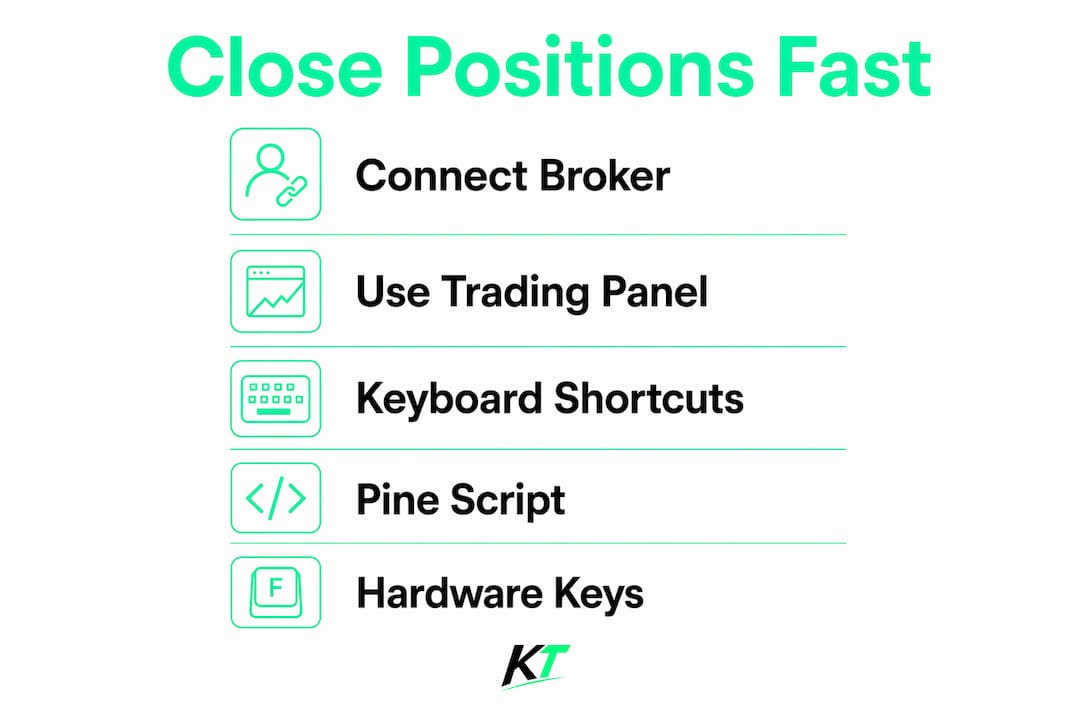
What do you need set up before closing trades on TradingView fast?
Fast exits require the right foundation. Without it, even the quickest click or shortcut fails to reach the market.

The first requirement is an active broker connection. TradingView is a charting platform, not a standalone execution venue. Your broker’s API must be linked and confirmed live before any order reaches the market. A stable API connection between TradingView and your broker is non-negotiable. Disconnections cause position closure to fail even when the chart shows the trade as open.
The second requirement is familiarity with the Trading Panel. This is the horizontal bar at the bottom of the TradingView chart interface. It shows your open positions, pending orders, and account balance. Every manual exit starts here. Traders who do not know this panel lose seconds searching for the right button during volatile moves.
The third requirement is a basic understanding of Pine Script if you want automated exits. You do not need to be a programmer. You only need to know two functions: strategy.close() and strategy.close_all(). These are covered in detail later.
| Method | Speed | Skill Required | Best For |
|---|---|---|---|
| Manual (Trading Panel) | Moderate | Low | Occasional traders |
| Keyboard shortcuts | Fast | Low to medium | Active day traders |
| Pine Script automation | Fastest | Medium | Scalpers, algo traders |
How to manually close positions quickly using TradingView’s interface
The manual close method uses the Positions tab inside the Trading Panel. Clicking the “Close” button or the “X” icon next to an open position sends a market order immediately. This is the most straightforward approach and requires no setup beyond an active broker connection.
Here is the step-by-step process:
- Open the Trading Panel by clicking the chart’s bottom bar or pressing Shift+T.
- Click the “Positions” tab to see all open trades.
- Find the position you want to exit.
- Click the “X” icon or the “Close” button next to it.
- Confirm the market order if your broker requires confirmation.
- Check the “Orders” tab to verify the fill.
For a partial close, adjust the quantity field before clicking close. TradingView lets you specify how many units or contracts to exit, leaving the rest of the position open. This is useful when scaling out of a trade during a strong move.
The most common mistake traders make is confusing visual stop-loss lines with real orders. A stop-loss line on the chart does not guarantee closure unless a real stop order exists at the broker level. Dragging a line on the chart is a visual action only. The broker must receive and confirm the stop order for it to trigger.
Pro Tip: After clicking close, immediately check the “Orders” or “Executions” tab in the Trading Panel. If no fill appears within two seconds, your broker connection may have dropped. Refresh the connection and retry.
How do keyboard shortcuts speed up TradingView position closure?
Keyboard shortcuts reduce the time between decision and execution by eliminating mouse movement. Every millisecond of mouse travel is a millisecond of exposure to market risk.
The most useful shortcut for fast exits is Shift+T, which opens and closes the Order Panel instantly. This brings the full trade management interface to the front without clicking through menus. From there, you can close positions with a single additional click.
Key shortcuts active traders rely on:
- Shift+T: Toggle the Order Panel open or closed
- Shift+B: Place a quick buy market order
- Shift+S: Place a quick sell market order
- Right-click on the chart near your position line for a context menu with a close option
These shortcuts work well for traders who already know their position size and just need to exit. The limitation is that they still require at least one or two additional clicks after the panel opens. That gap matters in ultra-fast markets.
Hardware macro pads and dedicated trading keyboards solve this problem. Professional traders map a single physical button to execute the full close sequence, including opening the panel and confirming the order. This reduces a three-step process to one physical press. Key-trade builds keyboards specifically for this workflow, with programmable buttons that map TradingView shortcuts directly to physical keys.
Pro Tip: Pair TradingView’s Shift+T shortcut with a hardware macro key that sends the full key sequence automatically. This cuts your exit time to a single button press and removes the risk of pressing the wrong key under pressure.
Understanding why TradingView lacks native one-press hotkeys for direct position closure explains why hardware solutions have become standard tools for serious traders.
How does Pine Script automate immediate position exits?
Pine Script’s strategy.close() and strategy.close_all() functions are the fastest way to exit positions when a specific condition is met. They send market orders the moment the script’s logic triggers, without any manual input.
Here is how to implement each function:
-
Use
strategy.close(id)to close a specific trade by its strategy ID. Example:strategy.close("Long")closes only the position labeled “Long.” -
Use
strategy.close_all()to exit every open position at once. This is the nuclear option for fast exits when conditions turn sharply against you. - Add a condition that triggers the close. A simple example: close all positions when price crosses below a moving average.
-
Cancel pending orders before closing to avoid re-entry conflicts. Use
strategy.cancel_all()beforestrategy.close_all()to clear the order queue. - Forward test before going live. The backtester assumes perfect fills. Real markets have slippage.
A basic Pine Script exit block looks like this:
if ta.crossunder(close, ta.sma(close, 20))
    strategy.cancel_all()
    strategy.close_all()
This closes all positions and cancels pending orders the moment price crosses below the 20-period simple moving average.
Both functions execute as market orders, which prioritizes speed over price. Market orders fill immediately but may suffer slippage during fast-moving conditions. Limit orders reduce slippage but risk not filling at all if price moves away. For most fast-exit scenarios, market orders are the correct choice.
| Function | What it closes | Order type | Slippage risk |
|---|---|---|---|
strategy.close(id) |
One specific position | Market | Moderate |
strategy.close_all() |
All open positions | Market | Moderate to high |
| Limit-based exit | One position at a price | Limit | Low |
Backtester assumptions and real execution often diverge. The backtester assumes your close order fills at the bar’s close price. In live markets, slippage, latency, and partial fills change that. Always run your script in paper trading mode for at least two weeks before using it on a live account.
What causes slow or failed position closures on TradingView?
Most failed exits share a common root cause: the order never reached the broker. Understanding where the chain breaks saves money.
Key issues that cause slow or failed closures:
- Broker disconnection: TradingView shows the position open, but the broker API has timed out. The close button sends nothing.
- Visual stop confusion: A stop-loss line drawn on the chart is not a real order. Real stop orders must exist at the broker level to trigger during price moves.
- Confirmation dialogs: Some broker integrations require a pop-up confirmation before executing. Disable this in broker settings if speed is the priority.
- Script conflicts: A Pine Script strategy and a manual close attempt can conflict if both try to manage the same position simultaneously.
- Latency from geographic distance: Traders far from their broker’s servers experience higher round-trip times. A VPS closer to the broker’s data center reduces this.
Confirming order fills in the Trading Panel’s “Executions” tab after every manual close is the single most reliable way to catch failed exits before they become large losses. Do not assume the position closed because the chart updated.
Manual clicking is too slow for high-frequency environments. Scalpers and day traders who rely on mouse-based exits consistently miss optimal exit prices during volatile moves. Shortcuts and automation are not optional for this audience. They are the baseline.
Key Takeaways
The fastest way to close a TradingView position combines keyboard shortcuts, a stable broker API connection, and Pine Script automation for condition-based exits.
| Point | Details |
|---|---|
| Manual exits use the Trading Panel | Click the “X” or “Close” button in the Positions tab to send a market order immediately. |
| Shift+T is your fastest manual shortcut | This keyboard shortcut opens the Order Panel instantly, cutting navigation time. |
| Pine Script exits are the fastest option |
strategy.close_all() sends a market order the moment your condition triggers, with no manual input. |
| Visual stops are not real orders | Stop-loss lines on the chart do not close positions unless a real broker-side stop order exists. |
| Hardware keyboards cut exit time further | Mapping close sequences to a single physical key removes multi-step shortcut chains under pressure. |
The uncomfortable truth about exit speed in live trading
Manual clicking is not a viable exit strategy for active traders. I have seen traders lose significant gains because they spent two seconds finding the close button during a fast reversal. The market does not wait.
The standard advice is to “use keyboard shortcuts.” That is correct but incomplete. Shortcuts like Shift+T still require two or three additional steps to confirm a close. Under pressure, traders mistype, click the wrong button, or freeze. Hardware removes that variable entirely. A single programmed key press executes the full sequence without thought.
Pine Script automation is powerful, but it is not a replacement for understanding your broker’s execution layer. I have watched traders deploy strategy.close_all() scripts that worked perfectly in backtests and then failed to close positions live because the broker API had silently disconnected. The script fired. The order went nowhere. The position stayed open through a 50-pip move against them.
The real answer is layered redundancy. Use Pine Script for condition-based exits. Use a hardware keyboard for manual overrides. Keep the Trading Panel visible at all times so you can confirm fills visually. And always verify that your broker API connection is live before the trading session starts, not after a problem appears.
Speed without reliability is just a faster way to lose money. Build the system first, then optimize for speed.
— Key-trade
Hardware built for traders who need fast exits
Traders who need to close positions in milliseconds need more than software shortcuts.

Key-trade builds professional trading keyboards designed specifically for TradingView workflows. Each key is programmable to execute full shortcut sequences, including Shift+T and order confirmation, in a single press. The keyboards are built for low input latency and ergonomic use during long trading sessions. They work with live accounts and prop trading accounts, and ship worldwide. If you are serious about cutting your exit time, the Key-trade professional trading keyboard is the hardware layer your TradingView setup is missing. Pair it with Pine Script automation and a stable broker connection for a complete fast-exit system.
FAQ
How do I close a TradingView position quickly without Pine Script?
Open the Trading Panel, click the “Positions” tab, and press the “X” or “Close” button next to your open trade. This sends a market order immediately through your connected broker.
What is the fastest keyboard shortcut to manage positions on TradingView?
Shift+T opens and closes the Order Panel instantly, giving you direct access to position management without navigating menus.
Do visual stop-loss lines on TradingView actually close my trade?
No. A stop-loss line drawn on the chart is visual only. A real stop order must be placed at the broker level to trigger an actual position closure.
Can Pine Script close all positions at once?
Yes. The strategy.close_all() function sends a market order to exit every open position the moment the script’s condition is met, with no manual input required.
Why did my TradingView close order fail to execute?
The most common cause is a dropped broker API connection. TradingView may show the position as open while the broker has already timed out, meaning the close order never reaches the market.
Recommended
- NinjaTrader Partial Close Futures Guide for Traders – Key-Trade Trading Keyboards
- TradingView Chart Trading: A Complete 2026 Guide – Key-Trade Trading Keyboards
- TradingView Trade Management Tools: 2026 Guide – Key-Trade Trading Keyboards
- Why TradingView Lacks Native Hotkeys for Traders – Key-Trade Trading Keyboards