

NinjaTrader SuperDOM Explained: How It Works
The NinjaTrader SuperDOM is a real-time Depth of Market interface that combines point-and-click order entry with live market depth visualization in a single window. Understanding how NinjaTrader SuperDOM works means grasping its three core columns and the mouse and keyboard combinations that drive every order type.
Key things the SuperDOM does at a glance:
- Displays bid sizes (Buy column), ask sizes (Sell column), and live price data including PnL (Price column)
- Supports four order types: Limit, Stop-Market, Stop-Limit, and MIT, each triggered by a distinct mouse or keyboard combination
- Shows market depth levels above and below the current bid/ask, giving you a real-time view of available liquidity
- Manages open positions, working orders, and ATM risk strategies without leaving the window
Table of Contents
- How the SuperDOM display columns work
- Static vs. Dynamic SuperDOM: which mode fits your trading?
- How to manage orders and positions in the SuperDOM
- Configuring market depth levels and customizing the display
- Best practices for using the SuperDOM effectively
- Managing working orders and trade fills in the SuperDOM
- Using SuperDOM alongside NinjaTrader charts and other tools
- Key Takeaways
- FAQ
How the SuperDOM display columns work
The price ladder breaks into three functional columns by default, each carrying a specific type of information.
| Column | Primary Function | Key Display Detail |
|---|---|---|
| Buy | Shows bid sizes and pending buy orders | Blue highlight for inside bid price |
| Price | Shows last traded price, position average, PnL | Yellow for last trade, green for ask |
| Sell | Shows ask sizes and pending sell orders | Green highlight for inside ask price |
A few display details worth knowing:
- The last traded price row highlights in yellow; the inside ask in green; the inside bid in blue
- The Price column also shows the average entry price of your open position in brown
- PnL at the bottom cycles through Currency, Percent, Pips, Points, and Ticks with a left-click
- Market depth levels appear above the ask and below the bid only if your data provider supports Level II data
Static vs. Dynamic SuperDOM: which mode fits your trading?
NinjaTrader Desktop offers two SuperDOM variants, and the difference between them shapes how you interact with the price ladder under pressure.

Static SuperDOM keeps price rows fixed while bid, ask, and last prices move up and down the ladder. When prices reach the top or bottom row, they re-center automatically. You can also hit the C button at any time to re-center manually. As of NinjaTrader Desktop version 8.1.7.0, the Static SuperDOM is free for all users alongside the Dynamic version.
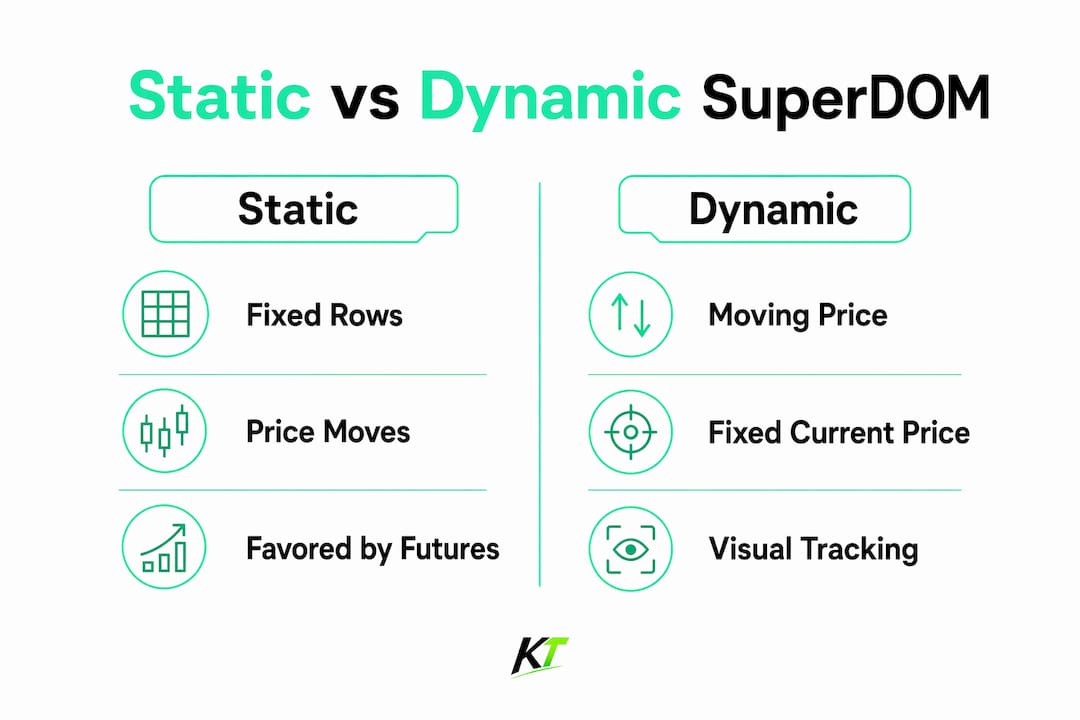
Dynamic SuperDOM keeps the ask, bid, and last prices centered at all times. The ladder freezes the moment your cursor moves over it, so you can click a price without the rows shifting beneath your mouse. Once you move the cursor away, the ladder resumes updating.
Benefits and tradeoffs:
- Static: No ladder movement while you aim, preferred for volatile markets where a shifting ladder causes mis-clicks
- Static: Requires manual re-centering if price moves far from center
- Dynamic: Always centered, so you never scroll to find the current price
- Dynamic: Freezes on hover, which works well for calmer, trending markets
- Both modes support all instrument types and all order types identically
Pro Tip: Serious traders in fast futures markets tend to favor Static mode. A ladder that moves while you’re clicking is a recipe for entering at the wrong price.
How to manage orders and positions in the SuperDOM
Before placing any trade, configure the order bar at the bottom of the window. You need to set four things: instrument, account, quantity, and time in force (Day or GTC). Skipping this step is how mis-executions happen.
Order entry shortcuts by mouse action:
- Limit order: Left-click in the Buy or Sell column at your target price
- MIT order: Hold Ctrl + left-click at your target price
- Stop-Market: Hold Ctrl + middle mouse button at your target price
- Stop-Limit: Middle mouse button click, then set the tick offset and confirm
To modify an existing order, use the click-then-click method: left-click the order flag once to select it, then click the new price. Drag-and-drop does not work on the SuperDOM. To cancel a single order, click the X on the order flag. To cancel everything at once, right-click and select “Cancel All Orders.”
ATM (Advanced Trade Management) strategies attach to orders at the moment of submission, automatically generating OCO brackets, trailing stops, and profit targets. Select your ATM strategy from the dropdown before clicking to place the trade.

Pro Tip: Run through order entry in NinjaTrader’s simulation mode before going live. The mouse and keyboard combinations feel mechanical until they’re muscle memory, and a misplaced click on a live ladder costs real money.
Configuring market depth levels and customizing the display
The SuperDOM shows 10 market depth levels by default. You can increase that number through the Properties menu (right-click inside the SuperDOM, then select Properties). If you raise the number but no additional levels appear, your data provider has hit its maximum. Level II data is required to see depth beyond the best bid and ask; with Level I only, the ladder shows a single price on each side.
Customization options available in Properties:
- Show Daily High/Low Markers: Marks session high and low directly on the price ladder
- Show Cumulative Depth: Adds cumulative contract totals at each depth level
- Price Ladder Font: Adjusts font size for readability on any monitor setup
- Auto Center: Automatically re-centers the inside market when price moves out of view
- Trade Controls on Left: Moves the order bar to the left of the ladder, freeing vertical space for more depth levels
For additional columns, right-click and select “Columns.” NinjaTrader includes four pre-built system columns: PnL per price row, Volume, Recent Bid/Ask, and APQ (your position in the order queue). You can also build custom columns or download third-party ones.
Best practices for using the SuperDOM effectively
The traders who get the most out of the SuperDOM treat it as a precision tool, not just a fast one. A few habits separate clean execution from costly errors.
- Practice all mouse and keyboard shortcuts in simulation before trading live
- Use Static mode in volatile sessions to prevent the ladder from shifting during order placement
- Verify your data provider supports Level II data before relying on depth for liquidity decisions
- Set a predefined Stop-Limit offset in Properties if you place stop-limit orders frequently, cutting the confirmation step
- Add the APQ column to track your queue position on resting limit orders
- Assign an ATM strategy before each trade rather than adding stops manually afterward
- Use OCO order mode (right-click, then “OCO Order”) for breakout setups where you want to buy above or sell below, with one canceling the other on fill
Pro Tip: Integrate ATM strategies from the start of each session, not as an afterthought. Attaching a bracket at order entry takes one extra second; adding it manually after a fill under pressure takes much longer and often doesn’t happen.
Managing working orders and trade fills in the SuperDOM
Working orders appear directly on the price ladder as colored flags. Buy orders show on the left (Buy column); sell orders on the right (Sell column). Each flag displays the order quantity and a cancel button. The position display between the Close and Rev buttons shows your current state: FLAT when you have no position, green with contract count when long, red when short.
Fills update the position display immediately. Once a fill occurs, the PnL cell at the bottom of the Price column begins tracking unrealized profit or loss in real time. Left-clicking the PnL cell cycles through display modes. The Close button cancels all working orders and flattens the position at market. The Rev button closes the current position and opens a reverse position in the opposite direction, with any active ATM strategy applying automatically to the new trade.
Using SuperDOM alongside NinjaTrader charts and other tools
The SuperDOM works best when paired with a NinjaTrader chart on the same instrument. Charts provide directional context; the SuperDOM handles execution. You can link both windows to the same instrument using NinjaTrader’s instrument linking feature, so a symbol change in one window updates the other automatically.
For traders who want chart-based order entry as well, the NinjaTrader Chart Trader offers a complementary interface directly on the price chart. Many active traders run both simultaneously: the chart for reading price action and the SuperDOM for precise ladder-based entry. Indicators added to the SuperDOM (via right-click, then “Indicators”) display their price levels directly on the ladder, so you can see, for example, a VWAP level without switching to a chart view.
Traders focused on fast execution in NinjaTrader often find that hardware matters as much as software configuration. A physical trading keypad with programmable buttons can trigger ATM strategies, flatten positions, or reverse trades in a single keystroke, removing the mouse entirely from high-pressure moments.
If you want to take SuperDOM execution a step further, the Key-trade trading keyboard is built for exactly this workflow. Programmable buttons map directly to NinjaTrader actions, including order submission, position flattening, and ATM strategy activation, so your hands never leave the keyboard during a fast move.

Key Takeaways
The NinjaTrader SuperDOM combines real-time market depth with point-and-click order entry across three columns, two display modes, and full ATM strategy integration in one window.
| Point | Details |
|---|---|
| Three core columns | Buy shows bid sizes, Price shows last trade and PnL, Sell shows ask sizes. |
| Four order types | Limit, Stop-Market, Stop-Limit, and MIT each use a distinct mouse and keyboard combination. |
| Static vs. Dynamic modes | Static fixes the ladder rows; Dynamic keeps prices centered and freezes on hover. Both are free as of version 8.1.7.0. |
| Default depth levels | The SuperDOM displays 10 market depth levels by default, adjustable in Properties up to your data provider’s maximum. |
| Click-then-click modification | Select an order flag, then click a new price to move it; drag-and-drop is not supported. |
FAQ
What does SuperDOM stand for in NinjaTrader?
SuperDOM stands for Super Depth of Market. It is NinjaTrader’s integrated price ladder for viewing Level II market depth and placing orders from a single window.
What is the difference between Static and Dynamic SuperDOM?
Static SuperDOM keeps price rows fixed while market prices move up and down the ladder. Dynamic SuperDOM keeps the current bid, ask, and last price centered, and freezes the ladder when your cursor hovers over it.
How do you place a limit order in the SuperDOM?
Left-click in the Buy column below the current price for a buy limit, or in the Sell column above the current price for a sell limit. No keyboard modifier is needed for limit orders.
Why is market depth not showing in my SuperDOM?
Market depth beyond the best bid and ask requires Level II data from your broker or data provider. With Level I data only, the SuperDOM displays a single price on each side of the ladder.
Can you use ATM strategies with the SuperDOM?
Yes. Select an ATM strategy from the dropdown in the order bar before placing a trade, and NinjaTrader will automatically attach OCO brackets, trailing stops, and profit targets to the order at submission.
Recommended
- NinjaTrader Chart Trader: A Complete Guide for Traders – Key-Trade Trading Keyboards
- Why Futures Traders Use NinjaTrader: 2026 Guide – Key-Trade Trading Keyboards
- NinjaTrader Risk Management Hardware Setup Guide – Key-Trade Trading Keyboards
- Why NinjaTrader Traders Need Fast Execution – Key-Trade Trading Keyboards