

TradingView Platform Explained for Traders in 2026
TL;DR:
- TradingView is a web-based platform that provides advanced charting tools for traders analyzing various assets across global markets. It offers a broad range of charts, hundreds of thousands of community scripts, and multi-asset analysis, but does not execute trades itself. Traders use it mainly for analysis and strategy prototyping, often pairing it with external tools for faster order execution.
TradingView is defined as a web-based charting and social trading platform that serves as an analytical front-end for traders across stocks, forex, crypto, futures, commodities, and indices. With over 100 million global users, it is the most widely adopted retail charting platform in the world. That scale reflects a simple truth: TradingView does not execute trades itself. It routes orders through connected brokers when needed, but its core job is analysis. For anyone asking what is TradingView platform explained in plain terms, the answer is this: it is the analytical layer that sits between you and the market.
What key features and tools does TradingView offer?
TradingView’s feature set covers every stage of a trader’s workflow, from spotting opportunities to testing ideas before risking real capital. The platform is widely regarded as the industry standard for retail chart quality, rapid prototyping, and community-driven indicator development. That reputation is earned, not assumed.

Chart types and drawing tools
TradingView supports candlestick, bar, Heikin Ashi, Renko, Point and Figure, and Kagi charts, among others. The drawing toolbar on the left side of the interface holds trend lines, Fibonacci retracements, Gann tools, pitchforks, and geometric shapes. Traders can annotate charts directly and save those layouts for future sessions.
Indicators, Pine Script, and the community library
The platform’s public library holds over 100,000 indicators and strategies contributed by the community. That number means you can find a working script for almost any technical concept before writing a single line of code. When you do want to build something custom, Pine Script is TradingView’s proprietary scripting language for creating indicators and automated strategies directly on the platform.
Pine Script runs entirely within TradingView’s browser environment. It cannot be exported or run externally, which keeps it simple to deploy but limits it to the platform’s ecosystem. For most retail traders, that tradeoff is acceptable.
Strategy Tester, screeners, and alerts
The Strategy Tester lets you backtest any Pine Script strategy against historical data without leaving the browser. Screeners filter stocks, forex pairs, and crypto assets by technical or fundamental criteria. The alert system fires notifications via email, SMS, or webhook when price or indicator conditions are met.
Pro Tip: Set webhook alerts to connect TradingView signals directly to external automation tools. This extends the platform’s reach without requiring a paid API subscription.
Key features at a glance:
- Candlestick, Renko, Heikin Ashi, and 10+ other chart types
- Left toolbar with 50+ drawing tools including Fibonacci and Gann
- 100,000+ community scripts in the public Pine Script library
- Strategy Tester for historical backtesting
- Stock, forex, and crypto screeners
- Price and indicator alerts via email, SMS, and webhook
- Social publishing for sharing trade ideas with the community
How does TradingView’s exchange-agnostic design enhance analysis?
TradingView’s exchange-agnostic design is the feature that separates it most clearly from broker-locked charting tools. Real-time and historical data from hundreds of global exchanges load inside a single interface. You can chart a NASDAQ stock, a Bitcoin perpetual contract, and a crude oil futures contract on the same screen simultaneously.
This matters for multi-asset traders who need to track correlations across markets. A forex trader watching the DXY dollar index alongside EUR/USD pairs gets a cleaner picture of macro pressure than one confined to a single broker’s feed. The same applies to equity traders monitoring sector ETFs against individual names.
“TradingView dominates retail trading largely because of its exchange-agnostic design. Traditional broker-locked platforms force traders to switch windows, lose context, and miss the cross-asset signals that often precede the biggest moves.”
The practical benefits of this design include:
- Side-by-side charting of instruments from different asset classes
- Access to global indices, commodities, and crypto without switching platforms
- Unified watchlists that span stocks, forex, and digital assets
- Consistent chart layout and drawing tools across every market
For multi-asset portfolio analysis, this unified view reduces friction and keeps your analytical context intact across sessions.
What are the strengths and limitations of TradingView?
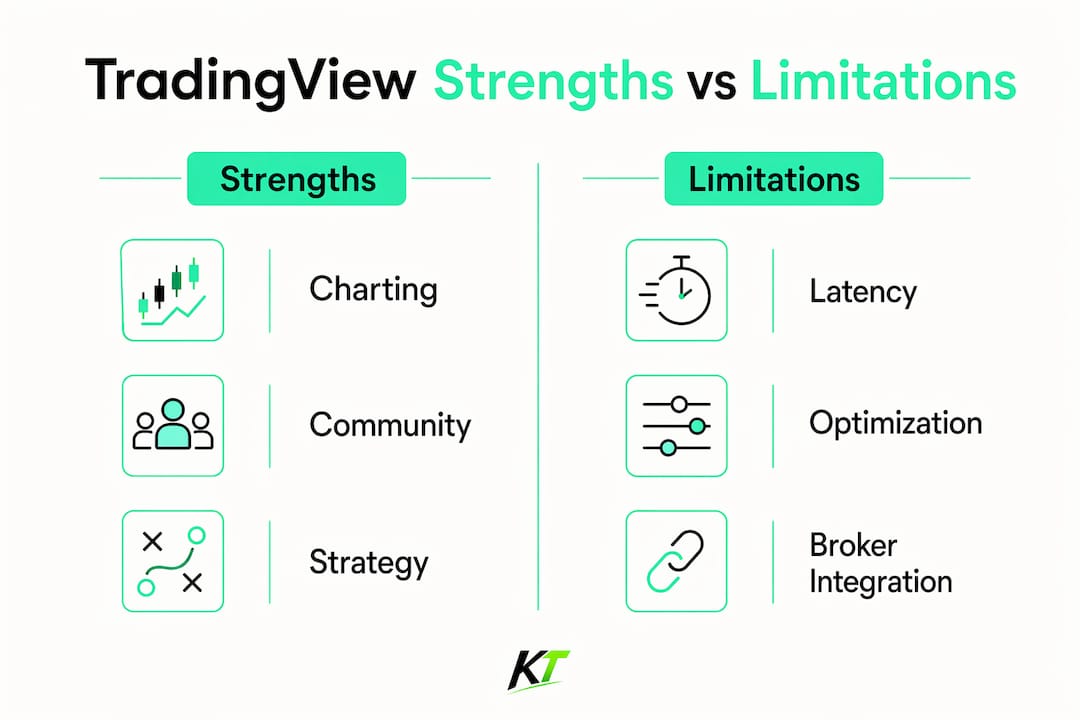
TradingView excels at charting, community scripting, and rapid strategy prototyping. Its gaps appear in execution speed, order flow analysis, and advanced quantitative validation. Understanding both sides helps you build a workflow that uses the platform where it is strongest.
Where TradingView leads
The charting engine is the clearest strength. Chart rendering is fast, layouts are customizable, and the Pine Script ecosystem means you rarely need to build from scratch. TradingView connects to over 120 brokerages for live order routing, which covers most retail and prop trading accounts. Supported brokers include Interactive Brokers, TradeStation, Alpaca, OANDA, FXCM, Gemini, and Tradovate.
Where TradingView falls short
Execution latency is the most cited limitation. Broker integration latency can run several seconds slower than native broker apps during market open. That gap is acceptable for swing traders but problematic for scalpers who need sub-second fills. TradingView also lacks native hotkey execution, which is a real friction point for active traders. You can read more about why TradingView lacks native hotkeys and how external tools address that gap.
The Strategy Tester supports fast iteration but lacks walk-forward optimization and Monte Carlo simulations. Serious quantitative traders supplement it with Python backtesting frameworks for rigorous validation.
| Feature category | TradingView strength | Known limitation |
|---|---|---|
| Charting quality | Industry-leading rendering and tools | No tick chart or order flow native view |
| Scripting | 100,000+ community scripts, Pine Script | Runs only inside TradingView’s browser |
| Backtesting | Fast iteration with Strategy Tester | No walk-forward or Monte Carlo testing |
| Execution | 120+ broker integrations | Latency slower than native broker apps |
| Data coverage | Hundreds of global exchanges | No proprietary Level 2 data feed |
Pro Tip: Use TradingView for analysis and prototyping, then route live orders through your broker’s native app when execution speed is critical. The two tools complement each other well.
How to use TradingView for charting, analysis, and strategy development
The fastest way to get productive on TradingView is to internalize its four-toolbar mental model. Mastering this layout reduces the learning curve and improves operational efficiency from the first session. The four toolbars are: top for chart settings and timeframe, left for drawing tools, right for watchlists and alerts, and bottom for the Strategy Tester and broker terminal.
A practical workflow for a retail trader looks like this:
- Build your watchlist. Use the right panel to create symbol lists organized by asset class or strategy type. Save separate watchlists for stocks, forex, and crypto.
- Set up chart layouts. Open multiple chart windows in a single layout. Save the layout so it reloads exactly as you left it at the next session.
- Add indicators. Search the public library for community scripts before writing your own. Apply them directly to the chart and adjust parameters in the settings panel.
- Write or adapt a Pine Script strategy. Use the Pine Script editor at the bottom of the screen. Start with a public script as a template and modify the logic to match your rules.
- Run the Strategy Tester. Apply the strategy to historical data and review the performance report. Check net profit, max drawdown, and the profit factor before drawing conclusions.
- Set alerts. Define price or indicator conditions in the alert dialog. Choose webhook delivery if you want to connect signals to an external system.
- Connect your broker. Use the broker terminal at the bottom of the screen to link your account. Place and manage orders without leaving the TradingView interface.
Pro Tip: Start on the free plan to learn the interface, then upgrade once you identify which paid features your workflow actually needs. The free tier covers most educational and analytical use cases.
TradingView’s free tier limits indicators, alerts, and data refresh rates, which pushes active traders toward paid plans. Paid plans start at around $15 per month, with the Plus plan at around $30 per month offering the best balance of features for most active retail traders.
Key Takeaways
TradingView is the industry-standard charting platform for retail traders because its exchange-agnostic design, Pine Script ecosystem, and 100,000-plus community scripts cover analysis and prototyping better than any broker-locked alternative.
| Point | Details |
|---|---|
| Exchange-agnostic design | Chart stocks, forex, crypto, and futures side-by-side in one interface. |
| Pine Script ecosystem | Over 100,000 community scripts reduce the need to build indicators from scratch. |
| Execution has limits | Broker integration latency makes TradingView less suitable for scalping than native apps. |
| Four-toolbar model | Learning the top, left, right, and bottom toolbars cuts the learning curve significantly. |
| Pair with external tools | Supplement TradingView with Python frameworks for advanced backtesting and native apps for fast execution. |
TradingView is the front-end. What you do with it is the edge.
After working with active traders across forex, futures, and crypto, one pattern is consistent: the traders who get the most from TradingView treat it as a thinking environment, not a trading terminal. They use it to build conviction through chart analysis, test ideas through Pine Script, and monitor markets through multi-asset layouts. They do not rely on it for fast execution.
The platform’s community library is genuinely underused by beginners. Most traders spend weeks building indicators that already exist in the public library. Searching the community scripts before opening the Pine Script editor saves hours and often produces better-tested logic than a first attempt from scratch.
The one gap I see consistently is execution workflow. TradingView’s interface is built for analysis, and the absence of native hotkeys shows. Active traders who need to enter, scale, and exit positions quickly find that clicking through menus costs them real money over time. The TradingView chart trading guide covers how to structure that workflow more efficiently. The broader point is that TradingView is a powerful front-end, but it rewards traders who pair it with the right execution tools.
— Key-trade
Faster execution starts at your desk
TradingView gives you the analysis. Key-trade gives you the speed to act on it.

Key-trade’s professional trading keyboards are built specifically for platforms like TradingView, with programmable buttons that handle order entry, partial closures, stop-loss modification, and break-even adjustments in a single press. No menus. No delays. The Key-trade trading keyboard works with TradingView, MetaTrader 4 and 5, cTrader, NinjaTrader, and more. It ships worldwide and requires no technical setup. If your analysis is sharp and your execution is slow, the keyboard is where the gap closes.
FAQ
What is TradingView used for?
TradingView is used for charting, technical analysis, strategy development, and live trading through connected brokers. It supports stocks, forex, crypto, futures, commodities, and indices from hundreds of global exchanges.
Is TradingView free to use?
TradingView offers a free tier with basic charting tools, but it limits the number of indicators, alerts, and data refresh rates. Paid plans start at around $15 per month for traders who need more capacity.
Does TradingView execute trades directly?
TradingView does not execute trades on its own. It routes orders through connected third-party brokers, with over 120 supported brokerages including Interactive Brokers, OANDA, Alpaca, and Tradovate.
What is Pine Script in TradingView?
Pine Script is TradingView’s proprietary scripting language for building custom indicators and automated strategies. It runs entirely within the TradingView browser environment and cannot be exported to external platforms.
Is TradingView good for beginners?
TradingView is well-suited for beginners because the free tier covers core charting needs and the community library provides thousands of ready-made indicators. Learning the four-toolbar layout early reduces the platform’s learning curve significantly.
Recommended
- TradingView Chart Trading: A Complete 2026 Guide – Key-Trade Trading Keyboards
- TradingView Trade Management Tools: 2026 Guide – Key-Trade Trading Keyboards
- NinjaTrader Chart Trader: A Complete Guide for Traders – Key-Trade Trading Keyboards
- Why TradingView Lacks Native Hotkeys for Traders – Key-Trade Trading Keyboards