

NinjaTrader Chart Trader: A Complete Guide for Traders
TL;DR:
- NinjaTrader Chart Trader is an integrated interface that allows traders to place and manage orders directly on a chart. It supports various order types and automates risk management through ATM strategies, enhancing trade control and efficiency. The platform adapts across desktop, web, and mobile, with chart type choices impacting order placement and execution.
NinjaTrader Chart Trader is defined as an embedded execution interface that lets traders place, modify, and cancel orders directly on a price chart, without switching to a separate order entry window. The tool combines NinjaTrader charting explained with live order management in one view, making it one of the most practical features on the NinjaTrader trading platform. Chart Trader supports limit, stop, and OCO (one-cancels-other) order types, and it integrates with Automated Trade Management (ATM) strategies to handle stop-loss and take-profit levels automatically. Traders who want to understand what is NinjaTrader Chart Trader will find it is less an entry tool and more a full risk-management interface built into the chart itself.

What is NinjaTrader Chart Trader and how does it work?
Chart Trader is an integrated in-chart execution interface that allows traders to place, modify, and manage orders such as limit, stop, and OCO orders directly on the price chart across Desktop, Web, and Mobile platforms. That single fact separates it from most order entry panels, which require you to leave the chart to act. With Chart Trader, your analysis and your execution happen in the same window.
To enable Chart Trader on NinjaTrader Desktop, right-click on any chart and select “Chart Trader” from the menu, or press the keyboard shortcut Ctrl+Alt+T. Once active, a panel appears on the right side of the chart. This panel shows your account selector, order quantity, order type, time-in-force settings, and ATM strategy selector. Every control you need for a complete order is visible at a glance.
The interface supports several order entry methods. You can click directly on the buy or sell buttons in the panel, or right-click on any price level in the chart to place an order at that exact price. The quick-click panel at the top of the chart lets you fire market orders with a single click, which is critical when speed matters.
Key features active in Chart Trader include:
- Limit and stop orders placed by clicking on chart price levels
- OCO orders that cancel the opposing order when one fills
- Drag-and-drop modification to move open orders to new price levels
- Single-click cancellation of any open order directly on the chart
- ATM strategy integration that attaches pre-configured bracket orders on entry
Pro Tip: Set up two or three ATM strategies in advance, one for scalps, one for swing trades, and one for news events. Switching between them in the Chart Trader panel takes one click and removes any hesitation at the moment of entry.
How does Chart Trader adapt across Desktop, Web, and Mobile?
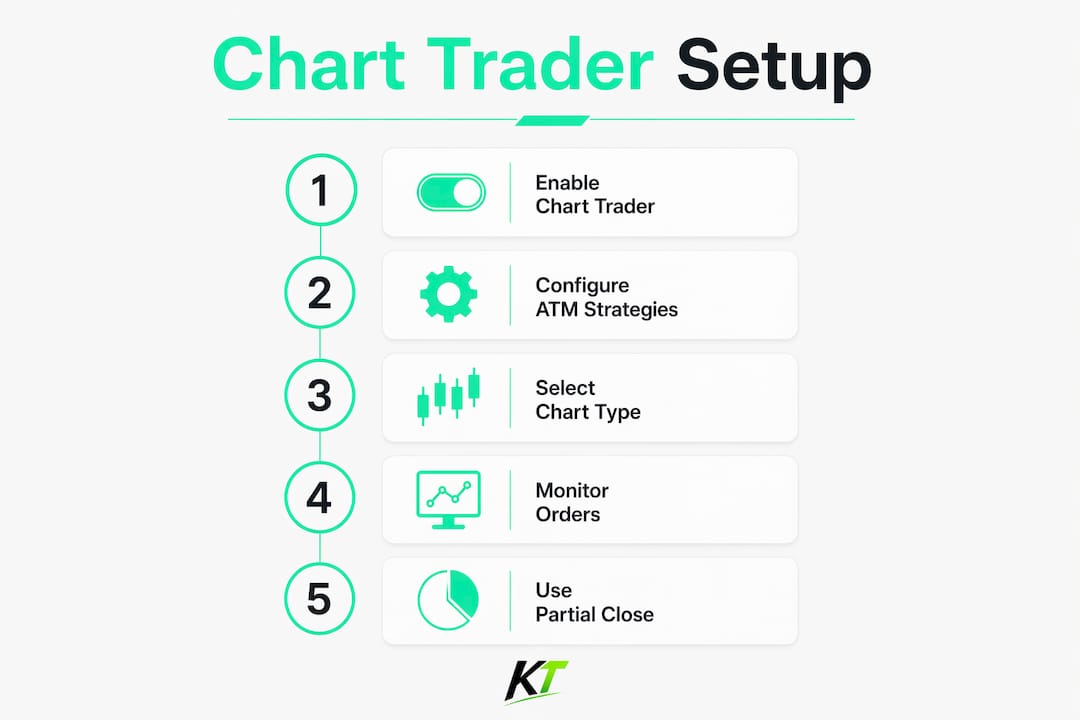
Chart Trader is accessible on NinjaTrader Desktop, Web, and Mobile, with the interface adapting to each platform. The core functionality stays consistent, but the controls change to match the device. Knowing these differences helps you trade without friction regardless of where you are.
On Desktop, Chart Trader offers the most complete experience. The full panel is visible on the right side of the chart, and the quick-click order buttons sit at the top. You can drag orders, right-click price levels, and manage ATM strategies with full keyboard and mouse control. Desktop is the preferred environment for active futures traders who need every option available.
On Web, Chart Trader provides a simplified version of the Desktop panel. The layout is cleaner, with fewer configuration options visible at once, but the core order types and ATM integration remain functional. Traders who access their accounts from a browser will find the Web version adequate for most intraday decisions.
On Mobile, the experience shifts to tap controls and drag-and-drop gestures. You can tap a price level to place an order, drag existing orders to new levels, and cancel with a tap. The mobile interface is built for reactive trading, not for setting up complex bracket orders from scratch. Use it to manage positions you opened on Desktop, not to build a full strategy from zero.
Key platform differences at a glance:
- Desktop: Full panel, quick-click buttons, right-click menus, ATM strategy selector, keyboard shortcuts
- Web: Simplified panel, core order types, ATM integration, browser-based access
- Mobile: Tap-to-place orders, drag-to-modify, position monitoring, fast cancellation
Positions and open orders sync across all three platforms in real time. If you enter a trade on Desktop and need to manage it from your phone, Chart Trader on Mobile will show the same order lines on the chart.
How do chart types affect order placement in Chart Trader?
Different chart types like time, tick, and volume bars affect how Chart Trader displays price distribution and order placement, influencing trading strategy and execution precision. This is one of the most overlooked factors when traders first set up Chart Trader. The chart type you choose changes how price moves, how bars form, and where your orders land relative to market activity.
A time-based chart (such as a 5-minute or 15-minute bar) forms a new bar at fixed time intervals. Price distribution is even across the session, which makes support and resistance levels straightforward to read. Chart Trader order placement on time charts is predictable because bars form at consistent intervals.
A tick chart forms a new bar after a set number of transactions, regardless of time. During high-volume periods, bars form rapidly. During slow periods, bars can take minutes to complete. Traders using tick charts often place orders at levels that look clean on the chart but may fill at unexpected times due to the uneven bar formation.
A volume bar chart forms a new bar after a set number of contracts trade. This type filters out low-activity noise and highlights periods of genuine market participation. Order placement on volume charts tends to align better with actual liquidity, which can improve fill quality.
| Chart type | Bar formation trigger | Best use case |
|---|---|---|
| Time | Fixed time interval | Swing trading, news events |
| Tick | Fixed number of transactions | Scalping, momentum trading |
| Volume | Fixed number of contracts traded | Liquidity-based strategies |
Switching chart types without adjusting strategy or order logic may cause discrepancies in execution effectiveness because price sequencing changes fundamentally. A stop level that looks safe on a 5-minute chart may sit inside normal noise on a 100-tick chart.
Pro Tip: Before switching chart types, replay a recent session on the new bar type using NinjaTrader’s Market Replay feature. Watch how your usual entry signals appear on the new chart before committing real orders.
What are the best practices for using Chart Trader effectively?
Chart Trader’s integration with ATM strategies automates bracket orders, ensuring immediate server-side handling of stops and profit targets, which reduces emotional trade management. That automation is the single biggest advantage Chart Trader offers over manual order entry. Here is how to use it well.
-
Pre-configure your ATM strategies before the session starts. Open the ATM Strategy Manager and set your stop distance, target distance, and quantity for each strategy type. Doing this before the market opens means you never have to think about risk parameters in the heat of a trade.
-
Use visual order lines as a decision checkpoint. When you place a limit order on the chart, look at where the order line sits relative to your indicators. If the line is inside a moving average or a volume cluster, reconsider the placement before the order fills.
-
Drag orders instead of canceling and re-entering. Chart Trader includes drag-and-drop order modification that lets you move open orders to new price levels without canceling them. This is faster and avoids the risk of accidentally missing a fill during the re-entry process.
-
Monitor break-even and profit targets visually. Chart Trader is not just for order entry but a risk-management tool, providing visual overlays of break-even levels and profit targets to facilitate objective trading decisions. Use those lines to stay disciplined when price approaches your target.
-
Know when to use the SuperDOM instead. Experienced traders use Chart Trader for visual context but often prefer the SuperDOM for lower latency and precision execution in scalping or high-frequency trading. If you are trading a fast market with sub-second timing requirements, the SuperDOM gives you a speed edge that Chart Trader cannot match.
Pro Tip: Combine Chart Trader with NinjaTrader’s partial close features to scale out of winning positions at multiple targets. Set your first ATM target at 1:1 risk-reward and let the remainder run with a break-even stop.
Key Takeaways
NinjaTrader Chart Trader is a full risk-management interface, not just an order entry panel, and its ATM integration is what separates it from basic chart trading tools.
| Point | Details |
|---|---|
| Core definition | Chart Trader is an embedded execution panel inside NinjaTrader charts for placing and managing orders. |
| ATM strategy value | Pre-configured ATM bracket orders automate stops and targets, removing emotional exit decisions. |
| Platform adaptation | Desktop offers the full experience; Web and Mobile adapt controls for browser and touch use. |
| Chart type matters | Time, tick, and volume bars change price sequencing and affect where orders land and fill. |
| SuperDOM distinction | Use Chart Trader for visual order management and SuperDOM for scalping or high-frequency precision. |
Chart Trader is more powerful than most traders realize
Most traders who ask what is NinjaTrader Chart Trader expect a simple order entry box. What they find, once they dig in, is a tool that changes how they think about trade management entirely. The visual order lines are not decoration. They force you to confront your risk before you enter, not after.
The ATM integration is where Chart Trader earns its reputation. NinjaTrader Chart Trader’s true value lies in its synergy with ATM, removing the stress of manual trade exit by pre-setting risk and reward parameters. Traders who skip ATM setup and manage exits manually are leaving the best part of the tool unused. I have watched traders spend months on entry signals while ignoring the exit automation that was sitting in their panel the whole time.
The chart type question is also underrated. Choosing the right bar type to match trading workflow is critical as tick, volume, and time bars substantially affect how orders are viewed and managed through Chart Trader. A tick chart and a time chart of the same instrument can look completely different in terms of order placement logic. Traders who switch bar types without adjusting their strategy often blame Chart Trader for bad fills when the real issue is a mismatch between their execution logic and the bar structure.
My honest recommendation: spend one full week using Chart Trader exclusively in simulation mode on your chosen bar type. Map your ATM strategies to your actual risk tolerance. Then go live. The platform rewards preparation.
— keytrades
How Key-trade keyboards improve your NinjaTrader workflow
Traders who use NinjaTrader Chart Trader for active futures trading know that speed at the moment of entry matters. Chart Trader reduces the steps between decision and execution, but your physical input device is still the final bottleneck.

Key-trade builds professional trading keyboards with programmable buttons designed for platforms like NinjaTrader. Each button can be mapped to order actions such as market entry, ATM strategy selection, break-even adjustment, or partial close, cutting the time between chart signal and filled order. Key-trade keyboards work with NinjaTrader alongside TradingView, cTrader, MetaTrader 4 and 5, and several other platforms, making them a practical addition to any active trading desk. Worldwide shipping is available, and no technical setup knowledge is required.
FAQ
What is NinjaTrader Chart Trader used for?
NinjaTrader Chart Trader is used to place, modify, and cancel orders directly on a price chart without leaving the charting window. It supports limit, stop, and OCO orders, and integrates with ATM strategies for automated stop-loss and take-profit management.
Is Chart Trader available on NinjaTrader Mobile?
Yes, Chart Trader is available on NinjaTrader Mobile with tap-to-place and drag-to-modify controls. It is best used on Mobile for managing existing positions rather than building new strategies from scratch.
What is the difference between Chart Trader and SuperDOM?
Chart Trader is designed for visual order placement alongside technical analysis, while the SuperDOM is built for lower latency and precision execution in scalping or high-frequency trading scenarios.
Does chart type affect how Chart Trader works?
Yes, time, tick, and volume bar charts change how price sequences and where orders land. Switching chart types without adjusting your order logic can cause unexpected fills or misaligned stop levels.
Is NinjaTrader Chart Trader free to use?
NinjaTrader offers free advanced charting and simulation, including Chart Trader access. Live trading requires a funded brokerage account, with advanced feature plans starting around $99 per month.
Recommended
- TradingView Chart Trading: A Complete 2026 Guide – Key-Trade Trading Keyboards
- NinjaTrader Partial Close Futures Guide for Traders – Key-Trade Trading Keyboards
- cTrader Trade Management Features: Complete 2026 Guide – Key-Trade Trading Keyboards
- Free CopyTrader - MT4-MT5-CTRADER – Key-Trade Trading Keyboards