

Prevent Accidental Orders: Trading Hotkeys Setup for Prop Desks
A trading hotkeys setup means configuring a physical keypad, like the Key-Trade Professional Trading Keyboard, so single button presses execute, modify, or close trades. Done right, it gives you one-press orders, split-hand operation, and far less mouse dependence than clicking through a ticket window. Before you go live, confirm the device supports your platform and turn on a scoped activation mode so keys only fire when a ticket is actually armed.
TL;DR:
- Using local USB or USB-C connections for hotkeys reduces latency and ensures command execution only when the trading ticket is active.
- Map each hotkey to a single, unambiguous function with proper focus scoping to prevent accidental orders during live trading.
- Test all hotkeys, including panic and exit commands, on a demo account to verify correct firing and acceptable latency before live deployment.
- Compatibility checks with your trading platform are essential before purchase, especially for MT4/MT5, cTrader, or NinjaTrader, which often require specific plugins or bridges.
- A professional trading keypad from Key-Trade offers plug-and-play setup, consistent behavior, and no coding, making it suitable for serious traders and proprietary firms.
Table of Contents
- What Do You Need Before Mapping Hotkeys?
- How Should You Map Hotkeys for Speed and Safety?
- How Do You Connect Hotkeys to cTrader, NinjaTrader, and MT4/MT5?
- How Do You Stop Accidental Orders From Hotkeys?
- What Should You Test Before Trading Live?
- Why Key-Trade Builds Hardware Keypads for Traders
- Ready to Put a Keypad on Your Desk?
- Quick Links for Setup
- Sources
- FAQ
What Do You Need Before Mapping Hotkeys?
A keypad setup fails or succeeds based on what sits underneath it. Get the hardware and software layers right first, and mapping becomes the easy part.
On the hardware side, you need the keypad itself, and ideally one with rotary dials for stop and target adjustments by feel rather than by keystroke count. A small onboard readout that confirms which command just fired is worth paying for. Keep a spare USB or USB-C cable in your bag. Desks lose more trading time to a frayed cable than to any software bug.
On the software side:
- A current device driver and the manufacturer’s configuration app for building and saving keymaps
- A local connector plugin or platform-native cBot/add-on that translates button presses into platform commands
- Platform-specific compatibility confirmed before purchase, not after
Connection type matters more than most traders assume. Local USB or USB-C links avoid the round trip that cloud-based or network-bridged solutions introduce, which keeps command latency tight and predictable, a point emphasized repeatedly in NinjaTrader hotkey plugin documentation.
Before you buy or map anything, run a compatibility check against your actual platform, such as TradingView, MetaTrader, cTrader, NinjaTrader, SierraChart, Thinkorswim, or Tradovate. Each has different plugin requirements and, in some cases, different licensing steps for third-party connectors. Skipping this check is the single most common reason a new keypad sits in a drawer for a week before it ever touches a live chart.
How Should You Map Hotkeys for Speed and Safety?
The best keymaps follow one rule above all others: one press, one clear outcome. A button that behaves differently depending on context, order state, or how long you hold it invites mistakes at exactly the moment you can least afford one.
- Assign entries and exits to dedicated, unambiguous keys, never a shared key with a modifier that changes meaning under pressure.
- Use preset size buttons and incremental +/- step controls for lot size instead of typing quantities mid-entry.
- Reserve a guarded modifier, a hold-and-confirm or two-key sequence, for high-risk actions like reversing a position or closing an entire basket.
- Dedicate one key, and only one, to an emergency flatten-and-cancel panic sequence.
- Group keys by function: entry commands on one row, size and management on another, saved templates on a third.
- Apply consistent color coding and physical labels so muscle memory and visual confirmation reinforce each other.
Split-hand operation is standard on professional desks for a reason: keyboard-first workflows let one hand manage size and risk while the other stays on entries, and single-key macros handle what used to be multistep processes. Ergonomics follows the same logic as competitive typing. Put your highest-frequency actions, buy, sell, and flatten, under your strongest fingers, and use raised or textured keycaps so you can confirm placement without glancing down.
Pro Tip: Print your keymap on paper and tape it beside your monitor for the first week. You will stop checking it faster than you expect, but that week is when accidental presses happen most.
How Do You Connect Hotkeys to cTrader, NinjaTrader, and MT4/MT5?
Every platform handles third-party button input a little differently, and the setup steps reflect that.
- cTrader: Install a local plugin such as StreamDeckHotkeys, which ships with predefined assignments for buy, sell, lot adjustment, break-even, and partial closes, plus downloadable button artwork so you are not designing icons from scratch.
- NinjaTrader: A plugin like XABCD HotKeys pairs with a keypad and rotary dials to give tactile, no-cloud-round-trip control over stops, targets, position size, and ATM templates.
- MT4/MT5: These platforms generally need a local bridge or expert advisor built to accept simulated key input, since neither ships with native hardware hotkey support. Confirm the bridge respects your active account selector and current instrument focus before trusting it with size.
Whichever platform you run, test that hotkeys fire only when the correct ticket window has focus. A keypad that broadcasts to whatever window happens to be active is a liability, not a convenience, and this is the single detail that separates a professional integration from a hobbyist one.
How Do You Stop Accidental Orders From Hotkeys?
Accidental execution is the real risk with hardware hotkeys, not slow fills. The fix is scoping and deliberate friction on the actions that matter.
- Build in explicit ticket arming, an activation mode that only lets keys fire once a ticket is actually focused, which is the same focus-scoping principle institutional order-entry systems rely on to prevent cross-application conflicts.
- Guard critical actions like reversals or full-basket closes behind a modifier or confirm sequence.
- Keep a dedicated panic key that runs cancel-and-flatten in one motion, and nothing else.
- If your device supports it, log every hotkey trigger and show the last action on an onboard readout.
- Walk every desk user through hand placement, how arming works, and the panic sequence before they trade size.
Pro Tip: Assign your panic key to the same physical position across every keymap you build. Under stress, muscle memory beats reading a label.
What Should You Test Before Trading Live?
Never trust a new keymap on a live account until it has survived a structured demo test.
- Fire every single mapped hotkey on a demo account, including partial closes, size steps, and the panic sequence, more than once each.
- Measure round-trip latency on your most time-sensitive commands, entries and flattens especially, against your desk’s tolerance.
- Run recovery drills: trigger cancel-and-flatten mid-position and confirm the log matches what actually happened on the account.
- Prepare a fallback workflow, standard keyboard shortcuts or manual ticket clicks, for the moment your device disconnects mid-session.
If any step fails on demo, it fails live too, just with real money attached.
Why Key-Trade Builds Hardware Keypads for Traders
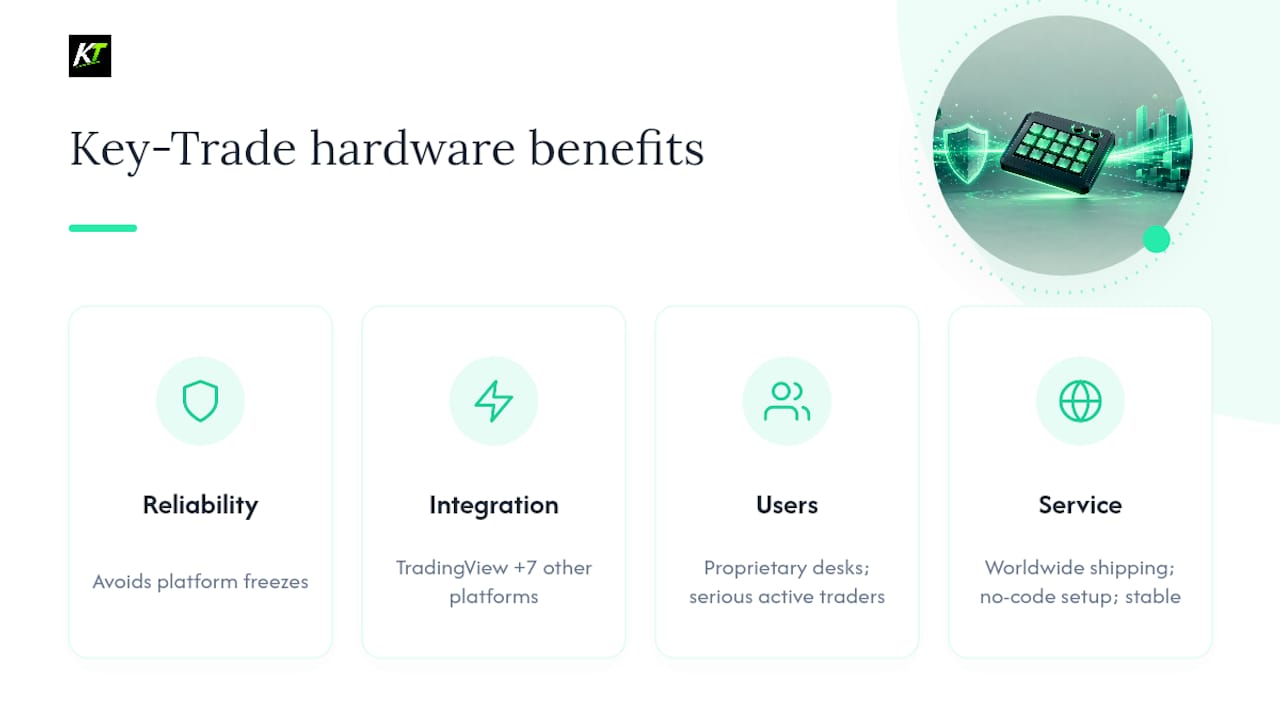
Software hotkey configurations inside a trading platform still depend on that platform staying focused, responsive, and bug-free. A physical keypad removes that dependency. That is the premise behind Key-Trade: rapid order execution, risk control, and trade management through programmable buttons, without leaning on a software interface that can freeze at the wrong moment.
Key-Trade’s devices are built to integrate with TradingView, MetaTrader 4 and 5, cTrader, NinjaTrader, SierraChart, Thinkorswim, and Tradovate. The target user is not a casual retail trader experimenting with shortcuts. It is proprietary trading firms and serious active traders who need worldwide shipping, straightforward setup with no coding required, and a device that behaves the same way on day 300 as it did on day one.
— key-trade
Ready to Put a Keypad on Your Desk?
Everything covered above, focus scoping, panic sequences, platform-specific plugins, assumes you already have a keypad capable of holding those mappings. A professional trading keyboard is built for exactly that job: plug-and-play, one-press execution and trade management, with no coding required to get running.

Before ordering, check two things on the product page: confirmed compatibility with your specific platform, and whether you need a model with rotary dials for tactile stop and target control versus a button-only layout. Both details are listed clearly, and the setup guides walk you through the rest. Browse the Key-Trade Professional Trading Keyboard collection and pick the configuration that matches your desk, with prices starting at a moderate level.
Quick Links for Setup
For plugin downloads and hotkey map examples, see StreamDeckHotkeys for cTrader and XABCD HotKeys for NinjaTrader. For device specs and platform compatibility, check Key-Trade’s product pages. For risk-sizing tools alongside your hardware controls, see TP Scanner.
Sources
- StreamDeckHotkeys | cTrader
- On latency and order-entry design — Ed Wson
- HotKey Automation for NinjaTrader 8 | XABCD Trading
- Keyboard Trader — ITG Futures (platform overview)
FAQ
What platforms work with a hardware trading keypad?
Common compatibility includes TradingView, MetaTrader 4 and 5, cTrader, NinjaTrader, SierraChart, Thinkorswim, and Tradovate, though the exact list depends on the specific keypad and its plugins.
Do I need coding skills to set up trading hotkeys?
No. Devices are built for plug-and-play setup with no coding required, guided by the manufacturer’s configuration app and setup docs.
How much does the Key-Trade Professional Trading Keyboard cost?
It starts at $59 as a one-time purchase, with full options and configurations listed on the Key-Trade product collection.
Why do my hotkeys sometimes trigger the wrong action?
This usually means your setup lacks proper focus scoping, so the keypad is sending commands to whatever window is active instead of your armed trading ticket.
Should I test hotkeys on a demo account first?
Yes. Every mapped key, including panic sequences and partial closes, should be verified on a demo account for both accuracy and latency before you risk live capital.