

4 Hotkeys Traders Need in Thinkorswim: When a Keypad Pays
Open the Setup menu in the top-right corner, click Application Settings, then select the Hot keys tab. From there, enable Hot Key Tooltips first, assign your Active Trader commands like buy, sell, and flatten, then click Apply settings. Before you trade live with any new mapping, run it in PaperMoney until it fires exactly the way you expect.
TL;DR:
- Hotkeys should be mapped one at a time and tested immediately to avoid conflicts and ensure correct setup.
- Key commands for active trading include Alt+B for buy, Alt+S for sell, Alt+F to flatten, and Alt+R to reverse positions.
- Using two-key combinations for destructive actions like canceling all orders minimizes accidental executions.
- Export and import your hotkey configurations regularly to preserve setups across devices and prevent setup loss after updates.
- Physical programmable keypads can outperform software hotkeys for high-frequency trading by enabling faster, more reliable execution.
Table of Contents
- Step-By-Step: Assigning Your First Thinkorswim Hotkeys
- Best Hotkey Mappings for Active Trading
- Setting Up Action Templates for Complex Orders
- Fixing Hotkey Conflicts and Nonresponsive Keys
- Backing Up and Moving Your Hotkey Setup
- When Hardware Hotkeys Outperform Software Ones
- Sources
- FAQ
Step-By-Step: Assigning Your First Thinkorswim Hotkeys
The Hot keys tab is buried a click deeper than most traders expect, but once you’re there, the layout makes sense fast. Click Setup in the top-right corner of the platform, choose Application Settings, then click the Hot keys tab on the left side of the dialog box. This is the control center for every shortcut thinkorswim lets you touch.
Commands are sorted into five categories: General, Active Trader, WatchList, Chart, and thinkScript Editor. Active Trader is where most of your execution-related mappings will live, so start there before wandering into the others.
Here’s the actual assignment flow:
- Pick the category that contains the command you want (Active Trader for order execution, Chart for drawing tools, and so on).
- Find the specific command in the list and click on it to select it.
- Click Custom, then press your desired key combination, typically a modifier like Ctrl, Alt, or Shift plus a letter or number.
- If that combination is already taken, thinkorswim will flag the conflict and offer to Reassign it, which overwrites the old mapping.
- Click Apply settings to lock it in.
Made a mess of it? A Restore Defaults button sits in the same dialog and reverts everything back to factory mappings, so experimenting doesn’t carry much risk.
Pro Tip: Map one command at a time and test it immediately rather than assigning ten hotkeys in a row. It’s much easier to spot a conflict or a typo when you’re only checking one change at a time instead of untangling a batch of them later.
Best Hotkey Mappings for Active Trading
The four hotkeys that matter most, according to thinkorswim’s own documentation, are Buy Market, Sell Market, Flatten Position, and Reverse Position. These belong in the Active Trader category, and they’re the ones you’ll lean on dozens of times a session if you trade actively.
A sensible starting layout looks like this:
- Alt + B for buy market
- Alt + S for sell market
- Alt + F to flatten your current position
- Alt + R to reverse it
- Shift + 1, 2, 3 for scaling into a ladder of buy orders at different sizes
- Ctrl + Delete or a similarly deliberate combo for canceling all working orders
That last one deserves its own rule: never assign a destructive or capital-committing action to a single, easily fat-fingered key. A “Sell All” or “Cancel All” command sitting on a lone letter is an accident waiting to happen. Give it a two-key combination instead, and keep a written or spreadsheet log of every mapping you create. If you ever migrate to a new machine, that log is the difference between a five-minute setup and starting from zero.
Community-sourced layouts, like the Alt+B, Alt+S, Alt+F pattern used by trading educators, are a fine jumping-off point, but they’re generic by design. Your own trading style, your keyboard’s layout, and even your hand size should shape the final scheme.
Speed is the whole point here. Reaching for a mouse to click through an order ticket takes noticeably longer than a single keystroke your fingers already know, which is why many traders see the benefits described in Why Automate Order Execution: A Trader’s Guide. That gap compounds across dozens of trades in a session, which is the entire argument for spending twenty minutes now getting your mappings right.
Setting Up Action Templates for Complex Orders
A single hotkey doesn’t have to fire a single, simple order. Inside the Hot keys tab, look for the Configure or Action Template option, which lets you bundle several order parameters into one keystroke.
An Action Template can hold order type, price offsets relative to BID, ASK, or LAST, OCO brackets, quantity, and time in force all in a single package. Instead of manually entering a stop and a target after every entry, you bind the whole sequence to one key.
Two templates worth building right away:
- Bracket exit template: enter a position with a stop-loss and profit target attached as an OCO pair, so protection is live the instant you’re filled.
- Buy-with-offset template: place a limit order a few cents below the current ASK, useful for scalping setups where you want a better fill than a market order gives you.
Professional traders tend to build these because chaining separate manual steps costs precious seconds every single time, and those seconds matter more in fast markets than they do on a slow afternoon.
Pro Tip: Build your first Action Template around your most repeated trade setup, not your most complicated one. If you scalp the same pattern ten times a day, that’s the template worth perfecting first.
Test every template in PaperMoney before it touches a live account. A misconfigured offset or an inverted bracket can turn a helpful shortcut into an expensive mistake.
Fixing Hotkey Conflicts and Nonresponsive Keys
Even a well-planned setup breaks sometimes. Here’s what usually causes it and how to fix it.
- The platform window isn’t focused. Thinkorswim only listens for hotkeys when its window has active focus, so a stray click on another app will make your shortcuts go silent.
- Your operating system is intercepting the combination. Windows and macOS both reserve certain key combos for system functions, which can override what you assigned inside thinkorswim.
- Two commands share the same keystroke. The platform will warn you and offer Reassign when this happens, but it’s worth periodically scanning each category for accidental overlaps you created months ago.
- A software update reset something. Platform updates occasionally roll settings back, so it’s worth reopening the Hot keys tab after any major update to confirm nothing shifted.
Testing every mapping in PaperMoney remains the single most reliable way to catch a broken hotkey before it costs you money in a live account.
| Issue | Likely cause | Quick fix |
|---|---|---|
| Key does nothing | Thinkorswim window not focused | Click into the platform, then retry |
| Wrong action fires | Overlapping assignment | Reassign one of the conflicting commands |
| Key stopped working after update | Settings reset by update | Reopen Hot keys tab, verify, reapply backup |
| Combo won’t register at all | OS-level shortcut conflict | Choose a different modifier combination |
Backing Up and Moving Your Hotkey Setup
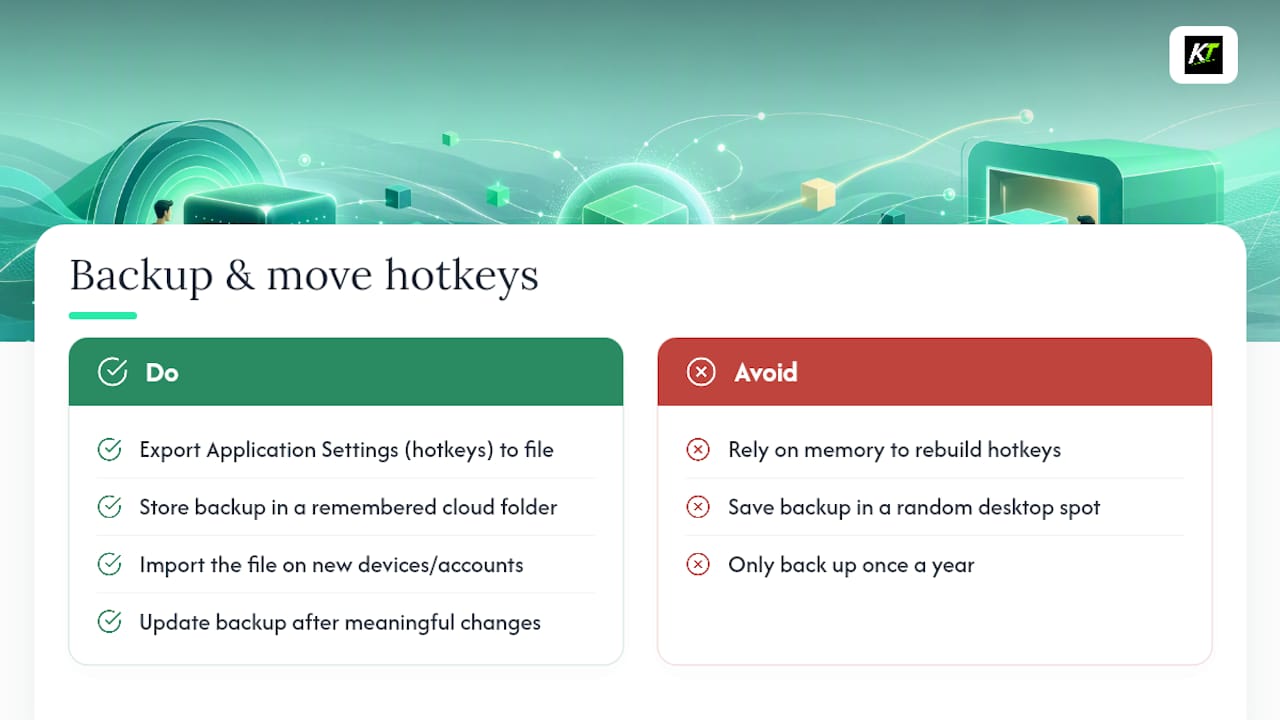
Thinkorswim lets you export your Application Settings, hotkeys included, so a new computer or a reinstalled platform doesn’t mean rebuilding everything from scratch. Inside the Setup menu, look for the option to save or export your current configuration to a file. Keep that file somewhere you’ll actually remember, a cloud drive folder works better than a random spot on your desktop.
When you’re moving to a new device or setting up a second account, import that same file through the Setup menu rather than manually re-entering every combination. It restores your categories, your custom mappings, and any Action Templates you built, all in one pass.
This matters more than it seems the first time your laptop dies mid-session or you add a second monitor setup at a different desk. Traders who skip this step tend to rebuild their hotkeys from memory, and memory is a bad substitute for a saved configuration file, especially for a scheme with a dozen or more custom mappings and layered Action Templates.
Update your backup file every time you make a meaningful change, not just once a year. A backup from six months ago that’s missing your last three Action Templates isn’t much of a backup. If you’re running the same setup across a prop firm account and a personal account, exporting once and importing twice keeps both environments consistent, which matters if you’re switching between them during the trading day and can’t afford to think about which layout you’re using.
When Hardware Hotkeys Outperform Software Ones
Software hotkeys solve most of what an active trader needs, but they share one limitation: your fingers still have to find the right key on a full-size keyboard, under pressure, without looking. That’s where a dedicated device changes the equation.
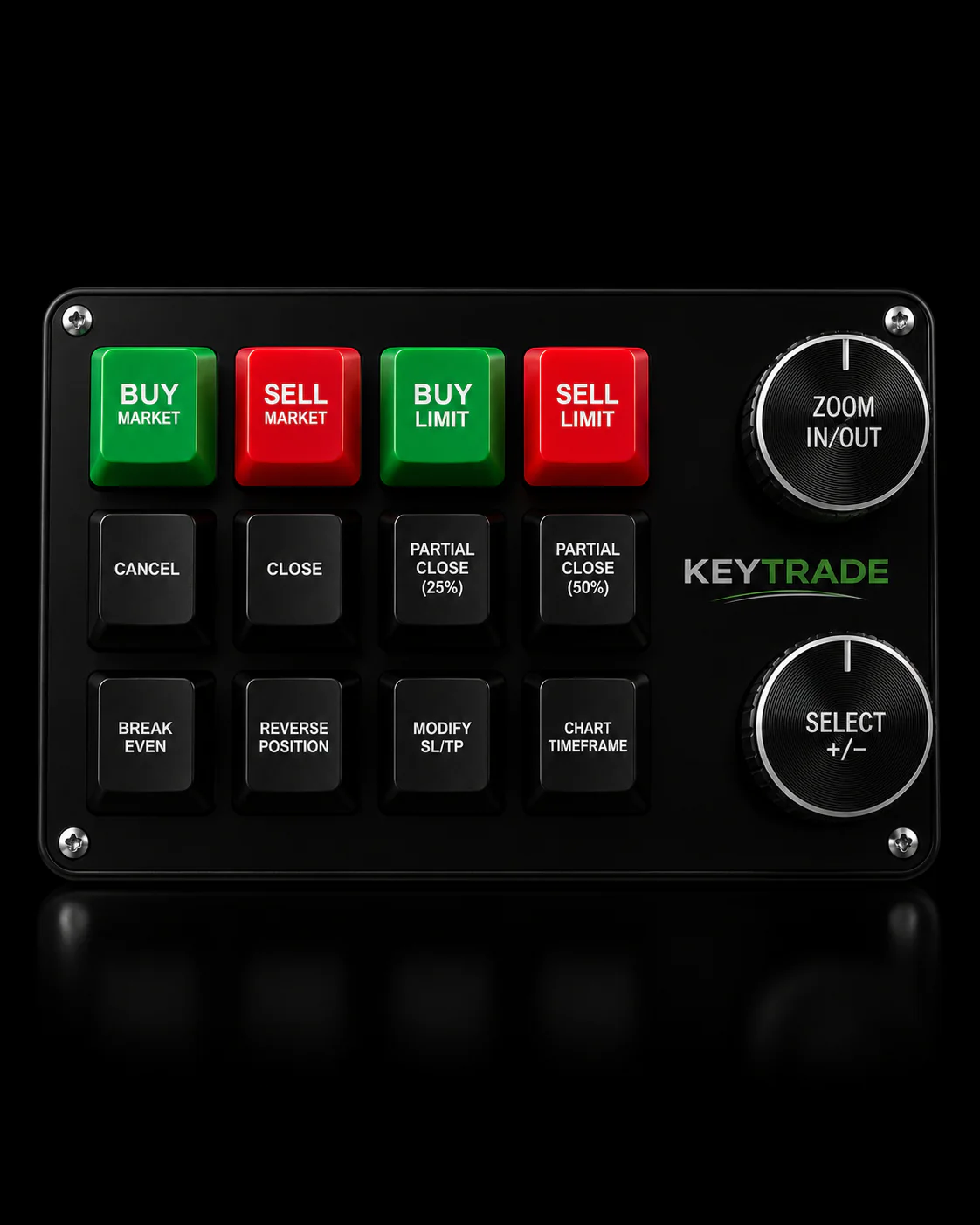
Key-trade builds programmable keypads that map physical buttons directly to the same commands and Action Templates you’d otherwise bind to a keyboard combo inside thinkorswim. A button press is faster and more reliable than a modifier-plus-letter combo typed blind, particularly during scalping or high-frequency day trading, where a half-second of hesitation can be the difference between a good fill and a bad one.
We’d be lying if we said every trader needs one. If you place a handful of trades a day and have time to think between them, a well-organized software hotkey scheme is plenty. Where a physical keypad earns its cost is in high-frequency, high-consequence workflows: prop desks, scalpers, and anyone whose execution speed is directly tied to their edge.
— key-trade
Sources
FAQ
How Do I Set Up a Hotkey in Thinkorswim?
Click Setup in the top-right corner, choose Application Settings, open the Hot keys tab, select a command, click Custom, and press your chosen key combination, then click Apply settings to save it.
How Do I Change an Existing Hotkey?
Select the command in the Hot keys tab, click Custom, press the new combination, and confirm Reassign if the platform flags a conflict with an existing mapping.
Is There an Official Thinkorswim Manual for Hotkeys?
Yes. Thinkorswim’s official Keyboard Shortcuts documentation covers the Hot keys tab, category breakdowns, and Action Template setup in detail.
What Are Trading Hotkeys Used For?
Trading hotkeys let you execute, modify, or cancel orders with a single keystroke instead of navigating menus, which cuts execution time on repeated actions like buying, selling, or flattening a position.
Should I Test New Hotkeys Before Using Them Live?
Yes. Testing every new hotkey or Action Template in PaperMoney confirms it behaves as expected before it touches real capital.