

Keep Funded Accounts Alive with Prop Firm Hotkeys and Kill Switch
Prop firm hotkeys are keyboard or hardware shortcuts that let a trader submit, modify, or exit orders without touching a mouse. The five to map first are flatten all positions, buy market, sell market, cancel all working orders, and a scale-out key for partial closes. Before any of that goes live, turn on confirmation prompts for oversized entries and make sure the flatten key is the single fastest thing you can press.
TL;DR:
- Hotkeys save critical milliseconds over mouse clicking, reducing order execution time from seconds to fractions of a second during volatile market moves.
- Using dedicated hotkey profiles for each account size prevents accidental large orders that could breach evaluation or funding limits.
- Confirming hotkey focus, order routing, and volume defaults each morning ensures safe and accurate execution before live trading.
- Platform-specific setup steps and reserved key lists must be checked carefully to avoid misfiring or unresponsive hotkeys across different trading platforms.
- Practicing hotkeys in simulation for at least two weeks builds reliable muscle memory, minimizing errors during live, fast-paced trading sessions.
Table of Contents
- What Are Prop Firm Hotkeys and Why Speed Actually Matters
- Essential Hotkey Set and How to Map It Without Breaking Your Account
- Platform Setup and the Gotchas That Trip Up Funded Traders
- Safety, Risk Controls, and Prop Firm Hotkey Policies
- How to Practice Prop Firm Hotkeys Before You Trust Them With Real Size
- When a Physical Keypad Beats Software-Only Hotkeys
- Common Mistakes and Troubleshooting Hotkey Errors in Prop Firm Setups
- Advanced Customization and Macro Hotkeys for Complex Strategies
- What a Prop Trader’s Daily Hotkey Routine Actually Looks Like
- Where to Go for a Faster, More Tactile Setup
- Sources
- FAQ
What Are Prop Firm Hotkeys and Why Speed Actually Matters
Hotkeys exist because clicking through a dropdown menu costs time you don’t have during a fast tape. A market order that takes four mouse clicks in a DOM panel might take 300 milliseconds with a hotkey. That gap sounds small until you’re trying to flatten a position during a spike and the platform freezes on a confirmation dialog you forgot to disable.
Funded traders have a second reason hotkeys matter beyond speed: consistency. A prop firm evaluation punishes hesitation and fat-finger errors the same way it punishes bad strategy. If your exit plan depends on manually navigating a chart trader window while a trade moves against you, you’re adding execution risk on top of market risk. A well-mapped hotkey set removes the decision of “how do I get out” from the moment you actually need to get out.
The terminology varies by platform. Some call them “trading keyboard shortcuts,” others “hot keys,” and futures traders often say “key bindings.” They all point to the same mechanism: a keystroke bound to a specific order action, tied to whatever instrument or account currently has window focus. That focus detail turns out to be the single biggest source of hotkey trouble, and it comes up again and again in every platform’s own documentation.
Essential Hotkey Set and How to Map It Without Breaking Your Account
Every trading platform organizes its hotkeys differently, but the underlying action list is close to universal. If you’re setting up prop firm hotkeys for the first time, build around this core set before you touch anything advanced.
- Buy market / sell market — immediate entry at the best available price
- Buy at bid / sell at ask — passive entries for traders who don’t want to pay the spread
- Flatten — close every open position on the active account instantly
- Cancel all — pull every working order without touching positions
- Reverse — close the current position and open the opposite side in one keystroke
- Set stop / set take profit — attach or move protective orders without opening a ticket
- Breakeven — move your stop to entry price once a trade shows a set amount of profit
- Volume presets — fixed lot or contract sizes tied to individual keys
- Scale-out / partial close — exit a percentage of a position in one press
Volume presets and scale-outs are where most traders get creative, and where most mistakes happen. A common mapping for scale-out keys sells portions of the position in stages, such as quarter, half, three-quarters, and final flattening, using sequential key combinations like Ctrl+1 through Ctrl+4. That four-key ladder lets you scale out of a winning trade in under a second, and it’s a pattern the prop trading community treats as close to standard practice because it turns a multistep exit into a single motion.
The other decision every funded trader has to make is placement mode versus instantaneous transmit. Placement mode builds the order and puts it in a preview state, giving you a split second to check size and direction before it fires. Instantaneous transmit skips that check and sends the order the moment you press the key. Interactive Brokers’ TWS platform lets you configure either behavior per hotkey, and it’s worth reading that setting carefully because the two modes carry very different risk profiles.
For funded accounts, the right answer depends on the action. Flatten and cancel-all should almost always be instantaneous. You don’t want a confirmation box standing between you and an emergency exit. Entries above your normal size, on the other hand, belong in placement mode or behind a confirmation prompt. That single distinction is the difference between a hotkey setup that protects an evaluation account and one that ends it in a single misclick.
Pro Tip: Test every bracket-order hotkey (entry plus stop plus target attached together) in a sim account before your first live session. Some platforms silently drop the stop leg if the bracket template wasn’t saved correctly, and you won’t find out until you’re already in the trade.
A few dos and don’ts worth pinning next to your monitor:
- Do keep confirmations on for any key that can submit more than your standard size.
- Do test bracket attachments in simulation, not on a funded account, the first time you build one.
- Don’t map buy and sell to adjacent keys with no visual distinction between them.
- Don’t leave default volume at a size you’d never actually trade. If the default is wrong, every hotkey inherits that mistake.
Platform Setup and the Gotchas That Trip Up Funded Traders
Every platform handles hotkeys a little differently, and the differences aren’t cosmetic. They’re the reason a setup that works flawlessly on one platform can misfire completely on another. Here’s what to check on the platforms funded traders use most.
1. NinjaTrader
NinjaTrader hides hotkeys behind a setting that’s off by default. Go to Tools → Options → Trading → Use order entry hot keys and enable it before anything else works. Once that’s on, you can build custom order actions and bind them to specific keys, which is how most NinjaTrader users create their scale-out ladders and reverse commands.
The catch is window sensitivity. NinjaTrader’s own documentation is explicit that a hotkey fires on whatever chart or DOM window currently has focus, meaning the instrument and account tied to that window. If you have four charts open across two funded accounts and you tab to the wrong one before pressing your flatten key, you flatten the wrong account. NinjaTrader also maintains a reference list of available hotkeys worth printing and keeping next to your desk during the first few weeks.
2. Tradovate
Tradovate splits its hotkey system between the SuperDOM and the general Order Entry panel, and each module keeps its own configurable action list. That means a hotkey you set inside SuperDOM doesn’t automatically apply to a regular order ticket opened elsewhere, and vice versa. Traders who only configure one module often assume their whole platform is covered, then get caught out the first time they trade from a different panel.
3. Interactive Brokers (TWS)
TWS requires you to manually record each hotkey rather than picking from a preset list. You press “record,” perform the action, and TWS binds the keystroke sequence to it. During that process you’ll also choose transmit behavior, and IBKR flags certain keys as reserved by the operating system or by TWS itself, meaning some combinations you’d expect to use simply won’t register. Run through the full configuration guide once before building a full set, because discovering a reserved key mid-session is a bad way to learn about it.
4. TradingView and charting libraries
TradingView’s charting library changed its shortcut architecture in more recent versions. Version 31 and later requires numeric key codes for any non-modifier key rather than plain printable characters, which trips up developers embedding custom shortcuts into a branded charting interface. The library exposes a widget.onShortcut() method for overriding built-in behavior, but you need the numeric key code, not the character itself, or the override silently fails to bind.
5. Trading Technologies (TT) and DAS
TT and DAS platforms carry long lists of function-key mappings for DOM and MD Trader actions, many of which are pre-reserved by the platform and can’t be reassigned. Both platforms are heavily DOM-focused, meaning the hotkey acts on whichever DOM window is active, not necessarily the account you think you’re looking at. TT’s own hotkey preferences documentation lists the reserved keys explicitly, and it’s worth cross-referencing that list before assigning anything custom so you’re not fighting the platform’s defaults.
Cross-platform checklist before your first live session
- Confirm the DOM or chart window has keyboard focus before pressing any hotkey.
- Verify the selected account matches the one you intend to trade.
- Check your default order quantity, since a wrong default gets multiplied across every hotkey that uses it.
- Confirm oversized-entry confirmations are active.
- On macOS, double-check modifier keys. Ctrl, Option, and Command don’t always map the way they do on Windows builds of the same platform, and a shortcut copied from a Windows guide can bind to the wrong combination entirely.
Safety, Risk Controls, and Prop Firm Hotkey Policies
Hotkeys speed up execution, and that’s exactly what makes them dangerous without guardrails. A mouse click gives you a half-second of friction before an order goes out. A hotkey removes that friction entirely, which is great when you mean to press it and expensive when you don’t.
Confirmations are the first line of defense, and they should scale with size. A key that submits your standard one-contract entry can reasonably fire instantly. A key that could submit five contracts because you forgot to reset the volume preset should not. Interactive Brokers’ own guidance supports gating anything above your normal size behind a confirmation step, leaving only low-risk actions like chart navigation unconfirmed.
DOM and window focus cause more hotkey accidents than any other single factor. Every major platform’s documentation repeats the same warning in different words: the active window determines where your order goes. Trading two funded accounts side by side in separate windows means one careless Alt+Tab can send an order to the wrong account entirely.
That risk is exactly why prop traders build separate hotkey profiles per account size. A trader running a $25,000 evaluation account and a $100,000 funded account side by side needs different default volumes and often different confirmation thresholds for each. Running one universal hotkey layout across both is how a trader accidentally puts a $100K-sized order through a $25K account and breaches a drawdown rule in a single keystroke.
- Build one hotkey profile per account tier, not one profile shared across all accounts.
- Put your flatten key somewhere your hand rests naturally, not buried behind a modifier combination you have to think about.
- Test every hotkey immediately after logging in each morning, before the market opens, using minimum size.
- Verify order routing shows live, not simulated, before relying on any hotkey for real capital.
- Confirm the platform’s rule-guard or risk bar (drawdown tracker, daily loss limit indicator) is visible and current before your first trade of the day.
A flatten-all “kill switch” belongs on the most accessible key on your board, not tucked into a function-key row you rarely touch. Some traders even duplicate it: one binding for a fast single-key press, another as a backup combination in case the first one is somehow unavailable.
Pro Tip: Right after logging in each session, press your flatten key once on purpose with zero open positions. If nothing happens and no error appears, you’ve confirmed the binding is live and pointed at the correct account before you actually need it.
How to Practice Prop Firm Hotkeys Before You Trust Them With Real Size
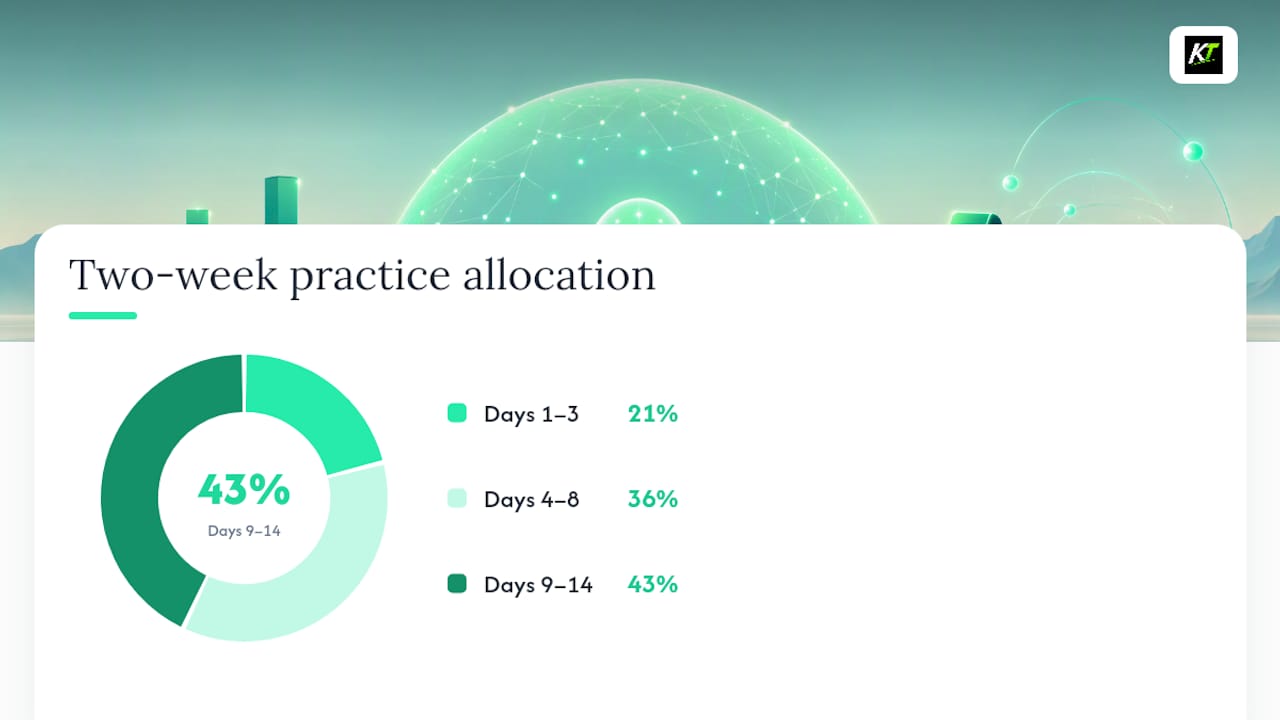
Muscle memory takes structured repetition, not a single afternoon of clicking around. A two-week progression works well for most traders moving from mouse-based execution to hotkeys.
- Days 1 to 3: Drill single-key actions in isolation. Buy market, sell market, flatten, cancel all. Press each one dozens of times in a simulator until your hand finds the key without looking down.
- Days 4 to 8: Move to paired sequences. Enter with a market key, then immediately set a stop. Enter, then scale out at 50%. The goal is building sequences your fingers execute without conscious thought.
- Days 9 to 14: Run full simulated sessions at your real trading size, using every hotkey you plan to use live, including the ones you rarely need like reverse or breakeven.
Every misfire during this stretch deserves a note: what key, what you expected, what actually happened. Patterns show up fast. If you keep hitting the wrong volume preset, the problem usually isn’t your fingers, it’s a mapping that puts two very different sizes too close together on the keyboard.
Paper trading accounts, platform simulators, and even trade-copying tools all give you a safe testing ground, but only if you treat them like a real session rather than a casual click-around. Use your actual default quantity, your actual confirmations, your actual account profile. A simulator run with confirmations turned off teaches you nothing about how the real setup behaves.
When a Physical Keypad Beats Software-Only Hotkeys
Software hotkeys work well until you’re running multiple monitors, several account windows, and a strategy that needs six or seven distinct actions available instantly. At that point, keyboard real estate gets crowded and modifier-key combinations start colliding with each other under stress.
A dedicated hardware keypad solves that by giving each action its own physical, labeled button instead of a memorized combination buried on a standard keyboard. Trading keypads built around that idea feature programmable buttons mapped directly to order actions and claim compatibility across TradingView, MetaTrader 4 and 5, cTrader, NinjaTrader, SierraChart, Thinkorswim, and Tradovate. These devices are positioned as plug-and-play, requiring no coding to configure.
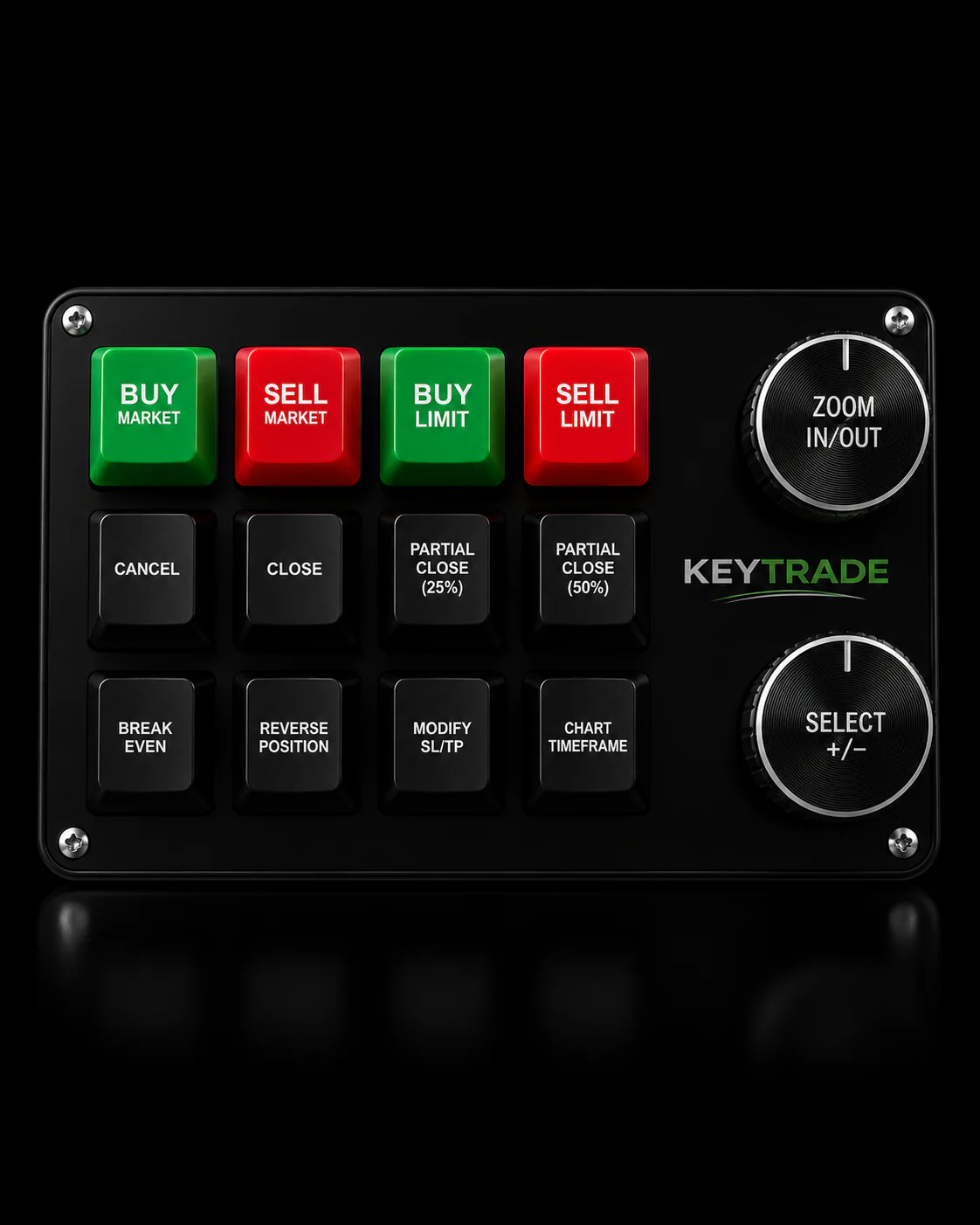
Before adding hardware to your setup, run through a short checklist: confirm your specific platform is on the compatibility list, check that setup documentation exists for it, and make sure remapping buttons later doesn’t require reconfiguring from scratch. If you’re trading one account on one platform with a handful of actions, software hotkeys are probably enough. If you’re juggling multiple accounts, platforms, or a scale-out ladder with several distinct sizes, a hardware layer designed for exactly that starts to earn its keep.
Common Mistakes and Troubleshooting Hotkey Errors in Prop Firm Setups
The most common hotkey error isn’t a broken binding. It’s a binding that works perfectly, pointed at the wrong account. That happens when a trader has two funded accounts open in separate windows and switches focus without checking which one is active before pressing a key.
The second most common mistake is inconsistent volume defaults across platforms or account profiles. A trader sets a one-lot default on one platform and forgets a different platform reset to its own default after an update, then fires a hotkey expecting one size and gets another.
Reserved keys cause a specific kind of confusion. A trader copies a hotkey guide from one platform onto another, assigns a key combination that the second platform has reserved for something else, and the hotkey either does nothing or triggers an unrelated function. Always check a platform’s own reserved-key list, like the one TT publishes, before assuming a mapping will transfer.
When troubleshooting, isolate one variable at a time: confirm window focus, confirm account selection, confirm volume default, then test the single key in question with zero size risk. Most “broken” hotkeys turn out to be correctly bound but firing in the wrong context.
Advanced Customization and Macro Hotkeys for Complex Strategies
Once the core set is solid, some traders build macro hotkeys that chain multiple actions into a single keystroke. A macro might cancel all working orders, flatten the current position, and reset volume to default in one press, which is useful right before a scheduled news release when you want a clean slate instantly.
Custom order actions, the kind NinjaTrader supports natively, let you build templates beyond the basic buy/sell/flatten set. A trader running a scale-out strategy might create four separate custom actions, one for each exit percentage, and bind all four to adjacent number keys for a fast exit ladder.
The tradeoff with advanced macros is complexity risk. Every additional action chained into a single key is one more thing that can fail silently, especially across a platform update that changes default behavior. Test macro hotkeys after every platform update, not just when you first build them, and keep the simple core set as a fallback you can rely on if a macro misbehaves mid-session.
What a Prop Trader’s Daily Hotkey Routine Actually Looks Like
Before the open, a quick sweep matters more than any fancy binding: correct account selected, default size checked, DOM in focus, confirmations active, one test press on flatten with no position on. That thirty-second habit catches most problems before they cost money.
The mistakes that actually blow up evaluation accounts are boring ones. Wrong account selected after switching windows. Size left at the wrong default after a platform update. A hotkey fired on a chart that wasn’t actually in focus. None of that comes from bad strategy.
Build the set incrementally. Start with flatten, buy, sell, and cancel. Add scale-outs and breakeven once those four are automatic. Keep flatten on the easiest key to reach, always.
— key-trade
Where to Go for a Faster, More Tactile Setup
If software hotkeys have taken you as far as they can and your fingers are fighting modifier combinations during your fastest trades, a dedicated keypad removes that friction entirely. Professional trading keyboards give every core action, flatten, scale-out, cancel, stop adjustment, its own physical button, with claimed integration across TradingView, MetaTrader 4 and 5, cTrader, NinjaTrader, SierraChart, Thinkorswim, and Tradovate.

It’s built for traders who already understand why speed and precision matter, which usually means active funded traders running multiple accounts or a scale-out strategy that needs several distinct exit sizes available without a second thought.
Browse the full trading keyboard collection to see current configurations, or go straight to the Key-Trade Professional Trading Keyboard product page for specs and platform compatibility details before you decide whether hardware fits your setup.
Sources
Setting hotkeys exactly right depends on menu paths and button names that change between platform versions, so treat these as the source of truth over any secondhand guide.
- Operations > Hot Keys > Trading with Hot Keys — NinjaTrader
- Configuring hotkeys — Interactive Brokers (TWS)
- Shortcuts — TradingView charting library docs
- Hotkeys preferences — Trading Technologies (TT) / DAS
Always confirm exact menu labels and screenshots against the current version of your platform, since interfaces update more often than most hotkey guides do.
FAQ
What Are Hotkeys in Trading?
Hotkeys are keyboard shortcuts bound to specific order actions, like buying at market, flattening a position, or canceling working orders, so a trader can execute without navigating menus. They cut execution time from several seconds down to a fraction of a second, which matters most during fast, volatile price moves.
How Do I Set Up Hotkeys?
The general process is the same across platforms: open the trading or order-entry settings menu, enable hotkey functionality if it’s off by default, then bind each action to a key. On NinjaTrader, that means going to Tools → Options → Trading and enabling order entry hot keys before assigning any custom actions.
What Is the 3-5-7 Rule in Trading?
The 3-5-7 rule is a risk-management guideline suggesting a trader risk no more than 3% of capital on any single trade and keep total exposure across all open trades under 5%. It’s unrelated to hotkeys directly, but it’s a useful frame for setting the confirmation thresholds and volume presets your hotkeys enforce automatically.
Can You Make $1,000 a Day With Day Trading?
Daily profit targets depend entirely on account size, position sizing, and market volatility on a given day, and there’s no reliable way to guarantee that outcome consistently. Faster, more precise execution through hotkeys can reduce slippage and missed exits, but it doesn’t change the underlying probability of any individual trade working out.
Do Prop Firms Require Specific Hotkey Setups?
Prop firms generally don’t mandate a specific hotkey configuration, but their drawdown and size rules make certain practices essential, particularly separate hotkey profiles for accounts of different sizes and confirmation prompts on oversized entries. A flatten-all key that’s fast and reliable is close to universal advice across the funded trading community.