

Trade Fast, Not Reckless: MT5 One Click Trading With Keypad Safeguards
One Click Trading in MT5 sends buy or sell market orders instantly from the chart, Market Watch, or Depth of Market, skipping the confirmation dialog entirely once it’s turned on. That speed comes with a trade-off: no second look before the order fires. It fits scalping, news spikes, and pre-planned entries where hesitation costs more than a misclick. It’s a tool for traders who already know their size and risk, not a substitute for having a plan.
TL;DR:
- One Click Trading in MT5 is suitable for fast, planned entries but increases risk of misclicks due to the lack of confirmation prompts.
- Always verify lot size before each trade and set stops and targets immediately to prevent delays or mistakes during rapid entries.
- Use depth of market or market watch alongside the on-chart panel based on the need for market context versus speed.
- Activation requires two menu steps, acceptance of a disclaimer, and should be tested on demo accounts to prevent unintended orders.
- Hardware keypads can speed up execution and reduce errors, but should be tested beforehand to ensure proper mapping and reliable performance.
Table of Contents
- How to Enable One Click Trading in MT5
- How Do You Use the On-Chart One Click Panel?
- How Do You Set and Remove Stop-Loss and Take-Profit Quickly?
- How Do You Place and Cancel Pending Orders From the Chart?
- When Should You Use Depth of Market or Market Watch Instead?
- How Do Execution Modes and Fill Policies Affect One-Click Orders?
- What Are the Risks, and What Safeguards Actually Help?
- How Do Hardware Keypads Improve One-Click Workflows?
- When I Enable One-Click: A Trader’s Quick Checklist
- Faster Clicks Still Need a Steady Hand
- Sources
- FAQ
How to Enable One Click Trading in MT5
MetaTrader 5 keeps this feature switched off by default, and turning it on takes about 30 seconds once you know where to look. The setting lives in a global menu, separate from the on-chart panel toggle, so you’ll actually flip two switches to get the full experience running.
- Open Tools → Options → Trade from the top menu bar.
- Check the box labeled “One Click Trading.”
- Read and accept the terms in the disclaimer that pops up. This step exists because MT5’s own documentation warns that enabling the feature can bypass the standard trade dialog, meaning orders execute the instant you click.
- Click OK to save the setting.
- To show the visual panel on the chart itself, right click the chart, open the context menu, and enable it there, or use the Alt+T shortcut as a quick toggle.
The consent prompt isn’t a formality. Once accepted, MT5 won’t ask again unless you reset the terminal, so it’s worth reading once, carefully, rather than clicking through it on autopilot. Fintrix Markets documents this same Tools → Options → Trade path as the standard activation route across MT4 and MT5, which tells you the workflow hasn’t changed much across platform versions.
How Do You Use the On-Chart One Click Panel?
Once the panel is visible, it sits in the upper left corner of the chart and shows three pieces of information at a glance: the current bid price, the current ask price, and a volume field you control before you ever click Buy or Sell.
- The bid side shows the sell price; the ask side shows the buy price, updating in real time.
- The volume box sits between them, letting you type or scroll to a lot size before committing.
- Buy and Sell buttons sit on either edge, colored to match direction (typically blue for buy, red for sell).
- Some symbols show a small deviation or spread indicator next to the price, useful for judging execution quality before you click.
Pre-setting your lot size matters more than it sounds. Traders in a hurry sometimes leave the volume field at whatever value it defaulted to from the last trade, then execute a position five times the intended size. Check that number every single time before your finger touches Buy or Sell, especially if you just closed out a scaled-in position.
Pro Tip: Set your volume field to your smallest standard size at the end of every session, so the panel always defaults to your safest lot the next time you open it.
How Do You Set and Remove Stop-Loss and Take-Profit Quickly?
Speed on entry means nothing if the exit takes thirty seconds to configure. MT5 lets you drag directly on the chart to place or adjust protective levels the moment a position opens.
- Click and hold the open position’s price line on the chart, then drag it up or down to set a Take Profit or Stop Loss level.
- Release the mouse to confirm. With One Click Trading active, this modification often applies immediately, without a separate confirmation window.
- To remove a level, drag it back onto the entry line, or right click the line and select delete from the context menu.
- For partial closes, open the Trade tab in the Terminal window, right click the position, and choose a partial volume to close instantly.
This is the piece newer users skip. If you rely on one-click entries for speed, treat SL/TP placement as part of the same motion, not an afterthought you’ll get to later.
How Do You Place and Cancel Pending Orders From the Chart?
Right clicking anywhere on the chart brings up a context menu that reads your cursor’s position relative to the current price and offers the matching pending order type automatically.
- Click above the current price and MT5 suggests a Sell Limit or Buy Stop, depending on direction.
- Click below the current price and it suggests a Buy Limit or Sell Stop.
- With One Click Trading enabled, selecting the order type places it instantly at that price level, no dialog box required.
- With it disabled, the same click opens a standard order ticket where you confirm price, volume, and expiration before sending.
- To move a pending order, drag its dotted line to a new price; to cancel it, right click the line and select delete.
The cursor-position logic is what makes this fast. You’re not hunting through a menu for “Buy Stop” versus “Sell Limit,” the platform already guessed based on where you clicked.
When Should You Use Depth of Market or Market Watch Instead?
The on-chart panel isn’t the only entry point, and picking the right one depends on what you need to see before you click.
- Depth of Market (DOM) shows the actual order book, bids and asks stacked by volume, which matters for exchange-traded instruments where liquidity at each price level affects your fill.
- Market Watch gives you a compact list of symbols with quick buy/sell buttons, ideal when you’re monitoring several pairs and need to act on whichever moves first.
- Both interfaces support One Click Trading the same way the chart panel does, so the choice comes down to visibility versus speed. DOM gives you more market context; Market Watch gives you a faster glance across multiple symbols at once.
How Do Execution Modes and Fill Policies Affect One-Click Orders?
This is the part most traders skip, and it’s the part that actually determines what happens after you click. One Click Trading isn’t available under Request execution at all. MT5 automatically falls back to the standard trade dialog for that mode, since Request execution requires broker-side price confirmation before an order can go through.
For Instant Execution, the platform applies your allowed price deviation through the “Use deviation” setting. If the market moves past that allowed range between your click and the broker’s price check, you’ll either get a requote or a rejection, not a silently different fill.
Fill policies vary by execution mode and change what a partial fill actually looks like:
- Exchange execution uses a Return policy, meaning unfilled volume can remain as a working order.
- Market execution may apply either Fill or Kill (FOK) or Immediate or Cancel (IOC), depending on your broker’s setup.
- Instant and Request execution typically apply Fill or Kill, so the order either fills completely at the requested volume or doesn’t fill at all.
None of this shows up on the panel itself, which is exactly why testing matters. Run your specific symbol and execution mode combination on a demo account before trusting it live, since the same click can behave differently depending on the instrument, according to MT5’s documentation on execution and fill behavior. A trade-copier or automation setup layered on top of MT5, as documented in cross-platform copy workflows, adds another layer where execution-mode mismatches can quietly change your results.
What Are the Risks, and What Safeguards Actually Help?
Removing the confirmation dialog removes your last checkpoint before an order fires, and that cuts both ways. A misclick becomes a filled position instead of a canceled dialog. A missing stop loss stays missing until you notice, sometimes several pips later than you’d like. And when a requote hits, MT5 logs a journal message and plays an audible alert, a detail worth knowing before you’re staring at a filled order you didn’t expect, as FX Foundations notes in its breakdown of one-click risk.
- Practice on a demo account until the panel feels automatic, not just familiar.
- Verify your lot size before every session, not just once at setup.
- Add SL/TP the instant a position opens, treating it as part of the entry, not a follow-up task.
- Turn One Click Trading off when you’re not actively executing, especially during choppy or thin-liquidity periods.
- Map a “close all” shortcut somewhere accessible for moments when a position needs to disappear immediately.
Risk-control habits like these matter more the faster your execution gets, a point echoed across most serious risk management guidance for active trading.
Pro Tip: If your broker offers a max-lot guard at the account level, turn it on. It’s a second safety net that doesn’t slow down your clicks but stops a fat-finger volume entry from becoming a real problem.
How Do Hardware Keypads Improve One-Click Workflows?
A mouse click is fast, but a dedicated physical button is faster, and it removes the cursor-positioning step entirely. Programmable trading keypads typically map buttons to the same actions you’d otherwise chase through menus: Buy, Sell, Close, quick SL/TP adjustment, and partial close.
- Keypad buttons cut mouse travel time, which matters most during the exact moments when the chart is moving fastest.
- Presets tied to specific lot sizes or risk percentages remove the volume-field guesswork covered earlier.
- Pairing a keypad with your existing lot and risk defaults means one press does what used to take a click, a scroll, and a second click to confirm.
Test any hardware setup on a demo account first. Muscle memory built on a device only helps if the mapped actions match what you’d do manually, and that’s worth confirming before size gets involved.
When I Enable One-Click: A Trader’s Quick Checklist
Before a session, I run through three questions. Am I trading a pre-planned scalp or a scheduled news release, or am I just watching the market? If it’s the former, one-click stays on. If it’s the latter, it stays off, because there’s no benefit to instant execution when you’re not executing.
Second, is my lot size and risk preset actually correct right now, not from three trades ago? Third, do I have an emergency close-all mapped somewhere I can reach without hunting for it? If any answer is no, I fix that before the market gets the chance to punish the gap.
Faster Clicks Still Need a Steady Hand
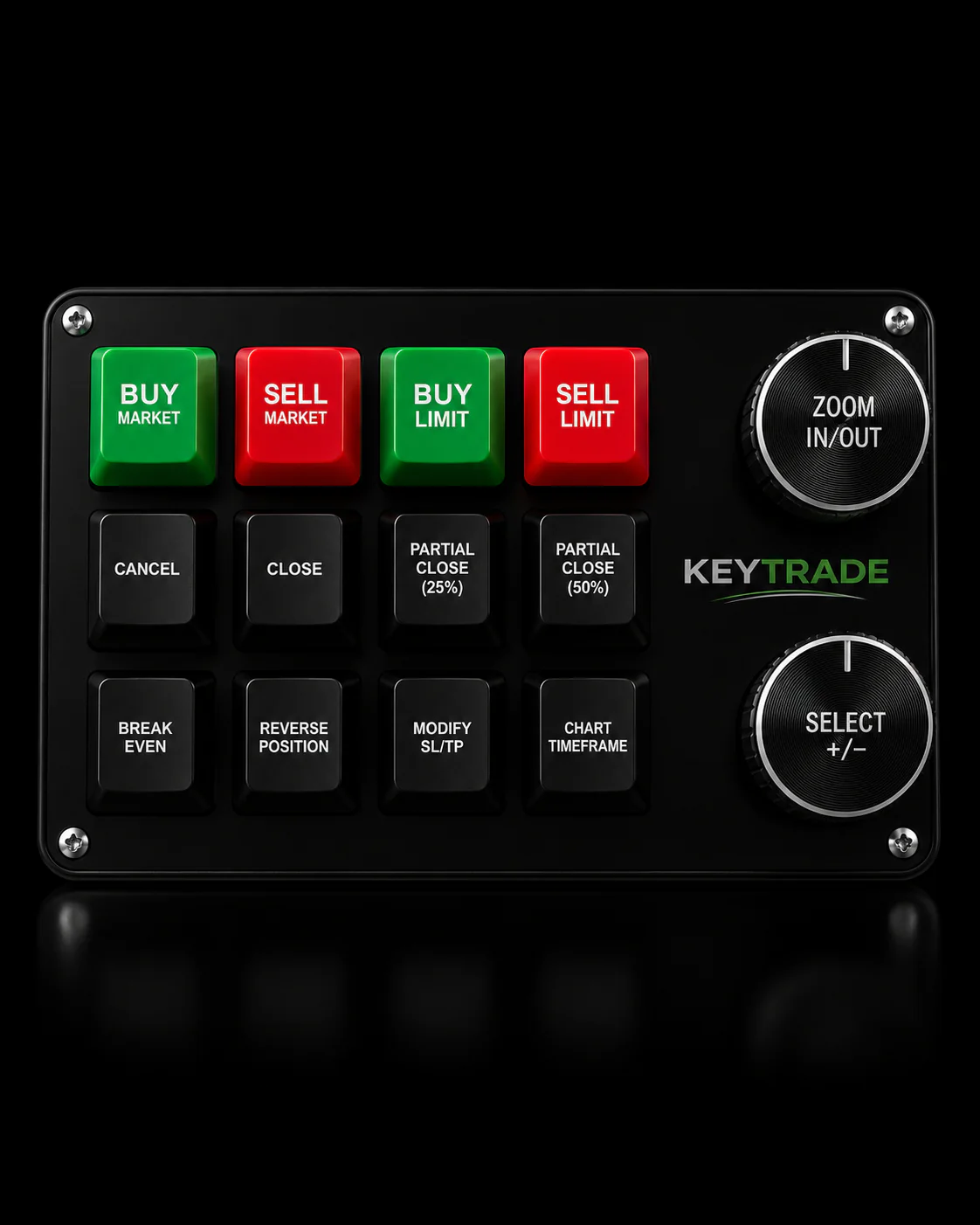
Speed only helps if your inputs are correct before you commit, and that’s where a lot of one-click setups quietly fail. A programmable keypad built for MT5 maps Buy, Sell, Close, and quick SL/TP moves to dedicated physical buttons, so your lot size and risk defaults are locked in before your hand ever moves toward the device.

That matters most in the exact scenario One Click Trading is built for: fast entries where a stray mouse click or a wrong volume field can cost real money. A keypad doesn’t replace good habits, but it removes a step where mistakes tend to creep in, freeing your attention for reading the market instead of hunting for the right button. Test any hardware setup on a demo account first, the same rule that applies to the execution modes covered earlier. When you’re ready to see how a physical setup fits your platform, check the available keypad configurations for MT5 and start with a demo run before your next live session.
Sources
For the exact mechanics behind execution modes, fill policies, and deviation settings, MetaTrader 5’s own One Click Trading help page is the primary reference. Fintrix Markets’ step-by-step activation guide and FX Foundations’ risk-focused breakdown both cover the practical side well.
- One Click Trading - Trading Operations - MetaTrader 5 Help
- How to use one-click trading on MT4 & MT5 | Fintrix Markets
- One-Click Trading | Free Beginner Forex Lesson | FX Foundations
FAQ
How Do I Enable One Click Trading in MT5?
Go to Tools → Options → Trade, check the “One Click Trading” box, accept the disclaimer, and click OK. Then enable the visual panel through the chart’s right click menu or the Alt+T shortcut.
Can I Make $1,000 a Day Day Trading?
Daily profit targets depend entirely on account size, risk tolerance, and market conditions, and no execution feature, including One Click Trading, guarantees a specific outcome. Faster order entry can help you act on planned setups, but it doesn’t change the underlying probabilities of any given trade.
How Does One Click Trading Actually Work?
It sends a market order the instant you click Buy or Sell on the chart, Market Watch, or Depth of Market panel, skipping the confirmation dialog that normally appears. It’s unavailable under Request execution, where the standard dialog still shows up regardless of the setting.
Does MetaTrader 4 Have One Click Trading?
Yes, MT4 offers the same core feature, enabled through a similar Tools → Options → Trade path, and the underlying speed versus confirmation trade-off works the same way across both platforms.
Does One Click Trading Increase Slippage?
Not directly. Slippage and fill behavior come from your execution mode and fill policy, not the one-click toggle itself. Instant Execution’s “Use deviation” setting determines how much price movement is tolerated before a requote or rejection occurs.