

Prevent Costly Misfires: MT5 Keypad Setup for Pro Traders
Plug in a programmable keypad, enable AutoTrading in MetaTrader 5, and map or load your hotkey EA. From that point, pressing a single programmed button sends a pre-sized order with attached stop loss and take profit, or fires a management command like partial close or break-even, exactly as configured. Every action still routes through your broker’s execution rules. Test all of it on a demo account before you risk a live fill.
TL;DR:
- Compatibility checks for your hardware, firmware, and broker rules are essential to ensure precise order execution and prevent mistakes during live trading.
- Wired USB connections with onboard profile storage and high polling rates provide more reliable and consistent performance than wireless setups.
- Using an Expert Advisor that listens for keystrokes offers automatic lot sizing and stop loss management, outperforming native MT5 hotkeys in speed and control.
- Thorough testing on a demo account, including emergency and priority keys, is crucial to avoid costly errors and verify that all mappings perform as intended before going live.
- Dedicated hardware designed for MT5, such as Key-Trade keypads, enhances execution quality by remaining reliable regardless of software or window focus issues.
Table of Contents
- Checking Hardware and MT5 Compatibility Before You Start
- How Do You Physically Connect a Trading Keypad?
- How Does MT5 Receive Keypad Commands?
- Which Key Mappings Do Professional Traders Actually Use?
- What’s the Right Way to Test a Keypad Before Going Live?
- Three Workflows That Show the Setup in Action
- Why Dedicated Hardware Changes Execution Quality
- Get a Keypad Built for MT5 Execution, Not Just Mapped to It
- Sources
- FAQ
Checking Hardware and MT5 Compatibility Before You Start
Skipping compatibility checks is how traders end up with a keypad that fires the wrong lot size at 2 a.m. before a Federal Reserve announcement. Confirm these details before you touch a single mapping.
- Operating system and drivers: Most programmable keypads work as standard HID devices on Windows and macOS, but some vendor software requires specific driver versions. Check whether your device needs proprietary software or works natively.
- Firmware currency: Outdated firmware causes dropped keystrokes and inconsistent polling. Update before mapping anything.
- MT5 build and AutoTrading: Confirm your terminal build supports Expert Advisors and that AutoTrading is available on your account type (some prop firm challenge accounts restrict EA use).
- Broker rules: Verify minimum lot size, whether your account runs hedging or netting mode, and any restrictions on rapid order submission.
- Device capability: Onboard memory for profile storage, wired USB connection, backlit keys for low-light sessions, and a polling rate suited to fast execution.
Get this list right once, and every mapping decision downstream becomes far more predictable.
How Do You Physically Connect a Trading Keypad?
The physical connection matters more than most traders assume. A flaky USB link introduces latency and dropped inputs exactly when speed counts most. Professional workstation guidance consistently favors wired peripherals over wireless for exactly this reason.
- Plug the keypad into a primary USB port on your motherboard, not a passive hub. If you must use a hub, choose a powered one with a quality controller chip.
- Restore or load your saved keypad profile, then confirm onboard memory settings hold your mappings after a reboot.
- Check the device’s polling rate in its configuration software and set it as high as the device supports.
- Update firmware and drivers to the latest stable release before mapping any trade functions.
- Route cables so the keypad sits flat and stable, away from your mouse hand’s natural resting position, to avoid accidental presses during fast mouse movement.
Pro Tip: Tape down or label your emergency close-all key with a distinct color. Under stress, traders reach for muscle memory, not logic, and a visually distinct key prevents a mistaken press during a panic moment.
Wired connections and onboard profile storage also survive OS crashes and driver failures better than software-dependent wireless setups, which matters when a mid-session reboot is the last thing you need.
How Does MT5 Receive Keypad Commands?
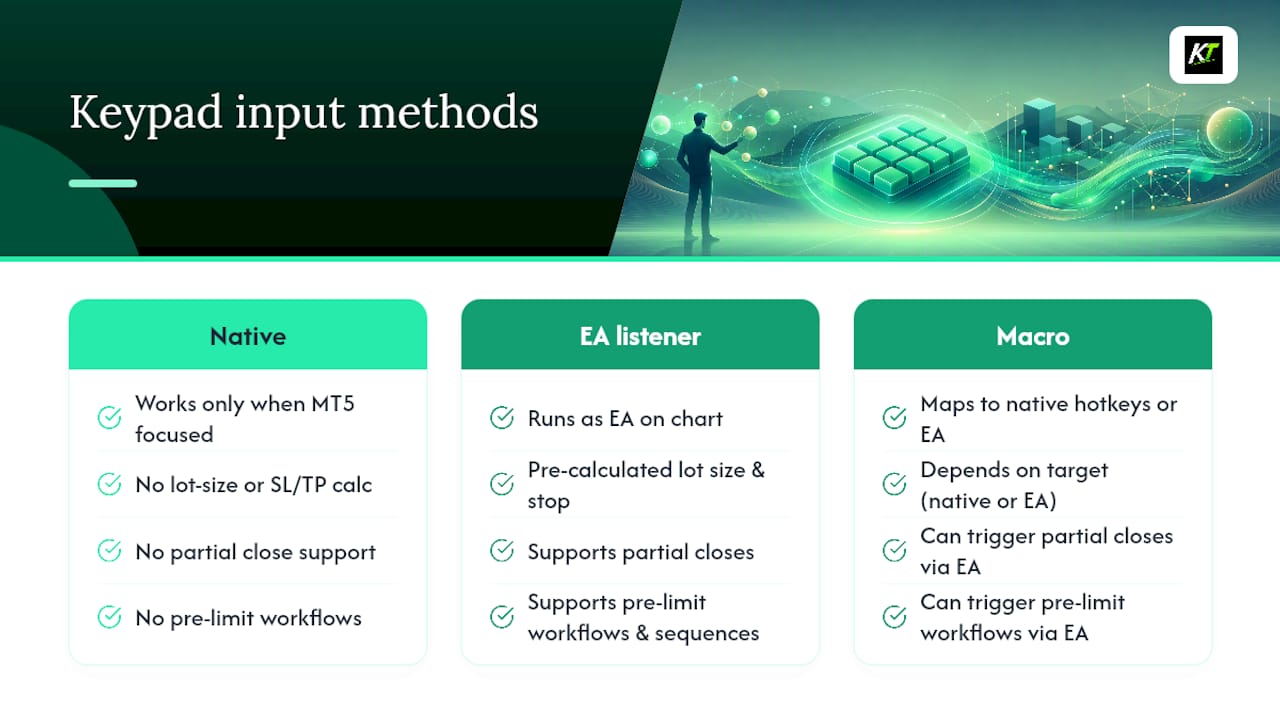
There are three practical ways to wire a physical keypad into MT5, and picking the right one depends on how much control you need over order logic.
Native MT5 hotkeys. MetaTrader 5 ships with a documented set of built-in key bindings, F9 opens a new order, Ctrl+O opens settings, and so on. The official MetaTrader 5 hotkeys documentation notes that any hotkey you assign yourself takes priority over the predefined ones. The catch: native hotkeys only work when the MT5 window has focus, and they don’t calculate lot size or attach SL/TP automatically. If your chart loses focus because another window is active, the keystroke does nothing or hits the wrong application.
Hotkey-listening EA. An Expert Advisor running on your chart can listen for keystrokes and translate each one into a broker-aware order, complete with pre-calculated lot size and monetary stop distances. This is how tools like Trading Deck work: a single keystroke fires an instant order slot, a partial close, or a pre-limit workflow. AutoTrading must be enabled for the EA to act, and this method carries the entire logic layer inside MT5 rather than relying on external software.
Macro software (Stream Deck style). Programs that map keystrokes to either native hotkeys or your EA’s listener add a visual layer, useful if you want icon-labeled buttons and page-based layouts rather than memorized key combinations.
For professional execution where every millisecond and every miscalculated lot size matters, the EA-based approach wins. It supports partial closes, pre-limit arming, and inverse-trade sequences that native hotkeys simply can’t calculate on their own.
Which Key Mappings Do Professional Traders Actually Use?
Copy-paste layouts rarely survive contact with your own trading style, but these patterns give you a working starting point that most active traders adapt rather than reinvent.
- Ten-slot paired entry grid. Set five instant-BUY and five instant-SELL slots, each with a different pre-calculated lot size and monetary SL/TP distance. One key press commits the full trade with risk already defined, no recalculating position size mid-session. This slot-based structure mirrors the pattern documented in Trading Deck’s hotkey panel, where each slot carries its own pre-set risk parameters.
- Management row. Dedicate a row to partial-close presets (25%, 50%, 75%), close-all, break-even, and trailing stop activation.
- Inverse and numeric adjustment keys. One key to flip a losing long into a short at the same size, plus a pair of keys to nudge lot size up or down in fixed increments.
- Profile pages. Build separate profiles for different instruments, timeframes, or trading modes (manual scalping versus EA-assisted swing trades), and switch between them with a dedicated page key.
Pro Tip: Color-code your buy keys green and sell keys red, and keep close-all or emergency keys on a physically separate row. Under time pressure, your hand should never have to think about which row means what.
What’s the Right Way to Test a Keypad Before Going Live?
Every mapping needs verification before it touches real capital, and skipping this step is the single most common way traders lose money to hardware, not markets.
- Fire every key on a demo account and confirm the order type, lot size, SL/TP, and symbol match what you intended, one key at a time.
- Check for rejected orders or unexpected lot rounding against your broker’s minimum lot and step size.
- At the start of every session, verify AutoTrading is enabled, your correct profile is loaded, and the MT5 window has focus.
- Test your emergency kill-switch key specifically. It’s the one mapping you can least afford to have fail.
- Keep a simple log (even a spreadsheet) of test results and any accidental presses, so you can reconstruct what happened if a trade looks wrong later.
Best-practice guidance for trading setups consistently points to the same conclusion: test every mapping on demo, and never assume a key works as intended until you’ve watched it execute correctly at least once.
Pro Tip: Run your full key sequence once at the literal start of every session, even if nothing changed since yesterday. Broker maintenance windows, platform updates, and EA restarts all reset settings you assumed were locked in.
Three Workflows That Show the Setup in Action
Seeing the mappings work end to end makes the abstract stuff click faster than any checklist.
- Single-key entry with attached risk. Press one BUY slot key. The EA calculates lot size from your account risk percentage, attaches a monetary stop and target, and submits the order, all before you’d have finished typing the same trade manually.
- Pre-plan, arm, commit. Set a pending limit level on the chart, arm it with one key, then commit with a second dedicated key once price confirms your setup. This two-step sequence prevents impulse entries while still executing in under a second once you decide.
- Emergency sequence. Map an inverse-trade key next to (but visually distinct from) your close-all key, and test both on demo repeatedly before relying on them live. A misfire here compounds losses instead of stopping them.
Back up your keypad profile after every mapping change, run a simulated replay drill weekly if your volume is high, and log every trade triggered by keypad against your intended plan for review. That last habit catches drift between what you meant to build and what you actually configured.
Why Dedicated Hardware Changes Execution Quality
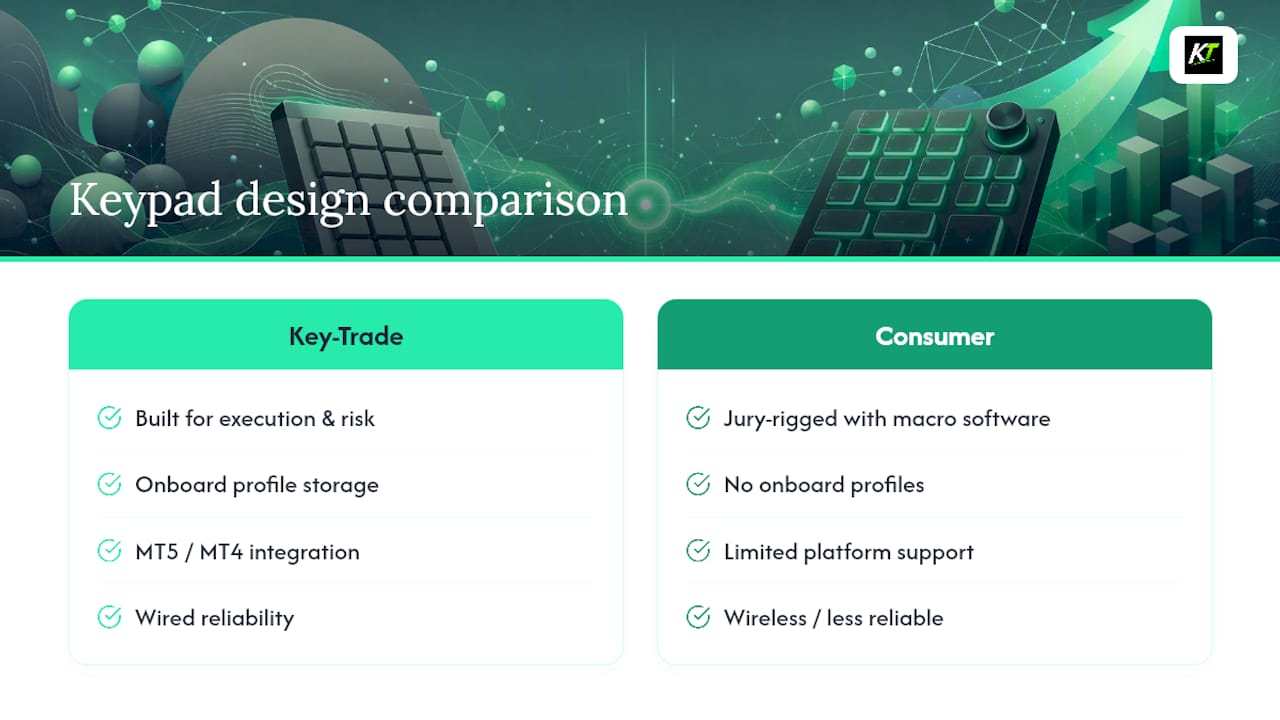
Software shortcuts break when a window loses focus or a hotkey conflicts with another application. Purpose-built hardware doesn’t have that problem. Key-Trade builds its keypads specifically around MT5 and other major platforms, so the mapping logic lives on a device that stays consistent whether your chart is focused or not. That reliability, not raw speed alone, is what separates hardware execution from a keyboard shortcut sheet taped to your monitor.
— key-trade
Get a Keypad Built for MT5 Execution, Not Just Mapped to It
Everything covered above, onboard profile storage, MT5 integration, wired reliability, is exactly what Key-Trade Trading Keyboards are built around. Rather than jury-rigging a consumer keyboard with macro software, Key-Trade ships devices designed from the ground up for order execution and risk management across MT5, MT4, and other major platforms, with worldwide shipping and setup support included.
 If you’ve been running trades through a mouse and a cluttered order panel, moving to dedicated hardware is the single biggest execution upgrade available to an active trader. Visit the Key-Trade product page to check specs, compare models, and find the setup tutorials that match your platform.
Sources
For the official word on hotkey behavior, see MetaTrader 5’s hotkeys documentation. For an example EA-based integration, review Trading Deck. For chart shortcut references, see GoldRock Metal Exchange’s live charts.
- MetaTrader 5 — Hotkeys (official documentation)
- MT5 Trading Deck — hotkey trading panel (MQL5 market)
- Trading workstation hardware for futures traders (NexusFi Academy)
FAQ
Does a Trading Keypad Work With Every MT5 Broker?
Yes, as long as your broker allows AutoTrading and Expert Advisors on your account, since the keypad’s commands route through the same order execution rules as manual trades.
Can I Use a Keypad Without an EA?
You can map native MT5 hotkeys directly, but they won’t calculate lot size or attach stop loss and take profit automatically, an EA-based setup like Key-Trade’s integration handles that layer for you.
What Happens if Two Hotkeys Conflict?
MT5 documentation confirms that hotkeys you assign yourself take priority over predefined ones, so conflicts usually mean two custom assignments are fighting for the same key, which you can fix in the terminal’s hotkey settings.
How Long Should I Test on Demo Before Going Live?
There’s no fixed number, but test every single mapped key at least once and confirm order type, lot size, and stops all match your intent before switching to a live account.
Do I Need Special Software to Program a Keypad for MT5?
Most dedicated trading keypads, including Key-Trade’s, include their own configuration software for profile setup, so you don’t need separate macro programs unless you want an added visual layer like a Stream Deck.