

How to Manage Open Futures Positions in NinjaTrader
Managing open futures positions in NinjaTrader comes down to five controls: the Positions grid for exposure, Close Position or Flatten Everything for exits, ATM strategies for automated stops and targets, the Excess Margin figure for capital cushion, and Risk Settings as your account-level backstop.
- Check exposure: open the Positions tab (desktop) or Positions module (web) and confirm Net Pos, Open P/L, and margin columns.
- Exit fast: use Close Position for one instrument, Flatten Everything to clear every position and working order at once.
- Automate protection: apply an ATM strategy at entry or attach one to an already-open position.
- Watch capital: NinjaTrader flags intraday margin as available until roughly 15 minutes before session close, after which initial margin applies for overnight holds.
- Set a floor: configure Risk Settings so a daily or weekly loss limit auto-flattens the account, though it locks trading until a fixed time, not a guaranteed dollar cap.
None of these replace judgment. They just make sure a bad five minutes doesn’t turn into a bad month.
Key Takeaways
Managing open futures positions in NinjaTrader works because it combines real-time visibility, fast exit commands, automated trade protection, and margin monitoring into one workflow.
| Point | Details |
|---|---|
| Watch the Positions grid | Enable Net Pos, Open P/L, and margin columns, and cross-check the Orders tab before closing anything. |
| Know the Close/Flatten sequence | Orders cancel first, with up to a five-second wait, before a market order fires. |
| Respect the margin cutoff | Intraday margin ends about 15 minutes before session close, then initial margin applies overnight. |
| Automate trade-level protection | ATM strategies attach stops and targets in milliseconds, at entry or on an existing position. |
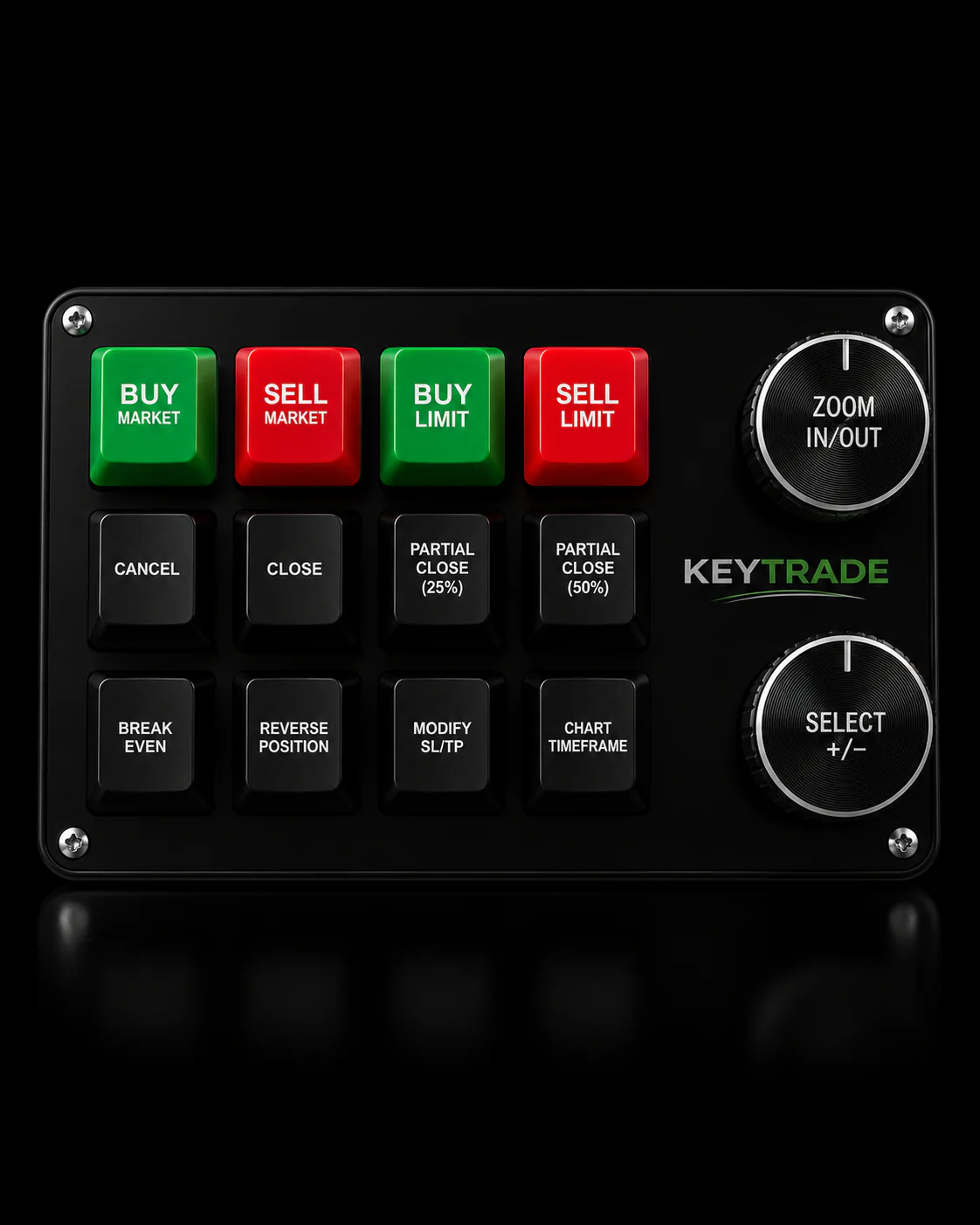
| Treat hardware as a speed layer | Key-trade keypads map Close/Flatten to physical buttons to cut menu navigation time during fast markets. |
Table of Contents
- How Do You Manage Open Futures Positions in NinjaTrader?
- What Actually Happens When You Click Close or Flatten?
- When Does Intraday Margin Turn Into Overnight Margin?
- How Do ATM Strategies Protect an Open Position?
- How Do You Roll or Partially Exit a Futures Contract?
- What Should You Do When a Position Needs Urgent Action?
- What Traders Get Wrong About “Set It and Forget It” Risk Controls
- Why Hardware Controls Complement Your Platform Risk Settings
- Sources
- FAQ
How Do You Manage Open Futures Positions in NinjaTrader?
The Positions tab is where you should be looking the moment a trade fills, and it rewards a little setup work before you ever need it under pressure. Both the desktop Positions tab and the Positions module on NinjaTrader Web expose the same core data: which instrument you hold, your net position size, average entry price, open profit or loss, and two margin figures that matter more than most traders treat them.
Turn on these columns and leave them on:
- Instrument and Net Pos — confirms exactly what you’re holding and in which direction.
- Avg. Price and Open P/L — your real-time read on where the trade stands.
- $Init. Margin and $Maint. Margin — the two numbers that determine whether you can add size or need to reduce it.
Save that column layout as a preset so it doesn’t reset between sessions, and keep the Positions tab visible on top of your charts during active hours rather than buried behind a workspace tab.
Right-click any row and you get four commands worth memorizing: Apply ATM Strategy, Close Position, Flatten Everything, and Roll Position. That menu is your entire position-management toolkit in one place.
Pro Tip: Before you close or flatten anything, glance at the Orders tab first. A hidden working limit or stop order can sit there unnoticed, and canceling a position without checking it can leave a stray order active in the market.
What Actually Happens When You Click Close or Flatten?
Neither command is instant, and knowing the sequence prevents a lot of confusion when the market is moving fast.
- Cancellation phase. NinjaTrader first cancels any working orders tied to the position or account. Close Position waits up to five seconds for cancellation confirmations before moving to the next step.
- Market order submission. Once cancellations confirm (or the five-second window passes), NinjaTrader sends a market order to offset your position. Flatten Everything does this across every instrument and account simultaneously.
- Timeout handling. If confirmation doesn’t arrive in that window, the platform throws a timeout error. That almost always points to a network or brokerage connection issue, so check your connection status before retrying.
- Insufficient margin. If the account lacks margin to process the closing order, it can get rejected. Canceling or modifying a large passive limit order elsewhere in the account can free enough maintenance margin for the close to go through.
For a partial exit, skip Close Position entirely and submit a market order for a smaller contract count. That trims size without touching the rest of your position or any attached ATM legs.
Pro Tip: If you trade size where seconds matter, map Close Position and Flatten Everything to dedicated hardware buttons instead of hunting through a right-click menu. A programmable keypad removes the mouse movement and menu navigation that eat up real time during a fast market.
When Does Intraday Margin Turn Into Overnight Margin?
Margin isn’t a flat number. It shifts depending on when you’re holding the position, and missing that shift is one of the more common ways traders get caught off guard.
NinjaTrader’s intraday margin rates apply from the moment a product opens for the session, but they end roughly 15 minutes before that session’s close. After that cutoff, initial margin takes over for any position you plan to carry overnight, and it is usually higher than intraday margin.
That 15-minute window matters more than it sounds. If you’re planning to exit before the close and misjudge the timing, you can suddenly need several times the capital you were using minutes earlier. Practical adjustments:
- Plan intraday exits with real buffer before the cutoff, not right at it.
- Watch the Excess Margin figure in your account summary. It shows equity available above your current minimum requirement, and running it near zero leaves no room for a normal price swing.
- Recheck margin during high-volatility windows. Exchanges and brokers can adjust margin rates with limited notice, especially around major economic releases.
It’s the fastest route to a forced liquidation you didn’t see coming.
How Do ATM Strategies Protect an Open Position?
ATM strategies exist because human reaction time is the weakest link in most trade management, and NinjaTrader’s automated trade management templates close that gap. A single ATM template can bundle a stop-loss, one or more profit targets, scale-out legs, and a trailing stop into one rule set that fires the moment your entry fills.
You’re not limited to applying an ATM at entry, either. From the Positions grid’s right-click menu, you can attach an ATM strategy to a position you already hold, which is useful if you entered manually and want automated protection retroactively.
- Stop-loss — caps downside without you needing to watch every tick.
- Profit targets — can scale out in pieces rather than all at once.
- Trailing stops — lock in gains as a trade moves in your favor.
The advantage is speed: ATMs submit their predefined exits within milliseconds of entry, which is faster than any manual click sequence and immune to the hesitation that creeps in during a volatile print. Treat ATMs as your trade-level defense and Risk Settings as the separate, account-level failsafe behind them, not the other way around.
How Do You Roll or Partially Exit a Futures Contract?
Rolling a contract before expiry means running two actions close together, and the sequencing matters.
- Trigger the roll. Roll Position sends a market order to exit the current contract month and a market order to enter the next month. Your net market exposure briefly shifts during that transition, so don’t roll into thin, illiquid conditions.
- Time it for liquidity. Roll during normal trading hours with active volume, never in the closing minutes of an expiring contract when spreads widen.
- Scale out instead if you just want less size. Submit a market order for a partial contract count. This reduces exposure while leaving remaining ATM legs untouched.
- Recheck margin after the roll. The new contract month can carry a different initial margin requirement than the one you just exited, so confirm your Excess Margin figure again immediately after.
What Should You Do When a Position Needs Urgent Action?
When volatility spikes or margin gets tight, work through this sequence rather than reacting to the first alarming number you see:
- Open the Positions grid and the Orders tab side by side. Confirm exact position size and check for any working orders you forgot about.
- Cancel non-essential working orders first if margin is tight. This frees capital before you need it for an exit.
- Choose your exit tool based on scope: Close Position for one instrument, Flatten Everything if multiple positions need to disappear immediately.
- If any contracts remain open, verify an ATM strategy is attached, or apply one on the spot.
- Once things settle, export the Positions grid and review what triggered the event. Adjust your risk templates before the next session starts.
What Traders Get Wrong About “Set It and Forget It” Risk Controls
Most trading guides treat Risk Settings and ATM strategies as interchangeable safety nets. They aren’t, and conflating the two is where a lot of otherwise careful traders get burned. An ATM strategy protects a single trade with a hard-coded stop and target. Risk Settings protect the account, but they trigger a market order, and market orders during a fast, thin tape can slip well past the number you configured. A daily loss limit set at $500 is a trigger point, not a promise that you’ll lose exactly $500.
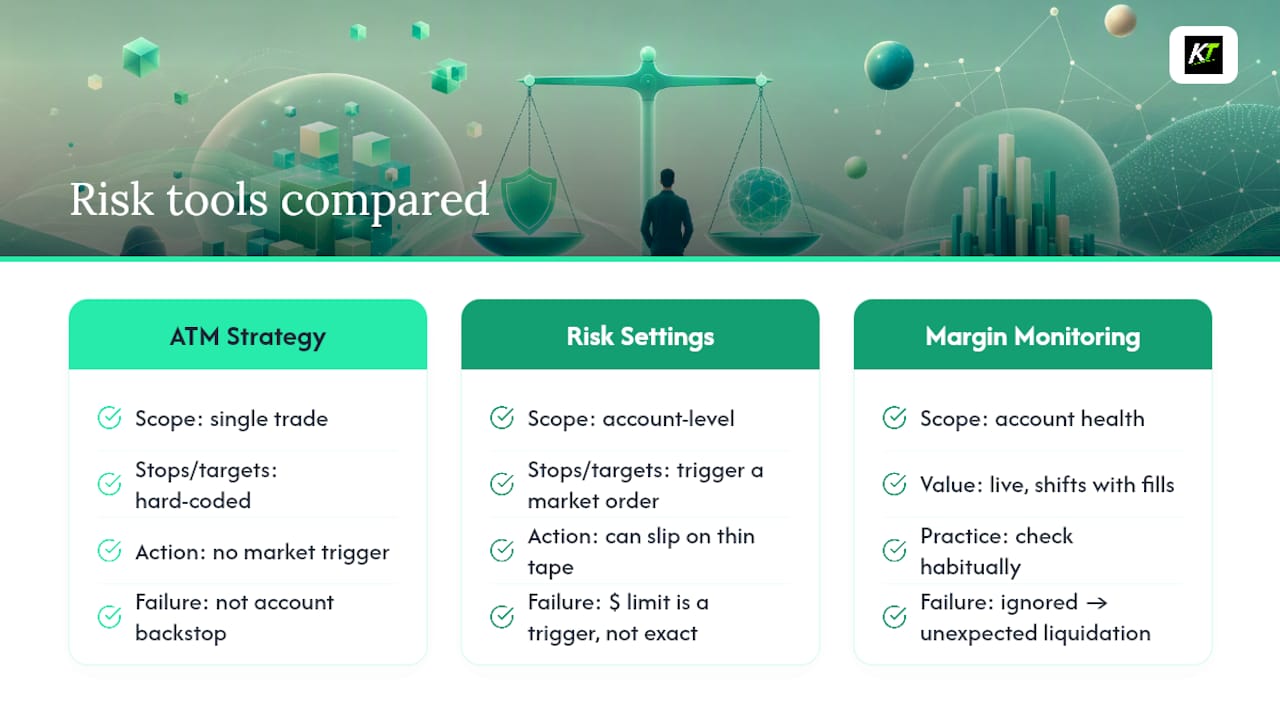
The bigger gap I see in how traders set up NinjaTrader risk management is treating margin monitoring as an afterthought instead of a habit. Excess Margin isn’t a number you check once in the morning. It’s a live figure that shifts with every fill, and the traders who get liquidated unexpectedly are usually the ones who stopped watching it once the trade was “working.”
If there’s one priority above the rest, it’s this: automate what you can (ATMs, saved Positions layouts, Risk Settings as a backstop), and reserve manual attention for the moments those systems can’t cover, like a rejected close order or a rolling contract during thin liquidity. Software handles the routine. You handle the exceptions.
— key-trade
Why Hardware Controls Complement Your Platform Risk Settings
NinjaTrader’s Positions grid, Close/Flatten commands, and ATM strategies already give you real control. The gap most traders never fix is the few seconds it takes to click through a menu when a market moves fast.

Key-trade builds programmable trading keypads that map Close Position, Flatten Everything, and other frequently used commands to dedicated physical buttons, cutting the navigation time out of your execution entirely. The keypads integrate with NinjaTrader alongside platforms like TradingView, MetaTrader, and Tradovate, so the same device stays useful if you trade across more than one venue. This is a complement to your platform’s controls and Risk Settings, not a replacement. For a deeper look at structured risk procedures alongside hardware execution, SafeFly’s risk disclosure resources cover the broader framework professional traders build around. If faster hands-on control over open positions sounds useful, check out the NinjaTrader-compatible keypad lineup and see which layout fits your setup.
Sources
- Close Position and Flatten Everything
- How can I find NinjaTrader margin requirements?
- Positions module — NinjaTrader Web
FAQ
How Long Can You Keep a Futures Position Open?
There’s no fixed platform limit. You can hold a position as long as your account meets margin requirements, though NinjaTrader shifts you from intraday to initial margin about 15 minutes before session close if you plan to carry it overnight.
What Is the 80% Rule in Futures Trading?
That figure typically refers to a value-area concept from market profile analysis, not a NinjaTrader platform setting, and definitions vary by trader and strategy. It falls outside NinjaTrader’s official position-management tools covered here.
Is $5,000 Enough to Trade Futures?
It depends entirely on the contract’s margin requirement and your risk per trade, since intraday and overnight margins differ significantly by instrument. Check the specific contract’s margin requirements and keep meaningful Excess Margin in reserve rather than trading a small account at full capacity.
How Do You Hedge a Futures Position With Options?
Hedging typically means buying a put or call against your futures exposure to cap downside without closing the position outright. Within NinjaTrader, this is managed manually through the order entry window since the platform’s built-in ATM and Risk Settings tools are built for futures and don’t automate options hedges directly.
What’s the Difference Between Close Position and Flatten Everything?
Close Position exits one instrument on one account, while Flatten Everything cancels all working orders and exits every open position across every account at once. Use Flatten only when you genuinely need everything gone immediately.