

30 Day Simulator Proves Day Trading Hotkeys Prevent Losses
Hotkeys turn a five-click order into a single keystroke, which is the difference between catching a fill and watching a spread run away from you. The single move that matters most today: map a compact core set (buy, sell, flatten, cancel, size, stop) with flatten on its own isolated key, and run every combination in a simulator before it touches a live account. If you want tactile confirmation on top of that, a hardware keypad adds a physical layer of certainty that a keyboard alone cannot provide.
TL;DR:
- Hotkeys must be carefully mapped with modifier logic to avoid mistakes during fast market moves, especially for critical functions like flatten and cancel-all.
- Platforms like MetaTrader, IBKR, and direct-access setups support customizable hotkey configurations, with dedicated tools or scripting to enhance speed and control.
- Physical hardware keypads provide tactile certainty and are recommended for reducing misfires, especially for essential actions like flattening or panic buttons.
- Testing hotkey setups thoroughly in simulators and maintaining detailed change logs prevents accidental errors during live trading.
- Use a limited, core set of hotkeys (around 10 to 15) to manage cognitive load and ensure quick, accurate execution in high-pressure situations.
Table of Contents
- What Are Day Trading Hotkeys and Why Do They Matter?
- Which Hotkeys Work on MT4, MT5, IBKR, and Direct-Access Platforms?
- How Do You Set Up Trading Hotkeys Safely?
- What Happens When a Hotkey Fails?
- Can You Build Multi-Step Hotkey Macros?
- Why Do Serious Traders Use a Hardware Trading Keypad?
- Discipline Beats Cleverness
- Get the Tactile Reliability a Keyboard Can’t Match
- Sources
- FAQ
What Are Day Trading Hotkeys and Why Do They Matter?
A day trading hotkey is a single keystroke (or button press) bound to a specific trade action, like buying at the market, canceling every open order, or closing a position instantly. The point isn’t convenience. It’s speed and consistency under pressure, which is exactly when most traders make their worst decisions.
Manual order entry through dropdown menus and click sequences takes seconds. In a fast market, milliseconds separate a good fill from a bad one, and clicking through five menus while a position moves against you is how small losses become large ones. Hotkeys collapse that sequence into one motion your hand can execute without thinking.
That “without thinking” part cuts both ways. A well-designed hotkey layout removes hesitation. A sloppy one removes your ability to catch a mistake before it executes. The fix isn’t fewer hotkeys, it’s a smarter set.
Non-negotiable actions to map first:
- Buy market and sell market (your fastest entry/exit)
- Buy limit at bid and sell limit at ask (for controlled entries)
- Flatten (close everything, immediately, on its own key)
- Cancel-all (kill every working order in one press)
- Set stop (attach or move a protective stop)
- Size shortcuts (preset share/lot quantities you can toggle)
- Partial sell (scale out of a position without closing it entirely)
Modifier logic keeps this set from becoming a memory test. A common pattern: Shift triggers a market order, Ctrl triggers a limit order, and Alt adds to or scales an existing position. Once you commit to a pattern, use it identically across every platform you trade on. Traders who switch modifier logic between MetaTrader and their broker’s direct-access platform are the ones who fat-finger a market sell when they meant a limit buy.
Hand mapping matters more than people expect. Put buy-side actions on the left half of the keyboard and sell-side actions on the right, so your hands never cross and never hesitate over which side does what. Flatten and cancel-all should sit apart from everything else, ideally on keys you’d never hit by accident reaching for something adjacent.
Three layouts worth adapting:
- Scalper layout: single-key buy/sell market orders, one-touch size toggle between two preset sizes, flatten on a dedicated function key.
- Momentum layout: limit orders as default (Ctrl combos), a scale-in key for adding to winners, and a trailing-stop hotkey for runners.
- Risk-based sizing layout: a hotkey that calculates position size from your dollar risk and stop distance automatically, common on platforms like MT5 and DAS, so size adjusts itself as your stop moves.
Pro Tip: Pick your modifier convention on day one and never change it. Traders who bounce between “Shift for market” on one platform and “Shift for limit” on another eventually mix them up during a fast tape, and that’s exactly when a mistake costs the most.
Which Hotkeys Work on MT4, MT5, IBKR, and Direct-Access Platforms?
Every platform ships with its own defaults, and none of them match perfectly, which is why testing on your specific platform before going live isn’t optional.
MetaTrader 4 and 5 come with a strong baseline out of the box. F9 opens a new order window, Alt plus a number switches chart timeframes, and Ctrl+M or Ctrl’T toggles the Market Watch and terminal panels. MT5 also lets you assign custom hotkey bindings through the Navigator window, so you’re not stuck with the defaults once you know your workflow. F12 and Shift+F12 are worth learning too, since they step bar-by-bar through history for manual back testing and practice drills, per FXFoundations’ breakdown of MT5 shortcuts.
Interactive Brokers’ Trader Workstation (TWS) handles hotkeys through its own configuration menu, where you assign key combinations to specific order types, position closes, and cancel actions. IBKR supports enough granularity that you can build separate hotkey sets for different account types, useful if you run both a live and a paper account side by side.
Direct-access platforms like DAS Trader, Lightspeed, and Sterling go a step further with scripting and macro support, including risk-based sizing that recalculates share quantity on the fly as your stop distance changes. These platforms are built for traders who need that level of control, and the tradeoff is a steeper setup curve.
| Platform | Where to configure | Notable built-in shortcut |
|---|---|---|
| MetaTrader 4/5 | Navigator window (MT5) or Options menu | F9 = new order |
| Interactive Brokers TWS | Configure > Hotkeys menu | Custom per order type |
| DAS/Lightspeed/Sterling | Hotkey/scripting panel | Risk-based size scripting |
| Companion app or plugin | Fully custom per button |
Stream Deck and similar controllers add a physical layer most software can’t replicate. Instead of remembering which function key does what, you press a labeled, illuminated button. Traders who build tactile Stream Deck profiles for buy, sell, and flatten report fewer misfires than keyboard-only setups, mainly because a dedicated button eliminates the “did I hit the right function key” doubt that creeps in during a fast session.
How Do You Set Up Trading Hotkeys Safely?
Rolling out a hotkey system without a plan is how traders end up flattening the wrong position. Follow this sequence instead.
- Inventory your actions. List every order type and risk action you actually use, then trim it to a core of 10 to 15 keys. More than that increases cognitive load and makes the whole system less reliable exactly when speed matters most.
- Document your defaults. Write down every key and modifier combination in a simple reference sheet, including what each one does and why it’s placed where it is.
- Configure with spacing in mind. Never put flatten next to cancel-all, and never put a market buy adjacent to a market sell. Label physical keys if you’re on a keyboard, and save your layout as a named profile.
- Add confirmations for size. Set a confirmation prompt for orders above your normal size, so a hotkey meant for 100 shares doesn’t accidentally send 1,000.
- Test everything in a simulator. Run through every hotkey, verifying correct symbol, size, order type, route, and stop placement, and confirm the panic/flatten key actually flattens.
- Go live small. Start with reduced share sizes for at least a week, check your order logs daily, and keep a running change log every time you edit a hotkey.
Pro Tip: Keep your hotkey change log in the same spot every time, even a simple spreadsheet. When something misfires three weeks from now, you’ll want to know exactly what changed and when.
What Happens When a Hotkey Fails?
Fat-finger errors are the most common failure, usually caused by keys sitting too close together or a modifier getting pressed a beat too early or late. Wrong-symbol errors come next, typically when a trader switches watch lists but forgets their hotkeys are still targeting the old symbol. Scripting bugs in multi-step macros round out the list, especially macros that don’t check position status before firing.
Preventive measures that actually reduce these:
- Require confirmation on any order above your defined size threshold
- Physically isolate flatten and cancel-all from every other key
- Color-code or label buy-side versus sell-side keys
- Test every hotkey in simulator after any configuration change
- Audit your full hotkey setup on a regular schedule, since a layout built for a trending market can become a liability once volatility drops
When a hotkey does misfire, the recovery sequence is the same every time: hit cancel-all, hit flatten, then contact your broker’s desk if anything looks unresolved on your account. Log the incident immediately, while the details are still fresh, and review it during your next audit. A quick daily pre-market check of your hotkey bindings, before the first trade of the session, catches most configuration drift before it becomes a real problem.
Can You Build Multi-Step Hotkey Macros?
Yes, and this is where hotkeys stop being a convenience and start becoming a real risk-management tool. A single key can trigger an entry, attach a stop at a defined distance, and set a trailing rule, all in one press, instead of three separate actions during a moving market.
Three patterns worth building:
- Entry-plus-protection macro: one key sends a market or limit entry, immediately attaches a stop at your predefined distance, and arms a trailing rule once price moves in your favor.
- Context-sensitive keys: the same key behaves differently depending on your current position, closing a long if you’re long, opening a short if you’re flat.
- Scale-in/scale-out sequences: a bracket-order hotkey that opens a starter position with a bracket stop and target already attached, then a separate key that scales out a fixed percentage as price hits milestones.
The safety layer people skip is the idempotency check: a flatten macro should confirm a position actually exists before sending a market order to close it. Without that check, pressing flatten on a flat account can send an invalid or unintended order.
Pro Tip: Version your macros the way you’d version code. Name each iteration (v1, v2, v3) with the date and what changed, so if a new version misbehaves, you can revert to the last one that worked without rebuilding it from memory.
Why Do Serious Traders Use a Hardware Trading Keypad?
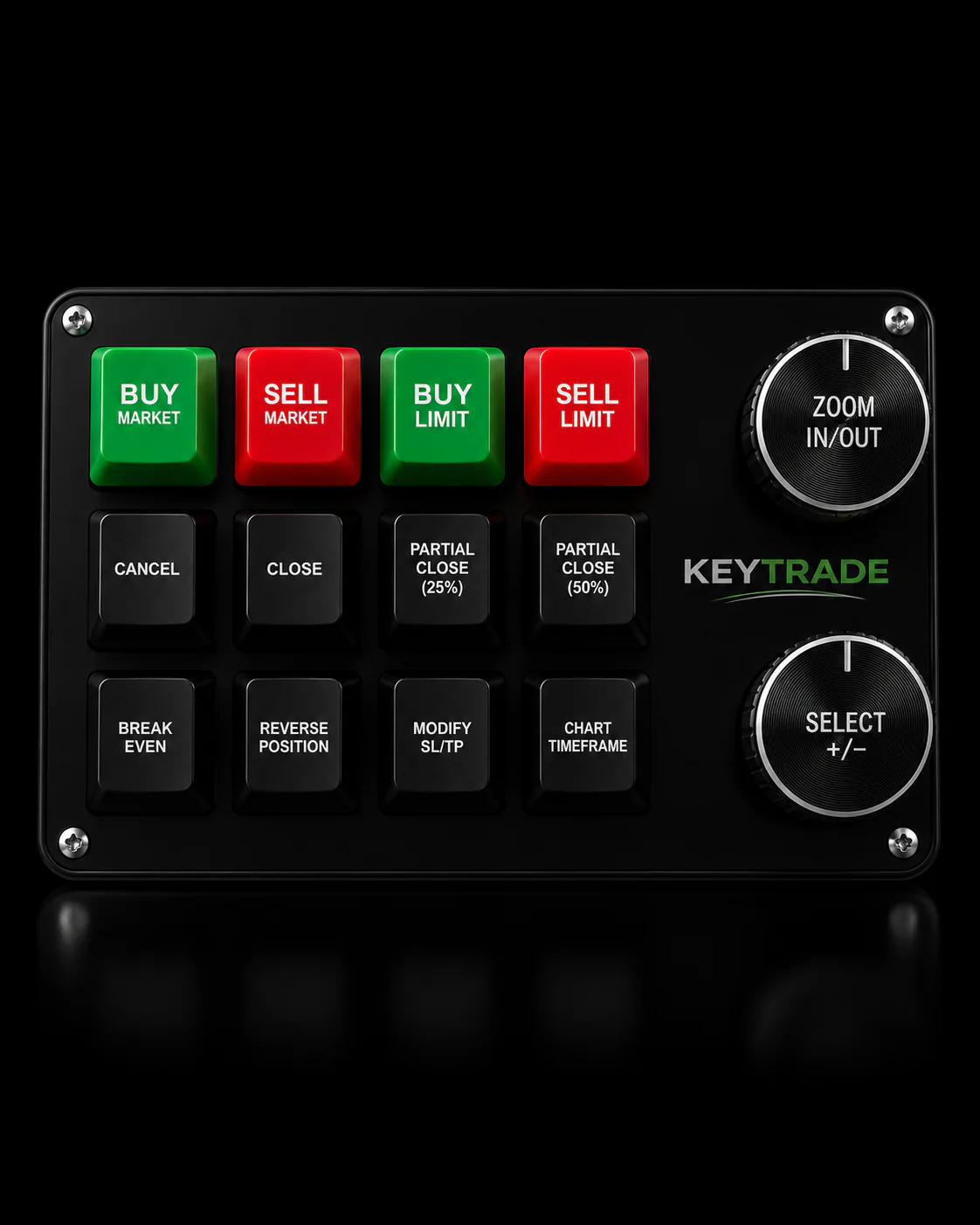
Software hotkeys are only as reliable as the keyboard they’re bound to, and a standard keyboard was never designed for split-second trade execution. A dedicated hardware keypad gives you physically isolated, labeled buttons, so your hand finds flatten by feel instead of by counting keys from the left edge of a laptop.
What a purpose-built keypad adds over a keyboard:
- Tactile, separated keys that make a mispress far less likely under pressure
- A dedicated, physically distinct panic/flatten button that doesn’t share space with anything else
- On-device labeling and swappable profiles for different strategies or platforms
- Compatibility across major platforms including TradingView, MT4/MT5, cTrader, NinjaTrader, SierraChart, Thinkorswim, and Tradovate
Key-trade’s keypads plug in and map directly to these platforms without requiring scripting knowledge, and profiles can be swapped as you move between strategies or accounts. If a keypad ever needs to come out of the setup, your keyboard hotkeys remain the fallback, so you’re never left without a working system mid-session.
Pro Tip: Test your hardware keypad in a simulator exactly the way you’d test a new keyboard hotkey layout. A physical device doesn’t skip the testing step just because it feels more reliable.
Discipline Beats Cleverness
The traders who get hurt by hotkeys aren’t the ones with too few of them. They’re the ones who built a clever, sprawling system and never stress-tested it. Run your setup for 30 straight trading days in simulator before trusting it live, audit it on a schedule, and if you get stuck configuring a platform or a keypad profile, reach out to support or a setup tutorial rather than guessing.
— key-trade
Get the Tactile Reliability a Keyboard Can’t Match
A hardware keypad solves the one problem software hotkeys can’t: physical certainty. When flatten sits on its own labeled button, isolated from every other action, your hand doesn’t have to trust muscle memory on a shared keyboard during a fast market. Key-trade’s keypads are built for exactly that, with plug-and-play compatibility across TradingView, MetaTrader 4 and 5, cTrader, NinjaTrader, SierraChart, Thinkorswim, and Tradovate, so you’re not locked into one platform’s ecosystem. Setup doesn’t require scripting knowledge. You map your core actions, save your profile, and test everything in simulator exactly the way this guide recommends before it ever touches a live account. If you’re ready to add that layer of tactile control, view Key-trade’s device profiles and setup guides and see which layout fits your platform and strategy.
Sources
- Daytrading
- Hotkey Day Trading Strategy — DayTradeLab
- MetaTrader 5 terminal help: Hotkeys
- Hot keys for day trading — TradeAlgo
FAQ
What Is the 3-5-7 Rule in Day Trading?
The 3-5-7 rule is a risk-management guideline: risk no more than 3% of your account on any single trade, cap total exposure across open positions at 5%, and keep your overall portfolio risk controlled. It has nothing to do with hotkey mapping directly, but the sizing hotkeys you build should enforce these limits automatically.
Can You Make $1,000 a Day Day Trading?
It’s possible with enough capital, volatility, and consistent execution, but it’s far from guaranteed and depends heavily on account size and risk tolerance. Speed tools like hotkeys can improve execution and reduce costly errors, but they don’t create profitability on their own.
Why Do Most Day Traders Lose Money?
Most traders lose money because of poor risk management, emotional decision-making, and slow or inconsistent execution, not because of a single missing tool. A disciplined hotkey system addresses the execution piece by removing hesitation and reducing fat-finger mistakes, but it can’t fix a bad trading plan underneath it.
Can You Make $100 a Day Day Trading?
Smaller, consistent gains like $100 a day are more realistic than large daily targets for most retail accounts, particularly with disciplined position sizing. Reliable execution tools, including well-tested hotkeys or a hardware keypad, help traders capture these smaller edges without losing time to manual order entry.
Do I Need a Physical Keypad, or Are Keyboard Hotkeys Enough?
Keyboard hotkeys work for most traders once properly tested and mapped, but a physical keypad adds tactile isolation that reduces misfires, especially for flatten and cancel-all functions. Many traders start with keyboard hotkeys in simulator and add a hardware keypad once they’ve confirmed their core action set.