

Traders: Build Safe Custom Order Buttons in 5 Steps
Custom order buttons are programmable physical keys that execute complete trade actions, including entry, position size, stop-loss and take-profit, and partial close, the instant you press them. They deliver deterministic, low-latency execution and tighter risk control than clicking through a software interface, and they typically work across TradingView, MT4/MT5, cTrader, NinjaTrader, SierraChart, Thinkorswim, and Tradovate.
TL;DR:
- Programmable trade buttons should be tested thoroughly in demo accounts before live use, especially those automating complex strategies or multiple actions.
- Building simple, single-purpose macros for entry, exit, and risk management reduces errors and enhances reliability during fast market conditions.
- Using dedicated hardware with driver-level execution and clear labeling minimizes misfires and improves speed compared to OS-level scripting.
- Assigning distinct physical textures or colors to critical safety keys, like cancel-all, helps prevent accidental activation in high-pressure situations.
- Limiting button mappings to high-impact functions and incrementally adopting them ensures safer, more effective use across multiple trading accounts.
Table of Contents
- How Do You Program Custom Order Buttons?
- Order Button Examples Every Trading Desk Should Have
- What Safety Rules Prevent Misprogrammed Buttons?
- How Key-Trade Keypads Put These Practices Into Action
- An Incremental Approach to Adopting Custom Buttons
- Get a Keypad Built for Custom Order Buttons
- Sources
- FAQ
How Do You Program Custom Order Buttons?
Programming a button is less about the hardware and more about the workflow you build before you ever touch a key. Rushing this step is how traders end up with a “buy” button that fires the wrong lot size at 2 a.m.
Start with the groundwork, then move to mapping and testing.
- Pick a profile and define the trade first. Decide the symbol, base lot size, and your default stop/limit offsets before you assign anything to a key. A button is only as good as the logic behind it.
- Map the key to a platform action. Use your keypad’s driver or companion software to bind the physical key to a hotkey, API call, or scripted command inside your trading platform.
- Build modular macros, not monoliths. Macro-enabled keypads record sequences of keystrokes and actions and assign them to a single key, which makes it tempting to cram an entire strategy into one macro. Resist that. Build small, single-purpose blocks instead: one for entry, one for setting SL, one for setting TP, one for partial close.
- Test everything in a demo account. Fire the macro repeatedly, check timing under a slow data feed, and try to break it with edge cases like a rejected order or a disconnected terminal.
- Back up your profiles and add a hardware rollback key. Save your configuration somewhere outside the keypad itself, and dedicate one physical key exclusively to cancel or flatten so a software glitch never leaves you stuck in a position.
A few habits separate a reliable setup from a fragile one:
- Name each macro exactly what it does, not what you hope it does someday.
- Keep entry, exit, and risk macros as separate building blocks you can recombine.
- Version your profiles so you can roll back a bad edit without rebuilding from scratch.
Pro Tip: Before you assign a single button, write your macro logic on paper first, including every parameter and edge case. If you can’t describe the action in one sentence, it’s not a single-purpose macro yet.
Order Button Examples Every Trading Desk Should Have
The best programmable button setups aren’t the most complex ones. They’re the ones built from a handful of tested, repeatable patterns that cover the moments where speed actually matters.
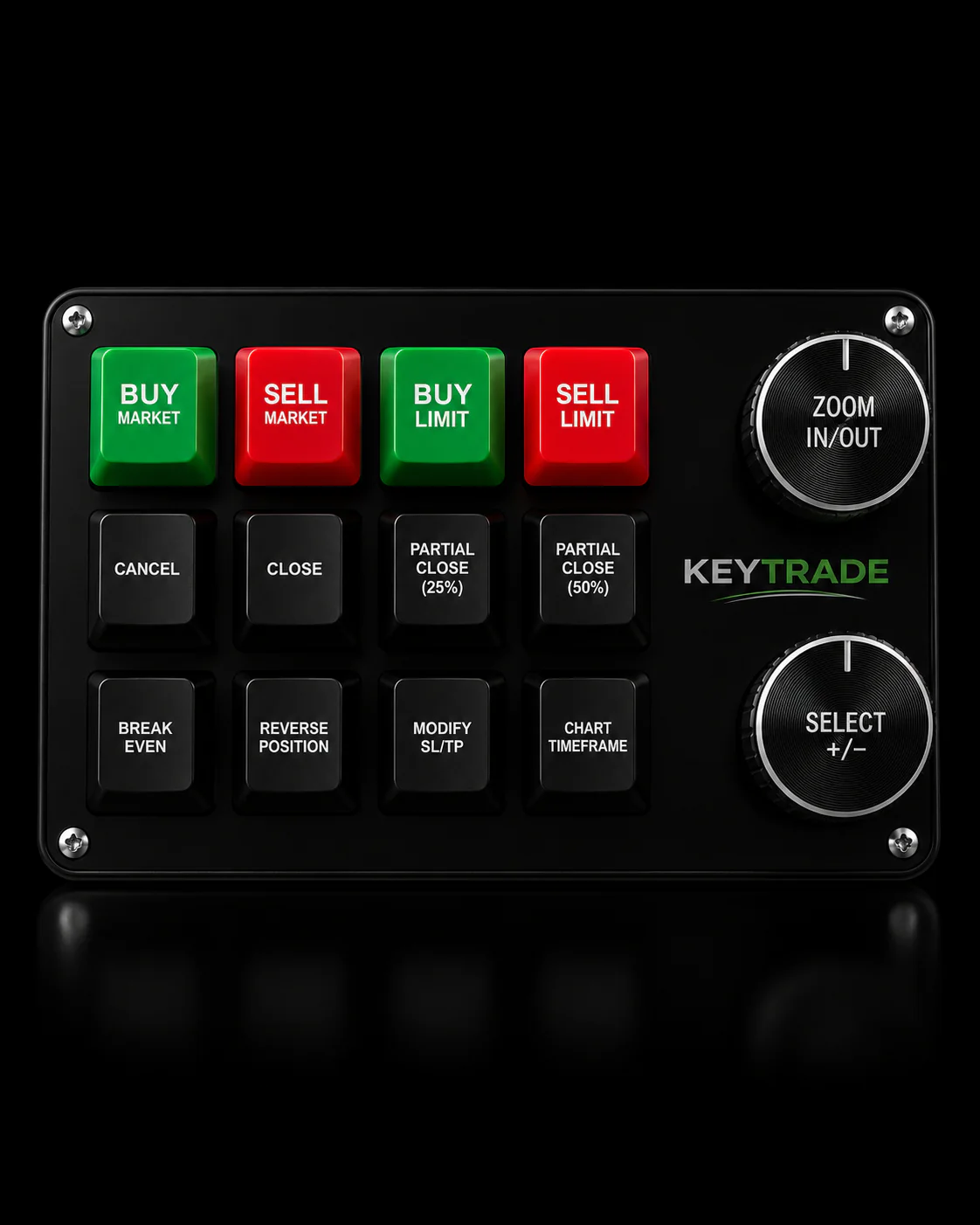
- Entry macro: Market buy or sell at a fixed lot size, with stop-loss and take-profit attached in the same keypress so you’re never exposed unprotected, even for a second.
- Position-sizing macro: Calculate lot size automatically from your risk percentage and stop distance, so a 20-pip stop and a 60-pip stop don’t carry the same dollar risk by accident.
- Break-even macro: Detect your entry price and move the stop-loss to it once price has moved a defined distance in your favor, locking in a scratch trade with one press.
- Partial-close macro: Close a set percentage of the position, say 50%, at a target level while letting the remainder run toward a further objective.
- Panic and cancel-all: An immediate flatten-everything action. Some traders wire this to a dedicated red key used sparingly, but it can save a position from spiraling when a data feed glitches or a news spike hits.
More advanced desks extend this further. Some professional macro systems let traders trigger multi-product actions and manage baskets from a single keypress, closing correlated positions across several instruments at once rather than hunting through each one individually.
Desks that limit themselves to a small set of high-impact buttons, rather than mapping every possible action, tend to make fewer operator errors and reach fluency with the keypad faster.
What Safety Rules Prevent Misprogrammed Buttons?
A misconfigured key is not a minor annoyance. It’s a real account risk, and the traders who avoid it treat their keypad configuration with the same discipline they apply to a trading plan.
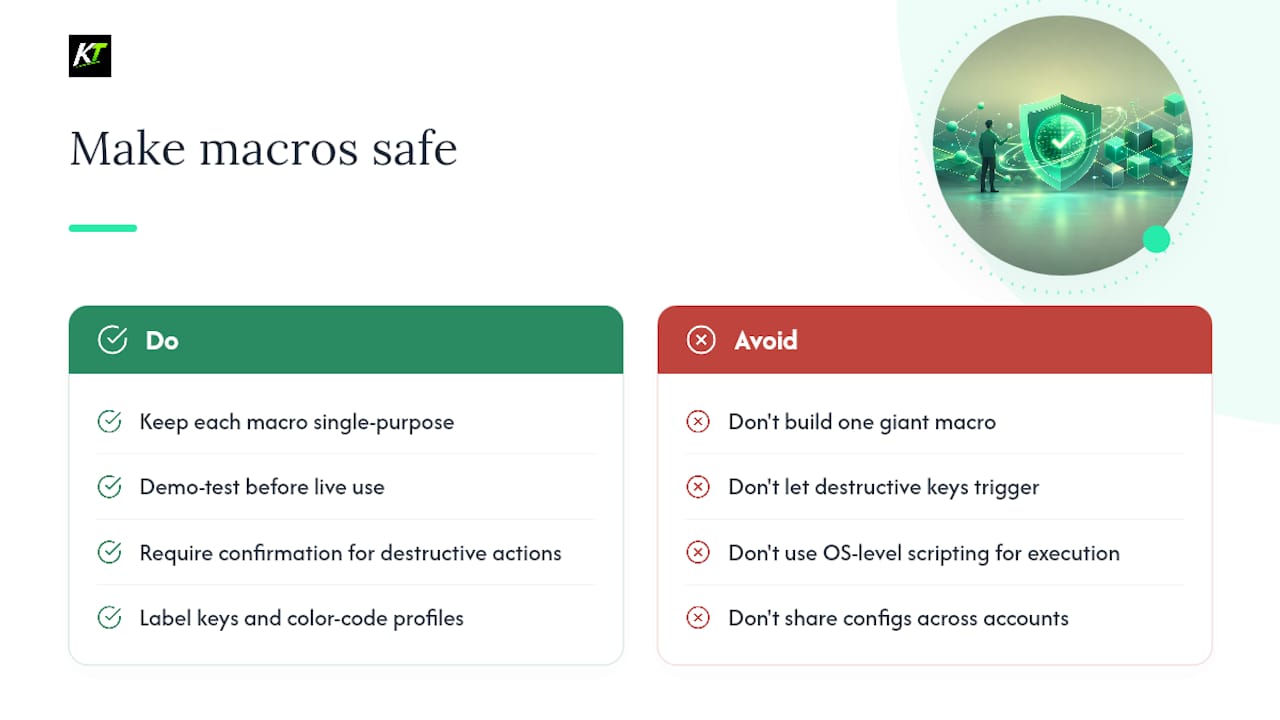
Keep every macro single-purpose. An all-in-one script that opens a trade, sets risk parameters, and manages an exit sounds efficient, but it’s also inflexible and hard to debug under pressure. Demo testing and incremental adoption work better than building one giant macro and hoping it holds up in live conditions.
Require confirmation on destructive actions. A flatten-all or cancel-all key should never fire from an accidental brush of the desk. A two-step combo, or a physical guard over the key, adds a half-second of friction that prevents an expensive mistake.
Label everything. Printed keycaps, a visible key legend, or color-coded profiles keep you from second-guessing what a button does mid-trade. This matters even more when you run multiple profiles for different symbols or account types.
Test failure modes, not just success paths. Simulate a rejected order, a disconnected platform, and a delayed fill in your demo account before trusting a macro live.
Choose hardware-level execution over OS-level scripting. Dedicated drivers and low-latency wired connections are more reliable than OS-level automation tools like AutoHotkey, which can lag, conflict with other software, or fail silently.
If you’re running multiple accounts, separate your terminals and configurations entirely. Prop desks in particular benefit from dedicated macros per terminal to prevent cross-account interference and reduce the odds of a configuration conflict corrupting a session.
Pro Tip: Assign your flatten-all key a distinct physical texture, a raised cap or a different color, so your hand finds it by feel without looking down. In a fast market, that half-second matters.
How Key-Trade Keypads Put These Practices Into Action
Everything above is easier to execute with hardware built specifically for it. Key-Trade’s programmable keypads connect directly with TradingView, MetaTrader 4 & 5, cTrader, NinjaTrader, SierraChart, Thinkorswim, and Tradovate, so the platform you already trade on isn’t a limiting factor when you build out your button layout.
A few specifics worth knowing:
- Dedicated keys for entry, partial close, break-even, and full flatten, so the safety practices above aren’t theoretical, they’re built into the device layout from the start.
- Driver-level execution rather than OS-level scripting, which lines up with the reliability guidance covered in the best-practices section.
- Profile and backup support, letting you switch configurations between symbols or accounts without reprogramming from scratch.
- Worldwide shipping and setup support for desks and individual traders alike.
For device-specific walkthroughs and configuration examples, the Key-Trade blog covers setup patterns in more depth than a general overview can.
An Incremental Approach to Adopting Custom Buttons
A desk that adds buttons one at a time, testing each in demo before it ever touches a live account, ends up with a setup people actually trust under pressure. Trying to program twenty macros in a single afternoon usually produces twenty things nobody fully understands by week two.
The lesson that holds up across every setup worth copying: keep macros simple, label them clearly, and test them until you’re bored of testing them. Start with three buttons, entry, break-even, and flatten. Get comfortable. Then expand.
— key-trade
Get a Keypad Built for Custom Order Buttons
A physical keypad solves the exact problems this guide walks through: it turns a multi-click platform action into one deterministic keypress, and it puts a hardware rollback (your flatten key) between you and a bad software moment. That’s a different kind of reliability than a hotkey buried in a software menu.

Key-Trade’s keypads are built around this exact workflow, with dedicated keys, profile switching, and driver-level execution across TradingView, MT4/MT5, cTrader, NinjaTrader, SierraChart, Thinkorswim, and Tradovate. If you’re ready to move from software hotkeys to a dedicated device, visit the Key-Trade product page to see the full lineup, or reach out to technical support for help mapping your first three buttons before your next session.
Sources
- How a Programmable Keyboard Helps Traders
- Prop firm technical infrastructure: how to build a professional desk
FAQ
What Are Custom Order Buttons?
Custom order buttons are programmable physical keys on a trading keypad that trigger complete trade actions, such as entry, lot size, stop-loss and take-profit placement, or partial close, with a single press instead of multiple clicks in a platform interface.
Which Trading Platforms Support Programmable Order Buttons?
Most modern keypads, including Key-Trade’s devices, integrate with TradingView, MetaTrader 4 & 5, cTrader, NinjaTrader, SierraChart, Thinkorswim, and Tradovate.
Are Custom Order Buttons Faster Than Software Hotkeys?
Hardware-level execution through a dedicated driver generally reacts more reliably than OS-level scripting tools, since it avoids the lag and conflicts that software automation can introduce during volatile markets.
How Do I Avoid Mistakes When Programming a Panic Button?
Build the flatten-all action as its own single-purpose macro, test it repeatedly in a demo account, and consider requiring a two-step confirmation so it never fires by accident.
Can I Use One Keypad for Multiple Trading Accounts?
Yes, but separate your terminals and profiles for each account rather than sharing one configuration, since running multiple terminals off a single unclean setup raises the risk of cross-account interference.