

Start with These 5 Essentials for Cross Platform Trading Hotkeys
Program five hotkeys before you do anything else: buy market, sell market, flatten all, cancel all, and set stop. Everything else is refinement. The goal is twofold: cut order entry time and prevent the misfires that come with speed. Map those five keys in your primary platform today, then run them in a paper account for at least two weeks before they touch a live order.
TL;DR:
- Using the five essential hotkeys—buy, sell, flatten, cancel, and set stop—reduces order entry time to roughly 150-200 milliseconds and prevents misfires.
- Hotkey scopes differ across platforms, with application or window scope causing potential misfires if the wrong window is focused; high-risk actions should be application or window scoped to avoid errors.
- Building muscle memory by physically clustering hotkeys in one zone, such as the numpad, and binding related actions to adjacent keys minimizes hand travel and reduces accidental presses.
- Verifying hotkey settings, scope, and order defaults across platforms, along with extensive paper testing, is crucial before going live to minimize misfiring risks.
- Dedicated hardware keypads with programmable, physical buttons can improve reliability and consistency for traders executing across multiple platforms, especially at high volumes or during stress.
Table of Contents
- What Are Cross Platform Trading Hotkeys and Why Do They Matter?
- Core Hotkey Checklist and Key Zone Layout
- Global, Application, and Window Scope: Why Your Hotkeys Misfire
- Setting Up Hotkeys on Different Platform Types
- When a Hardware Keypad Makes Sense for Multi-Platform Trading
- Safety Design: Panic Keys, Confirmations, and Logging
- How to Roll Out Hotkeys Across Multiple Platforms
- Why Discipline and Hardware Beat Software Shortcuts Alone
- A Physical Keypad Built for Traders Running Multiple Platforms
- Where to Read More on Hotkey Setup and Platform Behavior
- Sources
- FAQ
What Are Cross Platform Trading Hotkeys and Why Do They Matter?
A hotkey is a single keystroke bound to a trading action, whether that’s sending a market order, flattening a position, or pulling every working order off the book. Cross platform trading hotkeys extend that idea across every application you trade from, so the same finger movement produces the same result whether you’re in TradingView, MetaTrader, cTrader, NinjaTrader, Sierra Chart, thinkorswim, or Tradovate. The industry term for this discipline is usually just “hotkey trading” or “keyboard trading,” but the challenge active traders actually run into is consistency: a key that flattens positions in one platform might do nothing, or worse, something else entirely, in another.
The speed case is not theoretical. Manual order entry through mouse clicks typically runs 2 to 3 seconds per order, while a properly bound hotkey fires in roughly 150 to 200 milliseconds. In a fast-moving market, that gap is the difference between getting filled at your price and chasing it.
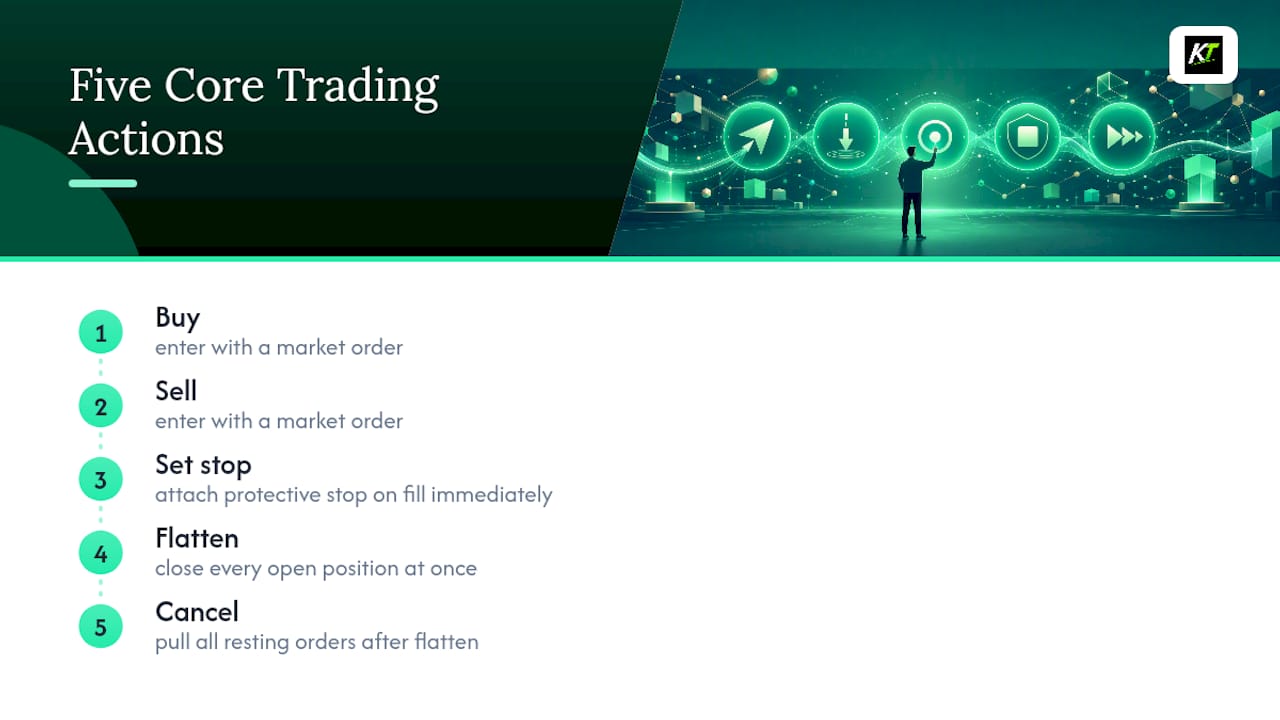
Buy, sell, flatten, cancel, stop
These five actions cover the majority of what a discretionary trader does during a session. Buy and sell market orders get you in. Flatten all closes every open position across an instrument or account in one press. Cancel all pulls resting orders so you’re not left holding a stale limit after a flatten. Set stop attaches protective risk the instant you’re filled, which matters more than most new hotkey users assume, since a filled order with no stop is the single most common way a good setup turns into a bad day.
Core Hotkey Checklist and Key Zone Layout
Once the five essentials are bound, expand into a fuller working set. Here’s the checklist most active traders converge on after a few months of live use:
- Buy market / Sell market: instant entry at the best available price
- Flatten all: closes every position on the active instrument or account
- Cancel all: removes every resting order, ideally bundled with flatten
- Set stop: attaches a protective stop at a predefined distance or price
- Scale out / partial close: reduces size by a fixed percentage or share count
- Move to breakeven: shifts the stop to entry price once a trade is working
The layout matters as much as the list. A common convention separates entries from exits using different modifier keys, so your hand never has to guess which zone it’s in under pressure. Ctrl or Shift plus the numpad handles entries; Alt plus the numpad handles exits. That split alone prevents a huge share of “I meant to add to a position and accidentally closed it” errors.
Cluster five to eight keys into one physical zone, ideally the numpad or a dedicated block near it, rather than spreading them across the keyboard. Muscle memory works on proximity. If your flatten key sits three rows away from your buy key, you’re adding a half-second of hand travel every single time, which defeats the point of using hotkeys in the first place.
Pro Tip: Bind flatten and cancel to adjacent keys, not the same key. You want the option to cancel resting orders without closing a position you’re intentionally holding, and vice versa.
Global, Application, and Window Scope: Why Your Hotkeys Misfire
Most accidental hotkey trades trace back to scope, not user error. A hotkey’s scope defines when it actually fires, and the three levels behave very differently:
- Global scope: the key fires no matter what window has focus, anywhere on your desktop
- Application scope: the key fires only when the trading platform itself is the active window
- Window scope: the key fires only when a specific panel within that platform, like a DOM or chart, has focus
That third category is where most cross-platform trouble starts. NinjaTrader’s documentation is explicit about this: the SuperDOM, ChartTrader, and the standalone Hot Key Manager each carry their own scope, and the same keystroke can behave three different ways depending on which panel last had focus. Bind flatten to “F” in ChartTrader and forget that SuperDOM has its own separate binding, and you can end up either double-firing an action or firing nothing at all.
There’s also a quieter conflict source: your operating system and any background utility. AutoHotkey scripts, Windows shortcuts, and even some browser extensions can capture the same keystroke before your trading platform ever sees it. CenterPoint Securities’ breakdown of hotkey scopes is a useful reference for understanding why a key that works fine on one machine does nothing on another, usually a global capture running silently underneath.
As a working rule: high-risk actions like flatten and cancel deserve application or window scope, because you want them tied to the platform actually holding your position. Lower-stakes utility actions, like toggling a watchlist or switching chart timeframes, are safer as global keys since a misfire there costs you nothing.
Setting Up Hotkeys on Different Platform Types
Where you configure hotkeys, and what the labels mean, shifts depending on the platform class. Here’s what to check across the three most common categories.
-
DMA-style workstations (Interactive Brokers TWS and similar direct-access platforms). Hotkey configuration sits under a dedicated settings panel, and IBKR’s own documentation flags two things every user needs to verify before going live: whether a key is reserved by the platform itself (some function keys can’t be reassigned), and whether “instantaneous transmission” is toggled on. That second setting decides whether a hotkey sends an order the instant you press it or routes it to a review screen first. Confirm which mode you’re in before you rely on speed.
-
Broker-client and DOM-based platforms (NinjaTrader, Sierra Chart, and similar ladder-trading interfaces). Check three things specifically: the quantity preset attached to each key, whether “flatten” and “flatten and cancel” are separate bindings or combined, and whether your mappings persist across chart templates or reset each time you load a new one. Losing your mappings on template switch is one of the most common support complaints on these platforms.
-
Retail desktop chart platforms (thinkorswim, TradingView, cTrader). Hotkey menus here tend to live inside general application preferences rather than a dedicated trading panel, and order defaults (route, order type, time-in-force) are often set separately from the hotkey binding itself. Verify both independently; a correctly bound key sending the wrong order type is still a misfire.
Multi-window setups deserve one more check. If you run a SuperDOM alongside a ChartTrader window, or a ladder next to a separate order panel, confirm which window currently holds focus before you assume a keystroke landed where you intended. NinjaTrader and similar platforms will happily fire a binding in whichever window is active, not the one you’re looking at.
When a Hardware Keypad Makes Sense for Multi-Platform Trading
Software hotkeys solve most problems. But once you’re running high order volume, trading across two or three platforms simultaneously, or executing on a prop desk where mistakes carry real financial consequences, a dedicated hardware keypad starts to earn its keep.
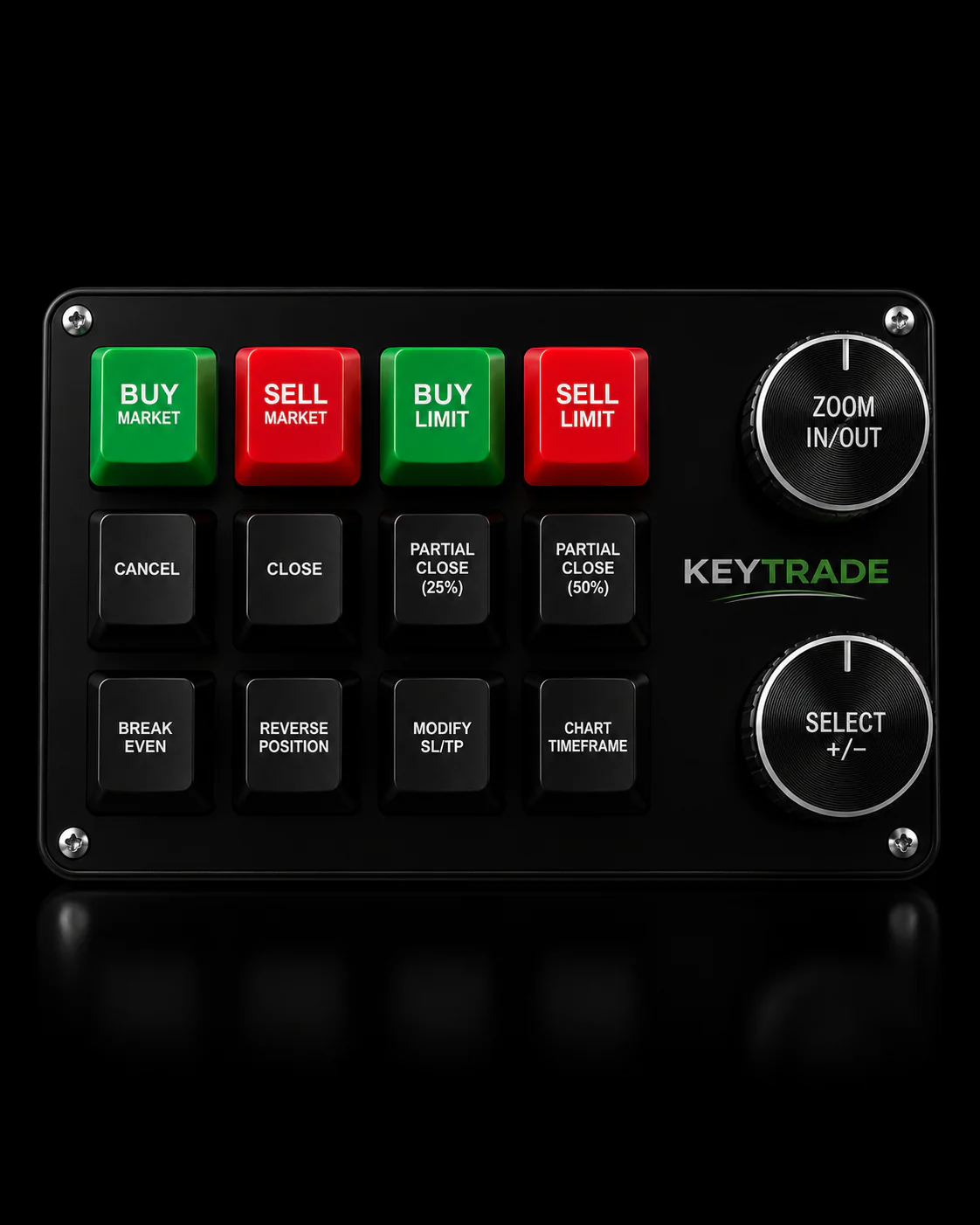
The core advantage is physical separation. A keyboard puts your flatten key one row away from your buy key. A hardware device lets you put flatten on its own isolated button, in its own zone, so your hand can’t confuse the two under stress. Physical trading keypads also cut down on accidental double-presses that happen when a standard keyboard key is pressed slightly too long or bounces.
Integration works through a few patterns. Most keypads expose themselves to your computer as a standard USB Human Interface Device, meaning you map buttons directly through vendor software without touching your platform’s native hotkey settings. For platforms with limited built-in hotkey support, the keypad can bridge through AutoHotkey instead, translating a physical button press into whatever keystroke the platform expects.
Ergonomics matter here too. A dedicated panic button, physically separated from your entry keys, and a status LED or hardware toggle (functionally similar to using Scroll Lock as a software “hotkeys live” indicator) both reduce the chance of firing an action you didn’t mean to fire.
Pro Tip: Run a calibration pass after any firmware update. A remapped button on a new firmware version is a common, avoidable source of the exact misfires hardware is supposed to prevent.
Safety Design: Panic Keys, Confirmations, and Logging
Every hotkey setup eventually fails in one of four predictable ways: the wrong window has focus, you’re trading the wrong account, the quantity preset is stale, or you double-press a key without noticing. None of these are exotic. They happen to experienced traders on ordinary Tuesdays.
The single best defense is a combined flatten and cancel action bound to one dedicated key, separated physically or by modifier from everything else you use. NexusFi’s platform hotkey guidance specifically recommends this combination over a flatten-only key, since flattening without canceling can leave a resting limit order active and ready to fill you right back into a position you just closed.
Layer in a live status indicator, whether that’s Scroll Lock, a hardware LED, or a platform-native toggle, so you always know at a glance whether hotkeys are armed. Add a confirmation step for anything above your normal size, even if it costs you a fraction of a second. And keep account scoping tight: if you trade multiple accounts side by side, verify which one is active before every session, not just once at login.
| Failure mode | Practical mitigation |
|---|---|
| Wrong window has focus | Standardize which panel receives keyboard focus; check before firing |
| Wrong account active | Scope hotkeys per account profile, verify at session start |
| Stale quantity preset | Review size defaults each morning before the open |
| Accidental double-press | Add a brief debounce or confirmation on high-risk keys |
Turn on your platform’s trade log and export any hotkey-triggered fills at the end of each session. During paper testing especially, keep a manual log of every misfire and what caused it. If a misfire does happen live, the recovery sequence is simple: flatten and cancel immediately, confirm your account balance and open positions match what you expect, then stop trading for the session until you’ve identified the cause.
How to Roll Out Hotkeys Across Multiple Platforms
Building a reliable multi-platform trading workflow is a sequencing problem more than a technical one. Work through it in order:
- Pick your core set. Start with the five essentials, then add scale-out and breakeven once those are second nature.
- Map them in your primary platform first. Get one platform fully configured and tested before touching a second.
- Mirror the mappings and scopes elsewhere. Match key positions and modifier logic across each additional platform, adjusting only where a platform’s scope rules force a change.
- Verify every key individually, checking transmit mode, quantity, order route, and whether a stop actually attaches on fill.
- Paper trade for two to four weeks before any live use, tracking every misfire and refining the mapping until errors approach zero.
Set a measurable bar before you go live: a target number of simulated trades (100 is a reasonable floor) with an error rate you’d actually accept in real money, not a vague sense that you’ve “gotten used to it.”
Pro Tip: Practice your panic key on purpose, deliberately, a dozen times in paper trading, even when nothing’s wrong. The muscle memory you want is the one that fires under stress, not the one that only works when you’re calm.
Why Discipline and Hardware Beat Software Shortcuts Alone
The gap shows up later, usually the first time someone is running three platforms at once during a fast market and their hand hits the wrong zone because two of those platforms map flatten to different physical keys.
That’s the real argument for hardware, and it’s not about speed so much as it’s about removing a decision point. A keyboard asks your hand to remember which row holds which action across every platform you use. A dedicated keypad, wired to fire the same physical button regardless of which application is active, removes that memory load entirely. Some hardware device makers build devices to map consistent physical positions across popular trading platforms, rather than requiring traders to memorize separate mappings for each platform.
None of that replaces the discipline work. Paper testing, scope verification, and a well-drilled panic key matter whether you’re on a $20 keyboard or a $300 device. Hardware just makes the good habits easier to keep once you’ve built them.
— key-trade
A Physical Keypad Built for Traders Running Multiple Platforms
Once your hotkey logic is solid, the remaining risk is physical: fat-fingering a key, losing your mapping when you switch machines, or fighting a keyboard layout that was never built for trading. Some programmable keypads solve that by giving every core action—buy, sell, flatten, cancel, scale out—its own dedicated button, physically separated from the rest.

Before buying any hardware device, confirm three things: that it supports the specific platforms you trade (TradingView, MetaTrader 4 and 5, cTrader, NinjaTrader, Sierra Chart, thinkorswim, and Tradovate are the current list), that firmware updates are handled through vendor software rather than manual remapping, and what the return window looks like if a particular workflow doesn’t fit your setup. Some vendors offer worldwide shipping with setup guides included, so compatibility questions and configuration walkthroughs are available before purchase. If you’re running high order volume across more than one platform, check keypad compatibility for your setup and see whether a physical device closes the gap your current keyboard can’t.
Where to Read More on Hotkey Setup and Platform Behavior
- Interactive Brokers’ TWS hotkey guide walks through exact configuration steps and reserved-key warnings.
- NinjaTrader’s hotkey documentation explains window-scoped behavior in detail.
- CenterPoint Securities’ scope breakdown clarifies global versus application versus window logic.
- NexusFi’s platform hotkey guidance covers safety patterns and advanced scripting workarounds.
Sources
- Daytrading
- Trading with Hot Keys — NinjaTrader help guides
- Platform hotkeys and keyboard shortcuts — NexusFi Academy
FAQ
What Are Hotkeys for Trading?
Hotkeys for trading are keyboard shortcuts bound to specific order actions, like buying, selling, flattening a position, or canceling resting orders, so you can execute without clicking through menus. They cut order entry time from roughly 2 to 3 seconds down to 150 to 200 milliseconds.
Can You Make $100 a Day Day Trading?
It’s possible with enough capital, a tested strategy, and disciplined risk management, but there’s no guaranteed daily figure in trading. Consistency depends far more on your edge and risk control than on any specific dollar target.
What Is the 3-5-7 Rule for Day Trading?
Definitions of this rule vary across trading communities, and it isn’t a standardized industry framework. A common version caps risk at 3% per trade and 5% per sector or correlated group, but treat it as a guideline rather than a fixed rule.
What Are Some Good Trading Hotkeys to Start With?
Start with buy market, sell market, flatten all, cancel all, and set stop, since these five cover entry, exit, and risk control. Once those are automatic, add scale out and move to breakeven.
How Do I Keep Hotkeys Consistent Across Multiple Platforms?
Map your core set in one platform first, then mirror the same physical positions and modifier logic in each additional platform you trade. A hardware keypad with vendor software profiles makes this easier by tying one physical button to the same action across every connected platform.