

Active Traders: Vet Your Trailing Stop Hotkey with 50 Practice Trades
Your trailing stop hotkey should do one job well: attach a trailing stop with a fixed trail amount and a defined trail increment, applied to your default quantity or position mode, in a single keystroke. Before you bind anything, set those two values first: trail amount and trail increment. One more thing to keep in front of you: trailing stops only work during regular market hours, and in a fast tape, they can fill well away from the price you set.
TL;DR:
- Properly setting the trail amount and trail increment is crucial to avoid premature stop-outs or giving back gains during live trading.
- Testing hotkeys in simulation for at least 50 trades helps ensure they behave correctly during fast market moves and gaps.
- Platform-specific quirks like active-window focus, trigger source, and default settings can cause unexpected hotkey behavior if not carefully verified.
- Using dedicated hardware like a trading keypad reduces reaction time and helps enforce disciplined execution of trailing stop actions.
- Scaling trail amounts with the ATR and confirming order behavior in simulation provide more reliable and effective trailing stop implementation.
Table of Contents
- How Do You Build a Trailing Stop Hotkey Step by Step?
- What Do Trail Amount and Trail Increment Actually Control?
- How Do Trading Platforms Handle Trailing Stop Hotkeys Differently?
- How Should You Test a Trailing Stop Hotkey Before Going Live?
- What Are the Most Common Trailing Stop Hotkey Mistakes?
- How Does Dedicated Hardware Improve Trailing Stop Execution?
- Why Trail Increment Discipline Matters More Than Trail Amount
- A Physical Way to Execute Your Trailing Stop Hotkeys
- Where to Verify Trailing Stop Hotkey Details
- Sources
- FAQ
How Do You Build a Trailing Stop Hotkey Step by Step?
The exact menus differ across platforms, but the build sequence is nearly identical whether you’re configuring TWS, NinjaTrader, or ThinkOrSwim. Follow this order and you avoid the two most common setup errors: an undefined default quantity and a missing trail increment.
- Pick a key combination and name it clearly. Something like “Attach Trail 1%” beats a cryptic label you’ll forget mid-session. Print a physical cheat sheet and keep it next to your monitor.
- Set your default quantity mode. Decide whether the hotkey trails a fixed share count, a percentage of your current position, or the entire open position, then lock that in as the default so you’re not guessing under pressure.
- Choose the order type. A trailing stop market order guarantees an exit but not a price. A trailing stop limit order caps your fill price but risks non-execution if the market gaps past your limit, a tradeoff Interactive Brokers documents in detail.
- Set the trail amount. This is your dollar or percentage distance from the current market price.
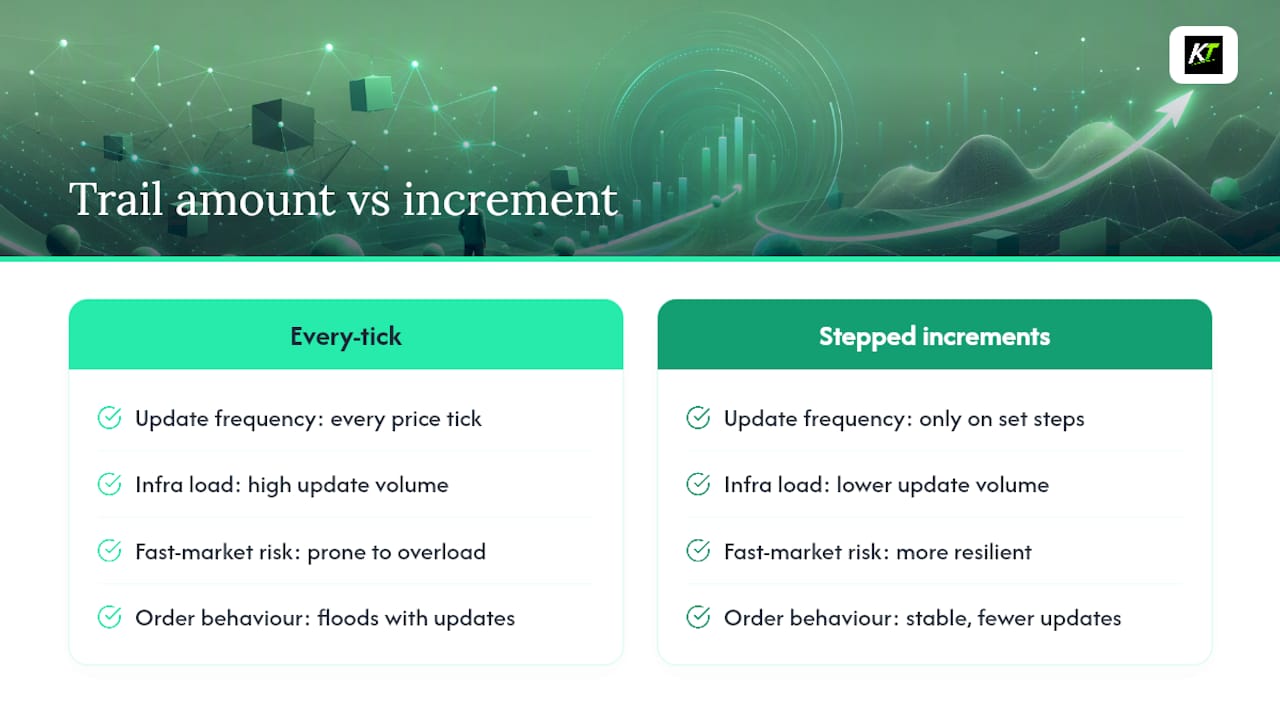
- Set the trail increment. Without one, the stop can update on every single tick.
- Decide on bracket behavior. Should the hotkey attach only the trailing stop, or should it also drag along a profit target?
- Save, then verify in the simulator. Confirm the hotkey fires correctly before it ever touches a live account. Interactive Brokers’ own guide for configuring TWS hotkeys walks through recording an Auto Trailing Stop action with saved default values, which is the cleanest way to make this repeatable.
What Do Trail Amount and Trail Increment Actually Control?
Trail amount is the distance your stop trails behind the best price your position reaches. Set it too tight and normal noise stops you out before the move even starts. Set it too loose and you give back gains you already earned.
Trail increment is different. It’s the minimum price move required before the stop actually updates. Skip it, and on a fast-moving stock your platform tries to recalculate the stop on every tick, which increases order traffic and raises the odds of a rejected or delayed update. Warrior Trading’s breakdown of trailing stop hotkey behavior covers this exact mechanic well.
A few practical distinctions worth locking into memory:
- Dollar trails work better for higher-priced, lower-volatility names where a fixed distance stays proportionate.
- Percentage trails scale naturally across small-cap names that can move 8% in an hour and large-caps that rarely move 1%.
- Trailing stop market orders prioritize getting filled. Trailing stop limit orders prioritize fill price, at the cost of possibly not filling at all.
- ATR-based sizing adjusts your trail amount to each instrument’s actual volatility instead of a flat number pulled out of thin air, an approach Investopedia recommends for scaling across different tickers.
Pro Tip: Multiply the 14-period ATR by 1.5 to 2 for your trail amount on volatile names. It flexes with the stock instead of fighting it.
How Do Trading Platforms Handle Trailing Stop Hotkeys Differently?
Hotkey behavior looks similar on the surface across platforms, but the details that trip up experienced traders are almost always platform-specific quirks nobody warns you about until you’ve been burned once.
- Active-window sensitivity. Hotkeys submit to whichever order window currently has focus, not necessarily the one you think is active. NinjaTrader’s documentation on hotkey trading is explicit about this: click into the wrong panel and your trailing stop hotkey can attach to the wrong instrument entirely.
- Trigger source matters. Some platforms trigger trailing stops off the last traded price; others use the bid or ask. That distinction changes exactly when your stop fires, especially in thin, choppy names.
- Persistent defaults. Once you set a default trail amount and limit offset in a platform like TWS, that value sticks across sessions until you change it. Verify it before every session, not just once at setup.
- Auto-attach versus manual attach. Some hotkeys automatically attach a trailing stop the instant your order fills. Others require a second keypress. Know which behavior you configured, because assuming the wrong one is how positions sit unprotected.
A basic mental flow to test before trading size: enter market order, press the trailing stop hotkey, confirm on your order ticket that the trailing stop actually attached, then watch the stop update as price moves. If any step surprises you, fix it in simulation, not live.
How Should You Test a Trailing Stop Hotkey Before Going Live?
Simulation catches the failures that cost real money. Practitioners commonly recommend running at least 50 practice trades per hotkey before trusting it with size, an approach detailed by NexusFi’s platform hotkey guide.
- Log whether the stop updates only at your chosen increment, not on every tick.
- Stress-test edge cases: overnight gaps, rapid-fire tick moves, thin-liquidity names where fills are partial, and what happens to a leftover bracket order after you flatten a position.
- Confirm the hotkey respects regular trading hours. Trailing stops are generally monitored only between market open and close, and different venues may trigger off different price feeds, a point CMC Markets and Fidelity’s conditional orders documentation both flag clearly.
- Once you go live, track your fill price against your trigger price for the first few dozen trades to see your actual slippage pattern.
Pro Tip: Run your simulation trades during both quiet mornings and volatile closes. A hotkey that behaves perfectly at 10 a.m. can misfire completely in the final 15 minutes of the session.
What Are the Most Common Trailing Stop Hotkey Mistakes?
The failures below account for most of the real-money losses traders trace back to their hotkey setup, not their trading thesis.
- Trailing too tight for the instrument’s normal volatility, getting stopped out on noise instead of an actual reversal.
- Forgetting to set a trail increment, which floods the platform with micro-updates on every tick.
- Leaving orphaned bracket orders working after a flatten action, a classic case of a stray limit order filling hours later.
- Assuming a trailing stop will trigger during pre-market or after-hours activity when most brokers monitor it only during the regular session.
Build one non-negotiable safeguard into every setup: an emergency “flatten and cancel” hotkey that closes your position and cancels every working order in one keystroke. Make it a single, hard-to-miss key, not a multi-key combo you’ll fumble during a fast move. In one internal review pattern common among active desks, the first 30 live uses of a new hotkey are the ones worth watching closest. That’s usually when premature stops and unexpected slippage surface, before the trader has adjusted the trail amount to match real conditions.
How Does Dedicated Hardware Improve Trailing Stop Execution?
Software hotkeys still depend on you hitting the right key combination on a standard keyboard, under pressure, while focus sits on the correct window. A dedicated keypad removes that variable by giving each action its own physical, labeled button: attach trailing stop, move stop to breakeven, partial close, flatten and cancel.
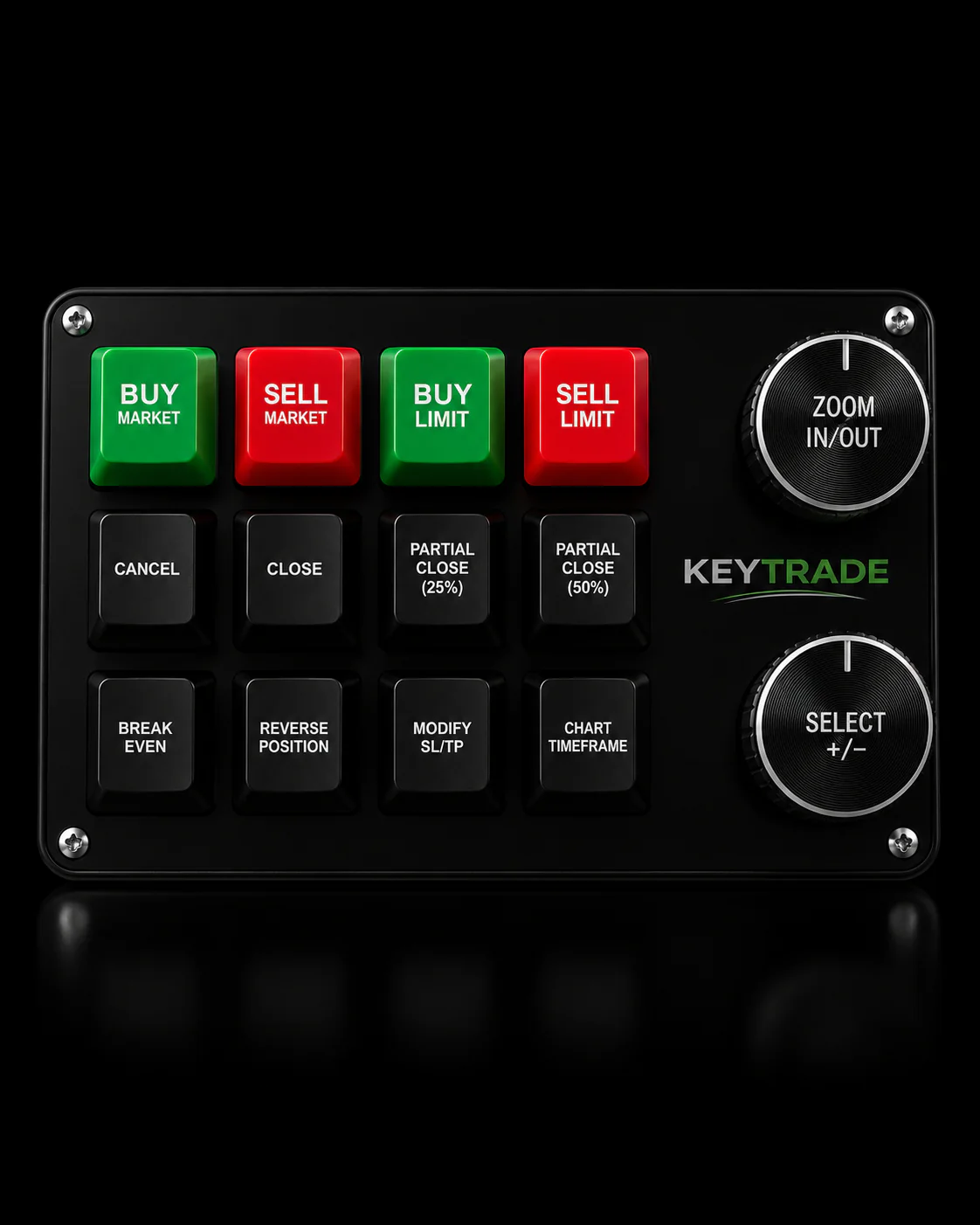
For a prop desk running multiple traders on similar setups, that consistency matters more than it sounds. Every trader presses the same physical button for the same action, every time, which cuts reaction time and removes the guesswork software shortcuts still carry.
Why Trail Increment Discipline Matters More Than Trail Amount
Most trailing stop advice online obsesses over trail amount, the percentage or dollar distance, and barely mentions trail increment. That’s backwards. A well-chosen trail amount with no increment set will still flood your platform with updates on every tick, and in a fast-moving stock that’s exactly when you need your order infrastructure to be reliable, not backed up.
The bigger blind spot is testing. Traders will tune a trail amount for an hour and then deploy the hotkey live without ever confirming it behaves the same way during a gap or a thin-liquidity print. Simulator-first testing isn’t a formality. It’s where you find out your “auto-attach” hotkey actually requires a second keypress, or that your emergency flatten button is buried behind a multi-key combo you can’t hit fast enough when it counts.
If there’s one thing worth prioritizing above parameter tuning, it’s separating the physical action of executing a hotkey from the cognitive load of remembering it. That’s where hardware earns its place in a serious setup, not as a novelty, but as a way to make the correct action the only easy action.
— key-trade
A Physical Way to Execute Your Trailing Stop Hotkeys
A professional trading keyboard turns the workflow above into physical buttons instead of memorized key combinations. Attach trailing stop, move to breakeven, partial close, and the emergency flatten-and-cancel action each get their own dedicated key, mapped to the platforms this article covers, including TradingView, MetaTrader 4 and 5, NinjaTrader, and Tradovate.

That separation matters most in the moment you least want to think about hotkey syntax: a fast reversal, a gap, a position you need out of now. A keypad enforces the same sequence every time, which is exactly the discipline this article argues for.
If you want to test that before committing size to it, run the same simulator checklist above using the device on a demo account first. The Key-Trade Professional Trading Keyboard starts at $59 and ships worldwide, and the full collection of Key-Trade keypads covers setups for different platform combinations.
Where to Verify Trailing Stop Hotkey Details
Confirm trigger rules and market hours directly with Investor and your platform’s own hotkey documentation before trading live. For sizing trail distance against real volatility rather than a guess, CR Equity’s read on market noise is a useful outside perspective.
Sources
FAQ
How Do I Enter a Trailing Stop Using a Hotkey?
Bind a hotkey to an “attach trailing stop” or “Auto Trailing Stop” action in your platform’s hotkey settings, then set a default trail amount and trail increment before saving. Test the hotkey in your platform’s simulator to confirm it attaches correctly to the active order window, since most platforms submit hotkey actions to whichever window has focus, per NinjaTrader’s hotkey documentation.
What Does a 25% Trailing Stop Mean?
A trailing stop set at a certain percentage sets your stop price that percentage below the highest price your position has reached since entry (or above the lowest price on a short). If the stock keeps rising, the stop rises with it; if the stock drops by that percentage from its peak, the stop triggers, though the actual fill can land below that level in a fast-moving market.
What Are the Most Common Mistakes With Trailing Stops?
The biggest ones are trailing too tight for the instrument’s normal volatility, forgetting to set a trail increment, and leaving orphaned bracket orders working after a flatten action. Traders also frequently assume trailing stops trigger outside regular market hours, when most brokers only monitor them during the standard session, as Fidelity’s conditional orders guide notes.
What Is the Best Method for Setting a Trailing Stop?
There’s no single best method, but sizing your trail amount off the Average True Range gives you a volatility-adjusted distance that scales across different instruments instead of using one flat number everywhere. Pair that with a trail increment to control update frequency, and verify both in simulation before trading live, an approach supported by Investopedia’s trailing stop guide.
Does Key-Trade’s Keypad Work With My Trailing Stop Hotkeys?
The Key-Trade Professional Trading Keyboard maps to trailing stop, breakeven, partial close, and flatten-and-cancel actions across platforms including TradingView, MetaTrader 4 and 5, NinjaTrader, and Tradovate. Pricing starts at $59 on the Key-Trade product page.