

TradingView Hotkeys That Actually Speed Up Your Trading
Here are the TradingView hotkeys that will speed up your chart navigation and order execution immediately: arrow keys to scroll, Ctrl/Cmd + scroll to zoom, Alt/Option + T for a trendline, Alt/Option + A for an alert, and Shift + B or Shift + S to fire a market order.
- Move one bar left/right: Arrow keys (same on Mac and Windows)
- Jump further left/right: Ctrl + Arrow (Windows) / Cmd + Arrow (Mac)
- Zoom in/out on price: Ctrl + scroll (Windows) / Cmd + scroll (Mac)
- Reset chart view: Alt + R (Windows) / Option + R (Mac)
- Draw a trendline: Alt + T / Option + T
- Open indicator search: “/” (forward slash)
- Take a chart snapshot: Alt + S / Option + S
- Create an alert: Alt + A / Option + A
- Place a market buy: Shift + B
- Place a market sell: Shift + S
The full, categorized reference lives inside TradingView itself, organized by Chart, Indicators, Watchlist, Screener, Pine Editor, Trading, and Alerts on the official TradingView shortcuts page.
Key Takeaways
Learning eight to ten core TradingView hotkeys and pairing them with a dedicated hardware keypad for order execution reduces both wasted time and accidental trade errors.
| Point | Details |
|---|---|
| Master the essential eight | Chart navigation, zoom, trendline, alert, and buy/sell hotkeys cover most daily chart work. |
| Watch keyboard focus | Order hotkeys like Shift + B fire instantly, so check where your cursor sits before typing. |
| Use the desktop app for tabs | Ctrl/Cmd + number and Ctrl/Cmd + T only work in TradingView’s standalone app, not the browser. |
| Remap through the “?” menu | Custom shortcuts save to your account and sync across devices you log into. |
| Pair hardware for execution risk | A Key-trade keypad separates high-risk actions like partial closes from your typing keyboard. |
Table of Contents
- TradingView Keyboard Shortcuts for Chart Navigation and Zoom
- What Are the Drawing-Tool Hotkeys for Trendlines and Fibonacci?
- How Do You Scan a Watchlist Using Only the Keyboard?
- Which Pine Editor Shortcuts Speed Up Script Testing?
- What Are the Order and Trading Hotkeys in TradingView?
- Desktop App vs Browser: What Extra Hotkeys Do You Get?
- How Do You View and Remap Hotkeys in TradingView?
- When Hotkeys Aren’t Enough: Pairing a Keypad with TradingView
- Shortcuts for Managing Alerts Beyond Just Creating Them
- Can You Save Custom Hotkey Profiles in TradingView?
- Do TradingView Keyboard Shortcuts Work on Mobile?
- Combining Shortcuts Into Faster Trading Sequences
- Publisher Perspective: Why We Emphasize Execution Speed
- A Physical Keypad Built for TradingView Users
- Sources
- FAQ
TradingView Keyboard Shortcuts for Chart Navigation and Zoom
Chart navigation shortcuts are where TradingView hotkeys pay off the most, because you use them dozens of times an hour without thinking about it. A single arrow key press moves you one bar at a time, which is precise but slow when you need to scan months of price history. Holding Ctrl (Windows) or Cmd (Mac) while pressing the arrow jumps you across bigger chunks of the timeline instead, and Shift + Arrow steps through TradingView’s bar replay mode one candle at a time, which is the fastest way to backtest a setup by eye.
Zooming works the same way: Ctrl/Cmd + scroll wheel zooms in on whatever price level your cursor sits on, rather than zooming from the center of the chart. That distinction matters when you’re studying a specific reaction at a support level.
| Action | Windows | Mac |
|---|---|---|
| Move one bar | Arrow key | Arrow key |
| Jump across history | Ctrl + Arrow | Cmd + Arrow |
| Replay bar-by-bar | Shift + Arrow | Shift + Arrow |
| Zoom at cursor | Ctrl + scroll | Cmd + scroll |
| Switch chart tab | Tab | Tab |
| Jump to layout | Ctrl + [1-9] | Cmd + [1-9] |
You can also skip the search menu entirely by just typing a ticker symbol while a chart is focused, and pressing a number key while an indicator or drawing is selected often cycles through quick settings. If you run a multi-chart layout, Tab moves focus between panes and Ctrl/Cmd + a number switches between saved layouts, which beats clicking through the layout dropdown every time you rotate watchlists.
What Are the Drawing-Tool Hotkeys for Trendlines and Fibonacci?
Every core drawing tool in TradingView has an Alt/Option-based shortcut, and memorizing them turns chart annotation from a mouse hunt into a two-key motion. According to TradingView’s own shortcut list, the main mappings are:
- Trendline: Alt + T (Windows) / Option + T (Mac)
- Horizontal line: Alt + H / Option + H
- Vertical line: Alt + V / Option + V
- Fibonacci retracement: Alt + F / Option + F
- Cross-line (crosshair marker): Alt + C / Option + C
- Delete selected drawing: Delete or Backspace
- Copy/paste a drawing: Ctrl + C / Ctrl + V (Cmd on Mac)
- Select multiple drawings: Shift + click each one
Holding Shift while dragging a line temporarily snaps it to a fixed angle or activates magnet mode against nearby price points, which is useful when you want a trendline locked to exact wicks rather than eyeballing it.
Pro Tip: Commit Alt + T, Alt + H, and Alt + F to muscle memory before anything else on this list. Trendlines, horizontal support/resistance lines, and Fibonacci retracements cover the vast majority of technical annotation, and drawing them without reaching for the toolbar keeps your eyes on price instead of the sidebar.
How Do You Scan a Watchlist Using Only the Keyboard?
Add the symbol currently on your chart to your watchlist with Alt + W (Option + W on Mac), no mouse required. Once you’re inside the watchlist panel, arrow keys or the space bar move you to the next or previous symbol, and Alt + Enter (Option + Enter) flags or unflags a symbol for later review.
The behavior to watch for is focus. If your cursor is sitting in the chart itself, these keys control the chart. If focus has shifted to the watchlist panel, the same keys navigate the list instead. Clicking once into the panel before using arrow keys avoids the mixup.
A fast five-symbol scan looks like this:
- Click into the watchlist to set focus, then press the down arrow to load the first symbol.
- Scan the chart for a few seconds, flag anything worth revisiting with Alt/Option + Enter.
- Press the down arrow again to move to the next symbol without touching the mouse.
- Repeat for symbols three through five.
- Open your flagged list at the end to review only the setups worth a second look.
That routine turns a ten-minute premarket scan into something closer to ninety seconds once it’s automatic.
Which Pine Editor Shortcuts Speed Up Script Testing?
Writing and testing Pine Script involves a repetitive loop: edit, compile, check the console, edit again. Ctrl + Enter (Cmd + Enter on Mac) compiles your script directly from the editor, which is the single most-used shortcut for anyone building custom indicators. Ctrl + S saves your script, Ctrl + O opens a saved one, and Ctrl + ``` toggles the console panel where compile errors show up.
- Compile script: Ctrl + Enter / Cmd + Enter
- Save script: Ctrl + S / Cmd + S
- Open script: Ctrl + O / Cmd + O
- Toggle console: Ctrl + ``` / Cmd + ```
- Multi-cursor editing: Alt + click multiple lines (Option + click on Mac)
- Jump to line: Ctrl + G / Cmd + G
Multi-cursor editing lets you change the same variable name across several lines at once instead of using find-and-replace, which is faster once a script gets past 50 or so lines. If you write or tweak indicators even occasionally, binding compile to reflex is worth the ten minutes it takes to get used to it.
What Are the Order and Trading Hotkeys in TradingView?
Order execution hotkeys are the highest-stakes shortcuts on this whole list, because a stray keystroke here can open a real position. Shift + B places a market buy and Shift + S places a market sell, both firing instantly with no confirmation dialog by default. Alt + A (Option + A on Mac) opens the alert creation panel from wherever you’re looking on the chart.
- Market buy: Shift + B
- Market sell: Shift + S
- Create alert: Alt + A / Option + A
- Open order panel: Click the buy/sell buttons on the DOM. No default hotkey maps directly to DOM ladder clicks
- Cancel pending orders: Escape, when the order ticket is focused
Because these keys fire without a confirmation step, focus matters enormously. If your cursor happens to be sitting on the chart instead of a text field when you type “s” for something unrelated, you can trigger a sell you didn’t intend. Get in the habit of glancing at where your cursor is before touching Shift + B or Shift + S.
Pro Tip: Test every order hotkey on a demo account or a funded prop firm’s simulator before you ever use them on a live account. Ten minutes of deliberate misfires in a sandbox is a lot cheaper than one accidental market order in a real book.
Desktop App vs Browser: What Extra Hotkeys Do You Get?
The TradingView desktop app adds a layer of shortcuts the browser version simply doesn’t have. Ctrl + [number] (Cmd + [number] on Mac) jumps between open tabs, Ctrl + T opens a new tab, and Ctrl + Shift + T duplicates your current chart tab entirely, according to TradingView’s desktop app documentation.
- Switch between tabs: Ctrl + [1-9] / Cmd + [1-9]
- Open new tab: Ctrl + T / Cmd + T
- Duplicate current tab: Ctrl + Shift + T / Cmd + Shift + T
- Close tab: Ctrl + W / Cmd + W
These app-level shortcuts don’t work in a browser tab because they’d collide with the browser’s own tab controls, which is exactly the kind of conflict that trips people up. If a shortcut you know from the desktop app suddenly stops working, check whether you’re actually running TradingView inside Chrome or Firefox instead of the standalone app. Multi-monitor traders in particular benefit from the desktop app’s tab system, since it keeps layouts organized outside the browser’s own window management.
How Do You View and Remap Hotkeys in TradingView?
TradingView keeps its shortcut reference and remapping tool one click away from any chart, and setting up a custom hotkey setup takes about two minutes.
- Click the “?” help icon in the bottom right corner of any chart, or open the hamburger menu and look for Keyboard Shortcuts.
- Browse shortcuts by category (Chart, Trading, Alerts, and so on) in the panel that opens.
- Click any listed shortcut to remap it to a different key combination.
- Save your changes. Custom mappings sync to your TradingView account, so they follow you across devices when you log in.
- Export or note your custom mappings somewhere separate, since a browser reset or a switch to an embedded TradingView widget (which doesn’t include the on-site shortcut dialog, per the charting library documentation) can leave you without access to that remapping screen.
When Hotkeys Aren’t Enough: Pairing a Keypad with TradingView
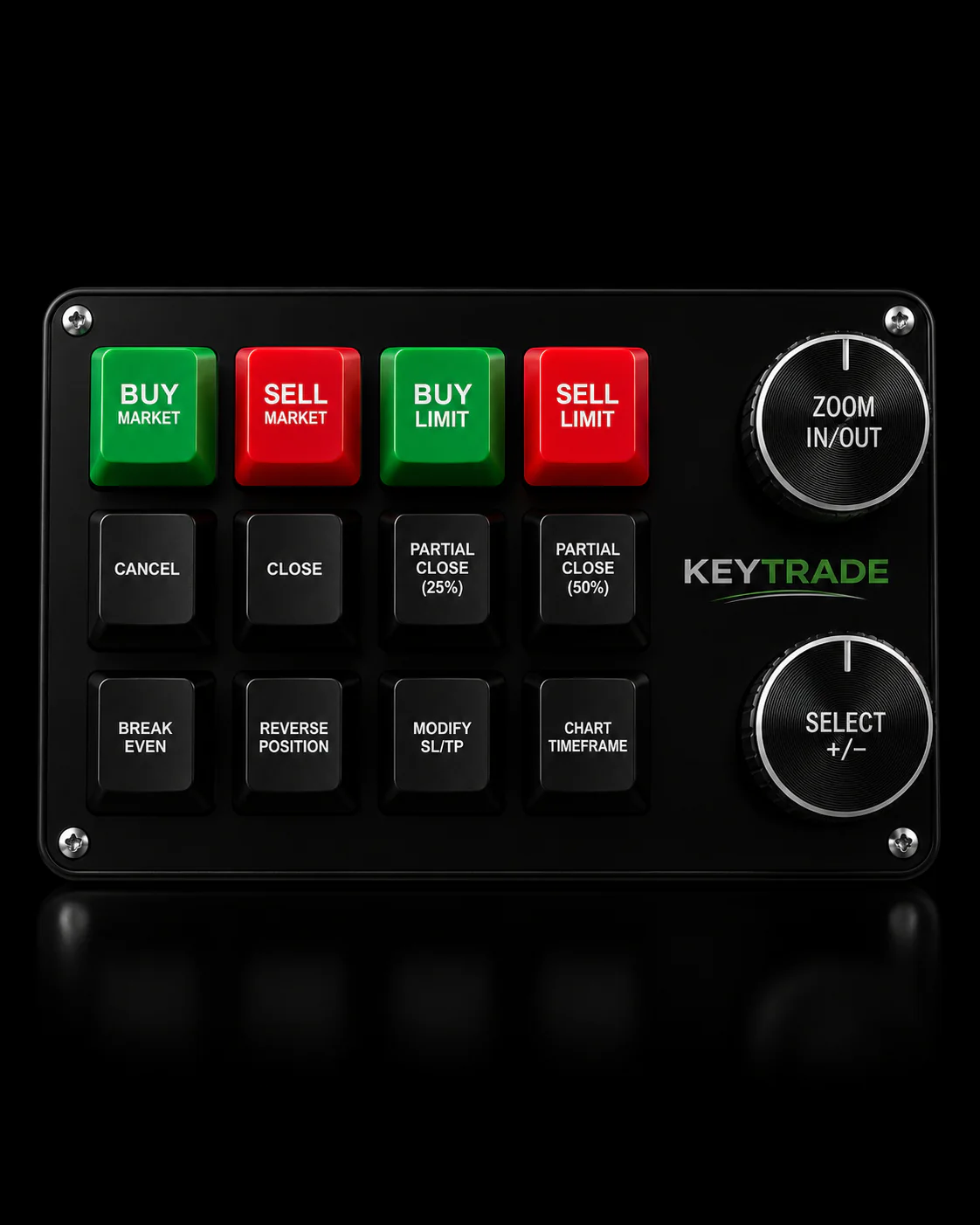
Keyboard hotkeys have a ceiling. Every key still competes with typing, chatting, or scrolling through a watchlist, and a mistimed keystroke on a crowded keyboard is how accidental orders happen. A dedicated physical keypad separates trading actions from typing entirely: programmable buttons for partial closes, one-touch break-even, or a scaled entry sit apart from your regular keyboard, so a trading command can never collide with a stray keystroke elsewhere.
- Map repetitive actions to hardware: partial close, move to break-even, scale-out
- Keep flexible actions on software hotkeys: drawing tools, chart navigation, alerts
- Combine both: hardware for execution, keyboard for analysis
Pro Tip: Assign your highest-risk actions, like closing a position or reversing a trade, to a dedicated physical button rather than a keyboard combo. Pairing hardware with hotkeys reduces the chance of a fat-finger error during a fast-moving trade, which is exactly why traders reach for programmable keypads once their order flow speeds up.
Shortcuts for Managing Alerts Beyond Just Creating Them
Placing an alert is only step one. TradingView also gives you keyboard-friendly paths for editing, toggling, and clearing alerts once they’re live, though a few of these require you to open the Alerts panel first rather than acting straight from the chart.
Once you’re inside the Alerts panel (accessible from the bell icon or the sidebar), arrow keys move between listed alerts the same way they do in the watchlist. Pressing Enter on a selected alert opens it for editing, letting you adjust the trigger price or condition without recreating it from scratch. A quick toggle click or spacebar press on a selected alert switches it between active and paused, which matters if you want to silence a level temporarily without losing the setup.
Deleting is handled the same way as drawings: select the alert, press Delete or Backspace, and confirm if prompted. If you manage a large book of alerts across multiple symbols, working through this panel with arrow keys and Enter is noticeably faster than clicking each one open individually, especially when you’re clearing out alerts after a big move has already played out.
One habit worth building: review and prune stale alerts at the end of each week using this same keyboard flow. Alerts left over from an old thesis clutter the panel and make it harder to spot the ones that actually matter, and a two-minute keyboard-only cleanup keeps that list honest.
Can You Save Custom Hotkey Profiles in TradingView?
TradingView doesn’t offer multiple named hotkey “profiles” the way some professional execution platforms do, but it does save your remapped shortcuts to your individual account permanently. Once you customize a key combination through the Keyboard Shortcuts panel, that mapping persists across sessions and follows you to any device where you log into the same TradingView account, whether that’s your desktop app at home or a browser tab at the office.
That account-level persistence is effectively your one hotkey profile, and it’s worth treating it deliberately rather than remapping keys ad hoc. Decide up front which actions you use constantly (drawing tools, alerts, order placement) versus which ones you rarely touch, and only remap the high-frequency ones. Overloading dozens of custom combinations makes them harder to remember than the defaults you started with.
If you switch between a personal account and a funded prop firm’s TradingView integration, remember that hotkey customizations tied to your login won’t automatically transfer to a different account or a colleague’s setup. Keeping a simple written note, even just a text file, of your custom mappings means you can rebuild your setup quickly on a new machine or after a browser reset. This matters more than it sounds like it should: traders who invest an afternoon dialing in a custom layout often forget the exact combinations six months later when they get a new laptop.
Do TradingView Keyboard Shortcuts Work on Mobile?
No, not in the way desktop users expect. TradingView’s mobile app for iOS and Android is built around touch gestures rather than physical key combinations, since phones and tablets don’t have a hardware keyboard by default. Pinch to zoom replaces Ctrl/Cmd + scroll, swiping left and right replaces the arrow-key chart scroll, and tapping the drawing toolbar icon replaces Alt/Option + T for a trendline.
If you connect an external Bluetooth keyboard to a tablet running the TradingView app, some basic navigation may respond to keystrokes, but this isn’t officially documented or guaranteed to match desktop behavior, and TradingView doesn’t market or support a mobile hotkey list the way it does for the browser and desktop app. Treat any keyboard response on mobile as a bonus, not a workflow you should build around.
For traders who genuinely need speed on the go, the practical alternative is TradingView’s mobile alert system combined with one-tap order execution from the app’s own trading panel. Set alerts using your desktop hotkey workflow (Alt/Option + A), then let mobile push notifications do the watching while you’re away from a keyboard. When a notification fires, the mobile app’s touch-based order ticket takes over from there. It’s slower than a Shift + B on desktop, but it closes the gap for anyone managing risk between meetings or during a commute.
Combining Shortcuts Into Faster Trading Sequences
The real productivity gain from TradingView hotkeys doesn’t come from knowing any single shortcut. It comes from chaining two or three together into a sequence you run without thinking, the same way a touch typist doesn’t think about individual letters anymore.
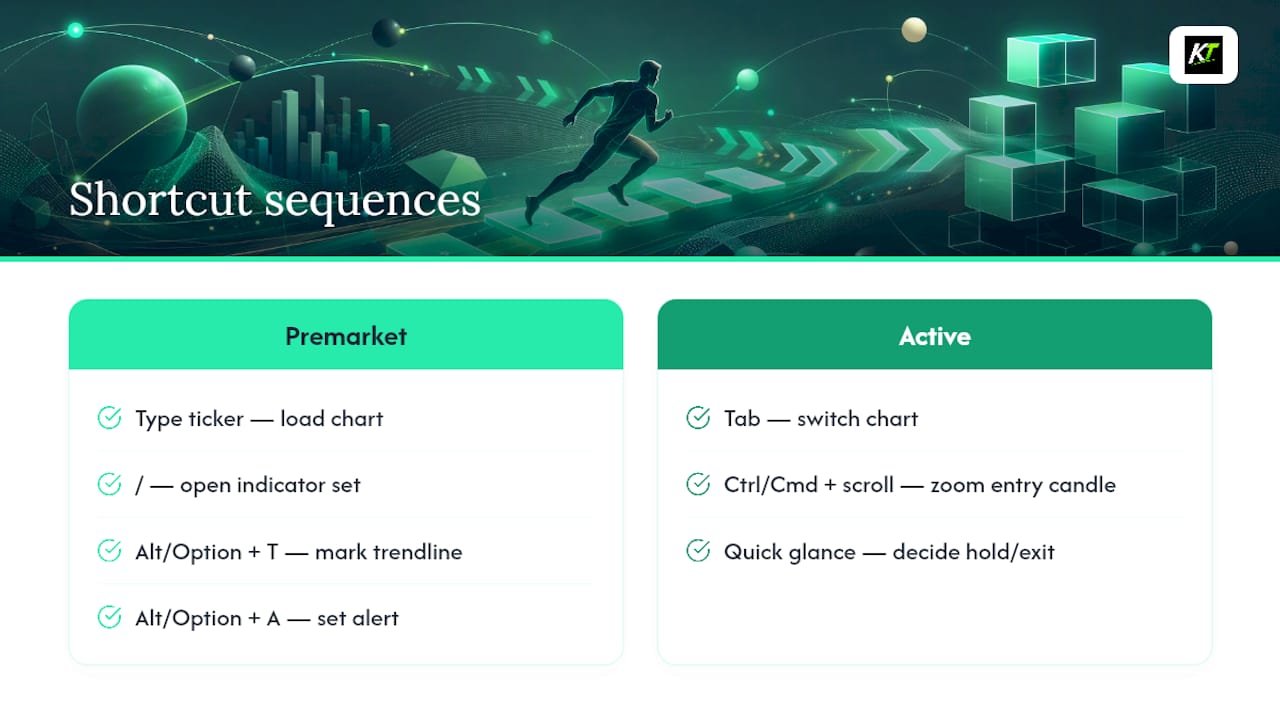
A typical premarket sequence might look like this: type a ticker to load the chart, press “/” to pull up your standard indicator set, Alt/Option + T to mark the key trendline from the prior session, then Alt/Option + A to set an alert at the level you just drew. That’s four actions and maybe six seconds, done entirely without touching the mouse. Compare that to hunting through toolbar menus for each step, which easily takes thirty seconds or more per symbol, and the gap compounds fast across a twenty-symbol watchlist.
The same logic applies during active management. Reviewing an open position could mean Tab to switch to that chart, Ctrl/Cmd + scroll to zoom into the entry candle, then a quick glance at price action before deciding whether to hold or exit. None of these individual keys are impressive on their own. The advantage shows up in how little friction sits between “I see something on the chart” and “I’ve acted on it.”
A short daily practice window, even ten to fifteen minutes focused on five or six of your most-used combinations, tends to build this kind of fluency faster than trying to memorize the entire shortcut list at once. Pick the sequence you run most often, whether that’s chart setup, alert creation, or order placement, and drill just that one until it’s automatic before adding the next.
Publisher Perspective: Why We Emphasize Execution Speed
Speed without control is how good setups turn into bad fills. Key-trade builds around that balance, and reliable execution is what we design toward.
— key-trade
A Physical Keypad Built for TradingView Users
Once you’re running through Shift + B, Alt + A, and Ctrl/Cmd + scroll dozens of times a session, the next bottleneck isn’t your knowledge of the shortcuts. It’s a keyboard shared between typing, chat, and trading commands, where every action competes for the same keys.

A Key-trade trading keyboard gives your highest-stakes actions their own dedicated buttons, separate from anything you type. Partial closes, break-even moves, and order reversals get mapped to hardware that only does one thing, so a stray keystroke elsewhere on your desk can never accidentally trigger a trade. It’s built to integrate with TradingView alongside MetaTrader 4 and 5, cTrader, NinjaTrader, SierraChart, Thinkorswim, and Tradovate, so switching platforms doesn’t mean relearning your execution setup. If you already trade fast enough to feel your keyboard getting in the way, check compatibility and shipping details on the Key-trade site and see whether a dedicated keypad fits your current setup.
FAQ
What Are All the Keyboard Shortcuts in TradingView?
TradingView organizes its full shortcut list by category (Chart, Indicators and drawings, Watchlist, Screener, Pine Script Editor, Trading, and Alerts) inside its official support page, which stays more current than any third-party summary.
What Are 10 Shortcut Keys Worth Learning First?
Arrow keys to move bars, Ctrl/Cmd + Arrow to jump further, Ctrl/Cmd + scroll to zoom, Alt/Option + T for trendlines, Alt/Option + H for horizontal lines, “/” to open indicators, Alt/Option + S for a snapshot, Alt/Option + A for an alert, and Shift + B and Shift + S for market orders.
How Do You Assign Hotkeys in TradingView?
Open the “?” help icon on any chart or find Keyboard Shortcuts in the main menu, click the shortcut you want to change, enter your new key combination, and save. Your custom mapping syncs to your account across devices.
What Are the Keyboard Shortcuts for Drawing in TradingView?
The core drawing shortcuts are Alt/Option + T for trendline, Alt/Option + H for horizontal line, Alt/Option + V for vertical line, Alt/Option + F for Fibonacci retracement, and Alt/Option + C for a cross-line, with Shift held while dragging to toggle magnet or angle constraints.
Do TradingView Hotkeys Work the Same on Mac and Windows?
Almost identically. Windows uses Ctrl and Alt where Mac uses Cmd and Option, and the rest of the key combinations carry over directly between both systems.