

Never Misfire SL/TP: Platform First Hotkey Setup and Tests
Yes, you can set Stop Loss and Take Profit through hotkeys on every major platform traders actually use. The fastest path is to record a hotkey in your platform’s native configuration menu, or attach a script that auto applies SL/TP the moment a position opens. Test the setup on a demo account before you trust it with real money.
TL;DR:
- Hotkeys for setting stop loss and take profit can be customized on major trading platforms, but the method and depth of control vary significantly.
- Interactive Brokers offers the most granular native hotkey control, allowing users to assign specific actions with modifier keys, while MetaTrader 5 relies on scripts or Expert Advisors for advanced SL/TP placement.
- TradingView provides limited direct hotkey functions for SL/TP, mainly focusing on chart interactions, and cTrader uses cBots for automation, with dedicated hotkeys for key trading actions.
- Scripts and Expert Advisors can automate bulk updates to SL and TP levels across multiple positions, but require proper setup, filtering, and testing on demo accounts before live use.
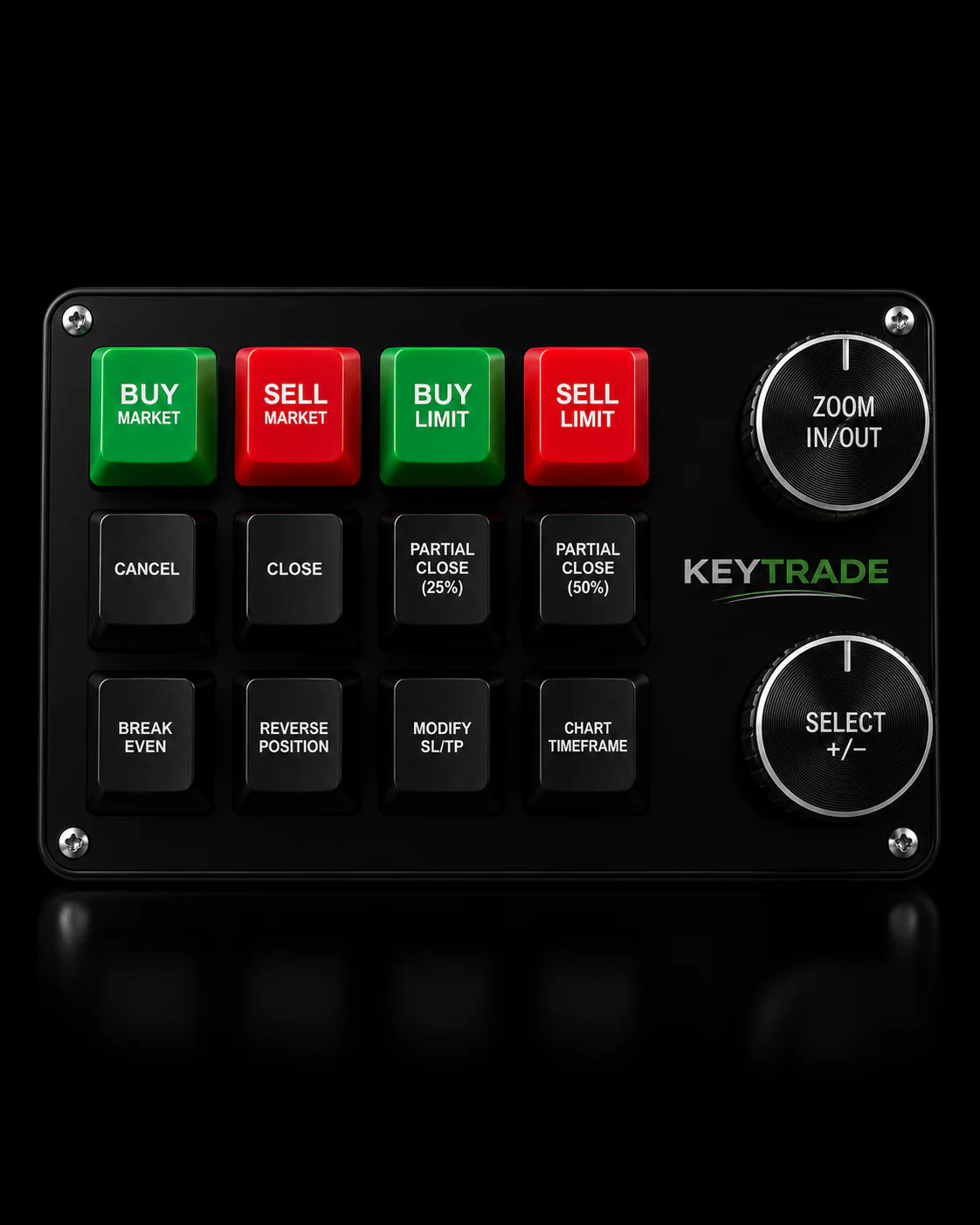
- A physical trading keypad enhances speed and accuracy in stressful conditions by providing dedicated, labeled keys for common trading actions, reducing mis-presses compared to software hotkeys.
Table of Contents
- How Do You Set SL TP Hotkeys on Major Platforms?
- Scripts and Expert Advisors That Automate SL/TP Placement
- How Should You Name and Map Your Hotkeys?
- What Should Your Demo Testing Checklist Include?
- An Intraday Trader’s Hotkey Workflow
- A Tactile Backup for When Keyboard Shortcuts Aren’t Enough
- Sources
- FAQ
How Do You Set SL TP Hotkeys on Major Platforms?
Every platform handles hotkey mapping a little differently, but the logic is the same everywhere: pick an action, record a keystroke, confirm it fires correctly before you rely on it in a live session.
Interactive Brokers (TWS) gives you the most granular control of the group. Go to Edit, then Global Configuration, then Hotkeys. Choose a “Possible Action” (Buy, Sell, Add Auto Stop, Auto Trailing Stop), click Record, then press your keystroke combination. TWS reserves certain keys system wide, so you’ll need a modifier like Ctrl or Shift paired with a letter for anything custom. A common setup: Ctrl+T for Auto Trailing Stop, Ctrl+B for a bracket buy, Ctrl+F to flatten a position. The TWS User’s Guide walks through the full recording flow if you want to see every available action type.
MetaTrader 5 ships with a short list of built-in shortcuts, F9 for a new order among them, but native hotkey coverage for SL/TP specifically is limited. Real speed comes from attaching a script or Expert Advisor to your chart. Drop the file into the MQL5/Scripts (or Experts) folder, compile it in MetaEditor, then drag it onto the chart. From there, a single keypress or button click can apply a preset SL/TP to your open position. The MetaTrader 5 documentation confirms that scripts and EAs can extend the platform’s native action set well beyond what ships out of the box.
TradingView publishes its full keyboard shortcuts list on its support site, and while chart hotkeys can place orders and interact with drawing tools, direct SL/TP-by-hotkey is less flexible than on desktop platforms like TWS or MT5. Stick to the platform’s documented shortcut set and avoid remapping keys the chart already reserves. Doing so causes silent conflicts where your keystroke does nothing, or worse, triggers the wrong tool.
cTrader leans on its cBot ecosystem for these kinds of automation. A tool like Hotkey Trader + Auto TP/SL maps common actions to single keys: L to go long, S to go short, F to flatten, R to move a position to risk-free. Auto TP/SL modes can apply to the whole position or a single transaction, with values set in pips, percent, or account currency.
Here’s what a typical mapped hotkey set looks like across these tools:
- Ctrl+T (TWS): attach an Auto Trailing Stop to the active order
- F9 (MT5): open a new order ticket instantly
- L / S (cTrader cBot): open long or short with pre-set risk parameters
- F (cTrader cBot): flatten all open positions immediately
- R (cTrader cBot): move the stop to break-even
Most active desktop platforms support hotkey-driven order actions in some form, but the depth of native SL/TP control varies sharply. TWS and cTrader (via cBots) offer the deepest native or near-native coverage; TradingView’s browser-based architecture keeps its hotkey scope narrower by design.
Scripts and Expert Advisors That Automate SL/TP Placement
Native hotkeys handle single trades well. They start to break down when you’re managing five open positions and need to shift every stop at once. That’s where scripts, EAs, and cBots earn their keep.
On MT5, community scripts like Modify SL TP style utilities expose inputs such as StopLoss points, TakeProfit points, and a delay setting for newly opened trades. Run the script, and it applies your predefined values to matching positions in one action rather than one ticket at a time. The MQL5 code base hosts several examples that demonstrate exactly this kind of fixed pip based SL/TP modification triggered by a single command. Some traders go further and build scripts that auto apply SL/TP the instant a position opens, removing the manual step entirely.
cTrader cBots offer a parallel structure, letting you choose between position level and transaction level SL/TP application, with values expressed in pips, percentage of account, or flat money amounts.
Before any of this touches a live account, verify these settings:
- Automated trading is enabled in your platform’s global options.
- DLL imports are allowed if the script or EA requires them.
- Magic number or order label filters are set correctly, since filtering by magic number prevents a script from accidentally modifying trades placed by a different tool or a copy-trading service running on the same account.
- Default SL/TP values match your actual risk tolerance, not the script’s factory defaults.
Pro Tip: Run every new script or EA on a demo account for at least a full session before going live. A misconfigured delay setting or an unfiltered magic number can silently touch positions you never meant it to.
How Should You Name and Map Your Hotkeys?
A messy hotkey layout is how traders fat-finger a flatten command during a fast move. Interactive Brokers’ own training material recommends separating platform controls from order entry hotkeys specifically to cut down on accidental destructive actions.
Here’s a simple system that holds up under pressure:
- Group by category first. Keep “order entry,” “risk controls,” and “platform controls” as three separate mental buckets, and never let their key combinations overlap.
- Reserve modifier combos for anything that touches money. Ctrl+Shift+letter for order entry and SL/TP changes; plain single letters only for safe actions like chart navigation.
- Map mnemonically. T for trailing stop, B for break-even, F for flatten. A key that matches the word is a key you won’t second-guess at 9:32 AM.
- Add a confirmation prompt to anything destructive, and keep one dedicated “panic” key that does nothing but flatten everything, unmapped to anything else.
Pro Tip: If two hotkeys ever start with the same modifier and sit on adjacent keys on your keyboard, move one. Muscle memory fails first under stress, and adjacent keys are exactly where slips happen.
What Should Your Demo Testing Checklist Include?
Run this sequence before any hotkey setup touches a funded account: record the hotkey, fire a simulated entry, confirm the SL and TP both appear correctly, then cross check the trade log against your broker’s server-side record if that option exists.
A few failure modes catch traders off guard. Client-side scripts and EAs depend on the platform staying open and connected; if your connection drops or your computer sleeps, that automation stops running even though your position stays open in the market. Confirmation dialogs can also block a hotkey from completing its action, which defeats the entire point of speed.
Mitigate these risks directly:
- Disable sleep mode on your trading machine during market hours.
- Enable auto-attach options wherever the platform offers them.
- Favor broker-side bracket orders over client-side scripts whenever latency actually matters, since a server-attached stop survives a local disconnect that would kill a script-based one.
- Add visual confirmation or a log entry every time a hotkey fires, so you catch a misfire in seconds rather than minutes.
An Intraday Trader’s Hotkey Workflow
Before the open: load your hotkey profile, run one demo trade to confirm SL/TP still fires correctly, and set your default stop size for the session. Live, the routine gets simple. One key opens a position with SL/TP already attached. A second key trims half the size. A third, mapped and reserved for nothing else, flattens everything if the trade turns against you fast. Some traders add a physical keypad on top of this software layer specifically because a dedicated key is harder to miss under pressure than a keyboard combination buried among forty others.
— key-trade
A Tactile Backup for When Keyboard Shortcuts Aren’t Enough
Software hotkeys are fast, but a crowded keyboard under stress is exactly where mis-presses happen. A physical device with dedicated, labeled buttons removes that ambiguity: there’s no modifier combo to miscount when your panic key is its own physical button, separate from everything else on your desk.

The Key-Trade Professional Trading Keyboard is built around exactly that idea. It integrates with the platforms covered above (TradingView, MetaTrader 4 and 5, cTrader, and others), and its per-profile mapping lets you assign distinct physical keys to SL/TP attach, break-even, partial close, and flatten, so a fast market doesn’t leave you hunting for the right key combination. Pricing for the trading keyboard begins at an affordable one-time purchase price, rather than a subscription. As with any hotkey setup, run it through a demo session first to confirm your mapped keys do exactly what you expect before you bring it into a live account. Check the current lineup and specs on the product collection page to see which profile fits your platform.
Sources
- Configuring TWS hotkeys — Interactive Brokers Campus
- MetaTrader 5 help — Hotkeys
- TradingView — Keyboard shortcuts
- Modify Order SL TP — MQL5 Code Base
FAQ
Can You Set Hotkeys in TradingView?
Yes, TradingView supports keyboard shortcuts for chart navigation and several order actions, and it publishes its full list on its shortcuts support page. Direct SL/TP hotkey mapping is more limited than on desktop platforms like TWS, so check the current list before assuming a specific combination exists.
How Do You Assign a Hotkey for Trading?
Open your platform’s hotkey or global configuration menu, select the action you want to map (like Buy, Set Auto Stop, or Auto Trailing Stop), click Record, and press your chosen keystroke. Interactive Brokers documents this exact process in its TWS hotkey configuration guide, and MetaTrader and cTrader follow similar recording flows for scripts and cBots.
What Is the 3-5-7 Rule in Options Trading?
It’s a risk management framework separate from hotkey configuration, though the same discipline should inform the SL/TP values your hotkeys apply automatically.
Can You Set Both Stop Loss and Take Profit at the Same Time?
Yes, most platforms let you attach both SL and TP in a single action, whether through a native bracket order, a recorded hotkey, or a script that applies both values the moment a position opens. MT5 scripts and cTrader cBots both expose separate SL and TP input fields specifically so both levels get set in one keypress rather than two.
Should You Use a Physical Keypad Instead of Software Hotkeys?
A physical keypad isn’t a replacement for software hotkeys so much as a backup layer that reduces mis-press risk during fast markets. Devices like the Key-Trade Professional Trading Keyboard integrate with the same platforms you’d otherwise map manually, giving each critical action its own dedicated key.