

5 Quick Hedge Hotkeys to Map Before the Open, Platform and Keypad
A quick hedge hotkey is a single keystroke or keypad button that instantly opens an offsetting position or fires a risk-control action, letting you hedge exposure without touching a mouse. Every professional setup needs five of these mapped before the market opens: flatten (close everything), hedge/open offset, cancel-all working orders, move stop to breakeven, and staged partial close. Whether you trigger these from your platform’s own hotkey menu or a dedicated hardware keypad, the logic is identical: one press, one predictable action.
TL;DR:
- Proper hotkeys should be mapped before trading, with the flatten key kept separate from others to prevent accidental closures during high-stress situations.
- Hotkeys for actions like flattening, canceling orders, and moving stops to breakeven must be tested thoroughly in replay and paper accounts to avoid costly mistakes in live trading.
- Using dedicated hardware keypads can improve speed and reduce mispresses by keeping critical control buttons within a fixed, familiar reach.
- Setting hard quantity caps, requiring deliberate key combinations for emergency actions, and enabling confirmation prompts are essential safeguards against hotkey mishaps.
- Regular pre-market hotkey checks and clear printed mappings help prevent errors by ensuring correct setup and muscle memory development.
Table of Contents
- The Essential Quick-Hedge Hotkey Set (What to Map and Why)
- How to Program a Quick Hedge Hotkey on Trading Platforms and Hardware Keypads
- Risk Controls, Safeguards, and Safe Defaults for Hedge Hotkeys
- Testing, Rehearsal, and Deployment: From Paper to Live
- Why Hardware Keypads Speed Up Hedge Hotkey Execution
- A Pro Trader’s Note on Discipline and Muscle Memory
- Get a Keypad Built for Hedge Hotkeys, Not Just Keyboard Shortcuts
- Platform Docs and Hotkey Resources Worth Bookmarking
- Sources
- FAQ
The Essential Quick-Hedge Hotkey Set (What to Map and Why)
Order matters here. Some keys are for daily trade management, and one is purely for emergencies.
- Flatten / close all. This is your panic button. It closes every open position across an instrument or account in one press, and it should never share a key with anything else you touch during normal trading.
- Hedge / open offset. This fires an equal, opposite position without closing the original one, useful when you want to lock in current exposure while you decide whether to exit outright. Use it instead of flatten when you’re uncertain about direction but confident volatility is about to spike.
- Cancel all working orders. Clears every resting limit or stop order instantly. Pair this with flatten so a flatten press doesn’t leave orphaned orders sitting in the book.
- Move stop to breakeven. Shifts your protective stop to entry price the moment a trade moves in your favor, removing the temptation to “let it ride” past the point of free risk.
- Partial close (25/50/75%). Three separate keys, or one key with a quantity modifier, let you scale out in stages rather than dumping a full position at once.
For order logic, defaulting to limit orders with a small price offset rather than market orders protects you from bad fills during a volatility spike, the exact moment you’re most likely to be hammering a hedge key. Reserve market orders for the flatten key alone, where speed matters more than fill price.
Ergonomics decide whether these keys help you or hurt you. Flatten and cancel-all belong on keys your fingers can’t reach by accident, often a function key or a physically separated keypad button, never adjacent to your buy/sell keys. Partial-close and breakeven keys can sit closer together since you use them more often and with less urgency.
Pro Tip: Physically separate your flatten key from your entry keys by at least one full row. Adrenaline makes fingers sloppy, and the worst possible outcome is fat-fingering a flatten when you meant to add size.
How to Program a Quick Hedge Hotkey on Trading Platforms and Hardware Keypads
The workflow is the same no matter what software you run: define the exact action, pick the order logic behind it, build or record the hotkey, bind it to a physical key, then test it in a non-live environment before it ever touches real capital.
- NinjaTrader: Order-entry hotkeys must be enabled explicitly in the settings before any key does anything. NinjaTrader’s hotkey system is window-sensitive, meaning a hotkey only fires against whichever order-entry window currently has focus. You can record custom order actions and bind them directly to keys, which is how most traders build their flatten and partial-close commands.
- Interactive Brokers (TWS): TWS lets you record a hotkey for a specific order type and quantity, then choose whether it uses instantaneous transmit. Leave instantaneous transmit off while you’re building and testing a new hotkey; the key will stage the order without sending it, giving you a visual check before it goes live.
- MetaTrader: You can assign shortcuts to navigator elements and order windows, but assigned hotkeys can override MetaTrader’s predefined ones, and some remain context-sensitive to whichever window is active. Test every custom key against both the chart window and the order ticket separately.
- Hardware keypads: Most devices bind through standard USB HID mapping or vendor-supplied middleware, which lets you assign a physical button to a platform’s native keyboard shortcut. Check for OS-level conflicts (media keys, screenshot shortcuts) before assuming a button is free.
One practitioner guide found that a professional hotkey setup drops order entry time from several seconds to under 200 milliseconds, and traders using a core set of hotkeys showed measurably better execution outcomes in that same sample. Speed is the entire point of this exercise, but only once the mapping is verified correct.
Risk Controls, Safeguards, and Safe Defaults for Hedge Hotkeys
A hotkey that fires the wrong size or the wrong direction is worse than no hotkey at all, so build the guardrails before you build the speed.
- Set hard quantity caps. Most platforms let you define a max order size at the account level. Set it below your largest intended position so a hotkey misfire can’t exceed your real risk tolerance.
- Require deliberate combos for emergency keys. Flatten and cancel-all should demand two modifiers or a two-handed keystroke rather than a single tap, which cuts down on accidental activation during a stressful session.
- Keep instantaneous transmit off during testing. For any high-risk hotkey you’re still validating, leave the platform’s transmit setting so the order stages but doesn’t send, giving you one more chance to catch a mapping error.
- Enable confirmation prompts on critical actions. A one-second confirmation dialog on flatten costs you almost nothing in speed but stops a rogue keystroke from closing a winning trade.
- Keep a printed mapping on your desk. Platform documentation itself warns that hotkey misuse can trigger unexpected trades, and a physical reference sheet is the fastest way to catch a wrong assignment before it costs you money.
- Write down a rollback procedure. If a hotkey fires incorrectly, know in advance exactly which key reverses it, whether that’s a manual close or the hedge key itself.
Pro Tip: Run a daily two-minute hotkey checklist before the open, hitting each key once in a demo or replay window. It takes less time than pouring your coffee and it catches broken bindings before they cost you a trade.
Testing, Rehearsal, and Deployment: From Paper to Live
Never deploy a new hotkey straight into a live account. Move through stages, and don’t skip one just because a key “feels right” in isolation.
- Replay mode first. Fire every hotkey against historical data to confirm it does exactly what you designed it to do, with no surprises tied to active-window focus.
- Paper account second. Run a full session on a paper account, hitting each key under realistic market conditions rather than a static replay.
- Small-size live test third. Deploy with your smallest tradable size and confirm real fills match expectations, especially for the hedge/offset key.
- Ramp up gradually. Increase size only after several clean sessions with zero mapping errors.
Verify these specifics at every stage: which window has focus when the key fires, whether quantity logic matches your intent, exact stop placement after a breakeven trigger, that flatten closes everything with nothing orphaned, and that cancel-all actually clears the order book. Testing hotkeys in replay or paper mode before live deployment is standard practice for a reason. Budget two weeks: 30 minutes a day, roughly 50 repetitions per key, before you trust any of it under real pressure.
Why Hardware Keypads Speed Up Hedge Hotkey Execution
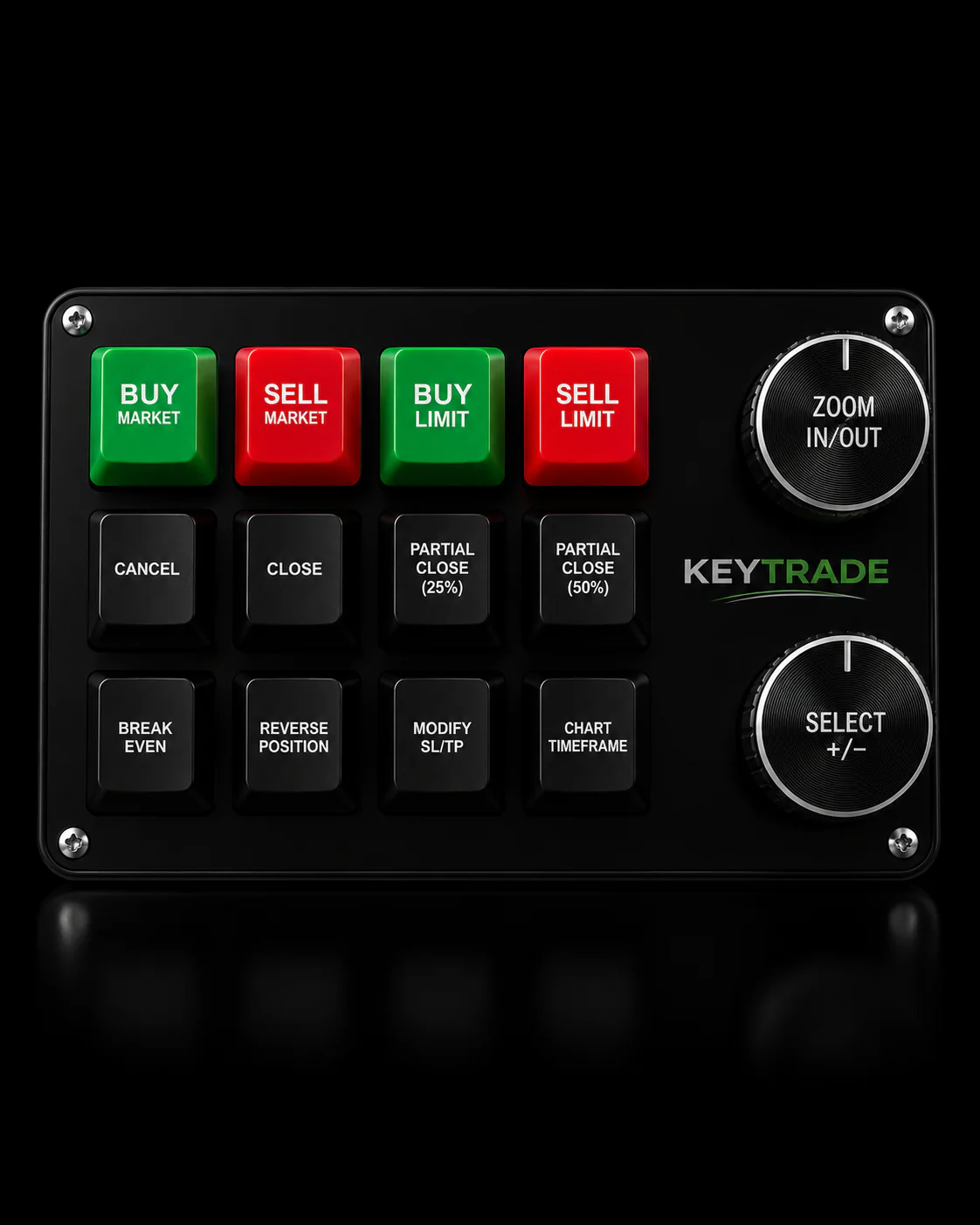
A standard keyboard forces your fingers to hunt across rows under stress, adding hesitation exactly when you can least afford it. Dedicated hardware keypads provide consistent tactile feedback and put every key within a fixed, memorized reach, cutting the finger travel that slows down a keyboard-only setup and reducing mispresses when your hands are shaking from adrenaline.
Certain trading keypad makers build their devices around this problem: physical buttons programmed for flatten, hedge, partials, and breakeven, wired for plug-and-play setup with no coding required. Such devices are often designed to work across popular platforms like TradingView, MetaTrader 4 and 5, cTrader, NinjaTrader, SierraChart, Thinkorswim, and Tradovate, with setup guides available for supported platforms.
A Pro Trader’s Note on Discipline and Muscle Memory
Hotkeys reward discipline more than speed. The two mistakes that show up again and again are placing flatten too close to an entry key, and skipping paper testing because a new mapping “feels obvious.” Both get fixed the same way: physical separation on the keypad, and a real replay session before size goes live. Set your defaults conservative, confirm every binding before the open, and let muscle memory build over days, not one lucky session. Speed without rehearsal is just a faster way to be wrong.
— key-trade
Get a Keypad Built for Hedge Hotkeys, Not Just Keyboard Shortcuts
A software hotkey is only as fast as the keyboard underneath it, and a laptop keyboard was never designed for split-second risk control. The Key-Trade Professional Trading Keyboard puts flatten, hedge, partials, and breakeven on dedicated physical buttons, wired for plug-and-play setup across the platforms covered in this guide, no coding required.

Before you buy, confirm three things: that your platform is on Key-Trade’s supported list, that the physical button layout matches how your hands actually move during a trade, and that setup support and warranty terms fit how you plan to use the device day to day. Pricing starts from a one-time purchase with no subscription attached. Check the full lineup and platform compatibility and get your hedge keys mapped before your next session.
Platform Docs and Hotkey Resources Worth Bookmarking
Consult the primary source for your platform before enabling live transmit on any new key: NinjaTrader’s hot key guide, Interactive Brokers’ TWS hotkey documentation, and MetaTrader 5’s hotkey help page. Instantaneous-transmit behavior and default key assignments vary by platform and even by version, so verify against current documentation rather than assuming last year’s settings still apply.
Sources
- Operations > Hot Keys > Trading with Hot Keys
- Hot Keys (Interactive Brokers TWS guide)
- Hotkeys | MetaTrader 5 terminal help
- Hot Keys for Day Trading: Speed Execution Setup Guide for Every Platform | TradeAlgo
- Trading Hot Keys: Speed Up Your Order Execution Time | DayTradingToolkit
FAQ
What Does a Quick Hedge Hotkey Actually Do?
It triggers a pre-programmed trading action, most often opening an offsetting position or flattening an account, with a single keystroke or keypad press. The goal is removing manual clicks from a decision you’ve already made in advance.
Should Flatten and Hedge Use the Same Key?
No. Flatten closes everything and should sit on its own isolated key, while the hedge key opens an offsetting position without closing anything. Mixing them onto one binding risks the wrong action firing under pressure.
Is a Hardware Keypad Better Than Platform-Native Hotkeys?
Both can execute the same actions, but a dedicated keypad puts every key within a fixed, memorized reach, cutting the hesitation that comes from hunting across a standard keyboard. Some hardware keypads are built specifically to improve key reachability, offering plug-and-play setup options across major trading platforms.
How Much Does the Key-Trade Keyboard Cost?
Current prices for the professional trading keyboards start from $59 as a one-time purchase, with no subscription fees. Full pricing and platform details are listed on the product collection page.
Do I Need to Test Hedge Hotkeys Before Going Live?
Yes, always. Run every new key through replay mode, then a paper account, then a small-size live test before trusting it with real capital, since platform documentation itself flags hotkey misuse as a real risk.