

Configuración de teclas programables de 30 minutos para evitar errores de ejecución para traders activos
Programmable keys for trading let you execute, cancel, and manage orders with a single keystroke instead of clicking through menus under pressure. The best first move is not buying hardware, it’s mapping three keys: emergency flatten, buy market, sell market, then testing them in a demo account before they ever touch a live order. Once those three work without hesitation, a device like the Key-Trade Professional Trading Keyboard turns that logic into physical muscle memory.
TL;DR:
- Mapping emergency flatten, buy market, and sell market keys first ensures you can quickly manage risks and execute trades without hesitation.
- A keypad with enough keys, tactile switches, wired connection, and relegendable or backlit keys improves speed, durability, and ease of use during volatile trading.
- Separating order-entry and management zones and using a physical layout that mirrors your mental model reduces errors during fast market movements.
- The Key-Trade Professional Trading Keyboard offers a ready-made, cross-platform solution with guided setup, designed to meet the critical hotkey and safety needs of active traders.
Table of Contents
- Which Hotkeys Should You Map First?
- What Hardware Features Actually Matter?
- How Do You Map Keys Without Fat-Fingering a Trade?
- How Do Programmable Keys Connect to Your Trading Platform?
- What Safety Checks Come Before You Trade Live?
- What Does a 30-Minute Setup Look Like?
- Who Actually Benefits From Hardware Keys?
- The Key-Trade Professional Trading Keyboard: Built for This Exact Checklist
- Sources
- FAQ
Which Hotkeys Should You Map First?
Not every hotkey deserves equal priority. Traders who rush to program forty buttons before nailing the four that actually save trades usually end up with a keypad full of shortcuts they never touch. Build in tiers instead.
Tier 1 covers the actions that protect capital when a trade goes wrong fast. According to NexusFi Academy’s breakdown of platform hotkeys, the essential set includes:
- Close position and cancel all working orders — your emergency exit, bound to one key you can hit without looking.
- Buy market — instant long entry at the best available price.
- Sell market — instant short entry or exit, mirrored on the opposite side of the keyboard.
- Cancel all working orders — clears resting limit and stop orders without touching your position.
Tier 2 handles trade management once you’re in a position: add to position, move stop to break-even, scale out a fixed percentage. Tier 3 covers convenience actions like basket toggles or switching between instrument watchlists.
Macro sequences let one key fire several steps, such as canceling an order, resizing, then placing a new one. That’s useful for basket trades, but stack too many conditional steps into one keystroke and you introduce a new failure mode: a macro that fires halfway.
Mnemonic placement matters more than people expect. Keep buy keys on the left of the pad and sell keys on the right, matching how most traders already think about long and short.
Pro Tip: Bind your emergency flatten key to something your hand can find blind, like a raised or oversized key. If you have to glance down to find it, you’ve already lost the seconds it exists to save.
What Hardware Features Actually Matter?
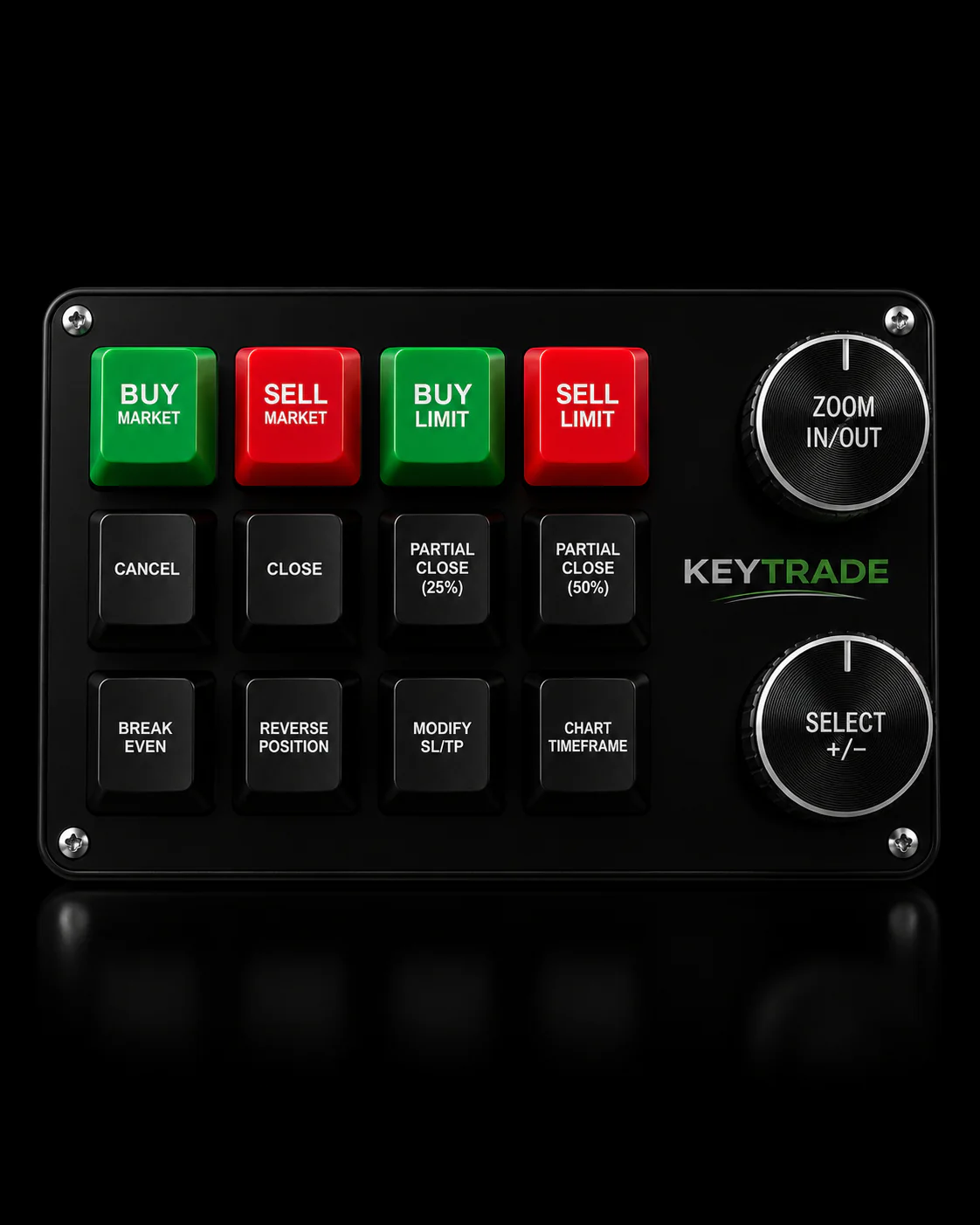
A trading keypad lives or dies on details most buyers skip past on the spec sheet. Key count and zone layout come first: too few keys forces you to double up critical actions with modifiers, too many turns the device into a puzzle you have to relearn every session.
Switch type affects both speed and fatigue over a full trading day. Mechanical switches with a defined tactile point let you confirm a press without watching the key, while rated operation counts (many commercial switches are built for tens of millions of presses) tell you whether the device will survive years of aggressive intraday use.
- Wired connections beat wireless for latency and reliability, since a dropped Bluetooth packet on a flatten command is not a risk worth taking.
- Onboard memory lets profiles travel with the device across machines, while PC-hosted profiles offer easier editing but tie you to one computer.
- Relegendable keycaps and per-key backlighting help you find the right button by feel and by color, a feature vendors of programmable keypads like PI Engineering’s XBE-24 lineup build around for exactly that reason.
- Physical robustness (spill resistance, keycap durability) matters more on a trading desk than on a typical keyboard, given how many hours it logs.
How Do You Map Keys Without Fat-Fingering a Trade?
Physical layout should mirror how your brain separates risk. A three-zone model works well: one zone for navigation (switching symbols or timeframes), one for order management (modifying stops, scaling out), and one for execution (buy, sell, flatten). Keeping order-entry and order-management hotkeys in separate physical zones is a documented best practice, not just a personal preference, because it prevents your hand from drifting from a management action into an execution one during a fast market.
- Put dangerous, irreversible actions (flatten, cancel all) on keys with extra travel or a raised edge so you never hit them by accident.
- Use a modifier key (Shift or Alt) to gate high-risk actions, requiring a two-key combination for anything that can’t be undone.
- Color-code zones on the keypad itself, red for exits, green for entries, so your eyes confirm what your hand already knows.
Ergonomics deserves attention too. Keep wrists neutral rather than angled, and if you run a split keyboard setup, position the trading keypad on whichever side matches your dominant hand for execution keys. Some traders split the workload across two separate keyboards entirely, one dedicated to fast intraday entries and a second for slower portfolio tasks, which cuts down on searching a single crowded pad mid-trade.
Pro Tip: Test your layout by closing your eyes and tapping each Tier 1 key from memory. If you hesitate on any of them after a week of practice, that key is in the wrong zone.
How Do Programmable Keys Connect to Your Trading Platform?
Hotkeys reach your trading platform through one of three routes, and each has a different failure mode worth understanding before you commit to a setup.
Global hotkeys work system-wide regardless of which window has focus, useful for an emergency flatten you need no matter what’s on screen. Application-scoped hotkeys only fire when your trading platform is the active window, safer for execution keys since a misfire in your email client is not the same as one in TradingView. Window-scoped hotkeys go a level further, tied to a specific chart or order ticket.
Compatibility varies by platform. TradingView, MetaTrader 4/5, cTrader, NinjaTrader, SierraChart, Thinkorswim, and Tradovate each expose hotkeys differently, some through native settings, others only through third-party utilities. Tools like HotkeyTrader for MetaTrader 5 expose actions such as instant buy, instant sell, and auto break-even directly, while open-source integration projects show how far this can go: one GitHub project syncs TradingView symbol selection with Interactive Brokers’ TWS so a hotkey knows which instrument you’re actually looking at.
Before trusting any setup, run through this checklist:
- Confirm the OS isn’t intercepting your key combination for its own shortcuts.
- Check for conflicts with platform-native shortcuts already in use.
- Test behavior over remote desktop or VPN, where key capture often behaves differently than on a local machine.
What Safety Checks Come Before You Trade Live?
Bind your emergency flatten and cancel-all key first, and test it exclusively in a demo environment until it fires correctly every single time. Some platforms offer broker-side flatten commands that execute even if your front-end software disconnects, but that behavior varies by platform, so verify it directly rather than assuming.
Roll out in three stages:
- Demo first. Fire every Tier 1 and Tier 2 key at least fifty times until muscle memory takes over.
- Micro-live. Trade your smallest possible position size live, watching for latency or OS key collisions the demo didn’t reveal.
- Full-live. Scale back to your normal size only after a full session with zero misfires.
Keep a written hotkey map and a change log next to your desk. When you rebind a key months later, that log is what stops you from hitting an old muscle-memory pattern on a key that now does something else entirely.
What Does a 30-Minute Setup Look Like?
You don’t need a weekend to get a programmable keypad running safely, just a focused half hour and a demo account open the whole time.
- Unbox the device, place it where your dominant hand rests naturally, and set the backlight so zones are visible at a glance.
- Map your three Tier 1 keys: emergency flatten, buy market, sell market.
- Verify OS-level key capture works, then fire each key repeatedly inside your demo account.
- Add modifier-gated Tier 2 actions and save the layout to onboard memory if your device supports it.
- Run a handful of micro-live trades to confirm real-world latency matches what you saw in demo.
- Photograph or write down the final layout, and set a calendar reminder to review it in 30 days.
Pro Tip: Don’t map Tier 3 convenience keys on day one. Live with Tier 1 and Tier 2 for a week first, you’ll have a much better sense of which extras you actually reach for.
Who Actually Benefits From Hardware Keys?
The traders who get the most out of this setup tend to fall into three groups: intraday scalpers who live and die by execution speed, prop traders operating under strict risk rules, and desks running multiple accounts where one slow click is one too many. Most start with a single keypad focused on their most active product, then expand into basket controls and portfolio-level keys once the core layout is second nature. Key-Trade built its keyboard around that exact adoption curve, with setup guides mapped to the platforms traders actually use daily, from MetaTrader to Tradovate.
— key-trade
The Key-Trade Professional Trading Keyboard: Built for This Exact Checklist
Everything in this guide, the tiered hotkeys, the three-zone layout, the emergency flatten key, maps directly onto how the Key-Trade Professional Trading Keyboard is built. It’s a plug-and-play device, so you aren’t learning a scripting language just to bind a cancel-all key. It’s designed to work across TradingView, MetaTrader 4 and 5, cTrader, NinjaTrader, SierraChart, Thinkorswim, and Tradovate, which matters if you trade across more than one platform or move between a personal account and a prop firm’s software.

Setup guides walk you through platform-specific configuration so your Tier 1 keys are working in your demo account the same day it arrives. Pricing details are available on the pricing page of the official website. If you’re ready to stop clicking through order tickets under pressure, browse the full Key-Trade collection and get your keypad mapped before your next session.
Sources
For deeper platform-specific configuration details, see NexusFi Academy’s hotkey and keyboard shortcut guide. For a hands-on integration example, review the ibkr-hotkey-trader project on GitHub.
- Trading Platform Hotkeys and Keyboard Shortcuts: Execution Speed, Risk Control, and Platform-Specific Configuration - NexusFi Academy
FAQ
What Are Programmable Keys for Trading?
Programmable keys for trading are physical or software-mapped keyboard buttons that trigger specific trading actions, like buying, selling, or canceling orders, with a single keystroke. Hardware versions, such as the Key-Trade Professional Trading Keyboard, connect directly to platforms like MetaTrader or TradingView so you skip clicking through order tickets entirely.
Which Hotkey Should I Map First?
Map your emergency flatten and cancel-all-orders key before anything else, since it’s the one action that protects you when a trade moves against you fast. Test it repeatedly in a demo account before relying on it live, following the Tier 1 hotkey guidance from NexusFi Academy.
Do Programmable Keypads Work With MetaTrader and TradingView?
Yes, most trading keypads are built to work across major platforms including TradingView, MetaTrader 4 and 5, cTrader, NinjaTrader, SierraChart, Thinkorswim, and Tradovate. The Key-Trade keyboard supports each of these with platform-specific setup guides included.
How Much Does a Trading Keypad Cost?
The Key-Trade Professional Trading Keyboard starts from $59 as a one-time purchase, with no subscription required. Pricing depends on the specific model and configuration you choose from the collection.
Are Global Hotkeys Safer Than Application-Scoped Ones?
Not necessarily, each serves a different purpose. Global hotkeys fire regardless of which window is active, which suits an emergency flatten key, while application-scoped hotkeys only trigger when your trading platform has focus, which reduces the risk of an accidental keystroke firing a trade while you’re in another program.