

Order Flow Hotkeys Tested 50 Times: Hardware First Setup for Traders
Order flow hotkeys are programmable buttons on dedicated hardware keypads that execute, modify, and cancel trades faster and more reliably than software-only shortcuts. They replace a keyboard combo or mouse click with a single, dedicated press wired directly to your trading platform. This guide covers the hardware features that matter, real mapping examples, integration steps, and the testing protocol you need before running them live.
TL;DR:
- Hardware hotkeys bypass operating system delays, ensuring faster and more reliable order execution during high market volatility.
- Wired USB connections, onboard macro storage, and physical profile switches are essential features for a dependable trading keypad.
- Testing macros a minimum of 50 times in a simulator helps prevent costly mistakes before live trading.
- Most professional traders use at least three profiles for symbols, timeframes, and accounts to manage multiple trading scenarios efficiently.
- Keypads should integrate smoothly with popular trading platforms and include safeguards like guarded panic keys for quick risk management during stressful moments.
Table of Contents
- Why Hardware Hotkeys Beat Software-Only Hotkeys for Order Flow
- How to Choose a Trading Keypad: The Must-Have Hardware Checklist
- Order Flow Hotkey Mappings and Macro Examples You Can Copy
- Testing Your Hotkeys Before You Trade Live
- Connecting Your Keypad to TradingView, MT4/5, and SierraChart
- Why Key-trade Builds Hardware Around the Order-Flow Workflow, Not Around Generic Shortcuts
- Get a Trading Keypad Built for Order Flow Execution
- Sources
- FAQ
Why Hardware Hotkeys Beat Software-Only Hotkeys for Order Flow
A software hotkey depends on your operating system correctly routing a keystroke through background processes before it ever reaches your trading platform. A hardware keypad button sends a dedicated signal directly, bypassing the layers where a software hotkey can get delayed or eaten entirely during a CPU spike or a background update.
That distinction matters most when your platform is under load. Wired hardware macros sidestep the OS-level failures that sometimes break keyboard shortcuts right when volatility hits and you need them most.
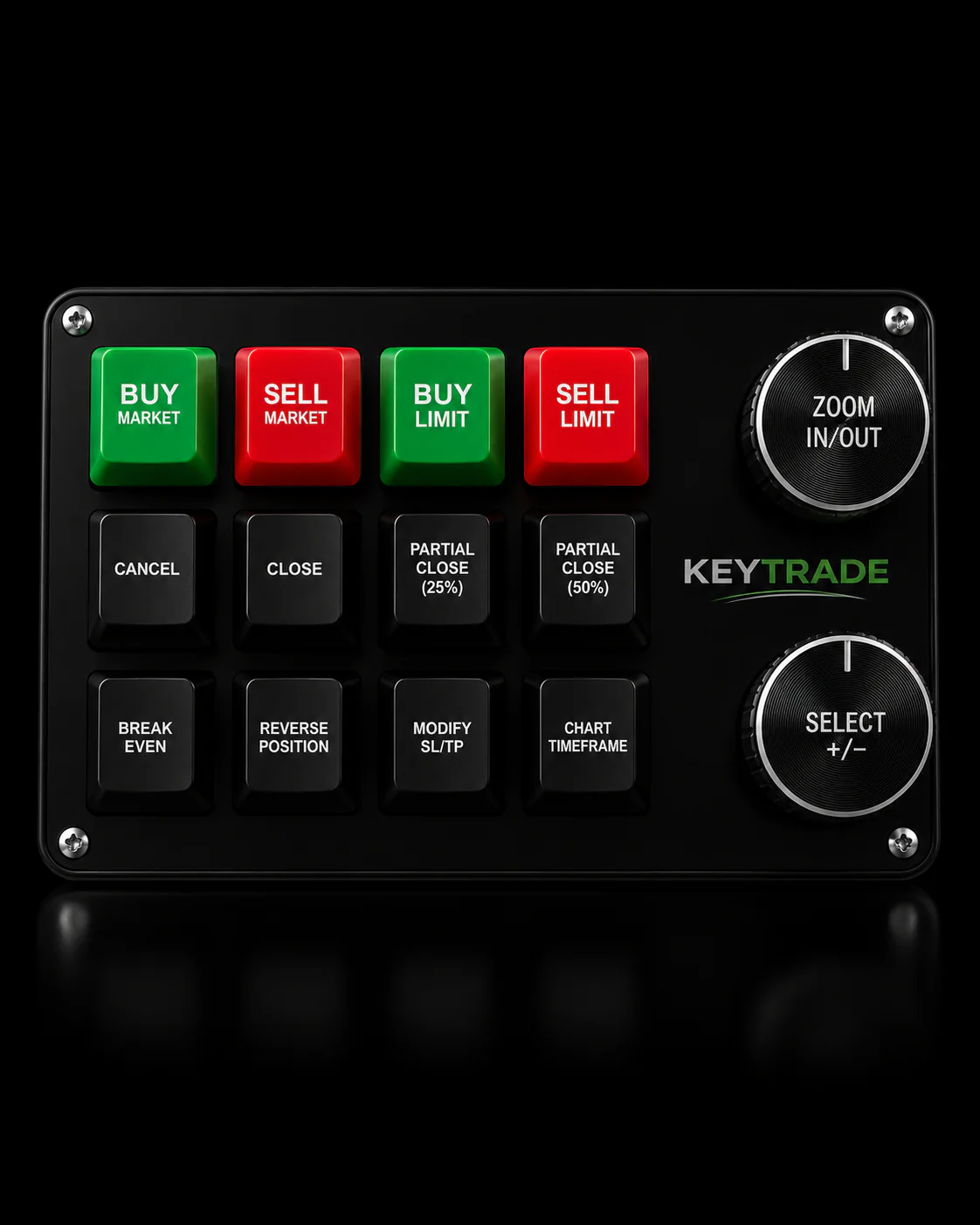
Tactile, labeled buttons also cut fat-finger errors. You feel a distinct click for “Cancel All” versus “Market Buy,” instead of trusting muscle memory on a laptop keyboard where two keys sit a half-inch apart.
Hardware isn’t for everyone. A few rules of thumb on when it earns its keep:
- You place a relatively high number of manual discretionary trades per day.
- You need very fast input response times during fast markets or news releases.
- You manage multiple accounts or symbols and need instant profile switching.
- You’ve had a software hotkey misfire or lag during a live position.
If none of that describes your trading, a keyboard shortcut sheet is probably still fine.
How to Choose a Trading Keypad: The Must-Have Hardware Checklist
Not every macro pad marketed to traders is built for order-flow execution. Some of the popular general-purpose devices, like Stream Deck panels traders repurpose for quick order entry, work reasonably well for basic buy/sell macros but weren’t engineered with execution-critical reliability as the first priority. When you’re evaluating a device meant to sit between you and real capital, run it through this checklist:
- Wired USB-C or USB-A only. Skip Bluetooth or wireless devices for any key tied to order execution. Wireless introduces pairing drops and latency variance you cannot audit.
- Onboard macro memory. The device should store your macros on the hardware itself, not solely in a cloud-synced app that can fail to load on launch.
- Physical profile switching. A dedicated switch or button to flip between symbol, timeframe, or account profiles without touching software.
- Sensible key count and layout. Thumb clusters for high-frequency actions, a clearly separated “danger zone” for cancel and flatten keys, and no more buttons than you’ll actually use.
- Mechanical or tactile switches with legible labeling. You should be able to feel and see the difference between keys without looking down mid-trade.
- Visual feedback and a guarded panic key. An OLED display or backlight confirming the active profile, plus a physically distinct flatten button that resists accidental presses.
- Stable firmware. Ask how updates are delivered and whether the device has a track record of firmware-related freezes.
Pro Tip: Buy the smallest key count that covers your actual workflow. Traders who over-buy keys end up mapping rarely-used actions just to justify the real estate, which adds confusion instead of speed.
Order Flow Hotkey Mappings and Macro Examples You Can Copy
Start simple. Build single-purpose macros first, then layer in chains once each one is proven.
- Market buy / market sell. One key per direction, no confirmation dialog, sized to your default lot.
- Cancel all orders. A dedicated key that clears every working order on the active symbol instantly.
- Close partial position. Program separate keys for 25%, 50%, and 100% position close so you can scale out without typing a quantity.
- Move to break-even (BE). A single key that shifts your stop to entry price once a trade is favorable.
- Chain macro: enter, stop, target. A two or three-step sequence that places the entry order and immediately attaches a stop and profit target in one press. Chained macros of this kind let you manage a full trade lifecycle from a single keystroke instead of three separate actions.
- Panic flatten. Closes every open position and cancels every order across your active account.
For profiles, most active traders run at least three: a symbol profile (futures versus forex button layout), a timeframe profile (scalping keys versus swing keys), and an account profile (live versus prop or simulated). Test every macro independently before chaining it into something bigger. A monolithic macro that tries to enter, size, stop, and target all at once is much harder to debug when one-step misfires. If your macros manage stops or scale-outs, a documented risk management workflow gives you a framework for deciding when break-even and partial-close triggers actually make sense.
Testing Your Hotkeys Before You Trade Live
Never map a macro and go straight to a funded account. Every serious hardware setup goes through simulation first.
- Run each macro in a paper account or simulator a minimum of 50 times and confirm it does exactly what you programmed, every time.
- Roll out gradually: start live trading with two or three macros, such as market entry and panic flatten, before adding the rest.
- Use physical or software safeguards on high-risk macros, like a confirmation step or a guarded key position for anything that touches your full position.
- Keep an execution log of every macro fire during your first weeks live, useful for both self-review and prop firm compliance audits.
This gradual rollout isn’t arbitrary caution. A practical rollout sequence suggests starting with two single-purpose execution macros plus one panic macro, then adding one additional macro only after fifty clean paper executions, repeating until your full daily set is live. It’s slower than mapping everything at once, but it means the first time a macro fails, it’s failing in a simulator instead of on a funded account.
Connecting Your Keypad to TradingView, MT4/5, and SierraChart
Hardware only helps if the platform actually receives the signal cleanly. Work through this checklist for every platform you trade on:
- Check the platform’s policy on external input. Some platforms restrict low-level keystroke injection for security reasons; confirm your device’s input method is supported before you build out macros.
- Create and save a profile per platform and account. Your MT4 mapping should live in its own profile, separate from your TradingView or SierraChart layout.
- Map keys twice. Once in your keypad’s own software, and again inside the platform’s own hotkey settings, so the two systems agree on what each press means.
- Verify account switching works cleanly. Test that flipping profiles actually changes the destination account and not just the visual layout.
- Stress-test under load. Fire your macros while running a backtest or with several charts open to confirm nothing lags under CPU pressure.
- Back up your onboard profiles. Export your macro configurations before any firmware update, so a bad update doesn’t wipe your mappings mid-session.
This checklist mirrors how professional keypad documentation organizes keys into navigation, trading, and value-editing categories, since consistent categorization is what keeps a busy keypad usable instead of confusing under pressure. If your macros place bracket-style exits, it’s worth understanding how bracket orders behave on your specific platform before you wire a chain macro to depend on one.
Why Key-trade Builds Hardware Around the Order-Flow Workflow, Not Around Generic Shortcuts
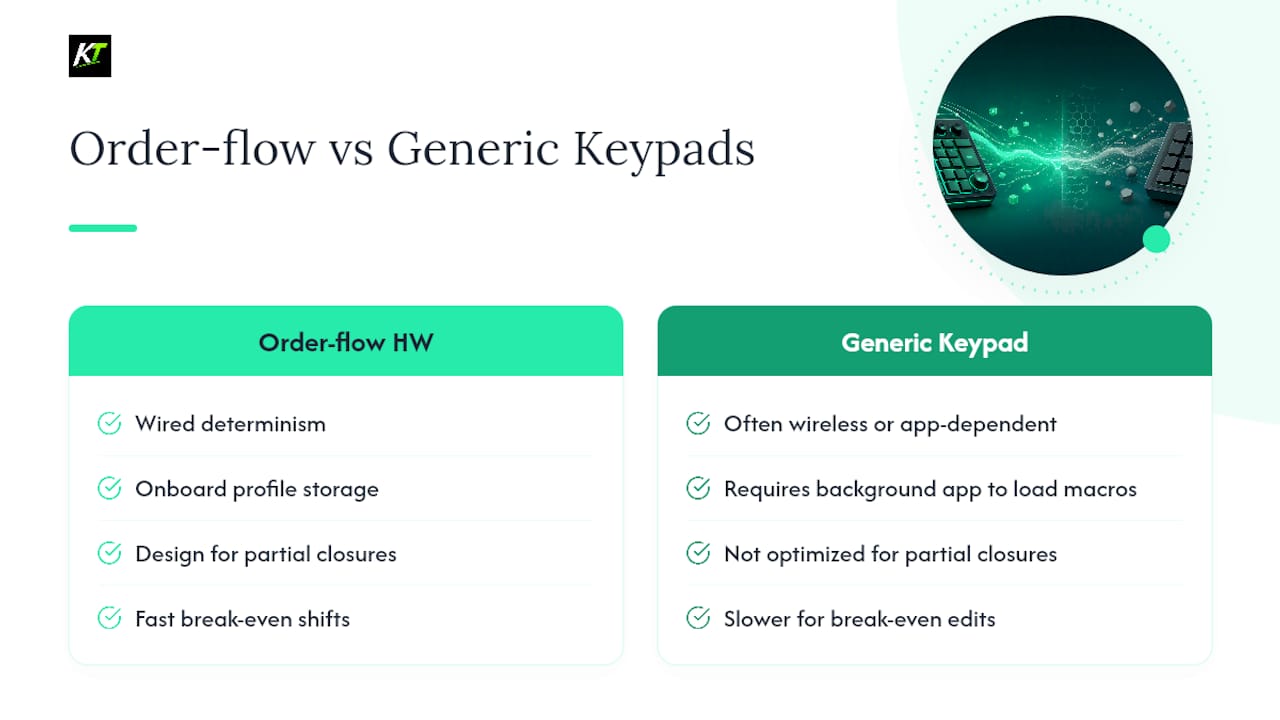
Key-trade starts every design decision from the same question: what happens to this button press during the worst ten seconds of a trading day? That’s why wired determinism and onboard profile storage aren’t optional extras, they’re the baseline. A keypad that depends on a background app to load your macros is a keypad that can fail you exactly when volatility spikes.
Partial closures, break-even shifts, and quick stop-loss or take-profit modification get dedicated attention because these are the actions traders reach for constantly and fumble most often on a standard keyboard. Institutional interest in dedicated trading hardware, including Saxo’s own keypad hardware rollout for select clients, reflects a broader industry recognition that execution speed and reliability deserve purpose-built hardware, not a repurposed gaming accessory.
— key-trade
Get a Trading Keypad Built for Order Flow Execution
Everything covered here, wired reliability, onboard macro memory, physical profile switching, guarded panic keys, is the actual spec sheet Key-trade builds against. A keypad that only handles half of that checklist will leave you patching gaps with software workarounds exactly when you can’t afford the delay.

Key-trade keypads integrate with TradingView, MetaTrader 4 and 5, cTrader, NinjaTrader, SierraChart, Thinkorswim, and Tradovate, with more platforms added regularly. Every device ships with setup guides so you can map your first macros without touching a line of code, and support is available if a platform-specific mapping gives you trouble. Visit the Key-trade device lineup to compare models, check specs against the checklist above, and place an order with worldwide shipping.
Sources
The mapping conventions and safety recommendations in this guide draw on CME Group’s EBS keypad documentation, practitioner guidance on hot key setup and macro chaining, and buyer-focused hardware guidance on choosing a trading keyboard.
- Daytrading
- Stream Deck for Trading (2026): Setup, Tools & Uses
- EBS Keypad quick guide (CME Group)
- Trader Keyboard Guide: How to Choose the Right One
FAQ
What Are Order Flow Hotkeys?
Order flow hotkeys are programmable buttons on a dedicated hardware keypad that execute, modify, or cancel trading orders with a single press, instead of relying on a software keyboard shortcut.
How Many Times Should I Test a Macro Before Trading Live?
Test each macro at least 50 times in a paper account or simulator and confirm it behaves exactly as programmed before using it with real capital.
Do I Need Bluetooth or Wired Connectivity for a Trading Keypad?
Wired USB connections are strongly preferred for execution-critical keys, since wireless devices introduce pairing drops and latency variance that a wired connection avoids.
Which Trading Platforms Work With Hardware Keypads?
Key-trade devices are built to integrate with TradingView, MetaTrader 4 and 5, cTrader, NinjaTrader, SierraChart, Thinkorswim, and Tradovate, with additional platforms added over time.
What Should a Panic Key Do?
A panic or flatten key should close every open position and cancel all working orders across the active account, and it should be physically distinct enough to prevent accidental presses.